Connect data and services
This is where your app comes alive with real data and real services: people signing in, a database that keeps their orders or messages, payments, ads and maps. Nowa sets each one up for you, and you can test requests and queries right in the editor before you build screens around them.
Choose a backend
A backend is where your app's shared data lives, so everyone who uses your app sees the same, up-to-date information. Pick the one that fits:
| Supabase | Firebase | REST API | |
|---|---|---|---|
| Good for | Sign-in, a database and file storage in one place. Stripe builds on it. | Sign-in with Email/Password, Google or Phone, the Cloud Firestore database and push notifications. | Any service with a web API: your own server, a public API or Xano. |
| What you get | Ready-made sign-in functions, query and storage templates, and a panel to test them. | Your Android, iOS and web apps registered in Firebase and set up in your project, plus sign-in functions you pick in Circuit. | A collection per API, with requests you test and turn into models. Import from Swagger, Postman, Xano or cURL. |
| Start here | Connect Supabase, from the Supabase panel in the left sidebar | Connect Firebase, from Settings → Integrations → Firebase | Connect a REST API, from the Api panel in the left sidebar |
Show the data on your screens
A Data Builder loads data from a request, a Supabase function or a Firestore query and shows it in the widgets inside it. It shows a loading widget while it waits and hands those widgets the result as data. See Show data in your UI.
Add sign-in
Nowa supports three ways to sign people in. Choose the one that matches your backend.
| Supabase | Firebase | Google Sign-In | |
|---|---|---|---|
| Sign-in methods | Email and password | Email/Password, Google and Phone | |
| What Nowa adds | Ready-made signUp, signIn and signOut functions in the Supabase panel | Sign-in functions for each provider you turn on | Your Google client IDs and the iPhone setup. It adds no sign-in function or button |
| Good to know | For other Supabase sign-in methods, ask Nowa AI | Turn each provider on in the Firebase console too | Meant for use without Firebase, with a backend that accepts Google sign-in, such as Supabase |
| Guide | Sign users in with Supabase | Sign users in with Firebase | Google Sign-In |
If you keep your data in Supabase, sign users in with Supabase too: your queries then run as the signed-in user, which Row Level Security (Supabase's rules for who may see which rows) and Stripe rely on. For a login screen to start from, use the Authentication Template (see Start from a template). Nowa has no built-in Sign in with Apple for your app (see What Nowa doesn't include).
Add payments, ads, maps and more
Each of these has its own settings page with an Enabled switch, so you turn on only what your app needs. If Firebase handles Google sign-in, the Google Sign-In page shows Managed by Firebase instead.
- Stripe: one-time, consumable and subscription payments. Builds on Supabase.
- RevenueCat: in-app purchases and subscriptions, with a ready-made paywall.
- AdMob: banner and full-screen ads on Android and iOS.
- Google Maps: an interactive map on any screen.
- Google Sign-In: sign-in with Google without Firebase, for example with Supabase.
- Deep links: open your app from a custom URL scheme, or from links on your own domain on Android.
Maps, ads and paywalls come with widgets: Google Maps, Admob Banner and RevenueCat Paywall. If a widget needs an add-on (a package) your project doesn't have yet, Nowa shows Add Missing Dependencies when you add it with Enter or Insert. Click Add. Nowa adds what's missing, then places the widget. Dragging the widget onto a screen doesn't ask: Problems lists the missing package, and Details has a Hot Fix button. See Add a widget that needs a package.
Stripe or RevenueCat?
Both sell things in your app, and they work differently in Nowa.
- Stripe takes card, Apple Pay and Google Pay payments through your Supabase backend. Nowa creates the payment tables, server functions and webhook (how Stripe tells your backend that a payment went through) in your Supabase project, and people must be signed in with Supabase to pay. It covers one-time items from a Supabase table, consumables such as credits, and subscriptions. See Stripe.
- RevenueCat sells in-app purchases and subscriptions on iOS, Android and the web, with a ready-made RevenueCat Paywall widget for iOS and Android. You set up your products in RevenueCat, and Nowa needs only your RevenueCat keys. See RevenueCat.
Apple has rules for selling subscriptions and digital content in an app, and Google Play has its own billing system for them. Before you choose, read App Store Review Guideline 3.1 Payments and Google Play's billing system, then see Follow Apple's rules and Follow Google Play's rules.
What Nowa doesn't include
Nowa has no built-in integration for secure (encrypted) storage, for OneSignal or analytics services, for App Store or Google Play in-app purchases other than through RevenueCat, or for Sign in with Apple in your own app.
You can still add other services. Ask Nowa AI in Agent mode, for example: "Add OneSignal push notifications to my app." It can add the add-on (a package from pub.dev, the shared library of Flutter add-ons) and the code around it. Check Problems afterwards, and Run your app to try it. If you work with code, see Add packages.
Find your settings and keys
Click the gear (Settings) in the top bar, or press Ctrl/Cmd + ,. Under Integrations you find Firebase, Stripe, RevenueCat, AdMob, Google Maps, Google Sign-In and Deep Links. Supabase and REST APIs have their own panels in the left sidebar.
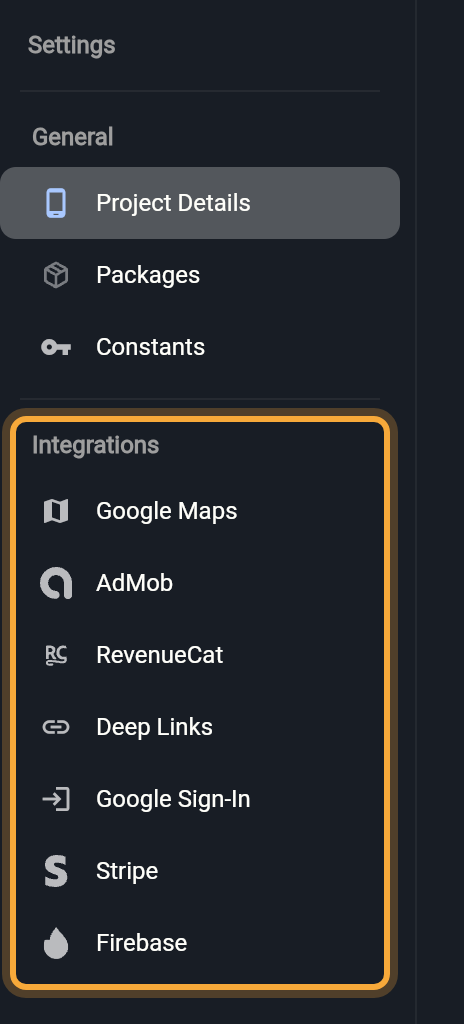
Constants, under General, holds your own values and the keys some integrations use, such as Stripe and RevenueCat. Everything there ships inside your app, so keep server secrets out of it. See Keys and constants.
In Agent mode, paste a cURL command (the one-line example request many API docs show) and ask: "Add a request for this and show the results in a list on the home screen." To let Nowa AI work on your Supabase backend, turn on the Supabase connector first. See Connect Figma and Supabase to Nowa AI.
Next steps
- Preview and test: try your app at every step.
- Get ready to publish: put your app on the web, Android and iOS.
- Build a complete app: follow one app from idea to published.