Tour the editor
The editor is where your app comes together. It's made of a handful of areas that always stay in the same place, so once you know them, you can find anything. Here's what each one does, with a link to the page that covers it in depth.
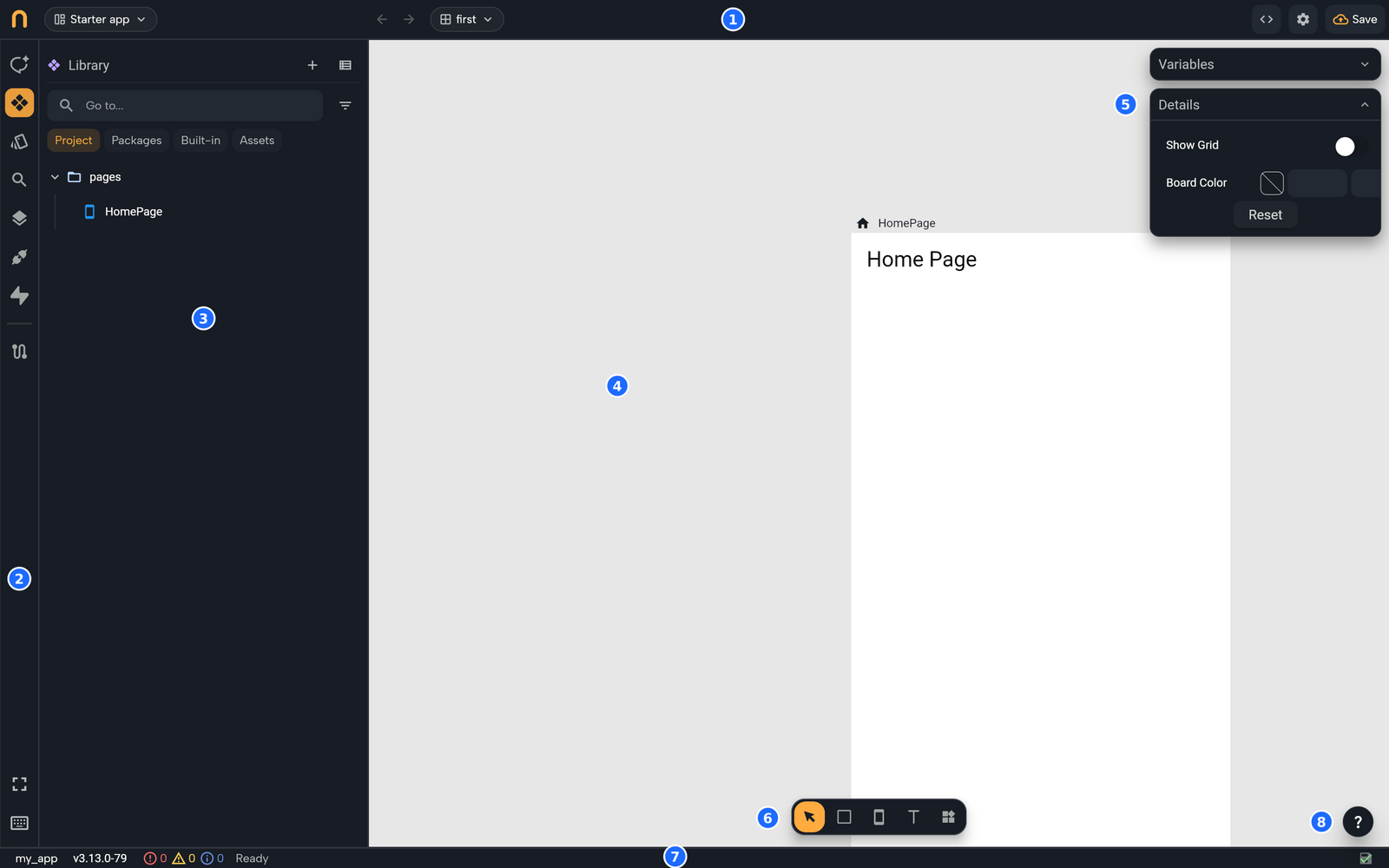
The layout at a glance
- Top bar: where you are, plus the main actions (Run, Deploy, Settings).
- Sidebar: a strip of icons on the left. Each icon opens a panel.
- Side panel: the panel you opened. AI Assistant is open by default, so you can start talking to Nowa AI right away.
- Board: the large area in the middle, where your screens, components and widgets sit.
- Variables and Details: two floating panels at the top right of the board.
- Board toolbar: the tools at the bottom of the board.
- Status bar: the strip along the bottom edge.
- Support button: the round ? at the bottom right.
Top bar
| Control | What it does |
|---|---|
| Nowa logo | Returns to the dashboard. If files are unsaved, Nowa lists them and asks first: Cancel stays, Close leaves without saving, and Save and close saves, then leaves. |
| Starting-point chip | Shown in the playground and in public projects you open as a guest. Switches to another starter app or a template. See Try Nowa without an account. |
| Package chip | Appears only when a project holds several packages (separate parts of the code, as some imported projects have), and picks the one you edit. Most projects never show it. |
| Back and Forward | Two arrows before the Boards chip. They step through the editors you opened, like a browser: Ctrl + - goes back and Ctrl + Shift + - goes forward (the Control key, also on a Mac). An arrow is greyed out when there is nowhere to go, and Nowa keeps your last 50 places. They aren't shown in code mode or while your app runs in the editor, but the keys still work. |
| Boards chip | Shows the current board's name, or Boards when you're not on a board. Click it, or press Ctrl/Cmd + B, to open the list of boards with a Search boards field. Pick one, hover a row for Rename and Delete, or click Create new board. To leave a screen you opened on its own, click Back or pick a board. See Work with boards. |
| Screen or component chip | Appears after the Boards chip when a screen or component is open on its own, and names it. If its file holds several views, click it to switch between them. |
| Upgrade | Shown when your account is on the free plan. See Plans, billing and AI usage. |
| Avatar | Opens your name and plan, General Settings and Logout. See Account settings. |
| Bell | Opens Notifications from Nowa. |
<> | Switches code mode on and off. You don't need it to build your app. See Edit code in Nowa. |
| Gear | Opens Settings, where your app's name, icon and other project details live. See Project settings. |
| Run and Deploy | Run runs your real app (Run your app). Deploy publishes a cloud project (Get ready to publish). In the playground and for guests, Save replaces both. |
Sidebar and panels
Click an icon to open its panel, and click it again to close it. You can also press Ctrl/Cmd plus the number in the table. The playground and public projects you open as a guest have no Git icon, so there the numbers after Search are one lower.
| Icon | What it opens | Number | Learn more |
|---|---|---|---|
| Assistant | AI Assistant: chat with Nowa AI. | 1 | How Nowa AI works |
| Library | Everything you can put on the board: your screens, components, models and more, Nowa's built-in widgets, your packages' widgets and your assets (the images and other files your app uses). Search, add, open and drag them onto the board. | 2 | Find and add things with the Library |
| Themes | Colors, text styles and widget styles for the whole app, so every screen matches. | 3 | Create and edit themes |
| Search | Find text across your project, such as a label you want to reword, and replace it everywhere at once. Symbols finds names, such as a screen's. | 4 | Manage project files |
| Git | Version history with Git, for people who use it: changes, commits and branches. Not in the playground or for guests. | 5 | Use Git |
| Outline | Every widget on the board in a tree, nested the way they sit inside each other. Handy for selecting a small or hidden widget. On a screen open on its own, it floats at the top left of the screen instead and this icon is hidden. | 6 | Use the Outline |
| Api | Your connections to online services (REST APIs) and the requests your app sends them. | 7 | Connect a REST API |
| Supabase | Connect and manage your Supabase backend: sign-in, database and storage. | 8 | Connect Supabase |
| Router | Below a divider. Opens your app's routes, the paths that open your screens, and lets you choose the screen people start on. | none | Set up routes in the Router panel |
In code mode, Files (the folder icon) takes the Library's place: second in the strip, and also Ctrl/Cmd + 2. It shows the whole project. See Manage project files.
At the bottom of the strip, Shortcuts (Ctrl/Cmd + .) opens a cheat sheet, and Enter Fullscreen appears in the web app only. It reads Exit Fullscreen while the editor is fullscreen. See Keyboard shortcuts for the full list.
Board and toolbar
The board holds your screens, components and loose widgets side by side, so you can see your whole app at once. Scroll to pan. Hold Ctrl/Cmd and scroll, or pinch, to zoom. Select something and press F to zoom to it.
Each screen and component has a title bar. Point at it to get Play, which lets you tap through the screen right on the board, and Open in new tab. The home screen has a home icon.
| Tool | Key | What it does |
|---|---|---|
| Select tool | V | Select and move things. |
| Shape | R | Draws a box (a Container). |
| Screen | Creates a screen from a template. Not shown while a screen is open on its own. | |
| Text | T | Places a text. |
| Widget | Ctrl/Cmd + K | Opens the Library with its search ready to add a widget. |
See Add widgets and Select, move and resize.
Details and Variables
Details shows the settings of whatever you select: its position and size under Layout, then the widget's own settings, such as a text's words or a button's color. With nothing selected, it shows board settings: Show Grid, Board Color and Reset. See Change widget properties.
Variables is collapsed until you click it. It lists what the selected screen or component knows and does:
- Params: values it receives from outside, such as the recipe a detail screen should show.
- Variables: values it remembers while it's open, such as the number of items in a cart.
- Functions: named sets of steps it can run, such as "add to cart".
With nothing selected, it shows Globals: your app's global states, the data every screen can use. See Store data in variables and Share data across your app.
Both panels hide when the board area is narrower than 600 px. Widen the window or close the side panel to bring them back.
Circuit, where logic lives
Circuit is where you decide what your app does, for example what happens when someone taps Add to cart. Instead of writing code, you stack steps one under the other, and they run from top to bottom.
Circuit opens as a floating panel. The usual way in is an event: select a button, then in Details click the button next to an event such as On Pressed. It reads + or Edit, and either one opens Circuit. You can also open a function from the Variables panel.
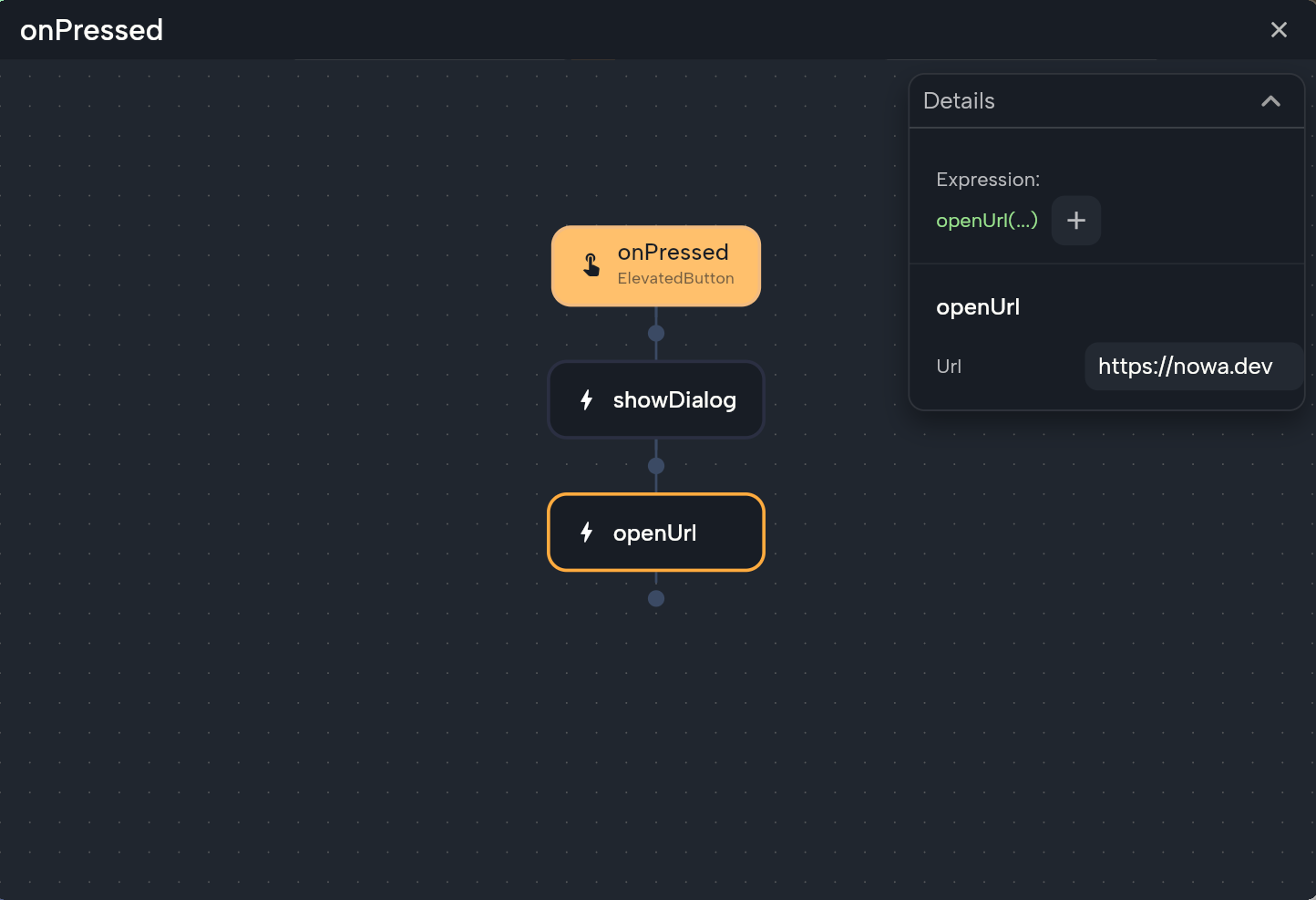
Logic that Nowa AI builds in Agent mode lands in the same events and functions, so you can open most of it in Circuit to check the steps and adjust them. A few kinds of steps, such as some loops, can't be shown there. See Build logic in Circuit.
Status bar and Console
From left to right, the status bar shows:
- The project name. Click it to see and copy the project ID.
- The Nowa version.
- Counts of errors, warnings and info messages. Click them to open the Console on Problems.
- The latest log line, or Ready. Click it to open the Console on Logs.
- Loading progress while files load, and the Git branch with its ahead and behind counts, for projects with Git version history (new projects have it from the start).
- The Save button. Click it for Save options: Auto save, Save every (10 seconds, 20 seconds, 30 seconds, 1 minute or 5 minutes) and Save now.
Problems lists issues Nowa finds in your project, with a Fix button for some, so it's the first place to look when something doesn't work. Logs shows messages from Nowa and from your running app. See Find and fix problems.
Resize and close panels
- Side panel: drag the divider between it and the board to resize it. Click its sidebar icon again to close it.
- Bottom panel: an API request, a Supabase function test and a Git commit's details open in a panel docked below the board. Drag its top divider to resize it, and click × to close it.
- Floating panels: the Console and Action History (see Undo and redo) float over the editor. Drag the title bar to move one, drag an edge or corner to resize it, and click × to close it.
Help, settings and code mode
- Help: the ? button opens the support panel with Your tickets, Report an issue, Chat with support, Documentation, YouTube Channel and Hire an Expert. If you're stuck, the Nowa team is a click away. See Get help.
- Settings: the gear (or Ctrl/Cmd + ,) opens Settings over the editor, with General pages such as Project Details, Packages and Constants, and Integrations pages. Click Back to return.
- Code mode:
<>switches to a code editor. The Files panel opens with the whole project tree in place of the Library, and each file you open gets a tab. Click Back to return to the board. It's there for you or a developer who wants to see the code, and you can build a whole app without it.
In code mode and in Settings, Back at the top left leaves that view. It isn't the Back arrow before the Boards chip, which steps through the editors you opened.
The welcome tour
Welcome to Nowa! appears over a new project until you finish or skip the tour once. Click Take the quick tour for seven short tooltips, or Close to skip it. It doesn't come back for your account after that.
| Tour step | What it points to |
|---|---|
| The Design Board | The board. |
| Create Screen | The Screen tool. |
| Widget Palette | The Widget tool. |
| AI Agent | The Assistant icon. |
| Run your app | The Run button. |
| Data Sources | The Api and Supabase icons. |
| Screens & Components | The Library icon. |
Use Next, Back or Skip while you tour. On the last tooltip, Next reads Got it! At the end, You're all set! offers Explore more features (three more steps: Git, Project Settings and Themes) or Start building.
When nothing is open
If you close everything, or open a project in safe mode (an option on the dashboard for a project that freezes when it opens), the workspace says Nothing is open. Click Open board, Browse widgets or Open code mode to continue. Browse widgets opens the Library.
Next steps
- Build your first app: put the editor to work.
- How designing works: boards, screens, widgets and themes.
- Keyboard shortcuts: every key in one place.
- Glossary: what each Nowa term means.