Store data in variables
A variable is a value your screen or component remembers while it's open: the number in a counter, the name someone typed, the products in a list, whether something is still loading. Widgets can show it and your logic can change it, which is how a screen reacts to what people do.
Some variables never show up on screen at all. A true/false value such as isFirstVisit can decide which branch of an If runs.
Each variable belongs to its screen or component, and other screens can't see it. When several screens need the same value, such as a shopping cart, keep it in a global state instead.
What variables are good for
| Variable | Type | What it does |
|---|---|---|
isLoading | bool (true or false) | Shows a loading spinner while data arrives, then hides it. |
searchText | String (text) | Holds what someone typed in a search box, so you can filter a list with it. |
quantity | int (whole number) | Counts how many of a product go into the order. |
tasks | A list of Task, one of your models | Keeps the to-dos the screen lists. |
Open the Variables panel
The Variables panel lists what the selected screen or component keeps: Params (values passed in from outside), Variables (values it remembers) and Functions (reusable logic).
- Select a screen or component (click its title on the board), or select any widget inside it.
- Click Variables at the top right, above Details. The panel starts collapsed, so this opens it.
The panel shows the screen's name, then the three sections. Hover a section title to reveal its + button. With nothing selected, the panel shows Globals instead: see Share data across your app. The panel is part of the visual editor, so it isn't shown in code mode.
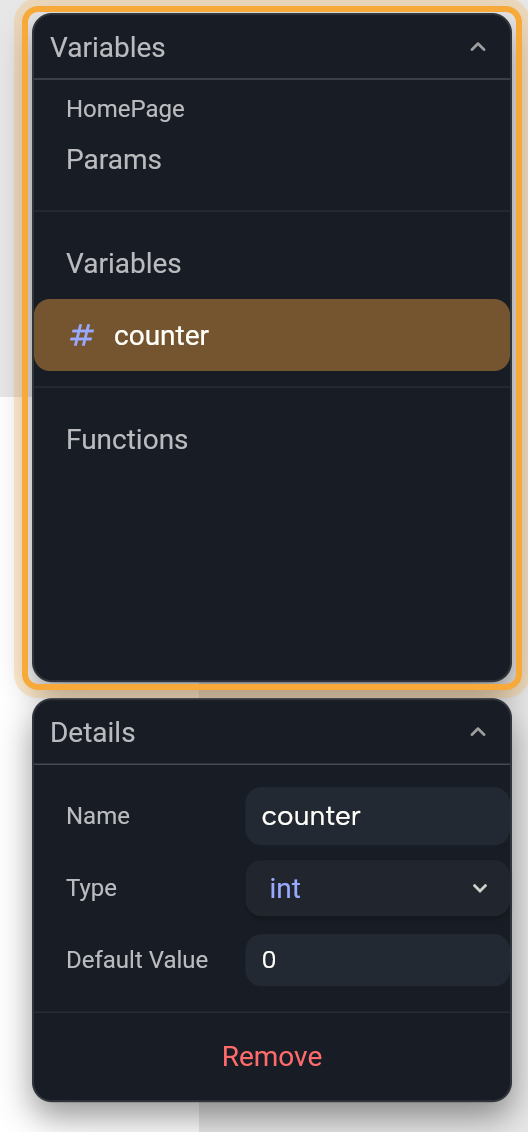
Add a variable
- Select the screen or component and expand Variables.
- Hover the Variables section title and click +. A new variable appears, selected. Nowa names the first one
var1. - In Details, type a name in Name and press Enter. Pick a name that says what it holds, such as
counter. The list opens a name field too, but there the letters t, r, v and f can trigger board shortcuts instead of typing, so Details is the safer place. - In Details, choose the Type and set the Default Value.
The Default Value is what the variable holds when the screen opens. The board shows it too, so you can preview your design with real-looking data before anything runs.
A name can use letters, numbers, _ and $, and it can't start with a number. Nowa shows an error if the name is already taken, is a reserved word, or has characters that aren't allowed.
Choose a type
The type says what kind of value the variable holds, so Nowa knows which widgets can show it. Click the variable's type icon in the list, or Type in Details. The Select type picker opens with a search box and the basic types:
| Type | Holds | For example |
|---|---|---|
String | Text | A name, an email address, "Hello" |
int | Whole numbers | 3, -10, a number of items |
double | Numbers with decimals | 4.5, a price |
bool | True or false | Whether a switch is on |
Color | A color | A highlight color that changes |
Widget | A piece of UI | Content you swap in and out |
- Click show more... to see more types, such as
DateTime(a date and time) and your own models. Type in the search box to find one by name. - To store a list, tick As List first, then pick the type of the items. A list of text is
Stringwith As List ticked.
Variables you create here can be empty. Give them a Default Value so your widgets always have something to show. For a list, the Default Value field shows the number of items. Change the number or click + to add one, drag an item to reorder it, and click Load More to see items past the first ten.
If you change the type later, Nowa keeps the default value when it still fits and replaces it with a fresh default when it doesn't.
Show a variable in a widget
Linking a widget to a variable means the widget always shows the variable's current value.
- Select the widget and find the property in Details, for example the text of a text widget.
- Click the property's label. The Link menu opens.
- Under LOCALS, click your variable. The label now shows the variable's name, and the widget shows its value.
The variable's type has to fit the property: a text property takes a String, a switch takes a bool. If you pick a value of another type, the menu shows what's inside it so you can reach one that fits. For example, to show a number as text, click your number variable, then pick toString in the list that follows. The + after a linked value shows what's inside it too (see Reach deeper with +).
To mix a variable into text, type $ in the text field and pick the variable. A text such as Hello ${name} shows "Hello" followed by the value of name. The expressions page covers the Link menu in full.
You can also start from the widget. Click the property's label and choose Create Variable.... Nowa creates a variable of the right type, links it, and starts it with the property's current value when that is a fixed value. If the property was never set and only shows its default, the variable's Default Value starts empty: select the variable and type one.
Change a variable from logic
A variable only changes when your logic changes it. Here's how to make a counter go up each time a button is pressed.
- Open the logic. For a button, click Edit next to On Pressed in Details. Circuit opens: see Respond to taps and other events.
- Hover the dot under the top node until it becomes +, then click it. The All nodes for this circuit menu opens.
- Open LOCALS, near the end of the list, and click your variable. A node is added and selected.
- In the Details panel inside Circuit, click the button named Set plus your variable's name (for example Set counter). The button turns into a Value field, where you say what the new value is: type one, or click the label to link a variable or a calculation.
- Add one more node: LOCALS → refresh. The screen redraws, and every widget linked to the variable shows the new value.
For the counter, the new value is a calculation. Click the Value label and choose EXPRESSIONS → Math. In the popup, set Type to int first, choose plus as the Operator, link Left side to counter and type 1 in Right side. The picture below shows the finished steps.
Don't skip refresh. Without it, the value changes but the screen keeps showing the old one, because screen and component variables don't redraw on their own.
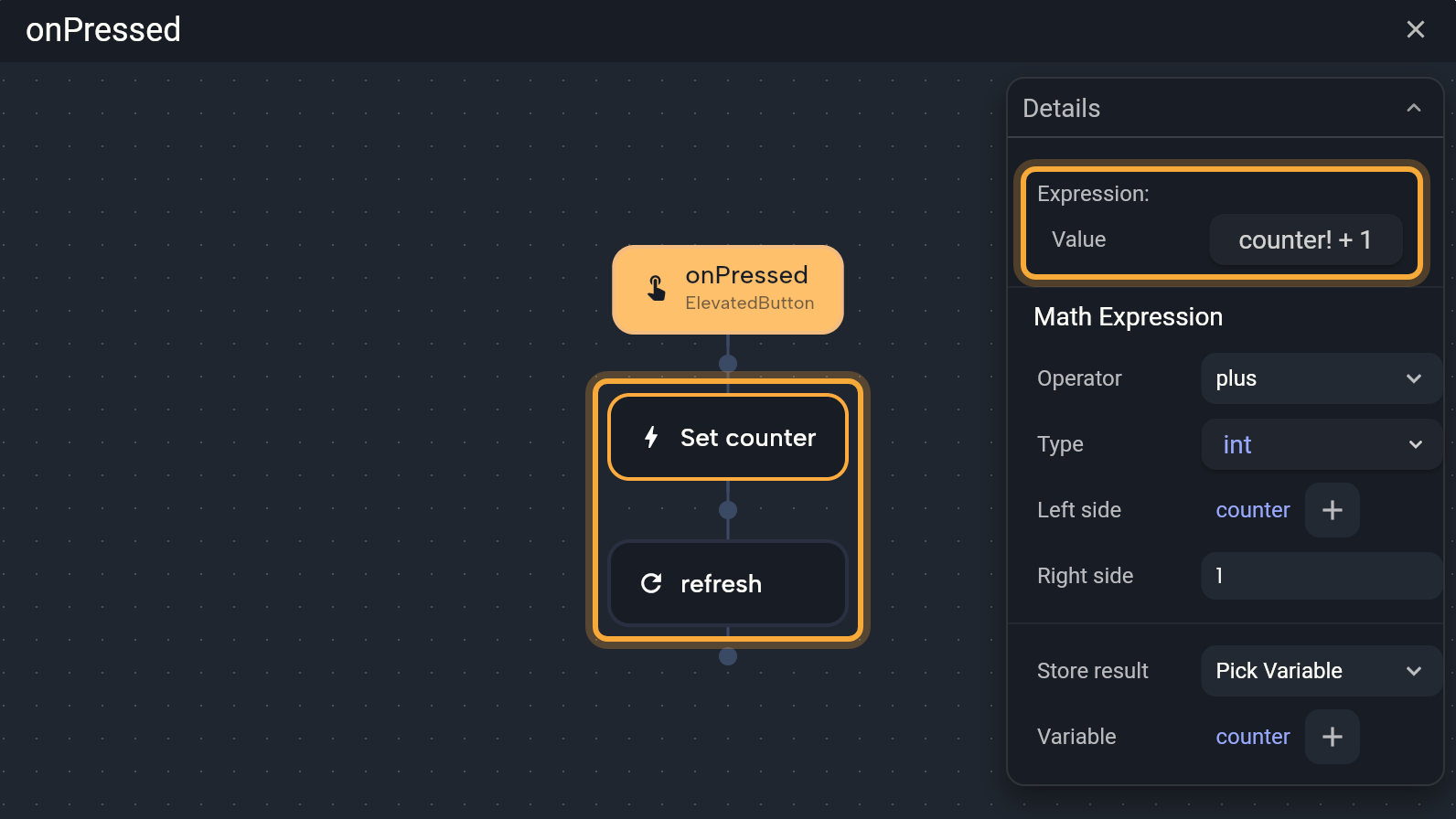
Any node that returns a value can also write its result into a variable. Select the node, set Store result to Pick Variable, and choose the variable. That's handy for keeping a picked date or an answer from the internet.
Use a variable inside one function only
A local variable lives only while a function runs, then it's gone. It's useful for holding a value between two steps, such as a total you work out and then show in a message.
- In Circuit, click Create Local Variable in the All nodes for this circuit menu. In Details, set its Name, Type and Is Final (on means its value can't change once it's set).
- Or set Store result to New Variable on a node that returns a value.
Later nodes find local variables under LOCALS. See Build logic in Circuit.
Rename, retype or remove a variable
- Rename: select the variable, edit Name in Details and press Enter. Nowa updates every place that uses it. Double-clicking the variable in the list also starts a rename, but there the letters t, r, v and f can trigger board shortcuts instead of typing.
- Change the type: click the type icon next to the variable, or use Type in Details.
- Remove: right-click the variable and choose Remove, or select it and click Remove at the bottom of Details. If something uses the variable, Nowa lists those places in a dialog that says the variable "is in use", so you can see what would be affected. Click Remove to go ahead or Cancel to keep it.
Try: "Add a counter to the Home screen that goes up by one each time the button is pressed." Then select the screen and open Variables to see what Nowa AI created. See How Nowa AI works.
Next steps
- Pass data with parameters to send values into a screen or component.
- Share data across your app when several screens need the same value.
- Data models to group related values into one type.
- Create functions to reuse logic.