Make decisions, handle errors and repeat steps
Most logic is a simple list of steps that run one after another. Now and then your app has to do more: choose what to do (show a message only when the cart is empty), cope with something going wrong (say so when the products can't load), or repeat a step for every item in a list. Circuit has an If node for decisions and a Try node for errors, and it can show loops that Nowa AI writes for you.
You add these nodes like any other step: click the dot under a node and pick from the menu. If Circuit is new to you, start with Build logic in Circuit.
Branch with If
An If lets your app make a decision. It asks a yes-or-no question, the condition, and runs one set of steps when the answer is yes (True) and another when it's no (False). Is the user signed in? Is the cart empty? Has the user reached today's goal?
- Click a dot and choose Add If statement. An If Statement node appears with a True branch on the right and a False branch on the left.
- In Details, set the Condition, as described below.
- Click the dot in the True branch and in the False branch to add what happens in each. A branch can stay empty when nothing should happen.
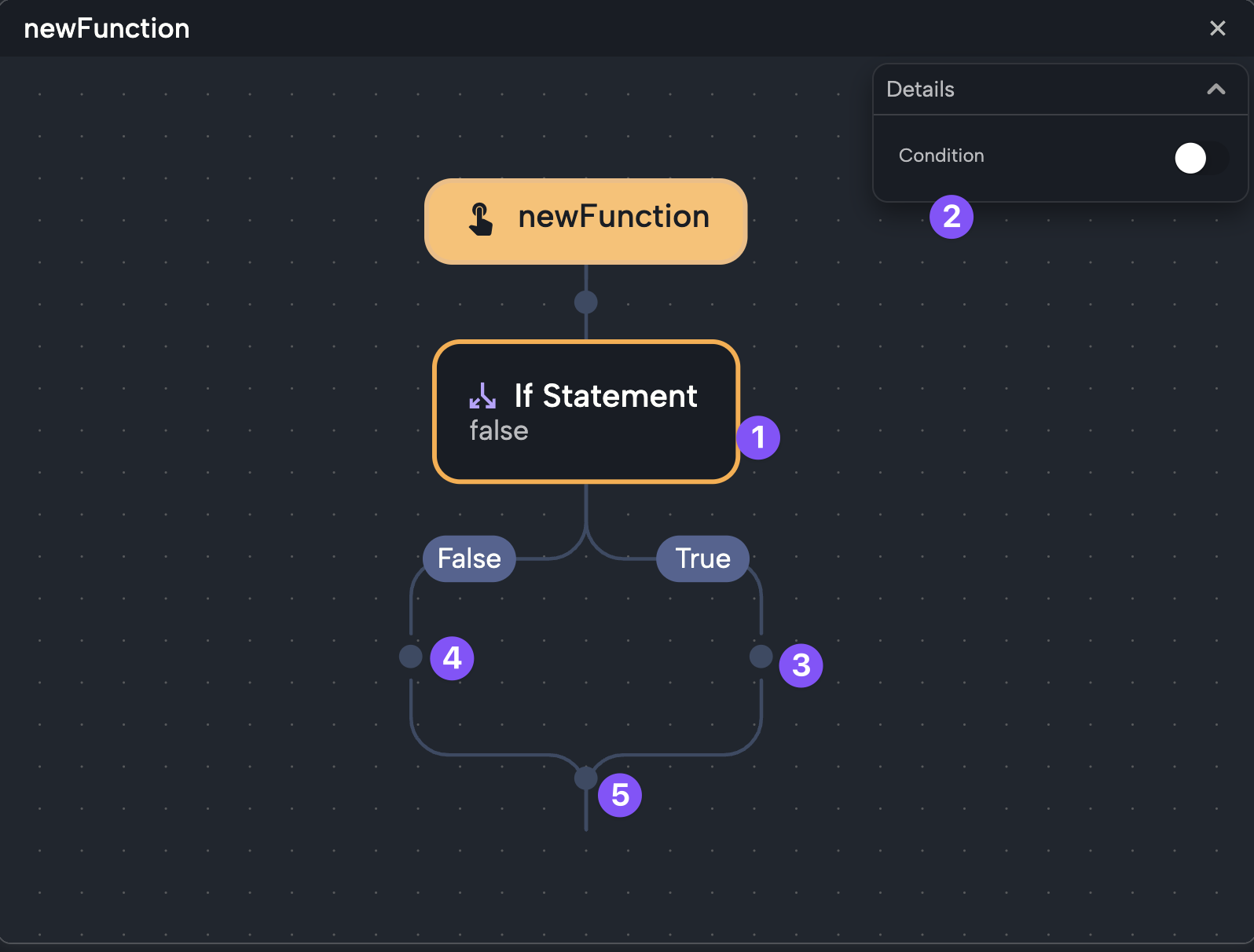
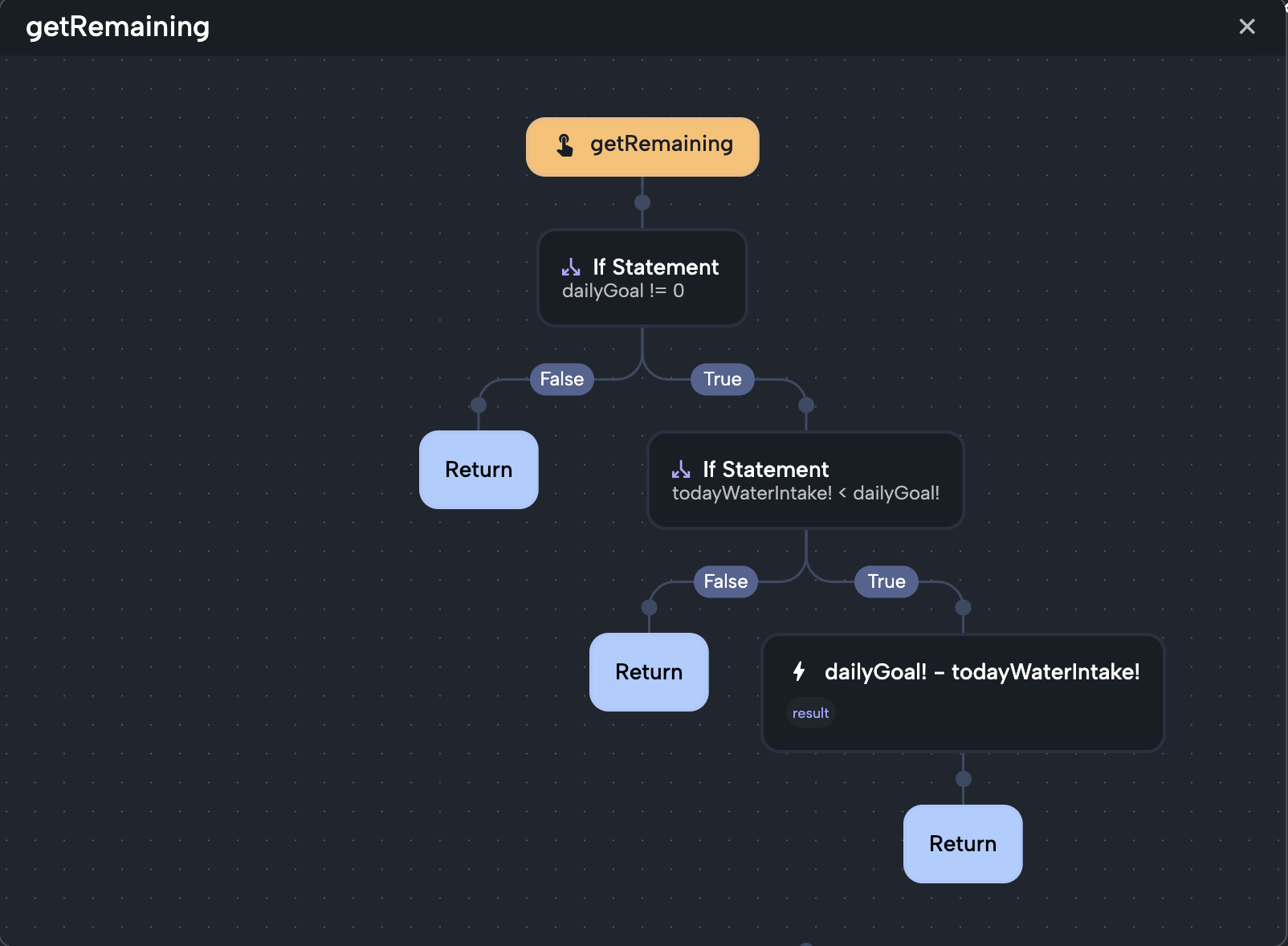
Steps below the If node run afterwards, whichever branch ran, unless that branch ends with a Return. For more than two outcomes, put another If inside a branch, or use a Conditional expression. There's no "else if" or switch node.
Set the condition
The Condition starts as a switch that's on, so the True branch always runs. Switch it off and the False branch always runs, which is handy for trying out each branch while you build. To make a real decision, click the Condition label and link it to something that's true or false:
- A true/false variable or param of the screen or component, under LOCALS, such as
isLoading. Create Variable... makes a new true/false variable and links it in one go. - A value from a global state: under GLOBALS, click the global state, then the true/false value, such as whether someone is signed in.
- A function that answers true or false: one of yours under LOCALS, or a global state's function (GLOBALS, the global state, then the function in the list that opens). It runs when the flow reaches the If, and its answer picks the branch.
- A comparison from OPERATORS, such as
greaterThanorequal, or checkPlatform under GLOBALS to check where the app runs. - Custom Expression... to type the condition, or Compute... to work it out in a function of its own when it needs several steps. See Expressions and conditions.
For example, to celebrate when someone reaches their water goal for the day: click Condition, open OPERATORS and choose greaterThanOrEqual ("is at least"). The Condition now shows a formula: click it to open its popup. Set Type to int first (changing it resets both sides), link Left side to your totalToday variable, and type 1400 in Right side. Then add a Show snackbar to the True branch. Typed as a Custom Expression..., the same condition is totalToday >= 1400.
Handle errors with Try
Some steps can fail for reasons outside your control: an internet request fails when the phone is offline, a saved value is missing, or a calculation breaks when someone types letters where a number belongs. A failure like this is called an error (or exception). Without a plan for it, your app stops what it was doing and the person using it gets no explanation.
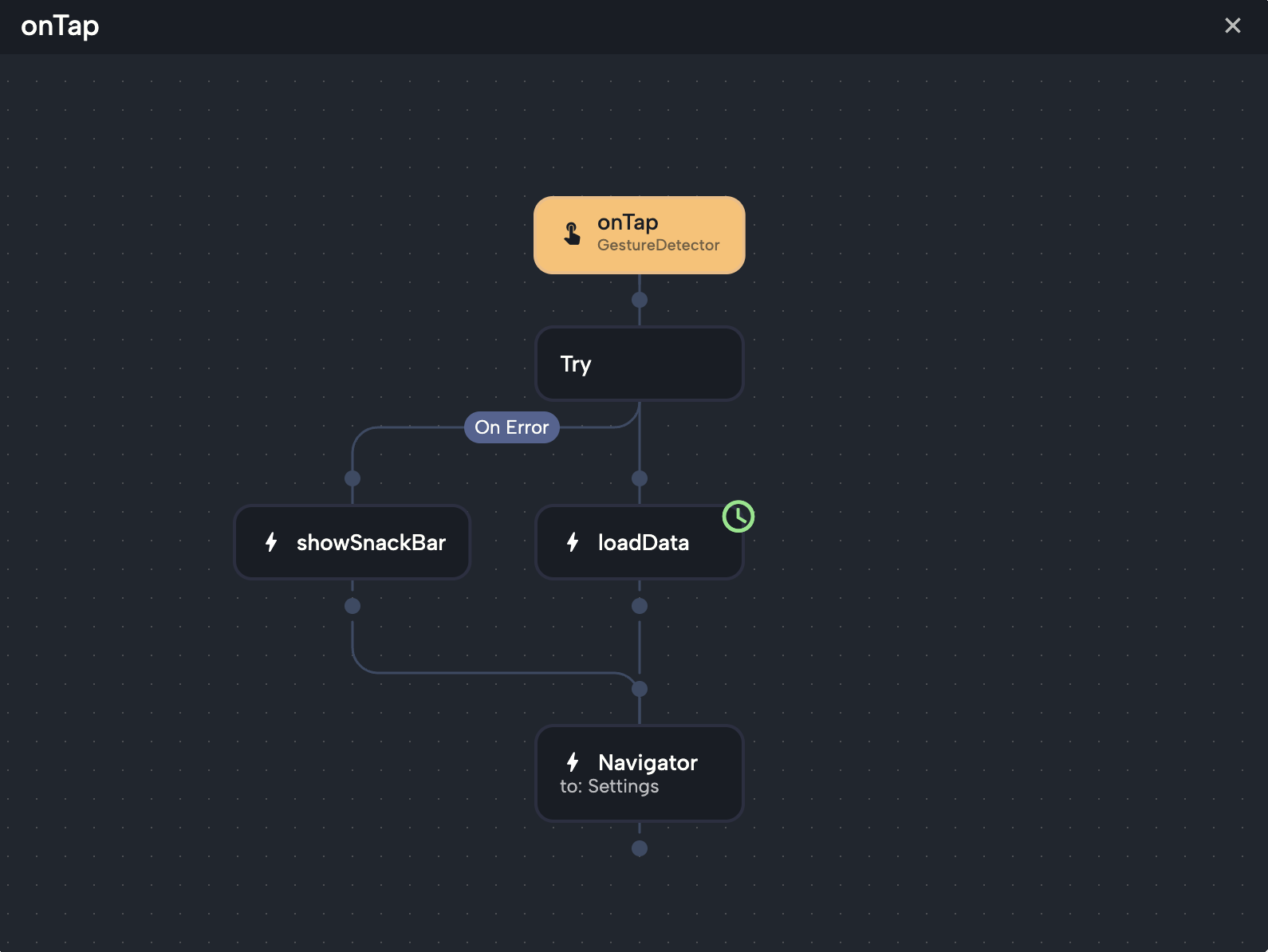
A Try node is that plan: try these steps, and if one of them fails, run the On Error branch instead.
- Click a dot and choose Add Try statement. A Try node appears, with its On Error branch on the left.
- Add the steps that might fail directly under the Try node. If they all work, the On Error branch is skipped.
- Click the dot in the On Error branch and add the fallback. If a step fails, the steps after it are skipped and this branch runs.
- In Details, Error name sets the name of the variable that holds the error. It's
errorby default, and you find it under LOCALS in the On Error branch.
Steps below the whole Try run afterwards, whether there was an error or not, unless the branch that ran ends with a Return. There's one On Error branch, and it catches any error.
Good things to put in On Error:
- Show snackbar (GLOBALS) with a friendly message. See Show a snackbar.
- A dialog or a bottom sheet: MATERIAL →
showDialogorshowModalBottomSheet(Show dialogs, sheets, snackbars and pickers). - Steps that tidy up, such as setting
isLoadingback to false, or sending people to another screen. print(DART:CORE) with${error}in its message (type$and pickerror), to read the details in the logs while you test (Write to the logs).
Example: load products, and say so if it fails
- In the event or function that loads your data, add a Try node.
- Under it, add the step that calls your service, such as a request from your REST API collection (Use a request in your app). Turn on await for it under Future Options (see Wait for a result), and set Store result to keep the reply.
- In the On Error branch, add Show snackbar with a message for your users, such as "We couldn't load the products. Please try again."
Keep await on for steps inside a Try: a step that finishes later reports its failure to the Try only when the function waits for it. A step that uses onValue and onError handles its own failures in onError instead.
Loops
A loop repeats steps, for example once for every item in a cart. Circuit has no node for adding one, so the easiest way is to ask Nowa AI in Agent mode: "In the checkout function, use forEach to add up the price of every item in cartItems and store it in total." Then open the function in Circuit to see what it built, and try it with Play.
To go through a list without a loop, click + after the list and pick one of its functions, such as forEach (runs steps for each item).
A while loop (it repeats its steps as long as a condition is true), written in code or by Nowa AI, shows as a While node with a True branch and a Condition, and you edit it like an If. Circuit can't draw other kinds of loops, such as a for loop, so ask Nowa AI to use forEach or while when you want to keep editing the function in Circuit.
Next steps
- Build logic in Circuit: add, move and connect the other steps.
- Expressions and conditions: write the yes-or-no questions an If asks.
- Show dialogs, sheets, snackbars and pickers: tell people what happened.