How designing works
In Nowa you design on a board: one big, free-form space where your screens sit side by side. Click anything to change it, drag to rearrange, and let Nowa AI build alongside you. Your screens and components become part of a real app that you own.
How the pieces fit
A board holds board items. A board item is a screen, a component or a loose widget. Each screen and component is made of widgets, the building blocks of your app, nested inside each other: a card holds a picture and a title, a screen holds the cards.
| Piece | What it is | In your app |
|---|---|---|
| Board | A free-form design space. A project can have many. | Not part of your app. It's your workspace. |
| Screen | One page of your app, such as Home or Settings. | A page people can open. |
| Component | A widget you build once and reuse on many screens, such as a recipe card. | Part of every screen that uses it. |
| Loose widget | Any widget you drop straight onto the board, such as a shape. | Nothing yet, until you place it inside a screen. |
| Widget | A building block inside a screen or component: a Text, a Button, a Column. | Part of the screen or component it sits in. |
Screens and components have a title bar above them with their name. Hover it to see Play and Open in new tab. A loose widget has no title bar, which is a quick way to tell it apart.
The tools you work with
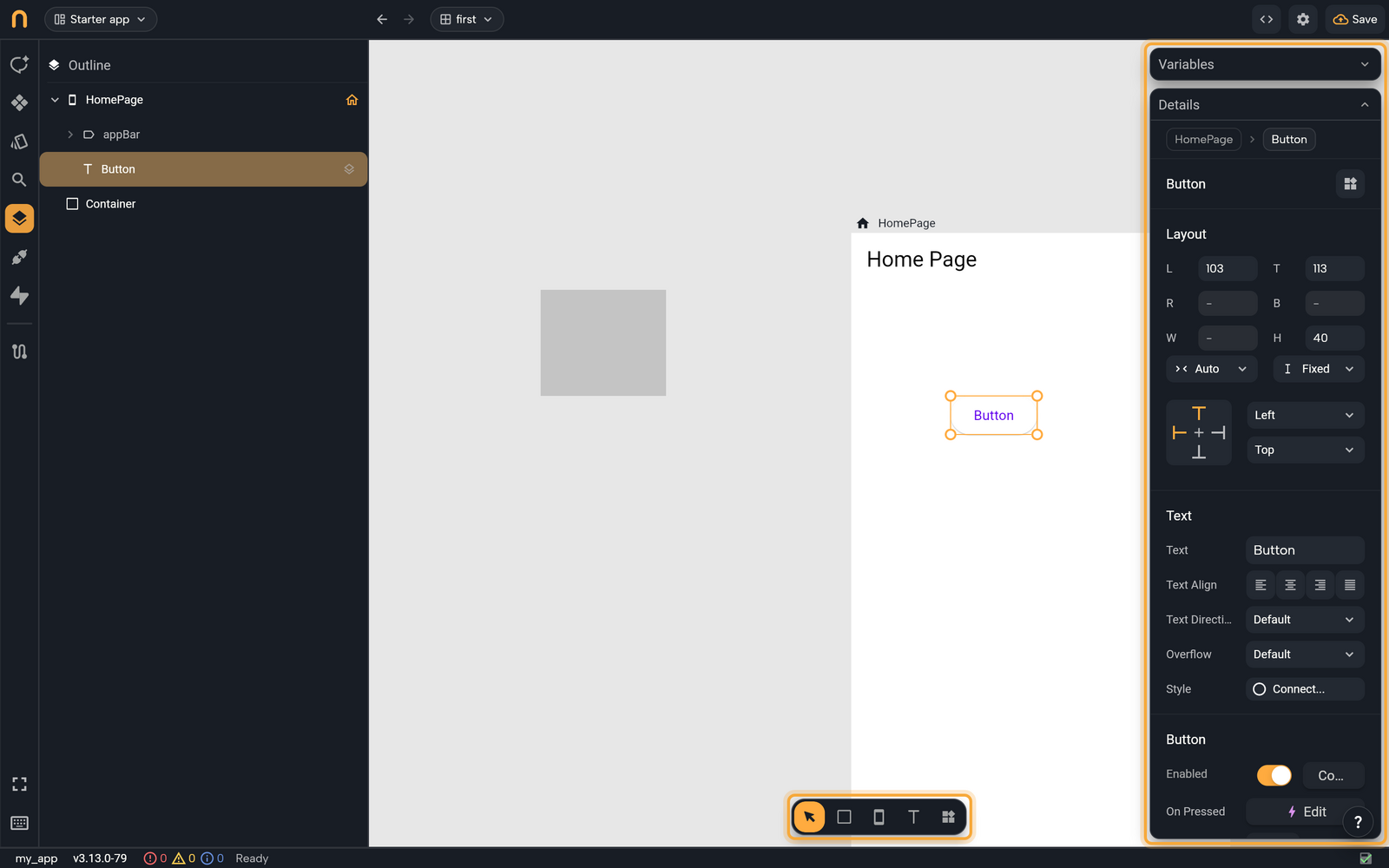
| Where | What it does |
|---|---|
| Library panel, left sidebar | Lists your screens and components, Nowa's built-in widgets, your packages and your assets. Search it, or drag a row onto the board. See Find and add things with the Library. |
| Outline panel, left sidebar | Shows how the widgets nest inside each other, so you can jump to any widget, even one that's hidden or hard to click. |
| Toolbar, bottom of the board | Select tool, Shape, Screen, Text and Widget. |
| Details, top right | The settings of whatever is selected: its color, size, text and more. With nothing selected, it shows the board's color and grid. |
| Variables, above Details | The values the selected screen or component receives and remembers, and the actions it can run (its params, variables and functions). With nothing selected, it shows Globals: data every screen of your app can use. |
The board is part of the desktop-width layout. On a phone-sized window Nowa shows a simpler view without a board, described in Use Nowa on your phone.
Design with Nowa AI and by hand
The AI Assistant panel is open next to the board when you open a project. Describe a screen and Nowa AI builds it. When it creates a screen, it places it on your board, so you see the result right away. Then refine by hand: select a widget and change it in Details.
The two work well together. The widget you select on the board is attached to your next message automatically, so you can point at exactly what you want changed. See Give Nowa AI context.
Try "Create a Home screen with a search bar and a list of recipes." Then select the search bar on the board and adjust it yourself.
Try it as you go
Hover a screen's title and click Play to tap through it right on the board. It's the quickest way to check a flow while you design. See Play your app on the board.
What's in this section
Set up the board and its parts:
- Work with boards: create and switch boards, set the color and grid, move around.
- Create and set up screens: templates, app bar, route and home screen.
- Build reusable components: build once, use everywhere.
Build a screen:
- Find and add things with the Library: search, filter and manage everything you can add.
- Add widgets: the Library search, tools, drag and drop, paste.
- Select, move and resize: selection, snapping, copy, group, reorder, undo.
- Use the Outline: the widget tree.
- Change widget properties: the Details panel.
- Lay out widgets: rows, columns, stacks and sizing.
- Design for every screen size: one layout that fits phones, tablets and browsers.
Set up common widgets:
- Lists and grids: repeat one item design for every entry in a list.
- Text fields and forms: add a text field and check what people type.
- Navigation bars and screen parts: add an app bar, drawer, floating button and bottom navigation bar.
- Images, video and web content: show pictures, video, animations and web pages.
- Widget catalog: every built-in widget and what it needs.
Style your app:
- Create and edit themes and Use theme colors and text styles
- Images, videos and other files
- Fonts and icons
- Start from a template
- Languages and right-to-left text
Next steps
- How logic works: make your design react to taps, remember values and move between screens.
- Build a great app: a complete walkthrough and tips for design, Nowa AI, data and shipping.