Find and add things with the Library
The Library is one panel for everything you can put on your board: your own screens and components, Nowa's built-in widgets, the widgets your packages bring, and your images and other files. Search it, drag a row onto the board, or press Enter to drop a widget where your pointer last was. It's also where you rename, organize and delete your screens and components.
Open the Library
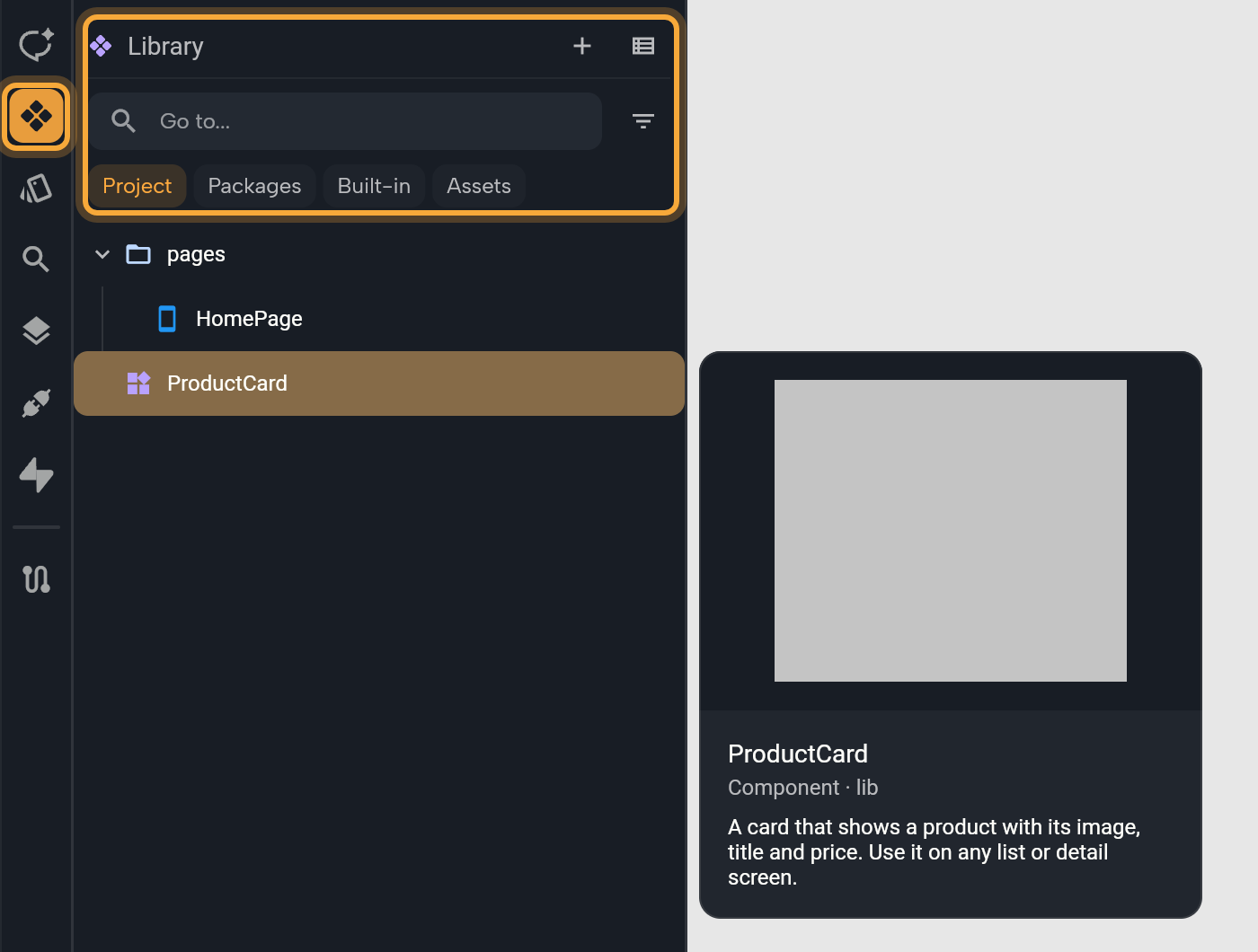
Click Library, the second icon in the left sidebar, or press Ctrl/Cmd + 2. The panel has a header with Add (+) and a Show as a list or Show as a tree button, a search field with Filter, four source chips and the rows.
In code mode, Files takes the Library's place (see Manage project files). A phone-sized window has no Library (see the phone layout).
Choose where to look
The chips Project, Packages, Built-in and Assets turn sources on and off. Only Project is on at first, so you see your own work, and at least one chip always stays on.
| Chip | What it lists |
|---|---|
| Project | Your screens and components, in folders such as pages. A red number counts the errors in a row or folder. Named versions of a component that were set up in code sit under it. |
| Packages | The packages your project uses (add-ons that bring extra widgets and features), with their versions, and the widgets they bring. See Add packages. |
| Built-in | Nowa's own widgets in groups such as Basic, Buttons and Layout, then Flutter's libraries, with Material (Google's design style) and Cupertino (Apple's iOS style) first. |
| Assets | Your images, fonts, videos and other files, in the folders of your assets folder. |
Filter opens a menu headed Show. Widgets (screens, components and widgets) is the default, so the rest of your project stays out of the way until you pick Everything or one kind: Screens, Components, Models (descriptions of your data, such as a recipe), Global states (data every screen shares), classes (the entry reads Classs), Functions, Enums or Variables. Private also lists your project's private items, whose names start with an underscore (_).
The filter never hides assets. Show as a list flattens the folders into one list, and Show as a tree brings them back.
Find something
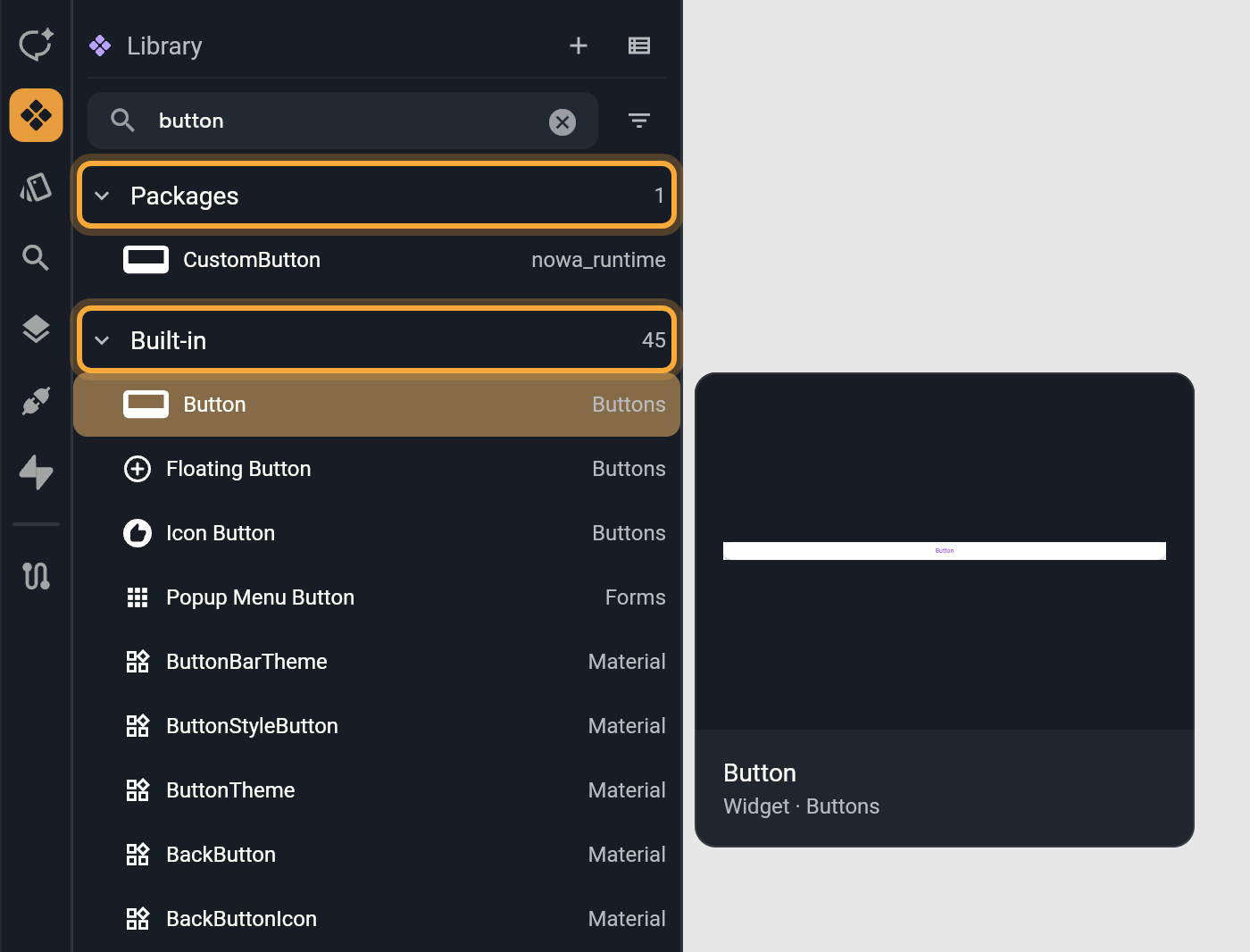
Type in the search field. It looks in all four sources, whatever the chips say (they hide while you search), and lists every name that contains what you typed. The hint tells you what Enter does.
| Hint | How you get it | Enter | Ctrl/Cmd + Enter |
|---|---|---|---|
| Go to... | The default, or Ctrl/Cmd + O | Opens the result | Inserts it |
| Add... | Ctrl/Cmd + K or the Widget tool | Inserts the result | Opens it |
Add... lasts until you add something, click a row or leave the panel. In code mode, Ctrl/Cmd + O opens Search for a file instead (see Manage project files).
Results come in groups, in the order Project, Packages, Built-in and Assets, with a count at the end of each heading. In a group, Nowa's own widgets come first, then names that start with what you typed, then the rest from A to Z.
Nowa highlights the first result as you type, and Enter acts on the highlighted row, so check it first. In a new project, for example, button lists CustomButton (from a package every new project includes) before Nowa's own Button under Built-in.
A group shows 100 rows, then a row such as Show all 250. Rows such as Show 3 more of other kinds and Show 2 private matches reveal what the filter hides. When nothing matches, the panel says No matches.
With the search empty, Recent tops the panel and lists the last eight things you added to the board, so they're a click away when you need them again.
Add something to the board
You need an open board, screen or component. Without one, Nowa says "Open a screen, a component or a board to insert into".
- Click Widget in the toolbar or press Ctrl/Cmd + K. The Library opens with the search ready, and the field reads Add....
- Type part of a name, such as
button. Check the highlighted result and press ↓ until it's the one you want. - Press Enter. The widget lands where your pointer last was on the board, and the keys go back to the board, so you can keep working right away.
You can also:
- Right-click a row and choose Insert, or press Ctrl/Cmd + Enter on it.
- Drag a row onto the board. The Library stays open and the board shows where it will land. See where a dragged widget lands.
A double-click doesn't add. The first click ends Add..., and the second opens the row if it has something to open.
Insert works for widgets: your screens and components, and the widgets of Nowa, your packages and Flutter. To place an asset, drag it onto the board. See Images, videos and other files.
If a widget needs a package your project doesn't have yet, Insert first opens Add Missing Dependencies. Click Add and Nowa adds the package, then places the widget.
Preview a row
Click a row, or move to it with the arrow keys, and a details card opens beside the panel. It shows a preview, the name, the kind and where it lives (for example Component · lib/components), and the first lines of its description. It's a quick way to check you've got the right one before you add it. To write a description for a screen or component, use Add description in Details.
Nowa's own widgets, your screens and components, and most assets show a preview, and other rows show an icon. Once the card is open, it follows your pointer from row to row. Press Esc on a row to put it away.
Open, rename, delete and move
Right-click a row for its menu.
| Entry | What it does |
|---|---|
| Insert | Adds the widget to the open board. Key: Ctrl/Cmd + Enter. The menu shows ⌘⏎ on every system. |
| Open | Opens it on its own: a screen or component in place of the board, and an asset, such as an image, so you can look at it. Key: Enter, or double-click the row. Nowa's own widgets and Flutter's have nothing to open, so they have no Open. |
| Upload assets... | On a folder in assets: choose files from your computer to add to it. |
| Rename | Edits the name in place. Press Enter to save. Key: F2. For a screen or component, Nowa updates every place that uses it for you. |
| Delete | Asks Are you sure you want to delete ProductCard? with Cancel and Yes. If something uses it, Nowa lists the places and asks again (Cancel or Remove). |
| Show in code | Switches to code mode and shows its code, for when you work with code. |
Rename, Delete and Show in code work on your own rows, under Project and Assets. Rows under Packages and Built-in can't be renamed or deleted, and folders have no Show in code. Made a mistake? While the Library has focus, Ctrl/Cmd + Z undoes a rename or a delete.
To tidy up, drag a row onto a folder. Screens and components move between the folders of your project, and assets between the folders of assets. Working in the code? See What Nowa adds to your code.
The Library works on one row at a time, and the Delete key doesn't act on its rows, so use the menu.
Create things from the Library
Click Add (+) in the header and choose what to make.
| Entry | What it does |
|---|---|
| New Widget... | Opens the template picker for a screen or component. The new one opens on its own, ready to design. See Start from a template. |
| New Folder... | Makes a folder inside the folder of the row you highlighted last, or at the top of Project. |
| New Model... | Makes a model: a description of one kind of data, such as a recipe with a title and a cooking time. See Data models. |
| New Global State... | Makes a global state: data every screen of your app can share, such as the items in a cart. See Share data across your app. |
| Generate Models From Json... | Builds models from a sample of your data in JSON, the text format most web services use. |
| API Collection... | Creates a REST API collection, to connect your app to a web service. See Connect a REST API. |
| Import Dart code... | For people who code: brings Dart code you wrote into your project. See Write your own code. |
| Upload Assets... | Choose files to add to the highlighted assets folder, or to assets. |
Use the keyboard
- Type a letter, digit or symbol while a row is focused to jump into the search. The letter stays selected, so the next one replaces it. To type a whole word, click the search field first.
- ↓ moves from the search into the results. ↑ on the first result stops on its group heading, and one more ↑ goes back to the search.
- In the search field, Esc clears the search. On an empty search it gives the keys back to the board, so shortcuts work again. On a row, Esc puts the details card away.
- Ctrl/Cmd + K does nothing while the focus is in the Library. Click the board, or press Esc in an empty search, and it works again.
- Enter, Ctrl/Cmd + Enter and F2 work as in Find something and the menu above.
Try "Create a ProductCard component with an image, a title and a price, and use it on the Home screen." The new component then shows up in the Library, where you can open it and fine-tune it.
Next steps
- Add widgets: the toolbar tools, drag and drop, and pasting.
- Build reusable components: make a component and use it again.
- Images, videos and other files: add and use your assets.
- Keyboard shortcuts: every key in one place.