How Nowa AI works
Tell Nowa AI what you want in plain words, and it builds it right in your project: screens, logic, data, images and fixes. You watch every step happen on the board, and you stay in charge the whole time. Change anything it makes by hand, ask for more, or undo a whole request. What it builds is your real app, and it belongs to you: the same app you edit visually, test and publish.
Open the AI Assistant
The AI Assistant panel is already open on the left when you open a project. If you closed it, click the Assistant icon at the top of the left sidebar, or press Ctrl/Cmd + 1. The same shortcut hides it again when you want more room for the board.
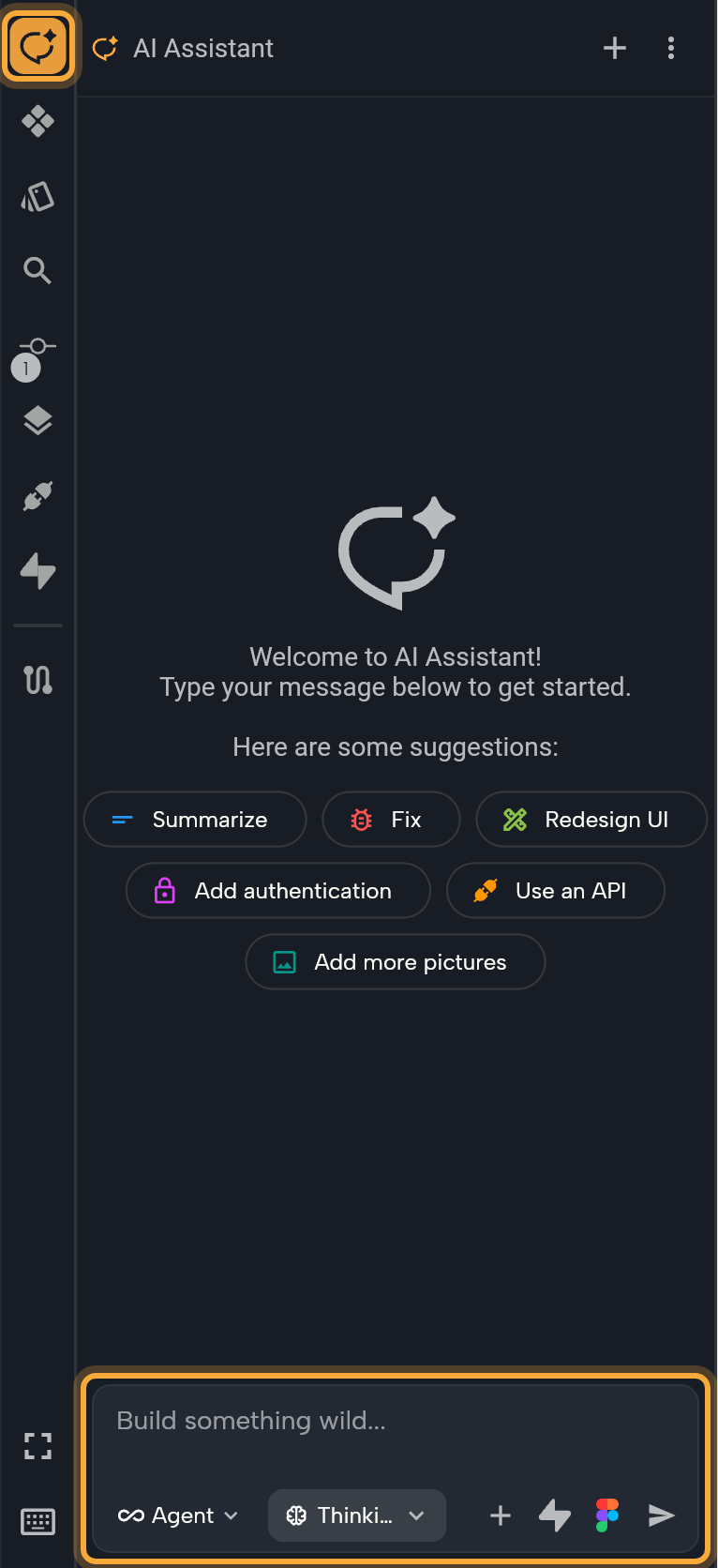
The panel has three parts:
- Header: shows AI Assistant, or the name Nowa AI gives your session once it gets going (a session is one conversation). + starts a new session. ⋮ opens Custom Instructions and Chat History, plus Connect External Agent in the desktop app if your account has access.
- Conversation: your messages, Nowa AI's replies, and a line for each step it takes.
- Chat field: where you type. Under it are the mode chip, the thinking-level chip, + (Add context), the Supabase and Figma connector icons, and Send.
You can try the editor in the playground without an account, but Nowa AI needs one. The first time you send a message there, Nowa asks you to sign in.
How a request goes
Most requests follow the same rhythm, whether you're starting a new app or polishing one screen.
- Pick a mode. Design shapes how your app looks and flows, Agent can do everything, from design to working features, and Plan helps you think a big change through first. More on modes below.
- Describe what you want and press Enter. To change one part of a screen, click it on the board first, so Nowa AI knows exactly what you mean.
- Watch the steps. If Nowa AI asks you something in a Questions card, or wants your OK for a connector action in an Approval Required card, answer it so it can carry on.
- Check the result on the board, or click Play on a screen to tap through it.
- Keep going. Ask for the next change, fix small things by hand, or click Restore Checkpoint to undo the whole request and try again.
You don't need to save in between: Nowa saves your project automatically when a request finishes. For tips on what to type, see Write prompts that work.
What Nowa AI can do
Ask in plain language, the way you'd explain it to a teammate. Nowa AI decides which steps to take, and each one shows up in the conversation, so you always see what it's doing. Agent mode can do all of this, while Design and Plan use only part of it.
| Area | What it does |
|---|---|
| Understand your project | Reads your screens, components and logic to find what to change. For broad questions, it looks at several parts of the project at once. |
| Build the app | Creates and changes screens, components, data models (the shape of your data, such as a recipe with a title and a photo) and functions (the steps behind a button or a screen). New screens are placed on your board when a board is open. |
| Change what you selected | Edits exactly the widget you selected on the board. |
| Edit project files | Changes other files in your project when a feature needs it, such as your app's iOS and Android setup, and creates new ones. |
| Check its work | Reads the problems Nowa finds, runs a full code check, and reads the logs of your running app. Run the app first, so there are logs to read. |
| Packages | Adds or removes packages: ready-made add-ons from pub.dev, such as charts or maps. Adding one needs the load packages experimental setting, which is on in new projects. See Add packages. |
| APIs | Connects your app to an online service. Paste the example request from the service's docs (a cURL command), and it sets up the request, tests it and creates data models for the answer, so your screens can show it. |
| Fonts and images | Downloads a Google Fonts family into your project. Saves an image you attached to your project's images, so your app can use it. |
| Backend and design files | With a connector turned on, builds your Supabase backend or brings in images, icons, colors and text styles from Figma. See Connect Figma and Supabase to Nowa AI. |
| Stay organized | Asks you questions, keeps a Tasks list on long requests, writes a plan in Plan mode and suggests next steps. |
Choose a mode and a thinking level
Two chips at the bottom of the chat field tune how Nowa AI works. The mode decides what it's allowed to change, and the thinking level decides how much it thinks before it acts.
| Mode | Use it to |
|---|---|
| Design | Create or refine the look and flow without logic. Screens, navigation and theming are built with demo data. |
| Plan | Plan complex tasks before building. Nowa AI explores your project, asks questions and writes a plan, and changes nothing. |
| Agent | Do everything, from design to functionality. |
The thinking level trades speed for reasoning. Instant is the fastest, Thinking is balanced and the default, and Deep Thinking adds extra reasoning for complex tasks. Plan mode runs at a fixed level, so the thinking-level chip is hidden there.
Not sure which to pick? Design, Plan and Agent modes walks you through each one.
Use Nowa AI and the visual editor together
Nowa AI and your own hands work on the same app, so mix them freely.
- Select to point. Click a widget or screen on the board and it's attached to your next message, so "make this button rounder" lands in the right place. See Give Nowa AI context.
- Watch it happen. Changes appear on the board while Nowa AI works, so you can see the result take shape.
- Edit by hand any time. What Nowa AI builds is normal Nowa content. Tweak it in the Details panel, the Outline or code mode, then ask for more. Nowa AI works from your latest version.
- Undo a whole request. If you don't like a result, use Restore Checkpoint to undo that request's changes. See Undo AI changes and reopen chats.
Where else Nowa AI shows up
You'll also meet Nowa AI outside the panel, usually right where you need a hand.
- Dashboard: describe an app in What do you want to build? and click Build it. Nowa creates the project and starts the AI for you. See Build your first app.
- Errors: Fix with AI appears when the embedded preview can't start or a web deployment fails, and Explain with AI appears on a failed build step. Each sends the error log to the chat, so you don't have to copy it yourself. See Run your app and Build history and logs.
- Supabase backend setup: when a template's backend is ready, Connect app with AI opens the AI Assistant panel, turns on the Supabase connector and sends a ready-made prompt. If setup stopped, the button is Fix with AI. See Manage your Supabase backend.
- Your phone: the mobile layout has its own AI chat. See Use Nowa on your phone.
- Your own agent: Claude Code, Claude Desktop and Cursor can build in Nowa too. See Connect your own AI agent.
Usage and credits
Nowa AI runs on your plan's AI credits. When you start to run low, a % used indicator appears under the panel header, so it doesn't catch you by surprise. After a request finishes, the session's token counts appear there too (tokens are the small pieces of text Nowa AI reads and writes), next to a Session Details info icon. Its popup shows what the session used, and Global Usage opens your account's usage page. If you run out, the chat tells you and offers ways to continue.
For plans, extra credits and billing, see Plans, billing and AI usage. To see which features depend on your plan, see What your plan includes. For what each plan includes and costs, see nowa.dev/pricing.
Next steps
- Write prompts that work: how to describe your app, iterate, and get back on track when a result isn't right.
- Chat with Nowa AI: send requests, follow every step and recover from errors.
- How designing works: refine what Nowa AI builds, by hand.
- Build a great app: a complete walkthrough and tips for design, Nowa AI, data and shipping.