Design, Plan and Agent modes
Nowa AI has three modes, and each one fits a different moment in building your app. Design shapes the look and flow first, Plan works out what to build before anything changes, and Agent does everything. You can switch between requests whenever you like, in the same conversation.
Switch mode
- Click the mode chip at the bottom left of the chat field. Its tooltip is Switch mode.
- Choose Design, Plan or Agent. The chip shows the mode you picked, and the chat field's hint changes to match.
| Mode | Description in the menu | The chat field says |
|---|---|---|
| Design | Create/refine the look and flow without logic | Describe the app you want to build... |
| Plan | For planning complex tasks before building | What would you like to plan? |
| Agent | For everything, from design to functionality | Build something wild... |
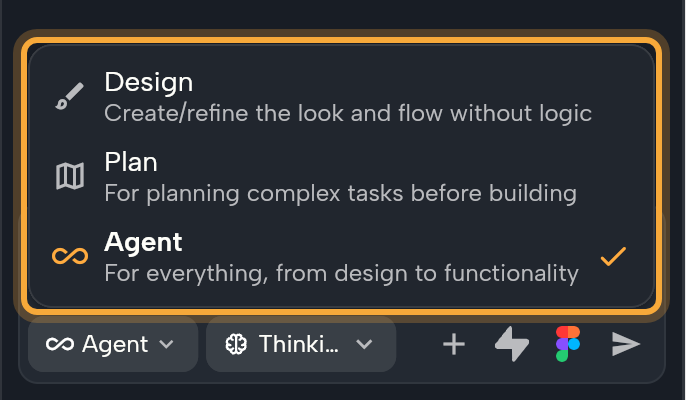
The mode chip and the thinking-level chip are disabled while Nowa AI is working. Wait for the request to finish, or stop it first.
A new project opens in Design mode, unless you picked another mode in the dashboard's What do you want to build? box, where Design carries a Start here badge. Any other project opens in the last mode you chose in it on this device, or in Agent if you never chose one.
Design mode
Design mode is where a new app takes shape. It designs your screens, the way people move between them and your app's theme, using demo data, so you can see the whole app and settle how it looks before anything is wired up. It doesn't connect real data or a backend: it doesn't set up APIs or Supabase, and it doesn't use connectors.
An empty Design chat explains the idea: describe the app, and Nowa designs it screen by screen, then makes it work one feature at a time.
When Nowa AI has designed all the screens you talked about, a card titled Your app design is complete appears, with a short summary. You have three choices:
- Keep refining. Tell Nowa AI what to change in the chat, such as "Make the home screen feel lighter".
- Pick a feature. Click one of the chips under Pick what to make work first:. Nowa switches to Agent mode and starts with that feature.
- Let Nowa AI choose. Click Make it real. Nowa switches to Agent mode and starts with the feature Nowa AI recommends. The card then reads Switched to Agent mode.
Only the latest card is active, and only while Nowa AI isn't working.
Plan mode
Plan mode is the safe way to think through a big or unclear change. Nowa AI reads your project, asks you questions and writes a plan you can review, and nothing in your project changes until you say so. It can't edit your files or add and remove packages (ready-made add-ons for your app), and it doesn't use connectors either.
- Switch to Plan and describe what you want, such as "Plan a Favorites feature for my recipe app".
- If a Questions card appears, pick an answer for each question. Nowa moves on to the next question by itself. Choose Other... to type your own answer.
- Click Send Answers. The button appears once every question has an answer.
- Read the Implementation Plan card: a summary, the Key Decisions and the numbered steps. Click Technical details, when it's shown, to show or hide the technical notes for each step.
- To change the plan, reply in the chat. Nowa AI rewrites the whole plan, so you always review one complete version.
- Click Implement this plan. Nowa switches to Agent mode and sends "Implement this plan". Click Keep planning instead to hide the two buttons and keep refining.
Only the latest plan keeps its buttons, and they stay hidden while Nowa AI is working.
Agent mode
Agent mode builds for real: screens, logic, data, packages, fonts, images and other files. Use it whenever something has to work, not only look right. It's also the only mode that can use the Figma and Supabase connectors. See Connect Figma and Supabase to Nowa AI.
On long requests it keeps a Tasks card with a progress bar and ticks items off as it goes, so you can see how far along it is. Each step it takes shows in the conversation. See Chat with Nowa AI.
Set the thinking level
The chip next to the mode chip sets how much Nowa AI reasons before it acts. It shows the current level. More thinking helps with tricky work, and less gets small edits done faster.
| Level | Description in the menu | Good for |
|---|---|---|
| Instant | Fastest. Great for quick edits. | Small, clear changes. |
| Thinking | Balanced. Great for most tasks. | Most requests. This is the default. |
| Deep Thinking | Extra reasoning. Great for complex tasks. | Big features and tricky logic. |
The level applies to Design and Agent modes, and switching modes keeps it. Plan mode has no level chip. Nowa remembers your choice for the project, and uses it as the starting level for projects where you haven't chosen one. In the dashboard's prompt box you can choose Thinking or Deep Thinking.
Older versions had a "Think Mode" toggle. It's gone. Nowa AI's reasoning appears in a collapsed Thinking process block in the conversation, and the thinking level sets how much it reasons.
When to use which
| You want to | Use |
|---|---|
| See the screens of a new app quickly, before logic exists | Design, then Make it real |
| Change colors, spacing, text or layout | Design |
| Review a big or unclear task before anything changes | Plan, then Implement this plan |
| Add a feature, wire data, fix errors, add packages | Agent |
| Use Figma or Supabase | Agent |
Fix with AI and Explain with AI on an error send their ready-made prompt in whichever mode is active. Plan mode never changes your project, so switch to Agent first if you want the fix applied.