Plans, billing and AI usage
Your plan decides which Nowa features you can use and how much Nowa AI you get. Each request to Nowa AI uses part of your plan's AI allowance, which resets on a schedule. If you need more before then, you can top up with extra credits, if your plan allows it. This page shows where to check all of that, how to upgrade or top up, and what to do if you run out in the middle of a project. For what each plan includes and what it costs, see Nowa pricing.
What your plan includes
These features depend on your plan. If yours doesn't include one, Nowa usually tells you when you try it and offers an upgrade:
| Feature | If your plan doesn't include it | Learn more |
|---|---|---|
| Buying extra credits | The page that Buy credits opens says your plan doesn't support it and offers Upgrade Plan. | Buy extra AI credits |
| Git and GitHub, including Clone from GitHub | The Git panel and settings say "Your plan does not support git integration", and Clone from GitHub opens Time to level up. | Use Git |
| Publishing to the web | The Web row of the Deploy menu shows Premium. | Publish to the web |
| Your own domain for the web version | Custom Domain shows Premium. | Publish to the web |
| Android and iOS builds | Their rows in the Deploy menu show Premium. | Get ready to publish |
| Premium templates | Adding a template marked Premium opens Time to level up. | Start from a template |
| Connecting your own AI agent (desktop app) | Connect External Agent doesn't show in the ⋮ menu of the AI Assistant panel. It's Enterprise only for now. | Connect your own AI agent |
The desktop app itself is free on every plan, so you can install it whichever plan you're on.
Nowa AI, Android and iOS builds, and code downloads also come with an allowance that your plan sets. When one runs out, Nowa tells you and offers an upgrade or, for Nowa AI, extra credits. See Check your usage, When you run out of AI credits and Download your code.
See your plan and invoices
- On the dashboard, click Settings in the sidebar. In a project, click your avatar, then General Settings.
- Click Billing.
The page shows:
- Your plan name, with "Your subscription will auto-renew on" and a date when there is one. If a payment failed, it says "Your last payment failed." with an Update payment method link that opens the billing portal in your browser.
- Adjust Plan, which opens the list of plans.
- Extra AI Usage: your balance for extra credits, with Buy credits.
- Invoices: a table with Date, Status (Paid or Unpaid), Reason and Total, plus page controls. Before your first payment it says "No invoices yet".
If your account has no subscription yet, the plan part of Billing stays empty. Use Upgrade your plan in the dashboard sidebar to see the plans.
The badge next to your name on the dashboard and in the avatar menu shows your plan name too.
Change your plan
- Open Billing and click Adjust Plan. Two shortcuts lead to the same page: Upgrade your plan in the dashboard sidebar, and Upgrade in the editor's top bar on the free plan.
- Choose Monthly or Annually under "Plans that grow with you".
- Click Subscribe on the plan you want. Your browser opens the payment page. Once you've paid, you see "Payment Successful!" and can close the tab (the desktop app has a Close Tab button). If the payment didn't go through, the page says "Payment Failed" with the reason.
Your current plan is marked Current, and on a paid plan its button reads Manage. A card with a long feature list has a Show / Hide link. If your subscription is managed in the billing portal, every plan button opens that portal in your browser instead of a new checkout.
Plan names, prices and features come from Nowa's servers, so the cards show what's on offer right now. If you came from AppSumo, use the link AppSumo gave you. It opens the sign-in or sign-up page with your email, and after you sign in Nowa opens the plans page.
Check your usage
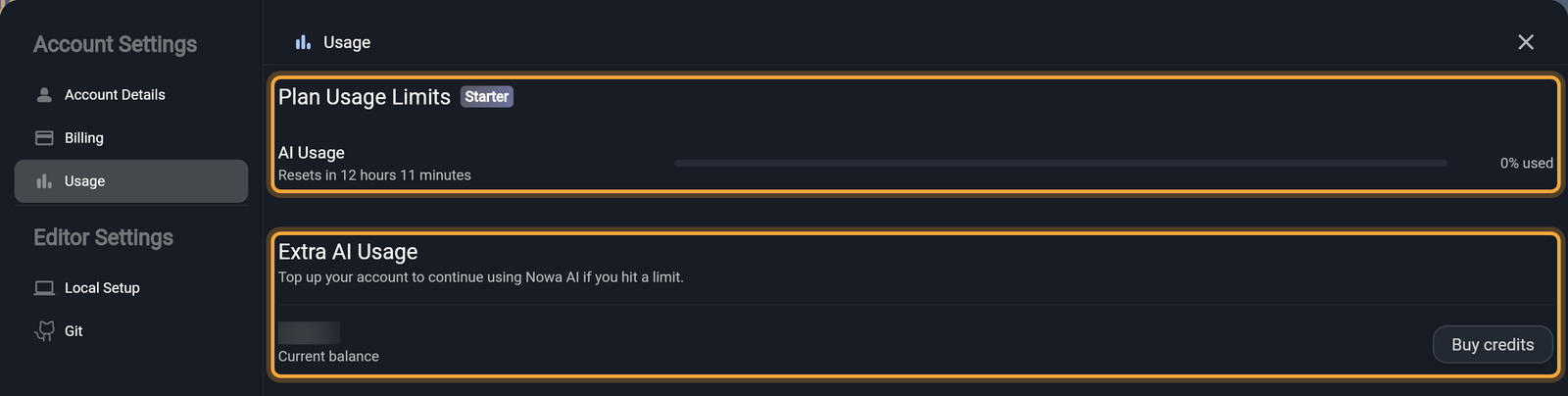
Open Settings → Usage to see how much you have left. It has two parts:
- Plan Usage Limits shows your plan badge and one row for each feature your plan meters. Each row has a progress bar, when it resets ("Resets in" a time) and "N% used". Which features appear depends on your plan.
- Extra AI Usage says "Top up your account to continue using Nowa AI if you hit a limit." It shows your Current balance and Buy credits.
Inside a project, the AI Assistant panel keeps you posted as you work, so you can see a limit coming:
- Once you've used most of your plan's AI allowance, a ring with "N% used" appears. Point at it to see when it resets.
- When the plan is used up, it reads "100% used · Using extra credits" if you have extra credits to keep going, or "100% used · No extra credits".
- After your first request in a session, two counters show input and output tokens (tooltips Input Tokens and Output Tokens). Tokens are the small chunks of text an AI reads and writes, so the counters show how much went in and out. The info button next to them (tooltip Session Details) opens Details: the Session ID, tokens in and out, Credits Used for this session, and Global Usage, which opens Usage.
The token counters and Details are for the current session.
Buy extra AI credits
Extra credits keep Nowa AI working after you've used your plan's allowance, so you can finish what you started without waiting for the reset.
- Open Usage or Billing and click Buy credits.
- Under Need more usage?, pick one of the amounts, or pick Other and type a number under Enter custom amount.
- Check the summary: Credits, Discount when one applies, and Subtotal. Taxes may apply at checkout.
- Click Checkout. The payment page opens in your browser.
Not every plan can buy extra credits. If yours can't, the page says "Your current plan doesn't support buying additional credits. Upgrade to a higher tier plan to unlock this feature." with an Upgrade Plan button.
When you run out of AI credits
When no credits are left, the chat says "You ran out of credits." and tells you when it resets, and the Send button stops working. Your project and everything Nowa AI built so far stay as they are, and you can keep designing and editing by hand. To get Nowa AI back:
- Click Upgrade on the free plan, or Purchase Credits on a paid plan. Upgrade opens Billing, and Purchase Credits opens Usage.
- Click Invite a friend to earn more (below).
- Wait for the reset. The banner shows how long it takes ("Resets in" a time).
The usage row under the chat also has an Upgrade or Buy credits button. It opens the list of plans or the Buy credits page directly.
Invite a friend
Know someone who'd like to build an app too? Click Invite a Friend in the dashboard sidebar. The dialog Invite a friend, earn credits shows your personal invite link under Your invite link. Click the copy button (tooltip Copy link) and share it.
You and your friend both get credits when your friend signs up and verifies their email. The dialog shows how many friends have joined and, if any, how many are still waiting to verify. Rewards are capped. When you reach the cap, the dialog says all your invites are rewarded, and friends who join with your link still get their credits.
When Nowa asks you to upgrade
Some features need a plan that includes them, or have an allowance you can use up (see What your plan includes). When you try one, a Time to level up dialog appears. Its default text reads "Looks like you used all your available usage for this feature. Upgrade your plan to unlock more power". Other places write their own text, such as "Publishing to a live web URL is available on paid plans. Upgrade to go live." Click Upgrade to open Billing.
A Premium pill next to a feature does the same when you click it.
Next steps
- How Nowa AI works
- Account settings
- Get help if a payment or credit looks wrong