Build your first app
You describe an app in plain words, Nowa AI builds it on your board, and you finish with a real app running in your browser. You won't write any code along the way. The walkthrough takes about 15 minutes, and most of that is Nowa AI working while you watch.
Before you start
- A Nowa account. Create one if you don't have one yet.
- A browser window at least 840 px wide. Narrower windows get the phone layout instead of the full editor.
- Some Nowa AI usage. Every prompt uses part of your plan's AI allowance. See Plans, billing and AI usage.
1. Describe your app
-
Open app.nowa.dev and sign in. The dashboard opens with the question What do you want to build? A new account answers a short survey first.
-
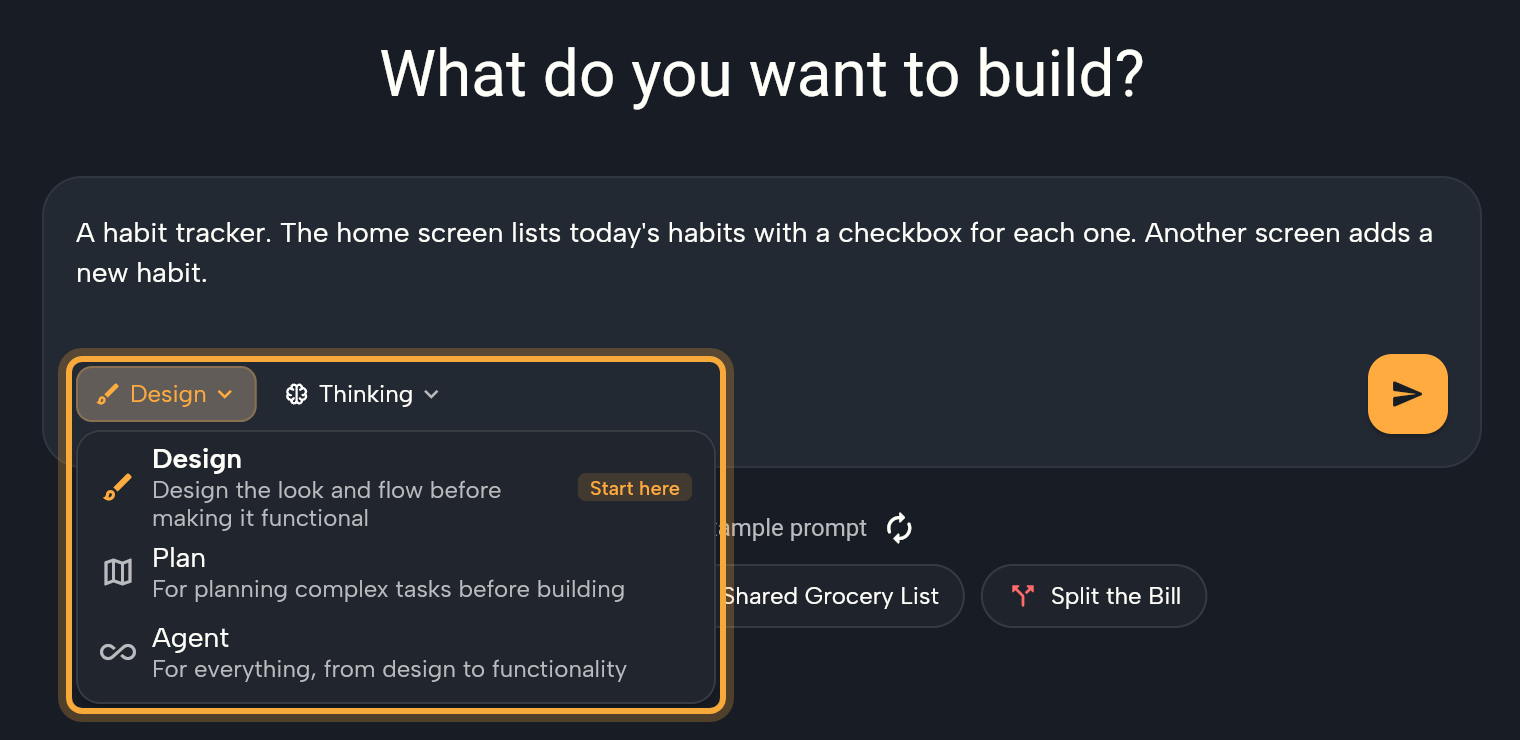
Type your idea in the box. Describe what people see and do, screen by screen. For example:
A habit tracker. The home screen lists today's habits with a checkbox for each one. Another screen adds a new habit.
Not sure where to start? Click one of the examples under Or try an example prompt. It fills the box with a full prompt you can edit, and the refresh button shows more examples.
-
Check the mode chip at the bottom left of the box. It says Design, which the chip's menu marks Start here. Keep it: Design builds the look and flow of your app first, with demo data (sample content), so you can see and change everything before it's wired up to real data. Modes explains Plan and Agent.
-
Check the thinking level chip next to it. Keep it on Thinking, or pick Deep Thinking for a big, complex app, so Nowa AI reasons more before it builds.
-
Click the send button at the bottom right of the box (tooltip Build it).
You should see: a loading screen that says "Setting things up…", then "Naming your app…" and "Creating your project…". Nowa creates the project for you, names it, and opens the editor with your prompt in the AI Assistant panel. Nowa AI is already working on it.
If Welcome to Nowa! appears over the editor, click Take the quick tour for a short guided tour, or Close. The editor tour covers the same ground.
2. Watch Nowa AI build it
The AI Assistant panel on the left shows each step as it happens, and new screens appear on the board in the middle as they're designed. It's worth reading along: you'll see how Nowa AI turns your idea into screens.
- If a Questions card appears, Nowa AI wants to check something with you before it goes on. Pick an answer for each question, then click Send Answers.
- To stop, click the red stop button at the bottom right of the chat (tooltip Abort). Changes made before you stop stay.
- You don't need to save. Nowa saves your project when each run ends.
You should see: one or more screens on the board and, at the end of the chat, a card titled Your app design is complete.
3. Change something by hand
Nowa AI gave you a first version. Now make it yours: everything on the board changes with a click, and you can always undo.
- Click a widget on a screen, such as a heading or a button. The Details panel on the right shows its settings. If it's hard to click, or the click selects something bigger (a heading in the app bar selects the whole app bar), pick it in the Outline panel instead (sidebar → Outline), which lists every widget on the board.
- Change a property. For a text, edit Text in Details, or double-click the text on the board and type. Colors, sizes and spacing have their own fields in Details.
- Don't like it? Press Ctrl/Cmd + Z to undo. Selecting counts as a step too, so press it again if the first press only changes the selection.
If you can't see Details, make the window wider or close the left panel. Nowa hides Details when the board area is narrower than 600 px.
Select a widget, then type in the chat: "Make this button orange with rounded corners." The widget you select is attached to your message automatically, so Nowa AI knows exactly which one you mean.
You should see: the widget on the board change as you edit it.
4. Play a screen
Play lets you try a screen right away, with no build to wait for.
- Point at a screen's title above it on the board. Two buttons appear: Play and Open in new tab.
- Click Play. The board zooms to the screen and runs it in place. Click, scroll and type as your users would. Scrolling over the screen scrolls the app, not the board.
- Click Stop in the bar at the bottom of the board when you're done. Select another screen to play that one instead.
You should see: the screen reacting to your clicks, and a bar at the bottom of the board that says "This screen is capturing scroll".
Play is instant but approximate. The warning icon in the bar says "In board preview is not 100% accurate, run the app to see the real output". You run the real app in step 6.
5. Make it real
Design mode builds every screen with demo data, so your app doesn't save anything yet. Make it real hands your design to Agent mode, which makes the features work, starting with the one you pick. To keep data online and let people sign in, you also connect a backend (an online service that stores your app's data and handles sign-in, such as Supabase or Firebase): see Connect data and services.
- On the Your app design is complete card, pick the feature you want first under Pick what to make work first:, or click Make it real and let Nowa AI choose. Want to change the design first? Type what you want in the chat instead.
- Watch the steps in the chat.
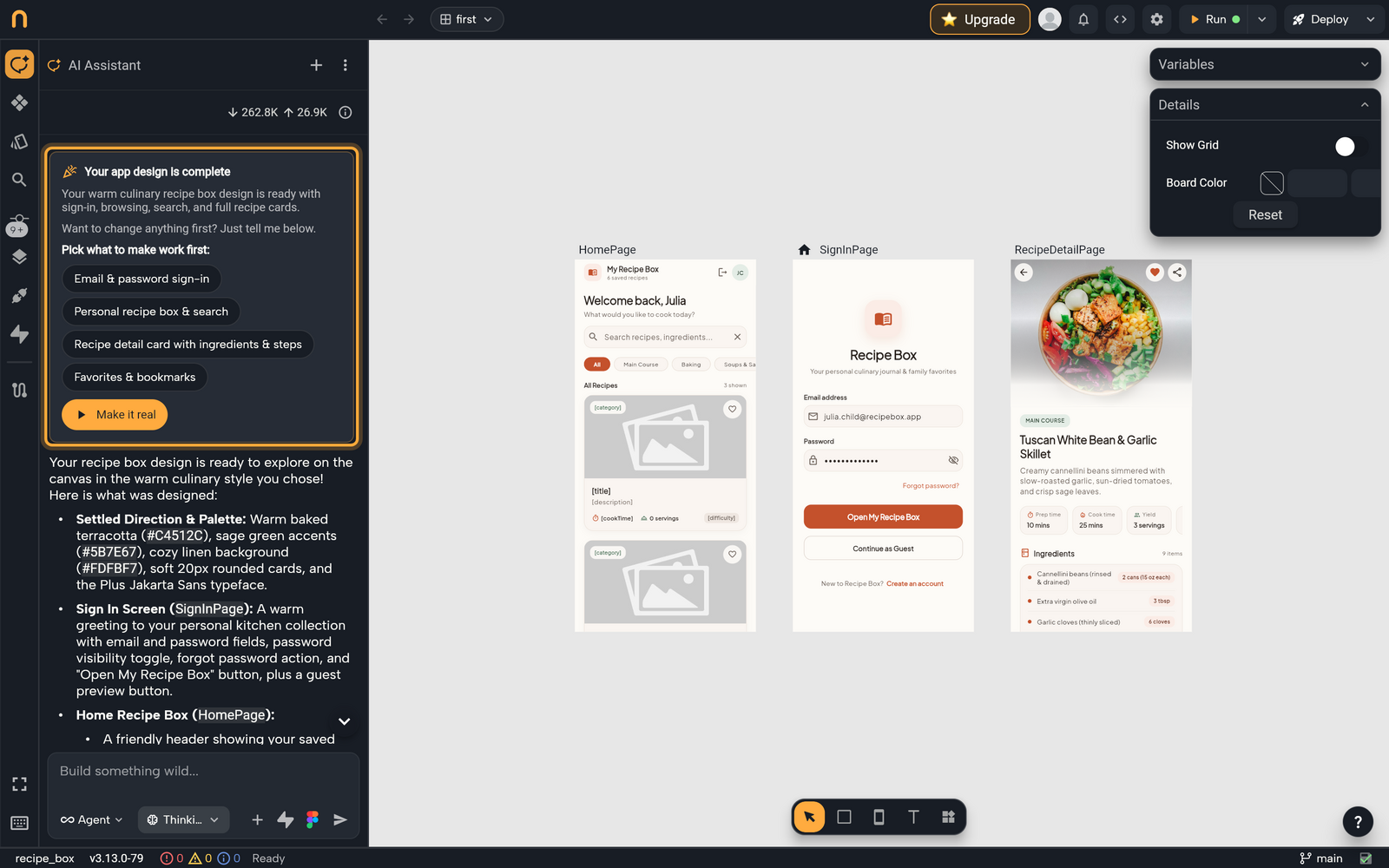
You should see: Switched to Agent mode on the card, then new steps as Nowa AI starts making the features work.
If you picked Agent on the dashboard, skip this step: Agent mode builds features as it goes.
Changed your mind about something Nowa AI did? Hover the dotted line above its reply, click Restore Checkpoint, and confirm. That also undoes the later requests in the same session. See Undo AI changes.
6. Run the real app
Play gave you a quick look. Run builds and starts your actual app, with nothing approximated, so you see how it really behaves before you publish.
- Click Run at the right of the top bar.
- Wait while Nowa starts your app. The first start can take a few minutes.
- Use the app in the phone frame. To change something, click Back to board, edit, and save. The preview restarts with your changes.
- To try it on your phone, click Open on Mobile (the QR icon in the top bar) and scan the code.
You should see: your app running for real in a phone frame inside the editor.
Errors can happen. If an error screen offers Fix with AI, click it: Nowa AI gets the error and tries to fix it.
7. Save and share
- Save: Nowa saves as you go. Auto save is on by default, and every Nowa AI run ends with a save. Press Ctrl/Cmd + S to save right away and you see Saved!
- Share a screen: play it (step 4), click Share preview in the bar at the bottom of the board, and choose Private (people with access to the project) or Public (anyone with the link). Then copy the link or show the QR code. People you share it with get an interactive preview in any browser, which is a nice way to collect feedback.
- Come back later: click the Nowa logo at the top left to return to the dashboard. Your project is listed under Projects and in the RECENTS list in the sidebar.
Public makes the whole project public. Anyone with the link can read every file and save their own copy, including any API keys inside it (the passwords your app uses to reach other services). Nowa asks you to confirm first.
Next steps
- Build a complete app: follow one app from idea to published.
- How logic works: make your app react to taps, remember values and move between screens.
- Connect data and services: save data in a database and add sign-in.
- Get ready to publish: put your app on the web, Android and iOS.