Undo AI changes and reopen chats
Most of what Nowa AI does can be undone with a click. When it changes your screens, logic or other files, Nowa saves a checkpoint for that request: restore it to put things back the way they were, and reapply it if you change your mind. Your past conversations are kept too, so you can pick any of them up again later.
Checkpoints undo Nowa AI's work. To undo a change you made yourself on the board, press Ctrl/Cmd + Z. See Keyboard shortcuts.
Restore a checkpoint
Restoring a checkpoint also undoes every later request in the same session. It puts each file the AI touched back to its earlier version, so edits you made yourself to those files after the request are lost. Reapply Checkpoint brings back only the AI's version of them.
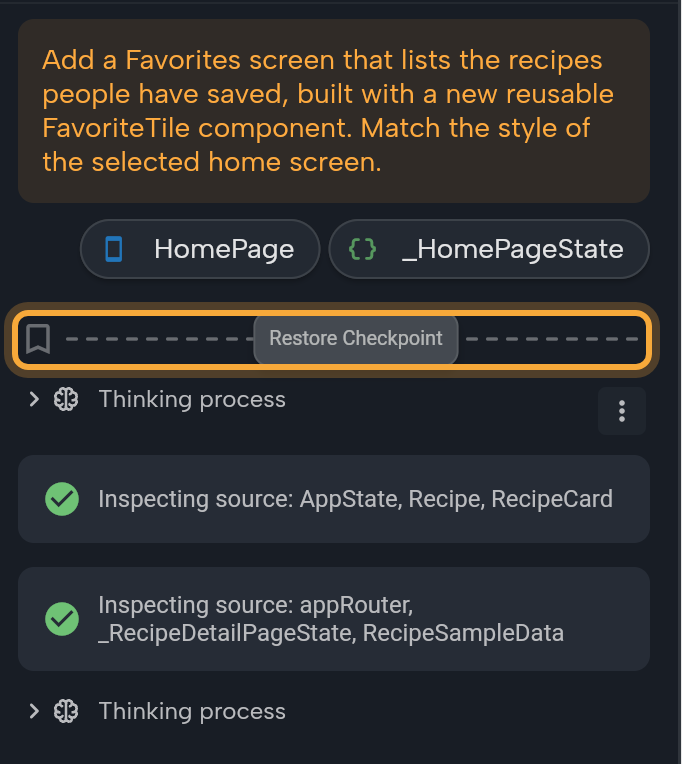
- Find the AI reply that made the changes you want to undo. Above it is a bookmark icon and a dotted line.
- Hover the dotted line. The Restore Checkpoint button appears.
- Click Restore Checkpoint. The Undo Last Request? dialog lists the files that request changed, so you can see what will go back.
- Click Continue. Click Cancel to leave everything as it is.
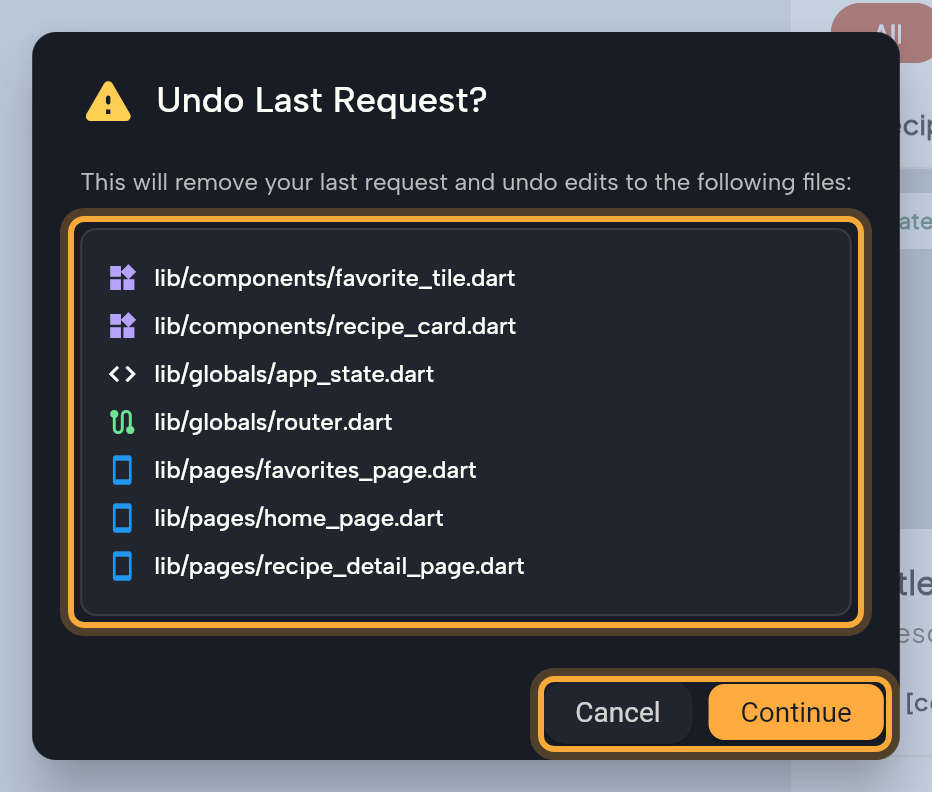
Your project goes back to how it was before that request, and files the request created are deleted. The messages stay in the conversation, so you can reread what you asked and try a clearer prompt.
Reapply a checkpoint
Changed your mind? After a restore, the same line shows a redo icon.
- Hover the line.
- Click Reapply Checkpoint. Your project goes back to how it was right after that request.
Requests after the one you reapply stay undone until you reapply them too. To bring everything back, reapply the last request.
A few rules apply to checkpoints:
- A checkpoint exists only for replies that edited code or files, generated API code or saved an image. Package changes, downloaded fonts, Figma imports and changes made in your Supabase project aren't recorded, so a restore leaves them in place.
- The buttons are disabled while Nowa AI is working.
- Checkpoints are saved with your project, but they're an undo button, not a backup: they aren't included when you save your project's history with Git or GitHub. Working in the code? See What Nowa adds to your code.
- They aren't available in the playground or in a public project you open as a guest.
Start a new session
A new session starts a clean conversation in the same project. Nowa AI still sees your whole project. It only forgets the earlier chat, which helps when you move on to an unrelated task, because old context can't muddle the new one.
- Click + in the panel header. Its tooltip is New Session.
- The conversation clears. Your project doesn't change, and the old conversation stays in Chat History.
The button is disabled while Nowa AI is working, and does nothing on an empty chat.
Nowa also nudges you when it's time. When a session gets long, a note appears above the chat field: "This session is getting long. For better results, start a new session and continue there." Click the Start new session icon, or the Dismiss icon to keep going.
If the conversation fills up completely, the chat shows Session Limit Reached. Nowa AI can't take more messages in that session, so click the Start new session icon to continue building. Your project and its checkpoints stay as they are.
Reopen a past chat
- Click ⋮ (Options) in the panel header, then Chat History. The All Sessions list opens.
- Click a session. Nowa loads it, and the chat shows "Please wait a minute while we load this conversation..." meanwhile.
- Keep chatting from where it ended. Nowa AI remembers that whole conversation.
Each row shows the session's name and when it was last active, such as "Just now", "Yesterday" or "3 days ago". A session that has no name yet shows New Chat. Click Load More to show more sessions, 25 at a time. Click the back arrow to return to your current chat.
History belongs to the project, and Nowa stores it on its servers. You can't open a session while Nowa AI is working. When you reopen a session, its checkpoints show again where the project still holds them.
Next steps
- Write prompts that work: what to do when a result isn't right.
- Chat with Nowa AI