Chat with Nowa AI
Type what you want, press Enter and watch Nowa AI work. Every step it takes shows up in the conversation, so you always know what changed and where, and you can step in at any time.
Send a message
- Click the chat field at the bottom of the AI Assistant panel and type your request.
- Press Enter or click Send. Your message appears in the conversation and Nowa AI starts working.
To add a new line instead of sending, press Shift, Ctrl or Cmd + Enter. Alt/Option + Backspace deletes the previous word.
If you've been editing in code mode, Nowa applies those edits before it sends your message, so Nowa AI works from your latest version. When the request finishes, Nowa saves your project automatically.
Send is disabled when the field is empty, while a request is stopping, and when your AI credits are used up. See Plans, billing and AI usage.
Start from a suggestion
In an empty chat in Plan or Agent mode, Nowa shows six starter chips: Summarize, Fix, Redesign UI, Add authentication, Use an API and Add more pictures.
Click a chip to fill the chat field with a complete prompt, for example "Fix all errors in the project, including syntax errors, runtime errors, and logical errors." Edit it if you like, then send it. A chip never sends anything by itself, so it's safe to click one to see what it says. Design mode shows no chips, because describing your app is the only step there.
Stop a request
If you see Nowa AI heading the wrong way, stop it rather than waiting. Click the red stop button, which sits where Send was. Its tooltip is Abort, and it changes to Cancelling... while Nowa AI stops. A step that is already running still finishes, and steps without a result show a grey canceled icon.
Changes made before you stopped stay in your project. To undo them, see Undo AI changes and reopen chats.
Read the conversation
You don't need to follow every line, but the conversation tells you exactly what Nowa AI did, which helps when you want to check a result or undo it.
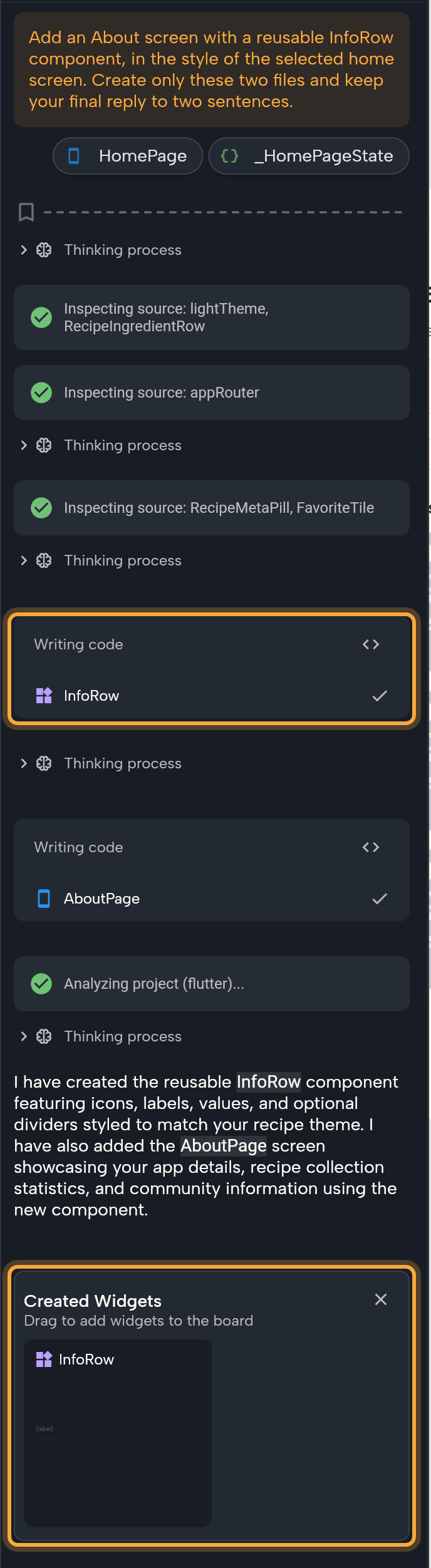
- Thinking process: Nowa AI's reasoning, collapsed. Click it to read how it approached your request.
- Steps: one row for each action, such as reading a file, writing code, adding a package or downloading a font. The icon shows how the action went. Hover it to read Tool is running, Tool executed successfully, Tool execution failed or Tool execution was canceled ("tool" is Nowa's word for one of these actions).
- Code cards: when Nowa AI writes or changes a screen, a component or a piece of logic, a card titled Writing code, or Writing member in class followed by a name, lists what it wrote. You don't have to read the code. Hover a name to highlight it on the board, click it to jump to it on the board or open its file, or drag a widget onto the board. Show raw code shows the code itself, if you're curious.
- Open in New Tab: appears on rows that work on a file, and opens that file.
- Tasks, Questions and plans: see Design, Plan and Agent modes.
- Using <tool>... and Approval Required: steps from a connector. See Connect Figma and Supabase to Nowa AI.
To see the raw content behind any message, hover it and click ⋮ (View Raw Data). It's read-only, and mostly useful when you talk to support.
Use what the agent created
When a request ends, Nowa shows what was created, so you can put it to use right away:
- New screens are placed on your open board automatically, to the right of the screens already there, and the board pans to them. This happens only when a board is the active tab.
- Created Widgets lists the other new widgets, such as components, or screens made while no board was open. Drag a thumbnail onto the board, or click it to open the widget. Click × to close the card.
- Constants updated appears when Nowa AI changed your app constants, the place for API keys and other secrets (an API key is a password-like code that lets your app use an online service). Click Open Constants to check them. See Keys and constants.
Pick a suggested next step
After a request, Suggested next steps shows up to three shortcuts above the chat field. Each has a short title, a line that says what you get, and a mode badge when it switches mode.
- Click a row. It writes the prompt into the chat field and switches the mode if needed.
- Edit the prompt if you want, then send it.
Nothing is sent until you do, so you can look before you commit. Click × (Dismiss) to hide the strip. It disappears while Nowa AI is working.
Recover from errors
Sometimes a request fails partway, for example when your connection drops. Errors appear in the conversation, with a way to continue.
- Retry: click the refresh icon under an error. If your first request failed before Nowa AI did anything, Retry sends your original message again. Otherwise it sends "continue with your last task", so Nowa AI picks up where it stopped instead of starting over. Long error messages have Show more and Show less, and a copy button next to Retry.
- Service under load: Nowa's AI service is busy, so Nowa retries your request for you, several times with growing waits. Click Dismiss to hide the notice. If the problem stays, try again later.
- Server is not reachable or Server took too long to respond: check your internet connection, then click Retry.
- Session Limit Reached: the session is full. Start a new session to keep going. See Undo AI changes and reopen chats.
- You ran out of credits: see Plans, billing and AI usage.
Send a bug report
If a problem on Nowa's side blocks Nowa AI and it can't work around it, it prepares a technical report for the Nowa team. The card first says Preparing issue report..., then Bug report ready - want to send it to the Nowa team?.
- Click Report. The support form opens with the report already filled in.
- Review it and submit it. See Get help.
Nothing is sent until you submit the form. Reports are for problems with Nowa itself, not for bugs in your own app. To report a problem yourself, use Report an issue in the support panel. See Report an issue.