Give Nowa AI context
Nowa AI makes better changes when it knows exactly what you mean. Select a widget on the board, attach a screen or an image, or mention a screen by name with @, and the change lands in the right place. Nowa AI can find its way around your project on its own, but pointing saves it from guessing.
Select what you want to change
The quickest way to point is to click. Click a screen or widget on the board, and a chip with its name appears at the top of the chat field. Your next message goes to Nowa AI together with that part of your app, so "make this bigger" means exactly that widget.
- If you click a component you placed on a screen, Nowa AI gets the component itself, so it can change it everywhere it's used. A plain widget, such as a text or a button, attaches only that widget.
- If you select several widgets, Nowa AI gets the first one.
- With nothing selected on the board, Nowa AI gets the screen, component or other part of your app that's open in code mode, if there is one.
- Hover a chip to highlight its widget on the board. Click × on the chip to remove it. A removed selection stays removed until you select something else.
Add context
Use + when what you want to point at isn't on the board, such as a whole screen, a picture or some notes.
- Click + (Add context) in the chat field. A search palette opens with the hint "Search screens, components, files…".
- Pick what to add:
- Attach image opens a file picker. You can choose several images.
- Attach text file opens a file picker for a text file.
- A screen, component or other part of your app under FROM YOUR APP. To attach several, open + again and pick the next one.
- The attachment appears as a chip at the top of the chat field. Click × to remove one, or Remove all attachments to clear them all.
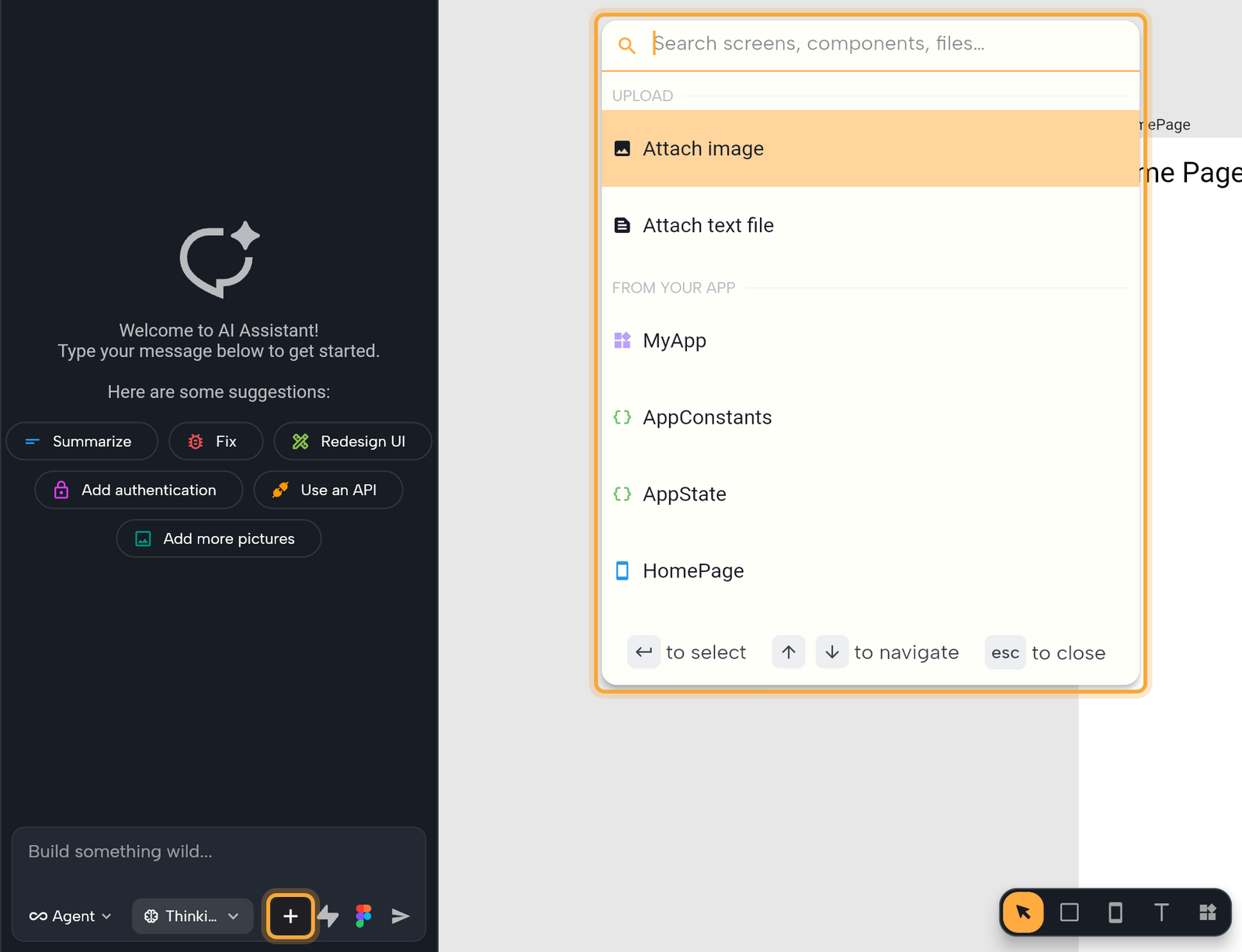
In the FROM YOUR APP list, a check mark means the item is already attached, and a lock means Nowa already sends it, for reading only. included means Nowa already sends a short summary of it, because something you attached uses it.
You can also paste an image into the chat field with Ctrl/Cmd + V, or drag an image file onto it.
A few limits:
- You can attach up to 5 images to one message.
- A text file must contain readable text. Other files are skipped. You can also paste the text straight into your message.
- Nowa keeps chat images only while the session is live. If you reopen a session and want Nowa AI to save an image to your project, attach it again.
Mention a screen with @
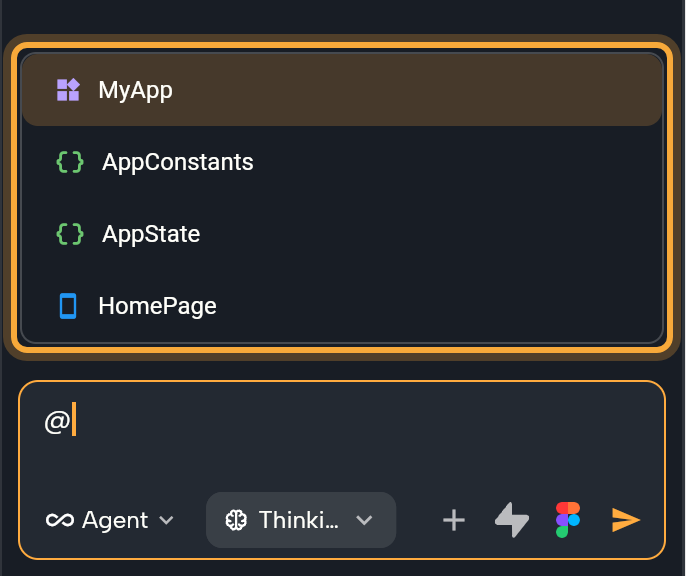
Typing @ lets you name a screen in the middle of a sentence, such as "Make @ProfilePage look like @HomePage".
- Type
@in the chat field, then part of a name. - Pick from the list with ↑, ↓ and Enter, or click an entry. Press Esc to close the list.
The list shows what you've already attached, every screen and component in your project, and other named parts of your app, such as AppState (your app's global state) and AppConstants (your constants). A mention appears highlighted in your message and counts as an attachment for it. In a message you've sent, click the mention to open its file.
What Nowa AI receives
Along with your words, each request carries:
- Your selection, attachments and mentions.
- A short summary of the other parts of your app they use.
- Your Custom Instructions. See Write prompts that work.
- A map of your project: the name of every widget, plus a short outline of your screens, components, functions, variables and other parts. That's how Nowa AI finds things you didn't attach.
What to attach when
| You want to | Attach |
|---|---|
| Change one widget | Nothing. Select it on the board. |
| Change a whole screen or component | Select it, or add it from FROM YOUR APP or with @. |
| Build something like an existing screen | That screen. |
| Match a design, sketch or screenshot | An image. Nowa AI uses it as a reference. |
| Put a logo or photo in your app | An image, and say it should appear in the app, so Nowa AI saves it to your project. |
| Use copy, data or notes you already wrote | A text file, or paste the text into your message. |
Attach less, not more. Nowa AI can look around your project on its own, so one focused attachment, such as a single widget or screen, keeps its changes accurate.