Connect your own AI agent
Already work with a coding agent? Connect Claude Code, Claude Desktop or Cursor to the Nowa desktop app, and it can open your projects, see your board and build with Nowa's own tools. Your board updates while it works, so you can watch every change land and keep editing visually as you go.
Enterprise Desktop appBefore you start
- Use the Nowa desktop app, signed in with an account that has access. Connecting your own agent is Enterprise only for now. To get access, email
team@nowa.devand the Nowa team will set you up. - Use Claude Code, Claude Desktop, Cursor or another coding agent that can add an MCP server by URL. An MCP server is the standard connection point that lets an AI agent use another app's tools, and the Nowa desktop app runs one for you.
- For Claude Code, you'll run one command in a terminal, the command-line app on your computer (such as Terminal on macOS).
Until your account has access, the ⋮ menu in the AI Assistant header doesn't show Connect External Agent. Nowa rechecks your account's access while it runs, so access starts and stops without a restart.
Connect your agent
- In the desktop app, open a project.
- Click ⋮ in the AI Assistant header, then Connect External Agent.
- Copy what your agent needs. The copy button next to each field confirms with a message such as "Claude Code copied".
- Claude Code: copy the Claude Code command. In a terminal, go to the folder you start Claude Code from, paste the command and press Enter. Claude Code confirms with a line that starts with "Added".
- Other agents: copy the MCP Server URL, paste it into your agent, and ask it to add Nowa as an MCP server. For Cursor, see Add Nowa to Cursor.
- Click Done. Keep Nowa open while your agent works, because the connection lives in the desktop app.
- In your agent, ask it to list and open a Nowa project, then tell it what to build. For example: "List my Nowa projects and open Recipe Box. Then add a Favorites screen that shows saved recipes."
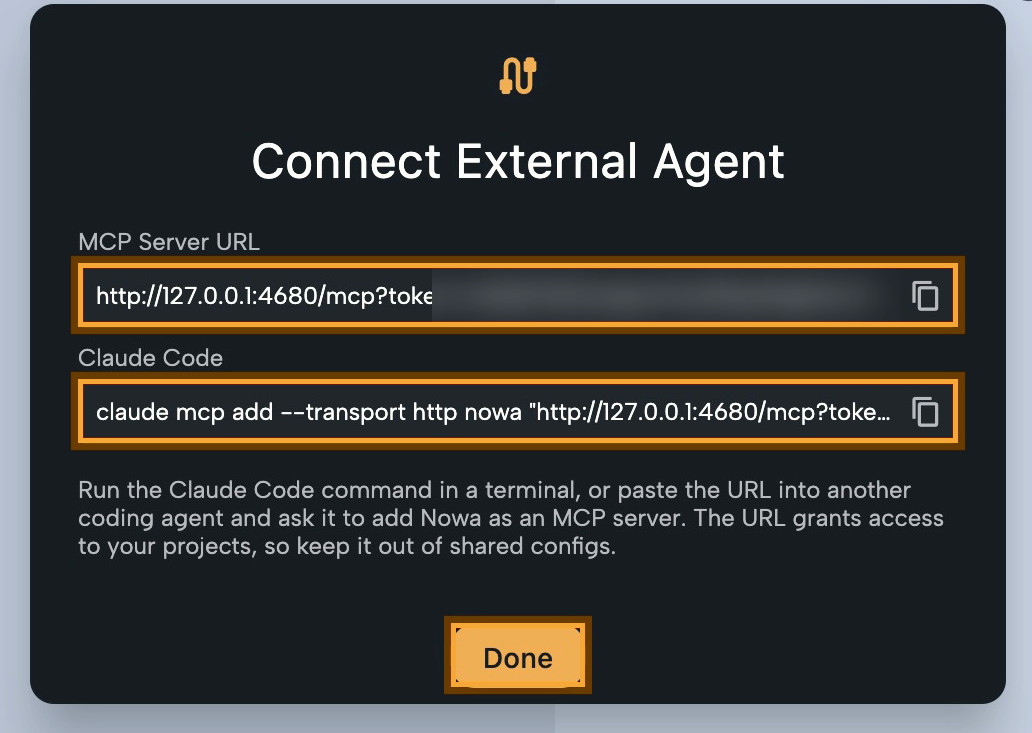
The Claude Code command has this form. It adds a server named nowa that Claude Code reaches at your URL:
claude mcp add --transport http nowa "<MCP Server URL>"
By default, Claude Code makes a server available only in the folder where you ran the command. To use Nowa from any folder, add --scope user:
claude mcp add --transport http nowa --scope user "<MCP Server URL>"
Your agent may ask your permission before it uses a Nowa tool, as it does for any MCP server. Approve it to let your agent work.
The URL stays the same on this computer, so you only set up your agent once.
The URL contains a secret token and gives access to your projects. Keep it out of shared configs.
Nowa listens only on your own computer, so your agent has to run on the same machine. The connection works only while the desktop app is open.
Add Nowa to Cursor
Cursor reads MCP servers from a settings file: ~/.cursor/mcp.json in your home folder for every project, or .cursor/mcp.json inside one project. Add Nowa under mcpServers, with your MCP Server URL:
{
  "mcpServers": {
    "nowa": {
      "url": "<MCP Server URL>"
    }
  }
}
If the file already lists other servers, add the nowa entry next to them. Prefer the file in your home folder when the project folder is shared, for example through Git, because the URL contains your secret token. Cursor asks for your approval before it uses an MCP tool, unless you change that in Cursor. See Cursor's MCP docs.
What your agent can do
Your agent gets Nowa's building rules when it connects, so its changes fit the visual editor. Agents show the name of each tool they call, so here's what each one does:
| Group | Tools | What your agent can do |
|---|---|---|
| Projects | list_projects, open_project, current_project | List your local and cloud projects (cloud projects need you signed in), open one in the Nowa window, and check which one is open. Switching saves the open project first. |
| Orientation | get_project_overview, get_guidelines, get_theme | Read your screens and components, the home screen, the theme, an outline of your code, your Custom Instructions, the problem counts, what is open and selected, and Nowa's building rules. |
| Board | get_selection, get_widget_tree, open_in_canvas, screenshot, save_project | See what you selected, read the widget tree (what the Outline shows), show a screen or widget on your board, take a screenshot, and save. A screenshot also reports build errors, overflows (content that doesn't fit) and placeholders. Saving restarts the Nowa Run preview if it is running. |
| Setup | set_permissions, add_image_assets | Add or remove app permissions, the way the Permissions panel does. Add images from links or files on your computer to your project's images, ready to use. PNG, JPG, GIF, WebP, BMP and SVG work, up to 20 images per call and 20 MB each. |
| Editing | read_file_content, inspect, list_project_files, search_code, grep_files, write_top_level_code, write_class_member, remove_declaration, replace_expression, edit, write, analyze, read_logs, packages, download_font, model_generation_instructions | The same tools Nowa AI uses: read and search your code, create and change screens, components, models and functions, edit other files, check problems and logs, manage packages and add Google fonts. |
Give add_image_assets image links, such as the ones your agent gets from Figma's own MCP, and Nowa downloads the images for you.
Some safeguards keep your app working:
- Code that Nowa can't read (it doesn't parse) is refused instead of saved.
- An edit can't land on the wrong widget if the design changed in the meantime.
- Nowa builds your app's main iOS and Android settings files from your project settings, so direct edits to those two files are refused. For permissions, your agent uses
set_permissionsinstead. Working in the code? See What Nowa adds to your code. - Calls run one at a time. Opening a project gives up after 3 minutes.
Some parts of Nowa AI's chat aren't available to a connected agent: tasks, clarifying questions, suggested next steps, bug reports, saving chat attachments and API generation from cURL.
If the dialog says the server isn't running
The full message is "The server is not running. Port 4680 may be in use; free it and restart Nowa." A port is a numbered connection point on your computer, and Nowa needs port 4680 for your agent. To fix it, close the program that uses port 4680, then restart Nowa.
Next steps
- Install the desktop app
- Custom Instructions: your connected agent receives them too
- Connect Figma and Supabase to Nowa AI