Use Nowa on your phone
Away from your computer? Open Nowa in your phone's browser to check a project, ask Nowa AI for a change, play and run your app, and follow your builds. Nowa switches to a phone layout on its own, so there's nothing to set up.
When you get the phone layout
Nowa shows the phone layout in any browser window narrower than 840 px. It has no board, no sidebar panels and no code editor: it's made for checking, chatting and shipping. When you want to design by hand, switch to a computer or a wider window.
- Open app.nowa.dev in your phone's browser and sign in.
- Tap a project on the dashboard.
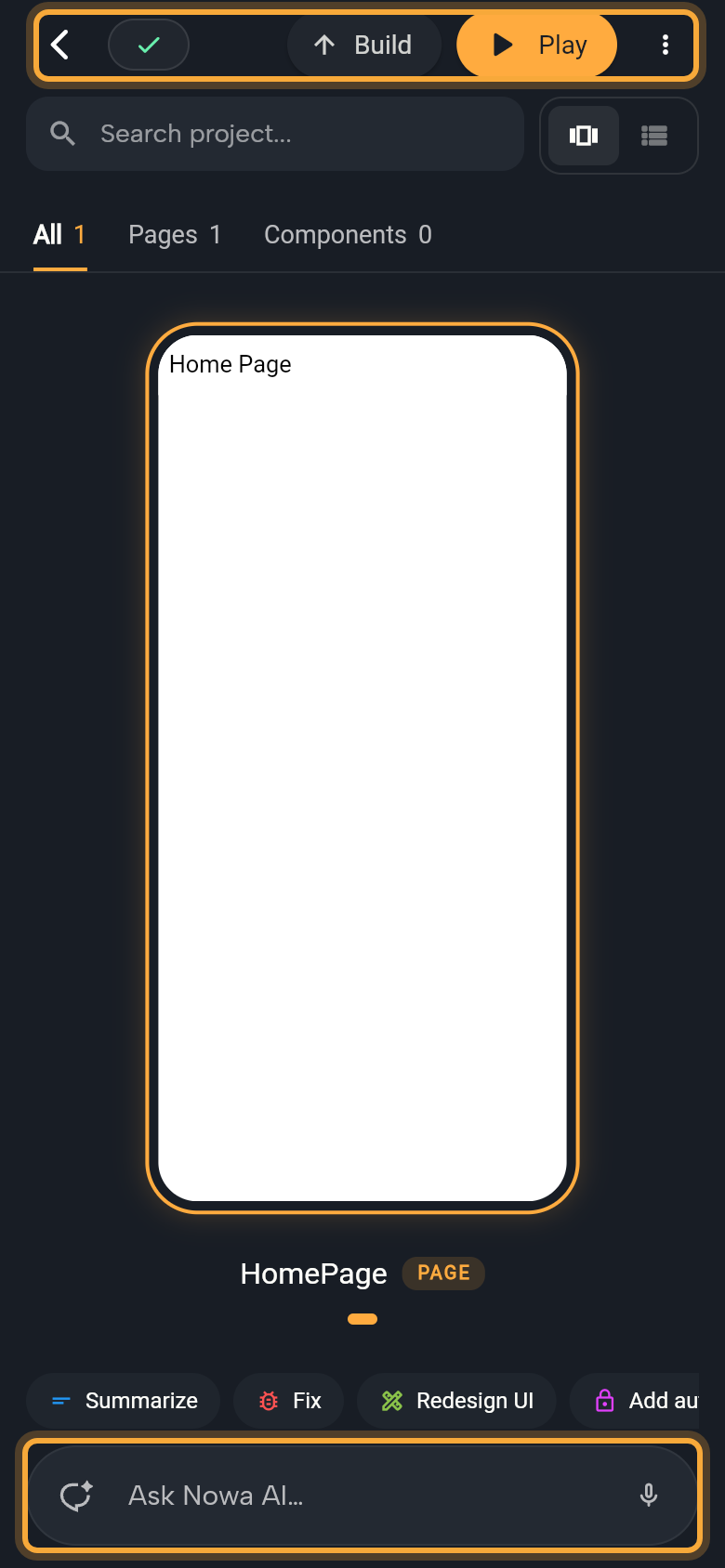
What you see
The top row has these controls:
| Control | What it does |
|---|---|
| Back arrow | Returns to the dashboard. |
| Status pill | A green check, or the number of errors. Tap it to open Problems and Logs. |
| Build | Opens the build page. While a build runs, it shows the progress instead. |
| Play | Plays your app. See Play and run your app. |
| More (⋮) | Support. |
Below it is the list of your screens and components. Use Search project... to find one, and the All, Pages and Components tabs to filter. A toggle switches between a carousel and a list.
Tap a screen or component to attach it to your next message to Nowa AI, so it knows which one you mean, and tap again to remove it. Long-press one for Play alone, Attach to chat, Rename and Delete.
Chat with Nowa AI
The chat pill sits at the bottom. Tap it and type, or tap the microphone and say what you want, which is often quicker on a phone. The hint follows your mode: "Describe the app you want to build…" in Design, "What would you like to plan?" in Plan, and "Ask Nowa AI…" in Agent.
Tap the pill and a row of chips appears above it:
- The first chip shows your mode, Design, Plan or Agent. Tap it to pick another.
- The next chip shows the thinking level, such as Thinking. Tap it to open Model and pick another.
- Attach adds an Image or Components.
- Supabase turns the Supabase connector on or off (it lets Nowa AI work on your Supabase backend).
- History reopens past sessions.
- ⋯ holds Custom Instructions and New Session.
Send your message and the conversation opens full screen. Tap the AI icon at the left of the pill to come back to it. See How Nowa AI works.
Play and run your app
Tap Play to open Play your app. It offers two ways to see your app: a quick look, or the real thing.
| Option | What it does |
|---|---|
| Instant preview | A design preview that opens instantly, marked SIMULATED. Good for checking layout and flows. |
| Run real app | Builds and runs your actual app in the cloud, marked REAL APP, or LIVE once it runs. The first start can take a minute. |
In the playground there is no Run real app, so Play opens the instant preview straight away.
While the instant preview plays, a floating button opens Stop, Restart and Share preview. Drag the button out of the way if it covers something.
Run real app opens the Real app page. When it says Live — your app is ready, tap Launch App to open your running app. Hot Restart and Stop control it, and Start brings it back if it stopped.
Build and deploy
Tap Build to open the build page for your project, with Android, iOS and Web tabs. They're the same pages as Deployment in project settings, so you can start a build or check on one from your phone. The same plan requirements apply. See Get ready to publish.
Next steps
- Build your first app: the full walkthrough, best on a computer.
- Run your app: more on running the real app.
- Get ready to publish: web, Android and iOS.