Run your app
Run builds your real app, with everything in it, and shows it inside Nowa. Unlike Play, nothing is approximated: it's your actual app, running as a web app. Edit, save, and the running app follows, so it's the place to check how your app really behaves before you publish.
This page covers the Embedded preview, which earlier release notes call Nowa Run or App Run. To try your app on a phone or an emulator, see Run on a device or emulator.
In the playground, and in a project you opened from someone's public link, the top bar shows Save instead of Run. Save the app to your account to run it.
Run your app
- Click Run in the top bar, or press Ctrl/Cmd + P on the board. Nowa saves your project and shows the app in a phone frame.
- Wait for the first start. It can take a few minutes, and the preview says "Starting app..." and "This may take a few minutes...". Nowa starts preparing the preview as soon as you open a project, so it's often ready by the time you click.
- Tap, scroll and fill in forms, as your users would.
- Change something in Nowa and save. Every save, automatic or with Ctrl/Cmd + S, updates the running app.
- Click Back to board to return to the board. The app keeps running in the background, so it's ready the next time you look.
A dot next to Run shows the state. Hover it to read it, for example "Running" or "Failed to start".
Choose where to run
Run is a split button. The arrow next to it opens the Run on menu (shown as RUN ON). Embedded preview runs the app inside Nowa, as on this page. In the desktop app the menu also lists your devices and emulators. See Run on a device or emulator. In the web app it shows iOS & Android devices with "Download the desktop app" instead. Run acts on one target at a time.
While the preview is open, Run reads Hide. Click it to hide the preview. The app keeps running.
In the Linux desktop app, the app shows in your browser instead of inside Nowa. The preview pane says Your app is running and "The in-app preview is not available on Linux yet. Open it in your browser instead." Click Open in Browser, or copy the address shown under the button.
Use the run toolbar
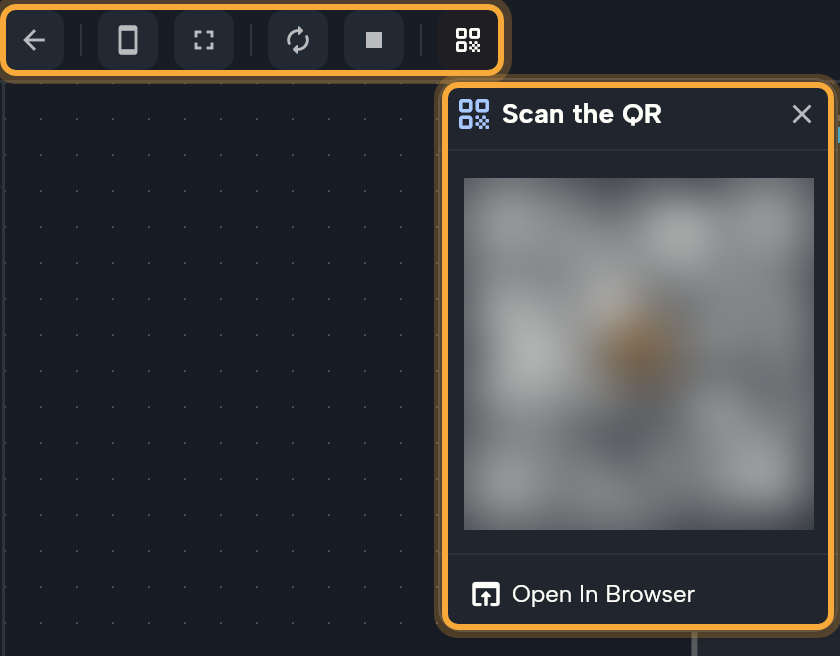
While the preview is open, these buttons replace the breadcrumbs in the top bar.
| Button | What it does |
|---|---|
| Back to board | Returns to the board. |
| Phone / Tablet | Switches the frame between a phone and a tablet, so you can check both layouts. |
| Fullscreen | Shows the app without a frame. Shortcut: Ctrl/Cmd + F. |
| Hot Reload (local projects) or Hot Restart (cloud projects) | Applies your latest saved changes. A local run reloads in place. A cloud run has to come back up. Shortcut: Shift + R. |
| Start / Stop | Starts or stops the app. When it's stopped, Start App in the preview also starts it. |
| Open in Browser (local projects) | Opens the app in your browser at http://localhost:<port>, an address only your computer can reach. |
| Open on Mobile (cloud projects) | Drops down a "Scan the QR" code. Scan it with your phone's camera to open the running app on your phone. Open In Browser in the popup opens it on your computer instead. |
Fix a preview that won't start
The preview runs your app as a web app, so your project needs its main file (where your app starts) and its web files. If something is missing, Nowa tells you when you click Run:
- Web support is missing: "The preview runs your app as a web app, and … has no web/ folder." Click Add web support, and Nowa creates the missing files and opens the preview. If that fails, you see "Could not generate the missing files. Check the logs for details."
- Nothing to run: "Cannot find lib/main.dart, so there is no app to launch." Click Close, then click Fix on "Main file is not found" in Problems to get a new main file, and click Run again. If the dialog says "This folder holds no dart package", the folder isn't an app at all: you can browse and edit its files, but there's nothing to preview.
If the app starts but fails, the preview shows one of these screens.
| What you see | What it means | What to do |
|---|---|---|
| "Your app couldn't start because of a code error" | Something in your project stops the app from starting. | Click Fix with AI, or fix the error yourself, then click Retry. |
| "The app preview failed to start" | Nowa can't tell whether your project or Nowa is at fault. | Click Fix with AI, which first works out where the problem is, or click Retry. |
| "The preview hit a problem on our side — your app is fine" | A problem on Nowa's side. | Click Retry. If it keeps happening, click Report issue. |
| "Your preview session timed out" | The session closed after a while without use. | Click Restart. |
When a restart fails, for example after a save, a card at the top right says "Restart failed — showing the previous version". The previous version keeps running, so you can keep testing while you fix the error. Fix it and save again. On cloud projects the card also has Fix with AI.
A local project runs the preview with Flutter on your computer. If it isn't set up, the error reads "Exception: Flutter SDK path is not set. Please configure it in the settings." Set it up as described in Install the desktop app.
Let Nowa AI fix it
Fix with AI opens the AI Assistant and puts a ready-made prompt with the error log into the chat, so you don't have to describe the problem yourself. If the AI isn't busy, the prompt is sent at once. Otherwise it waits in the chat field.
It runs in the chat's current mode, so switch to Agent mode to let the AI change your project. In Plan mode it only writes a plan. The same button appears on web publishing errors, and Explain with AI appears on failed app builds. See Publish to the web and Build history and logs.
Read the logs
Everything your running app prints, plus Nowa's own messages, goes to the Console. When something goes wrong while you tap through the app, this is where the error shows up.
Messages from a print step, which writes a message of your choice to the logs, show up here too, both when you run your app and when you test with Play. See Write to the logs.
- Click the last log line in the status bar at the bottom. It reads Ready when nothing has been logged. The Console opens on its Logs tab.
- Drag the title bar to move the Console, drag an edge to resize it, and select text to copy it.
- Use the buttons at the top right of Logs. Pub get (the terminal icon) downloads your project's packages (the ready-made add-ons it uses) again, and Clear empties the list.
When a run on a device can't start, a separate Log panel opens by itself. The Problems tab is covered in Find and fix problems.
You don't have to read the logs yourself. Run the app, then ask Nowa AI in Agent mode: "Why does the app show an error when I tap Sign in? Check the logs and fix it." The agent can read your app's logs once you have run the app.
Next steps
- Run on a device or emulator: try the real app on a phone or an emulator.
- Share your app: send a link to a preview.
- Find and fix problems: check your project for errors.