Find and fix problems
Nowa keeps an eye on your project while you work and lists anything that looks wrong in the Problems tab: a missing package, a screen pointing at something that no longer exists, a setting your app still needs. Many problems have a Fix button that solves them in one click, and Nowa AI can help with the rest.
Open the Problems tab
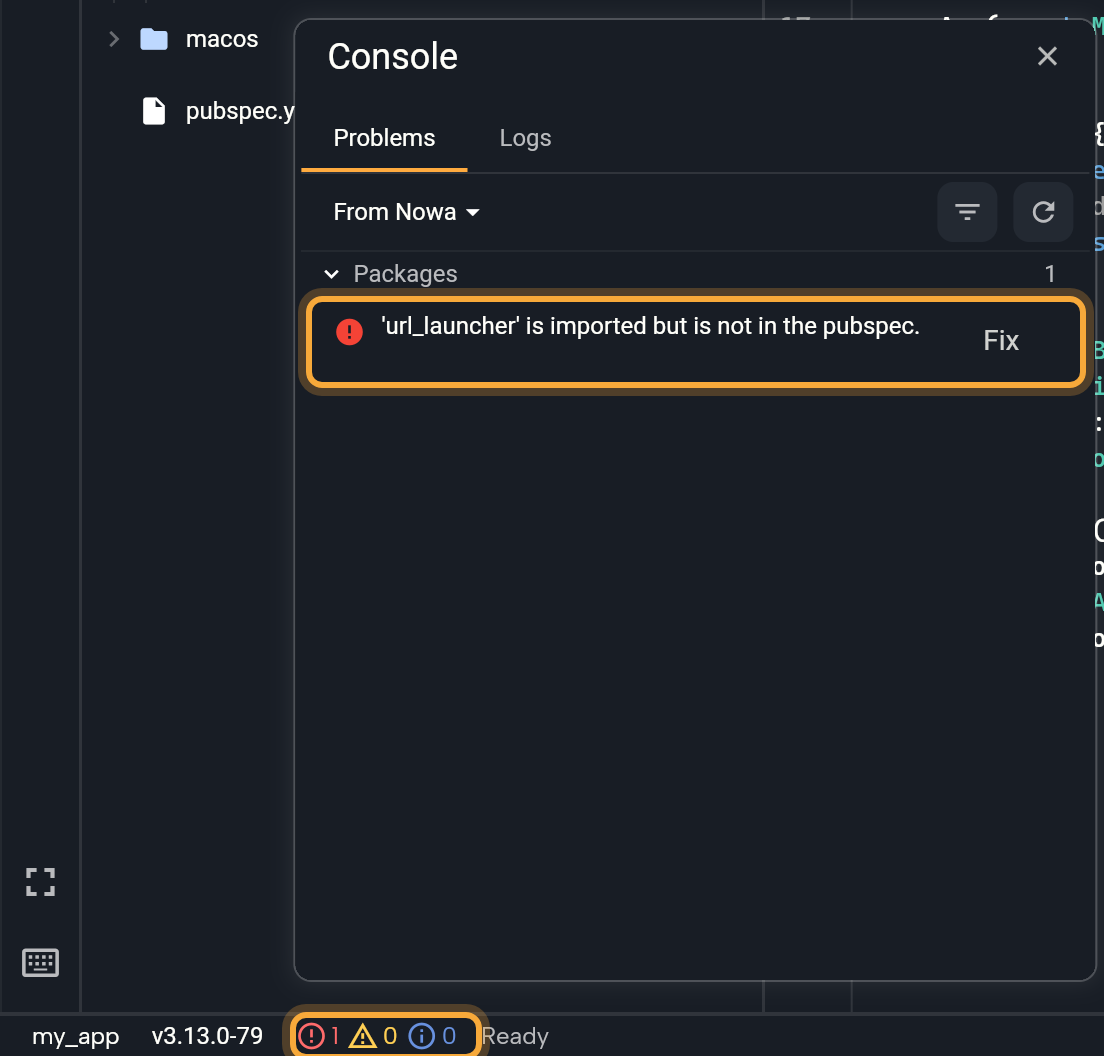
Click the three counts in the status bar at the bottom of the editor: errors, warnings and info messages. The Console opens on Problems.
The red number counts the errors in this list, so it's a quick way to see whether something needs your attention. The other two count messages in Logs, the second tab, which shows what Nowa and your running app print. See Read the logs.
Read a problem and jump to it
- Groups. Problems that concern the whole project have their own groups, such as Packages, main and Router problems. A problem inside a file is listed under that file.
- Menu. Click a problem to open a small menu. Navigate opens the file and, when it can, selects the spot. Copy copies the message, handy for asking Nowa AI or support about it. Problems with no file, such as package problems, have nothing to open. In From Code Analysis, the menu offers Open File and Copy.
- Fix. A Fix button on a row means Nowa knows exactly how to solve it.
Fix a problem with one click
Click Fix. Nowa applies the fix and checks again, so the row disappears once it's solved. If the fix fails, a red message says why.
| Problem | What it means and what Fix does |
|---|---|
'<package>' is imported but is not in the pubspec. | Your app uses a package (a ready-made add-on) that's missing from your project's list of packages, the pubspec. Fix adds it, at its latest version. |
The function '<name>' isn't defined. | Your app calls a function Nowa can't find. Fix adds the package that provides it, when it's one Nowa knows. |
Setup statement in main.dart for "<key>" is required but not found. | A package needs a setup step when your app starts, and it's missing. Fix adds it to main.dart, the file your app starts from. |
Android permission "<name>" is required by <package> but not enabled. (or iOS) | A package needs a phone permission, such as the camera, that isn't turned on for your app yet. Fix turns it on, so your app can ask for it. |
The name '<name>' is defined in <packages>. Try removing one of the imports. | Two packages use the same name, and Nowa needs to know which one you mean. Fix opens Fix Ambiguous Import: pick the one to keep visible, then click Apply Fix. |
Main file is not found or Main function is not found | Your app's main file, where your app starts, is missing or broken. Fix opens Reset main file. Click Reset to get a new main file with the default setup. If your project has routes (the paths that open each screen, which new projects have), the new file doesn't use them, so afterwards ask Nowa AI in Agent mode to connect them again and check with Run. |
Reset replaces your app's main file with a fresh default one. Anything that was added to the old file is gone, so use it only when the file is missing or broken.
Hand a problem to Nowa AI
You don't have to understand a problem to get it fixed. Nowa AI can read the same list of problems, run the full code check and change your project, so it's the easiest way through anything without a Fix button.
- Ask in the chat. Switch to Agent mode, the mode that lets the AI change your project, and try: "Check my project for problems and fix them." Or paste one message you copied: "Problems says
Undefined name 'total'.on the cart screen. What does it mean? Please fix it." Afterwards, look at Problems again and click Run to check the app still behaves. - Fix with AI appears next to a preview error (Run your app) and a failed web publish (Publish to the web). It sends the error log to the AI Assistant chat. Use Agent mode so the AI can change your project.
- Explain with AI appears on a failed step of a cloud build (When a build fails). It asks the AI what went wrong.
Fix problems that have no button
Here's what each message means and how to solve it. Whenever a fix would mean changing code, ask Nowa AI to do it for you.
'<package>' is a dev dependency, so Nowa does not load it. Move it to dependencies to use it in lib/.: the package is set up as a tool for building and testing only, not as part of your app. Ask Nowa AI in Agent mode: "Move the package [package name] from dev dependencies to dependencies." If you edit code yourself: inpubspec.yaml, move it fromdev_dependenciestodependencies.'<package>' is installed but failed to load, so nothing it defines is available: <reason>: the board can't draw anything from that package. Read the reason, and try another version under Settings → Packages. Run shows whether the real app still builds. See Add packages.No Home screen Selected, select one of screens as Home Screen: your app doesn't know which screen to open first. Select a screen and click Make home screen. See Choose the home screen.- Router problems, such as
Duplicate route path found: "/home".: two screens share the same address. Fix the route in the Router panel. See Set up routes in the Router panel. Firebase package name '…' does not match the app package name '…'. Try refreshing the config files: your Firebase files were made for a different app ID (your app's unique name in the stores), for example before you changed it. Navigate opens the Firebase settings. See Refresh the apps and config files.- Anything else, such as
Undefined name 'total'.: hand it to Nowa AI. If you work in code, Navigate takes you to the spot.
Choose where problems come from
Nowa has two ways to check your project. The menu at the top left of the tab picks one.
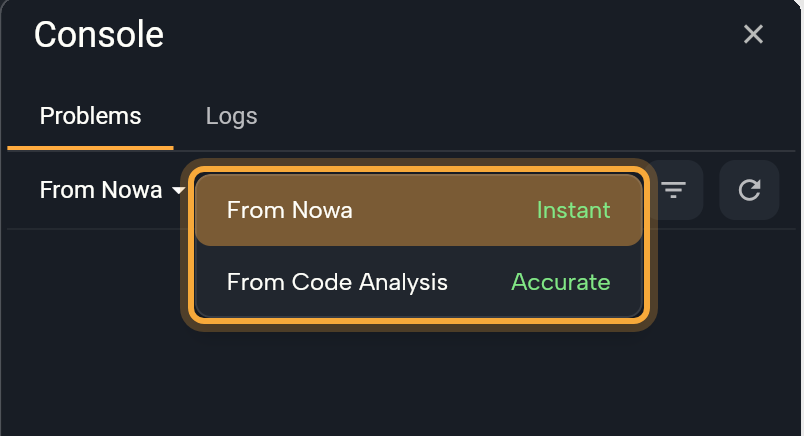
| From Nowa (Instant) | From Code Analysis (Accurate) | |
|---|---|---|
| What it checks | What Nowa built for you (for example, a name that no longer exists or a value of the wrong type) and your project's setup: main file, home screen, packages, permissions and routes | Your whole app, with flutter analyze, Flutter's own full check |
| When it updates | As you edit. Click Refresh to check again | When you click Run Code Check |
Use From Nowa while you build, and run the full check before you publish.
From Nowa
- By default, Nowa checks only the code it made for you, marked
@NowaGenerated. Code that was written by hand is skipped, because Nowa might flag perfectly good code as a problem. A file with any hand-written part is skipped as a whole, except for code Nowa couldn't load. - To include hand-written code, click the filter button (Which code Nowa checks) and choose All files. The tab then says "Including code Nowa did not generate". Only @NowaGenerated switches back.
From Code Analysis
- Click Run Code Check, or the play button (Run code check (flutter analyze)). The status reads "Checking...", then "Checked at" and the time.
- Read the results, grouped by file. Each shows its message, a hint when there is one, and where it is in the file (
line:column · code). - You see Errors only at first. Click the filter button (Filter code check results) to add Warnings and Info.
A cloud project is checked on Nowa's servers. A local project is checked with Flutter on your computer, so set up Flutter first. The check reads your saved files: after you edit, the status says "n files changed since last check", a sign that it's time to run it again. If it can't run, "Code check failed" shows the reason.
See code Nowa couldn't read
Nowa draws your screens by reading your app's code. Most of it turns into widgets you can edit visually. What it can't read, it handles in one of two ways:
- Kept as code. When Nowa can't turn a widget into something you can edit visually, it keeps it exactly as written, and the widget shows as a placeholder on the board. Select it, and Details shows Kept as code and the reason.
- Skipped. When Nowa can't read a part of a file at all, it skips that part and loads the rest. Problems lists
'<name>' could not be loaded: <reason>, even with Only @NowaGenerated. A file Dart (the language your app is written in) can't read at all lists Dart's own error message instead.
Run builds all of your code, so it shows what the real app does. What Nowa can show on the board lists what the board can't read yet.
Not sure what a placeholder is hiding? In Agent mode, select it on the board and ask: "Why does this widget show as a placeholder? Can you make it editable?"
When Problems is empty but something is wrong
- "Loading packages..." means Nowa lists nothing until your packages have loaded. Wait for it to finish.
- The scope is Only @NowaGenerated. Switch to All files.
- Some errors only show up in the full check. Click Run Code Check under From Code Analysis.
- Errors that happen while your app runs show in Logs. A screen that crashes while Nowa draws it shows This screen failed to render.
Next steps
- Run your app: build the real app and watch its logs.
- What Nowa can show on the board: what Nowa can't draw yet.
- Troubleshooting: find a fix by the message you see.