Share your app
Send a link, and people can try your app in their browser. There's nothing to build, publish or install, so you can share a new version after every change and get feedback the same day. You can share a preview of the app, or open the whole project so others can look inside and keep their own copy.
Cloud projectsWhen to share a preview
A preview is the quickest way to put your app in front of other people. They open the link on a computer or a phone and tap through your screens right in their browser. It's a good fit when you want to:
- Get quick feedback from a teammate, a co-founder or a few friends.
- Show a client or an investor how the app looks and flows, without hosting it anywhere.
- Let people review your screens and flows without installing anything.
- See how your layout holds up on other devices. Viewers can switch between phone, tablet and desktop sizes (see What people see in a preview).
A preview isn't the finished app, though. It runs the same way as Instant Play, so maps and paywalls show a placeholder and Firebase sign-in is simulated. To try everything on a real phone, run your app on a device. To hand people the real app, publish it to the web, Google Play or the App Store.
Choose how to share
| Share preview | Public project link | |
|---|---|---|
| What people get | A preview they can tap through but not edit. | Your project opened in Nowa. They edit their own copy. |
| Where you set it up | Share preview in the controls shown while an item plays. | Settings → Project Details → Sharing. |
| Who can open it | Private: project members. Public: anyone with the link. | Anyone with the link, once Public project is on. |
Both options use the same switch. Public in Share preview and Public project in Sharing control one setting of your project.
Public makes your whole project public, not only the preview. Anyone with the link can read every file and save their own copy. Keys, tokens and other secrets stored in your project, such as values in Constants, become readable too. Nowa asks you to confirm before it switches on.
Choose Private again to turn the project back to private. People outside your project can then no longer open either link.
Share with a client
Pick what your client needs to see.
- A quick look. Send the preview link set to Public. Read the warning above first, because Public opens your whole project.
- A look without making the project public. Keep the preview Private and give your client access. Put the project in a workspace and invite your client as a member. Choose View Only if they should look but not change anything. They sign in to Nowa to open the link.
- The finished app. The preview isn't the real, built app. To hand over the real thing at its own web address, publish your app to the web. Publishing needs a paid plan.
Share a preview
The preview is Instant Play in a browser tab: it opens at once, and it's close to the real app, not exact.
- Play a screen on the board. Hover the title bar above the screen and click the play button.
- In the controls at the bottom of the board, click Share preview. The Share Preview popup opens.
- Pick who can open the link. Public means "Anyone with the link can view the preview." Private means "Only members that have access to the project". Only project owners and editors see this choice, and it shows the project's current setting.
- If you pick Public, Nowa asks "Make this project public?". Read the warning, tick "I checked, there are no secrets in this project", and click Make public.
- Copy the link with the copy button and send it. Or click the QR code button (Qr code) to show a code people can scan with their phone, or Open in browser to see the preview the way others will.
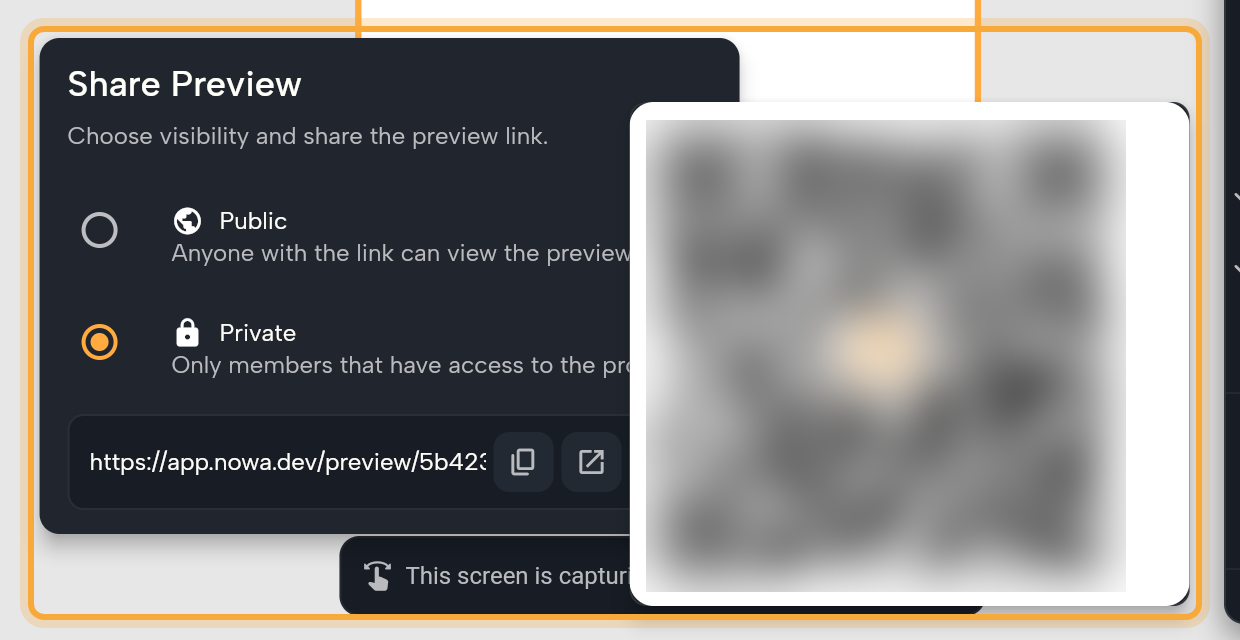
The link looks like https://app.nowa.dev/preview/<project>. If you shared from a played screen, it ends with ?screen= and that screen's file, so the preview opens on that screen.
Want people to start from the beginning of your app instead? Delete the ?screen=… part of the link. Owners and editors who open a link with ?screen=… see the warning "Single Screen Preview", even when the screen has a route: "Route-based navigation is disabled in Play Mode for single screen previews. To test navigation, you need to preview the full app."
You never need a new link after you change your app. The link stays the same, and people always see the project as you last saved it.
In a local project, Share preview says "Share preview is not available on local projects". Click Sync to cloud to open Project Sync and make a cloud copy first. See Work with local projects.
What people see in a preview
On a computer, the app opens in a phone frame (an iPhone 13 at first) with a toolbar at the top.
Owners and editors also see cards that list what the preview can't show, such as "Custom code can't be shown" or "Dynamic packages can't be shown". The button above them hides the cards (tooltip Hide Play Warnings) and brings them back (tooltip Show Play Warnings). The "Unattached global states" card lists global states (app-wide data, such as the signed-in user or a cart) that aren't attached to your app, which can cause errors if they're used. Its Attach all button attaches them to your app. See Attach or detach a global state.
| Button | What it does |
|---|---|
| Share App | Opens the Share Preview popup with the link and QR code. |
| Full Screen | Shows the preview full screen. |
| Device Settings | Opens Play Settings. |
| Restart | Restarts the preview. Only owners and editors see it. |
Play Settings lets anyone viewing the preview try your app on other devices. Device Size lists iPhones and iPads, Android phones and tablets, and laptop and monitor sizes for macOS, Windows and Linux, so a client can see your app on a tablet or a big screen from the same link. Its Custom tab takes a Width, Height and Pixel ratio. Under Safe areas on that tab, Left, Top, Right and Bottom set the space at each edge that a Safe Area keeps clear, such as for a notch or a system bar.
Viewers can also turn Free Size and Show mockup frame on or off, and rotate the device with Orientation (for devices that rotate). Nowa remembers these choices per project in the viewer's browser.
On a phone or in a narrow window, the app fills the screen. A floating button opens Stop, Restart and Share preview.
People without access to a private preview may see Preview Not Available, with a Sign In button.
Open your project to others
Sometimes you want to share more than the app: a template for others to build on, or a project you want a helper to look into. A public project link opens your whole project in Nowa, and every visitor works on a copy of their own.
This works for cloud projects. In a local project, Sharing has only the Cover. Members with View Only access don't see Sharing.
- Click the gear in the top bar, or press Ctrl/Cmd + ,, then click Project Details.
- Scroll to Sharing and turn on Public project. Nowa asks "Make this project public?": "Your project becomes open source, anyone with the link can read every file and save their own copy of it." A warning adds that this "would expose any API keys, tokens and any other secrets".
- Tick "I checked, there are no secrets in this project" and click Make public. Make public stays dimmed until the box is ticked. Cancel leaves the project private.
- The link and three icon buttons appear next to the switch: Copy link, Open in a new tab and Link options. Click Copy link, or Open in a new tab to try it yourself.
The link looks like https://app.nowa.dev/project/<project>, with your link options added. Turn Public project off whenever you want the project private again.
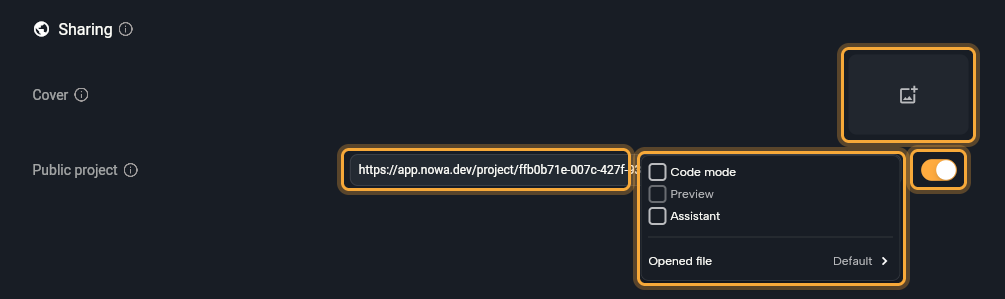
Visitors can open the link without an account. Nowa opens your project in a private copy in their browser, so "your project is never changed by a visitor". They can explore, play and edit.
Their edits are lost when they close the tab, unless they click Save to keep changes, which copies the project into their own account. Run and Deploy aren't available to them. See Try Nowa without an account.
Set how the link opens
Click Link options to choose what visitors see first. A popup opens over the three buttons, and Nowa adds your choices to the link.
| Option | What it does |
|---|---|
| Code mode | Opens the project in code mode, where the project's files are shown as code. |
| Preview | Shows the Instant Play preview next to the code. Needs Code mode. |
| Assistant | Opens the AI Assistant panel. |
| Opened file | Picks the file that opens first. Click it and search for a file, or choose Default. |
Choose the project cover
The Cover is the image shown wherever your project is listed. Nowa takes it from your board on every save, so it stays up to date without any work from you. To use your own image, click the cover preview. Click Use my board to go back to the automatic one.
Next steps
- Play your app on the board: the preview you share.
- Run your app: check the real app before you send a link.
- Get ready to publish: put your app online or in the stores.