Work with local projects
A local project is a normal Flutter project that lives in a folder on your computer. You build it in Nowa, and the same folder opens in VS Code, Git tools and anything else that works with Flutter. Your files stay in a folder you choose, not in your Nowa account, so they're always on your own disk.
Desktop appBefore you start
- Install the Nowa desktop app, for macOS, Windows or Linux. It's free on every plan.
- Set up Flutter. Nowa needs the Flutter SDK (the toolkit that builds and runs Flutter apps) on your computer to create and run projects. If you see Flutter SDK not found, follow Set up Flutter.
- An internet connection. Your files stay on your computer, but local projects still need a connection: Nowa checks your account with its servers when you open the dashboard or a project.
A local project differs from a cloud project in three ways:
- Where it shows up. Local projects are listed under On this device in the desktop app only. Other computers and the web app don't see them.
- What you gain. You can open it in VS Code, jump to its folder with View in folder (in code mode, right-click a file in Files), and use the Git panel on the repository in that folder. Nowa also picks up files you change outside it: see What syncs and when.
- What you give up. Deploy, Cloud Build, Share preview, Public project, Move to workspace... and code download are for cloud projects. Where a local project reaches one of them, such as Share preview or the Deployment settings, Nowa says it isn't available, for example "Cloud build is not available on local projects", and offers Sync to cloud. To use them, link a cloud copy with Project Sync. You can also build and publish the app yourself with Flutter's own tools, as with any Flutter project: see Flutter's deployment guides.
For a side-by-side comparison, see Cloud and local projects.
Create a local project
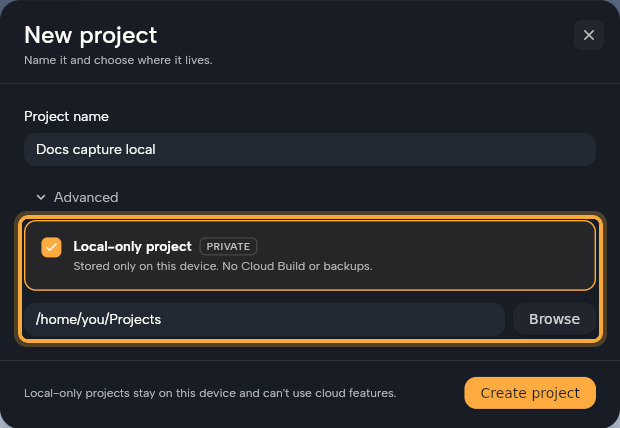
- On the dashboard, click New project.
- Type a Project name. You can use letters, numbers, spaces, hyphens and underscores.
- Expand Advanced and click Local-only project. The card says "Stored only on this device. No Cloud Build or backups."
- Check the Path. It starts as your Default Projects Path from Local Setup, and it's empty if you haven't set one. Click Browse to pick a folder, or type its path.
- Click Create project. Nowa creates a Flutter project in a new folder inside that path, adds its starter app (routing, theme, a home page and a board), and opens it, ready for your first screen.
The folder is named after your project's package name: your project name in lowercase, with underscores for spaces. A leading digit is spelled out, so 2048 Game becomes two_048_game. The dashboard shows the name you typed. If Nowa says a folder with that name already exists, pick another name or path.
Open a local project
- In the workspace switcher on the dashboard, choose Personal. Local projects aren't shown inside a workspace.
- Scroll to On this device, tagged LOCAL-ONLY, and click a project.
The ⋮ menu on a project offers Open in safe mode, Upload to cloud, Remove from list and Delete. Choose carefully: Delete erases the folder.
Nowa remembers your local projects on this computer only. On another computer, add the folder again with Import project.
Add a project you already have
Use Import project for a Flutter folder Nowa doesn't know yet, such as one you made on another computer or cloned yourself.
- Click the arrow next to New project and choose Import project.
- Click Browse and pick the project folder. If the folder holds several packages (a monorepo), choose one under Package to open.
- Expand Advanced, click Local-only project (a monorepo is already local-only), then click Import project.
Nowa opens the folder where it is and doesn't copy it. For monorepos, cloud imports and what to expect on the board, see Import an existing Flutter project.
Link a cloud copy with Project Sync
Project Sync makes a cloud copy of your local project (or a local copy of a cloud project) and links the two. You then copy changes from one to the other when you choose, for example to work locally all week and copy the result to the cloud copy to Deploy it. Project Sync is only in the desktop app (the web app doesn't show it), and Nowa keeps the link on this computer.
If you change both copies, Git is the better fit: it merges the two sides instead of overwriting one with the other.
To create the copy:
- Open the project, click Settings (the gear in the top bar) and choose Project Sync. From the dashboard, you can instead open the project's ⋮ menu and click Upload to cloud.
- For a local project, pick a place under Select Workspace and click Clone to Cloud. The first entry, Cloud Projects, means no workspace. For a cloud project, choose a folder in Path and click Clone to Local.
- Wait for the copy to finish. It opens when it's ready, and your original project stays as it was.
To copy changes later:
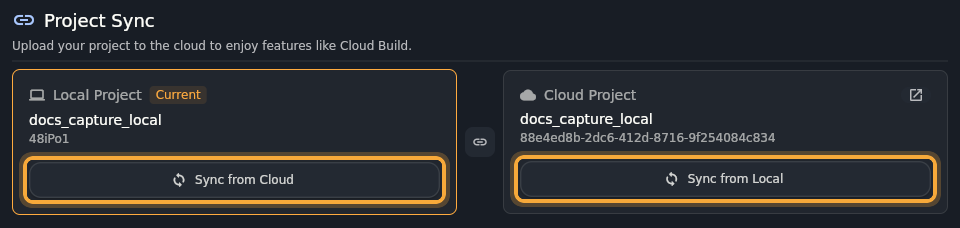
- Open Project Sync. You see a Cloud Project card and a Local Project card. The project you're in is marked Current.
- On the card you want to update, click Sync from Cloud or Sync from Local. The button names where the files come from.
- Read the Sync Warning, then click Proceed with Sync.
A sync overwrites existing data in the destination with the files from the source. It runs one way at a time and never on its own. Syncing in the wrong direction replaces your newer work with the older copy, so check the button name before you click and back up the destination first.
Linked the wrong project, or done with the cloud copy? To break the link, click the link icon between the cards (tooltip Unlink Project) and confirm with Unlink Project. Both projects stay as they are. To link them again, clone the project again. If Nowa can't load the linked copy, the page shows "Failed to load linked projects" with a Remove link button that does the same.
Fix "Project not found"
If you move, rename or delete a local project's folder, opening the project shows Project not found and the old path. Pick one:
- Use followed by a folder name: Nowa found a folder next to the old one with the same package name. Click it to point the project there.
- Locate folder: choose the folder yourself. It must contain a
pubspec.yaml, the settings file at the top of every Flutter project. - Remove from projects: drop the project from your list. Nothing is deleted from disk.
- Back to dashboard: leave it for now.
Remove from list or Delete
Both take a project off your list, but only one of them touches your files.
| Remove from list | Delete | |
|---|---|---|
| What happens | The project leaves your list. The folder and its files stay on disk. | The project leaves your list and its folder is erased from disk. |
| Confirmation | None. It happens right away. | A confirmation dialog ("Are you sure you want to delete…?") that says "This action cannot be reversed." Click Delete Project to confirm. |
| Getting it back | Add the folder again with Import project. | Not possible from Nowa. The folder isn't moved to the Trash or Recycle Bin. |
Delete on a local project erases its folder and everything in it. Use Remove from list if you only want it off your list.
The one exception is a project you imported from inside a larger Git repository, where the repository's root folder is above the project's folder. For that project, Delete asks Remove "name" from Nowa?, says "The files stay on disk." and, when you click Remove, only takes it off the list. A project whose own folder is the repository root is erased like any other. That includes a repository you cloned with Clone from GitHub and Local-only, and a monorepo whose workspace root is the repository root.
Either action also drops the project's Project Sync link. A cloud copy isn't touched. For cloud projects, see Create and manage projects.
Next steps
- Use Nowa with VS Code: write code in your editor while you design in Nowa.
- Use Git: keep a history of the folder and sync it with GitHub.
- Run on a device or emulator: try the app on your phone or a simulator, with hot reload.
- Create and manage projects: everything about cloud projects.