Import an existing Flutter project
Already have a Flutter app? Bring it into Nowa and keep going with Nowa AI and visual editing, on top of the code you already wrote. Import a folder from your computer, or clone a repository from GitHub. Either way, your code stays yours: Nowa reads it and draws your screens, and only rewrites the parts you change visually.
Before you start
- To import a folder, install the desktop app. Import project isn't in the web app.
- To keep the project on your computer, set up Flutter first. Local projects use the Flutter SDK (the toolkit that builds and runs Flutter apps) on your computer, for example to run your app. See Set up Flutter.
Choose how to bring it in
| Import project | Clone from GitHub | |
|---|---|---|
| Where it works | Desktop app only | Web and desktop app |
| What you bring | A Flutter folder on your computer | A repository from your connected GitHub account |
| What you get | A cloud project (an uploaded copy), or a local-only project (your folder, opened in place) | A cloud project, or with Local-only (desktop app) a local project cloned to your computer |
| What it needs | A pubspec.yaml in the folder (the settings file every Flutter project has) | A plan with Git integration and a connected GitHub account |
Both start from the arrow next to New project on the dashboard. Not sure which to pick? Use Import project for a folder that's already on your computer, and Clone from GitHub when the code lives in a GitHub repository.
Import a project from a folder
Desktop app- Click the arrow next to New project and choose Import project.
- Next to Project folder, click Browse and pick your Flutter project's folder. You can also paste a path, then click outside the field so Nowa reads the folder.
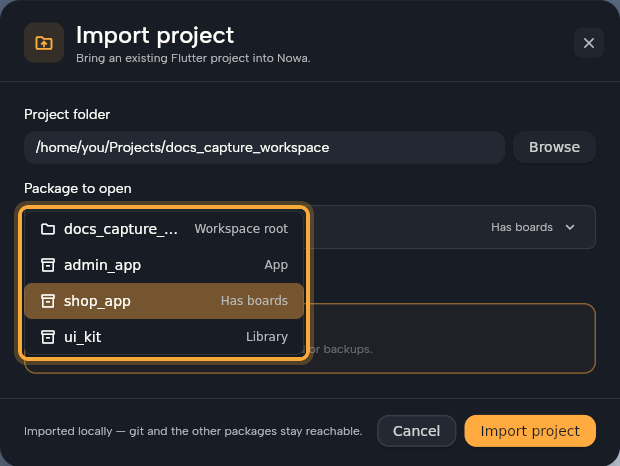
- If a Package to open menu appears, pick the package to edit. See Work with a monorepo.
- Choose where the project lives:
- To upload a copy to your Nowa account, keep the default. The footer reads "Imported to the cloud — run, share and build from anywhere." The workspace chip at the top of the dialog picks which workspace gets the copy.
- To keep your folder where it is, expand Advanced and click Local-only project. The footer reads "Imported locally — stays on this device, no cloud features."
- Click Import project. The project opens, ready for you to design and prompt.
What to know before you click Import project:
- The folder needs a
pubspec.yaml, which is how Nowa knows it's a Flutter project. Without one, the dialog warns "No pubspec.yaml here — Nowa can browse and edit the files, but not design them." and Import project still stops with "Exception: Chosen folder is not a nowa project or a flutter project." - A cloud import uploads a copy and leaves your folder alone. It skips
.git/,build/,.dart_tool/and.idea/, so the copy starts without Git history. To keep history, import as local-only. - A local-only import opens your folder in place. Nowa doesn't copy it, so you can keep editing the same folder in VS Code. The project is listed under On this device.
- Monorepos, and projects inside a bigger Git repository, are always local-only. The Local-only project card is locked and the footer reads "Imported locally — git and the other packages stay reachable."
Clone from GitHub
Before you start:
- Connect your GitHub account in Connect GitHub. The repository list doesn't appear until you do.
- Use a plan with Git integration. Otherwise Nowa shows Time to level up with an Upgrade button.
Then:
- Click the arrow next to New project and choose Clone from GitHub.
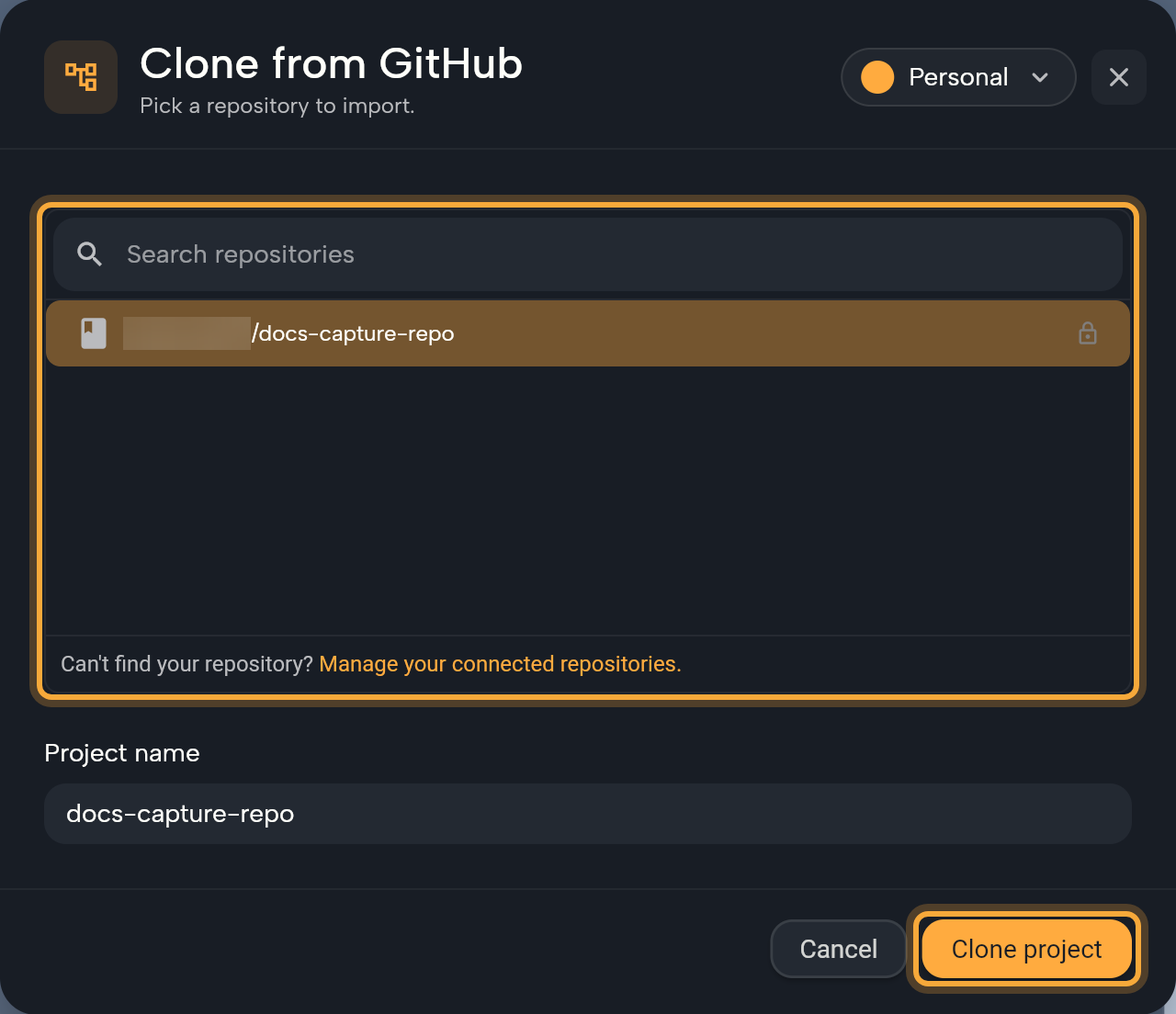
- Pick a repository in the list. Type in Search repositories to filter it. If you can't find yours, click Manage your connected repositories to choose which repositories Nowa can see on GitHub.
- Check the Project name. It starts as the repository name, and it's the name Nowa shows. If you then pick another repository, the name stays, so change it yourself.
- Choose where the clone goes. The chip at the top picks the workspace for a cloud project. In the desktop app, tick Local-only to clone to your computer instead. Nowa puts the clone in a folder named after the repository, inside your Default Projects Path from Local Setup.
- Click Clone project. It turns on once a repository is selected. A timer shows how long the clone has run. The project opens when it finishes.
The new project stays connected to the repository, with its history and branches, so you can commit and click Sync in the Git panel right away.
If the clone fails, the dialog shows the reason with a Fix button:
- "Set a default projects folder in settings to clone locally." Fix opens Local Setup, where you set Default Projects Path.
- "You need to add your credentials to access the remote repository" or "You don't have access to this repository, please check your credentials". Fix opens the Git settings. See Connect GitHub.
Work with a monorepo
A monorepo is one repository that holds several Flutter packages, for example a customer app, an admin app and a shared library. Nowa treats a folder as a monorepo when its pubspec.yaml lists workspace: members, or when it keeps packages in packages/ or apps/. You then choose which package to edit, either in Package to open while importing or in the Open prompt after a local clone ("This workspace holds several packages. You can switch later.").
- Each package carries a hint: Has boards (it already has board files), Workspace root, App (it has a
lib/main.dart) or Library. - Nowa preselects the package you picked, then one that has boards, then the workspace root. If you pick a package folder inside a workspace, Nowa still opens the whole workspace.
- To switch later, click the package chip in the top bar (tooltip Package being edited). It shows only when the project has two or more packages. Nowa saves and reopens the project on the package you choose.
- Git covers the whole repository, including files outside the package you're editing.
What to expect on the board
- The first time, Nowa opens a board called
first. If your project has nofirst.boardfile, Nowa creates an empty one, even when the project has other boards. Open your boards from the Boards chip in the top bar. Your screens and components are in the Library (Ctrl/Cmd + 2) under Project. Drag one onto the board to see it, or double-click it to open it on its own. - Nowa draws your code by interpreting it, not compiling it. Parts it can't draw show as placeholders, and anything it skips is reported in the Problems tab. Click Run to compile the whole app and see the real output. See What Nowa can show on the board and Write your own code.
- Packages decide a lot. Popular packages have built-in support on the board. Others still work when you Run, but their widgets show as placeholders on the board. See Add packages.
- Nowa's app-wide data is built on
provider. The global states that Circuit lists under GLOBALS areproviderclasses (aChangeNotifierprovided at the top of your app). State kept with another package, such as Riverpod or Bloc, still runs in your app, but it doesn't show up there. See Share data across your app. - Nowa adds a
.nowafolder with its settings. Itstemp/folder andthumbnail.pngare Git-ignored. Nowa no longer raises theversionin.nowa/settings.jsonto match each new release, so updating Nowa doesn't make that file show up as modified in Git. - FlutterFlow exports work too. Nowa draws pages that use
safeSetState, custom functions and Firestore records with placeholder data, even without a Firebase connection on the board. - Code you change visually is rewritten. On save, Nowa adds
@NowaGeneratedand an import ofpackage:nowa_runtime/nowa_runtime.dart, turns relative imports intopackage:imports, reorders constructor parameters and writes16as16.0. Code you don't touch stays as you wrote it, including amain()function of your own (one without@NowaGenerated) and thelibrary;andpartlines of a file.
Commit before you start editing visually. The Git panel then shows exactly what Nowa changed in your files.
Next steps
- Work with local projects: find, link and safely remove the project on your computer.
- Write your own code: use your existing widgets and functions on the board and in Circuit.
- Use Git: see exactly what Nowa changes, commit and sync.
- Connect GitHub: clone more repositories, or push this one.