Share data across your app
A global state is one place to keep data and logic that your whole app shares. Any screen can read it or change it, and the widgets that show it update on their own when it changes.
It's the right home for things like:
- a shopping cart: the items, the total, and functions such as
addToCartandremoveFromCart - the signed-in user's details, needed on many screens
- a setting such as dark mode
- in a water tracker, today's total and the daily goal, shared by the home and history screens
Start local: keep a value on its screen until a second screen needs it. From then on, a global state saves you from handing the same value from screen to screen. Pick where each value lives compares your options.
Create a global state
- Open the Library in the sidebar and click Add (+) in its header, then New Global State....
- Type a name, such as
CartState. Nowa fills in the Class name and the Path (the file name) for you. Click either one to change it. - Click Submit. Nowa creates the global state in the
globalsfolder and attaches it to your app, so every screen can use it right away.
You can also open the Variables panel with nothing selected, find Globals and click Create global state. That one is attached right away too, but it doesn't go in the globals folder: in the Library, it sits at the top level of your project, outside the folders.
New projects already include a global state named AppState, in the globals folder. It holds the app's theme and a changeTheme function that switches between your themes: see Switch themes while the app runs. Working in the code? See What Nowa adds to your code.
Add variables and functions
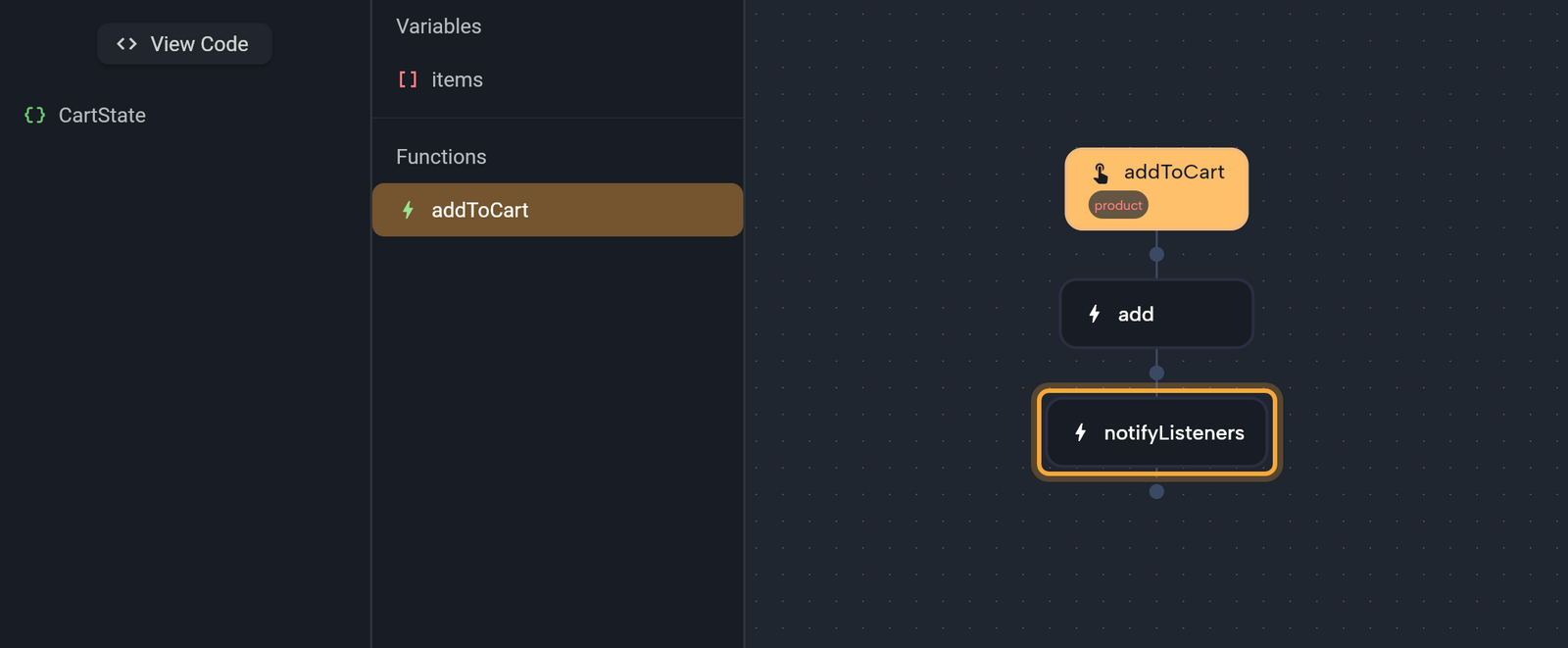
A cart needs a list of items and a way to add to it. Here's how to build both.
- In the Library, click Filter and choose Global states. The default filter, Widgets, hides them.
- Double-click the global state, such as
CartState, in theglobalsfolder, or select it and press Enter. A single click only shows a details card. - Click the class name, such as
CartState, in the list on the left. Its Variables and Functions appear in the middle. - Hover Variables and click +. Rename the new variable, such as
items, then set its Type and Default Value on the right. See Store data in variables. Keep Is Final off for a variable your functions will change, because a final variable keeps its starting value for good. - Hover Functions and click +. Rename the new function, for example
addToCart. Circuit opens on the right: see Build logic in Circuit. - Click the top node, hover Params and click + to add an input such as
product. Click the new param to set its Name and Type. - Add the logic. Click the dot under a node and open LOCALS. Pick the variable, click + after it in Details and choose
add. Set the input to your param. - Add one more node: LOCALS →
notifyListeners.
notifyListeners tells every widget that shows this global state's data to update. Call it at the end of each function that changes a variable.
Make that a habit: change a global state's values only through its own functions, each ending with notifyListeners. Screens then call addToCart instead of changing items directly. Every change updates the screens, and the rules for your cart live in one place.
Attach or detach a global state
Attached means Nowa has added the global state to your app, so screens can use it. Only attached global states appear under GLOBALS.
- A global state you create is attached automatically.
- If a global state's file says "This global state is not attached to the app.", click Attach.
- In the Variables panel with nothing selected, click Pick global state to attach one that's in your project but not attached yet. The list says "No global states found" when there is nothing left to attach.
- In the same panel, hover a global state's name and click the three-dots button. Detach global state removes it from the app, and the file stays in your project. Open in new tab opens the file.
The Globals list shows each attached global state by name. Under a name it lists only final variables, so open the global state from the Library to see all of its variables and functions.
Use a global state
To show a value in a widget:
- Select the widget and click the label of the property, such as the list of a List View.
- Open GLOBALS, click the global state, then click the variable.
To run a function from logic:
- Click the dot under a node in Circuit and open GLOBALS. Click the global state.
- In Details, click + and choose the function, such as
addToCart. Fill in its inputs, for example by clicking the label and choosing a param from LOCALS. - If the function hands back a value, use Store result to keep it.
GLOBALS lists attached global states only inside screens and components. When you work inside a global state, its own variables and functions are under LOCALS.
Widgets that show a global state's value update when the state calls notifyListeners. Screen and component variables work differently: they need a refresh node, as in Store data in variables.
Example: an Add to cart button
Here's how it comes together in a shop app. You'll use the CartState from above and a product card component with a product param, like the one in Example: a product card.
- In the product card, add an Icon Button for the cart. Select it and, in Details, click Edit next to On Pressed. Circuit opens.
- Click the dot under the top node, open GLOBALS and click
CartState. - In Details, click + and choose
addToCart. Click the label of its input and pick the card'sproductparam from LOCALS. - Optional: add Show snackbar below it with a message such as "Added to your cart", so people know the tap worked.
- On your cart screen, link a List View's list to
CartState→items, as in Use a global state.
When someone taps the button, the card's product goes into items. Because addToCart ends with notifyListeners, the cart screen's list shows it without any extra steps.
Rebuild only part of a screen
The Notifier Builder wrapper redraws only the widget inside it when a notifier changes. A notifier is something that announces its changes, such as a global state.
- Select the widget and click Add Wrapper in Details. Choose Notifier Builder.
- Pick the Notifier. The list holds the global states you attached and other notifiers on the screen.
Switch themes while the app runs
AppState holds the app's theme and a changeTheme function. Call it from a button's On Pressed to switch the running app between themes, for example with a dark mode button: the steps are in Switch themes while the app runs.
Try: "Add a shopping cart that all screens can use, with a button on each product to add it." Then open the global state from the Library to see its variables and functions. See How Nowa AI works.
Next steps
- Store data in variables for values that belong to one screen.
- Data models to describe what the cart holds, such as a
Product. - Respond to taps and other events to call your functions from buttons.