Set up routes in the Router panel
The Router panel is the map of your app: it lists every route, the path that opens each screen. Here you add and arrange routes, choose which screen opens first, and send people somewhere else when a screen shouldn't open for them yet, such as the home screen before they've signed in.
It works in GoRouter projects, which all new projects are. For an older project, see Switch an older project to GoRouter. To open one screen from another, see Navigate between screens.
Open the Router panel
Click Router in the sidebar, below the divider under the other panel icons. Router Settings opens in the workspace with your routes on the left and the selected route's settings on the right. The route icon (Open Router Editor) in a screen's Route Settings opens it too.
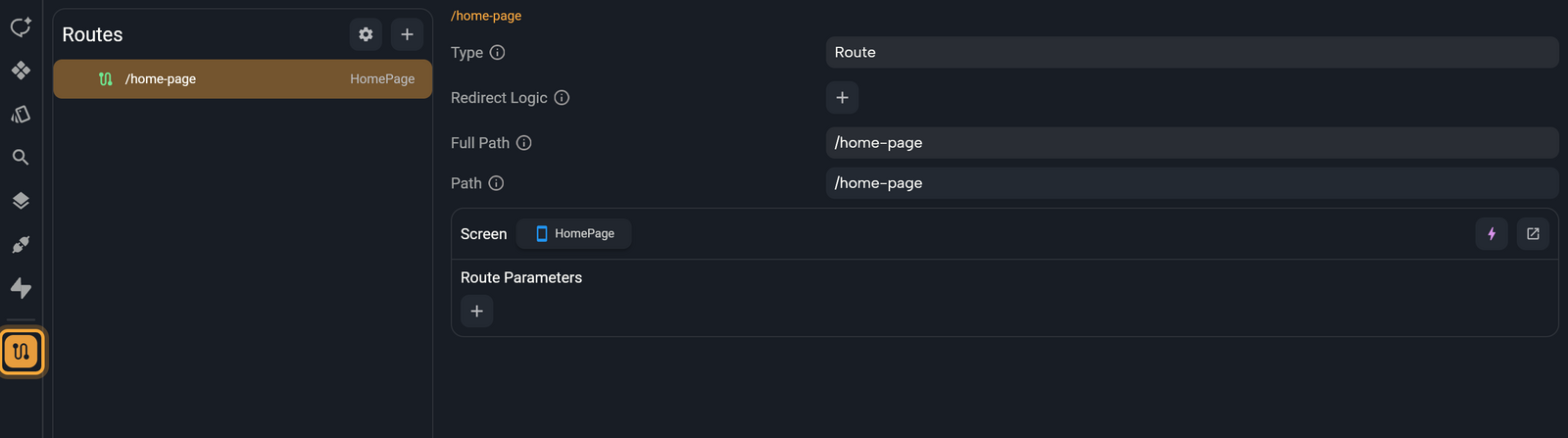
Add, nest and delete routes
In the Routes list:
- Click + (Add Route) and choose Route to add a route. Select the new
/route, then set its Path and pick its screen from the name next to Screen. - Hover a route and click + (Add Sub-Route) to nest a route inside it, such as a recipe's detail route inside the recipe list's route. To move a route, drag it onto another route to nest it, or onto a route's top edge to place it at that route's level. A moved route goes to the end of its new list.
- Right-click a route and choose Delete route. A Remove Route dialog warns that the route's child routes go too.
Edit a route
Select a route to edit it:
| Setting | What it does |
|---|---|
| Path | The route's own path, which can contain parameters like :id. Full Path shows it with its parents' paths. |
| Screen | The screen the route shows. Click it to pick another one. The bolt button (Edit Function) opens, in Circuit, the logic that builds the screen. |
| Route Parameters | Path and query parameters as chips. Path chips carry a red *. Right-click a chip to Rename or Delete it. |
| Screen Parameters | The screen's own params, shown when it has any. Drag a chip onto one to feed it. |
| Redirect Logic | A function that can send people elsewhere, for example to a login screen. Click + (Add Redirect Logic), then the bolt button to open it in Circuit. If the row still shows + after the click, see step 3 of Start on the login screen or the home screen. |
Set options for the whole app
Click the gear (Router Configuration) for app-wide settings:
| Setting | What it does |
|---|---|
| Initial Location | The path the app opens first. It must start with /. |
| Redirect Logic | A redirect that runs for every route. |
| Remove # in URLs | Removes the # from your web app's addresses, so a page reads /settings instead of /#/settings. |
Start on the login screen or the home screen
People who signed in once shouldn't have to log in every time they open your app. Give your home screen's route Redirect Logic that checks whether someone is signed in and sends everyone else to the login screen.
Redirect Logic is a small function that runs before the screen opens and answers one question: should this person go somewhere else? It returns a path, such as /login-page, to send them there, or nothing (null) to let the screen open. Its top node shows context and state: you won't need context here, and state tells it where the person is heading. A new one returns nothing, so it lets everyone through until you add a condition.
Before you start:
- Your project uses GoRouter. If it doesn't, see Switch an older project to GoRouter.
- Sign-in works. See Sign users in with Supabase or Sign users in with Firebase.
- Your home screen and your login screen each have a path, such as
/home-pageand/login-page. See Name the route. Screens from the Authentication Template start without one: see Start from a template.
- Select your home screen and check that Details says This is the home screen. If it doesn't, click Make home screen.
- Click Router in the sidebar and select the route that shows your home screen.
- Next to Redirect Logic, click + (Add Redirect Logic). In Nowa 3.13 the row can keep showing + although the function was added. Don't click it again: click
<>in the top bar to open code mode, click<>again to come back, and the bolt button shows. See Known issues. - Click the bolt button (Edit Function). Circuit opens in a floating panel, on a
redirectnode that already has a Return under it. - Hover the dot under the top node, click + and choose Add If statement.
- In Details, click the Condition label and link a check that tells you whether someone is signed in:
- Firebase: open FIREBASE and click
isUserSignedIn, or type its name in the search box. - Supabase: Nowa has no ready-made check, so you type a short one. Click Custom Expression..., replace the text in the box with
Supabase.instance.client.auth.currentSession != null, press Enter, then click the back arrow to close the box. It asks Supabase whether there's a signed-in session, which is empty when nobody is signed in. You can also ask Nowa AI to set this up (see the tip below).
- Firebase: open FIREBASE and click
- Click the dot in the False branch, choose Add Return, and set Return to your login screen's path, such as
/login-page. Leave the True branch empty. - Close Circuit with ×.
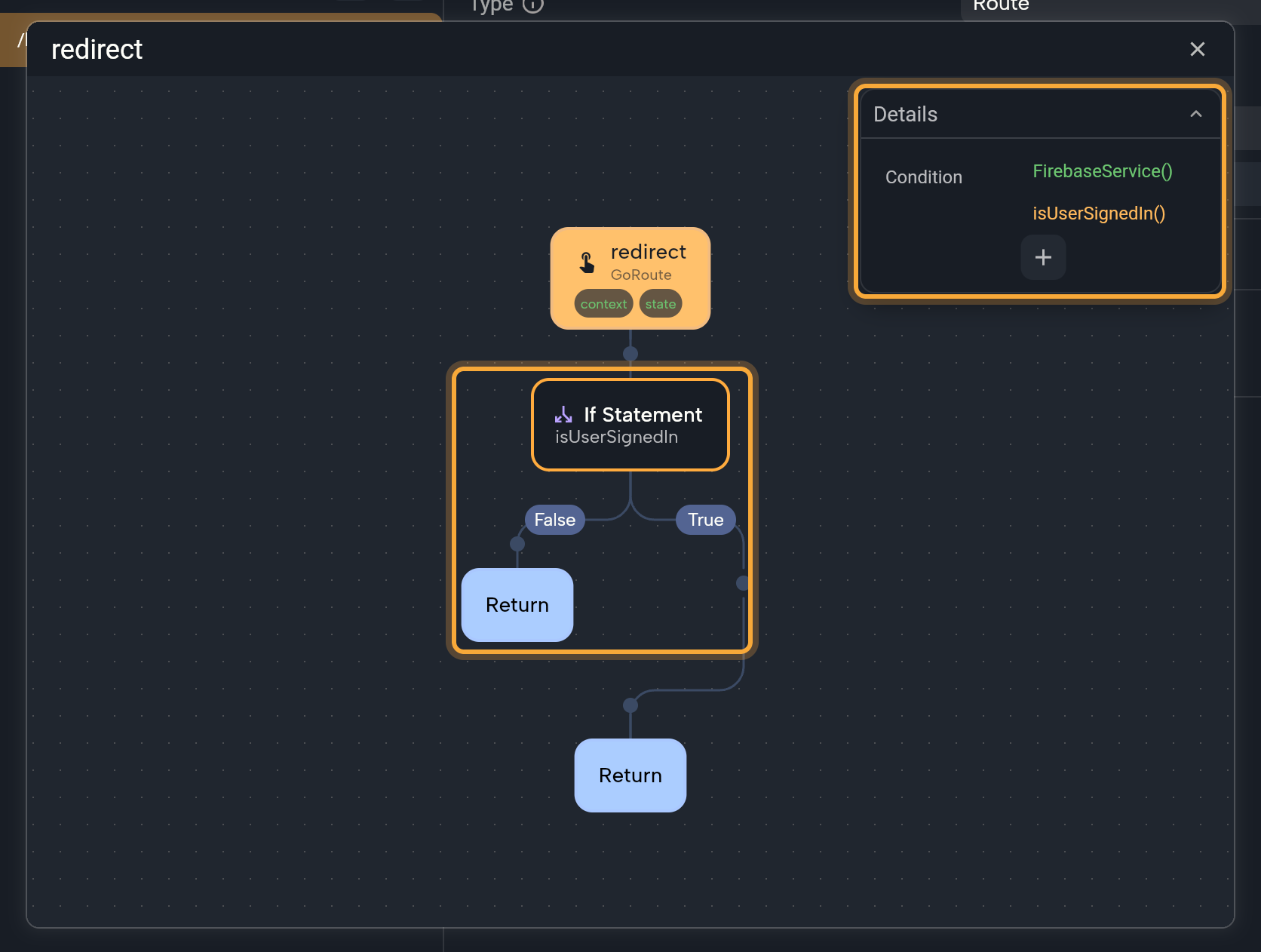
That's it: a signed-in person now opens the home screen, because the Return node below the If still returns nothing. Anyone else goes to /login-page. Your login screen should open the home screen when sign-in works, and a sign-out button should open the login screen: the two sign-in pages above show how.
Add the same Redirect Logic to every other screen that needs sign-in. The app-wide Redirect Logic under Router Configuration runs for every route, including the login screen, so it's simpler to give each route its own.
Stay signed in between launches
Nowa starts Supabase and Firebase for you as your app opens, before the first screen shows, with their standard settings. With those settings, Supabase remembers the session on the device and restores it when the app starts, and Firebase does the same in the browser for a web app. So the check finds the person who signed in last time. For Firebase on a phone, confirm it with the test below.
Test it
Run the app, sign in, close it and open it again. The home screen should open without the login screen. See Run your app or Run on a device or emulator. Play doesn't sign in to Firebase, and isUserSignedIn() returns false there, so test in the real app: see Test sign-in in Nowa.
In Agent mode, try: "When the app opens, show the home screen if someone is signed in, and the login screen if not." For Supabase, you can also ask for a function next to your Supabase sign-in functions that tells you whether someone is signed in. Open the result in the Router panel to check it. See Design, Plan and Agent modes.
Fix route problems
Nowa lists route problems, such as two routes with the same path, a route without a screen to show, or an initial location with no route, in the Problems console. See Find and fix problems.
Switch an older project to GoRouter
Switching brings an older project what new projects have: deep links, real web addresses with a working back button, values in the address, redirects such as a login check, and the Router panel.
- Click Router in the sidebar to open New Router System, which compares Navigator (Legacy) with GoRouter (Recommended).
- Click Enable GoRouter.
- Read the Confirm Action dialog and click Confirm. Migrating to New Router shows the progress, then the Router panel opens.
Switching can't be undone. If your project uses named routes, update your navigation afterwards.
Next steps
- Navigate between screens: open screens from a tap and pass data to them.
- Deep links: open your app from a link.