Expressions and conditions
An expression is a formula that gives back a value, a bit like a formula in a spreadsheet cell. It can be a variable, a calculation such as a price times a quantity, a text with a name inside it ("Hi, Sara"), or a choice between two values ("Open" or "Closed"). Use expressions wherever a fixed value isn't enough, and to decide what your app does.
Link a property to a value
Most properties in Details can show a fixed value or a linked one. Click a property's or an input's label to open the link menu. Its title is Link plus the property's name, such as Link Text.
- Select a widget and, in Details, click the label of a property.
- Open a category and click a value:
- LOCALS has the variables, params (values handed to the screen) and functions of the current screen or component. See Store data in variables.
- GLOBALS has your global states, checkPlatform, Media Query and more. See Share data across your app.
- EXPRESSIONS has Conditional, Math or Logical, and ifNull. They're explained below.
- The property now shows the value's name, such as
product.name.
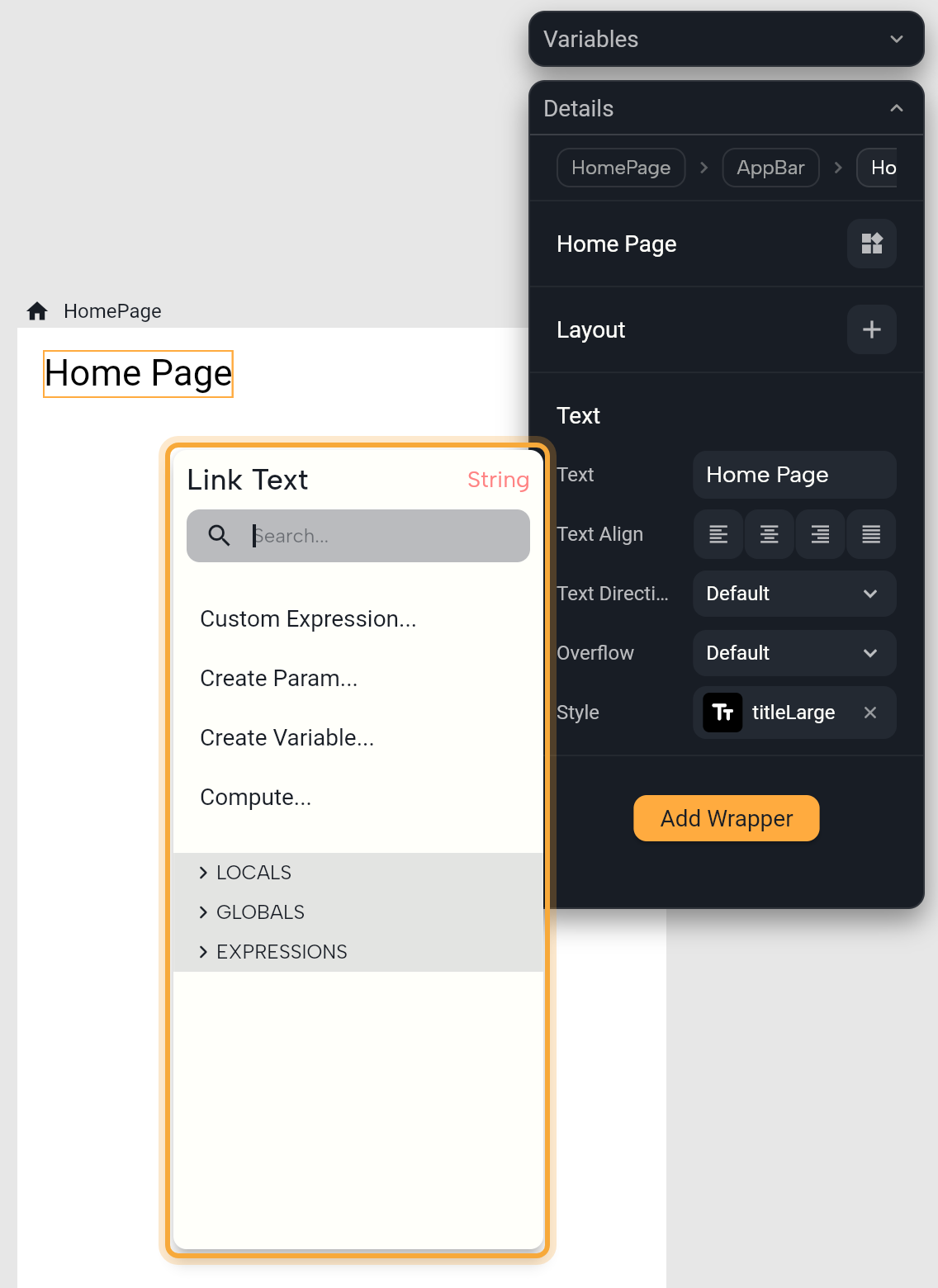
The menu also has these items:
| Item | What it does |
|---|---|
| Custom Expression... | Lets you type a formula. See below. |
| Detach... | Breaks the link and puts the current value, or a default, in its place. Shown when the property is linked. |
| Create Param... | Makes a new parameter of the right type and links it. Inside a function it's a function parameter, otherwise a screen or component param. See Pass data with parameters. |
| Create Variable... | Makes a new variable of the right type and links it. It starts with the property's current value if that's a fixed value. If the property only shows its default, the variable's Default Value starts empty, so fill it in. |
| Compute... | Makes a function that works out the value. See below. |
| Edit | Opens the linked variable's settings in a popup. Shown when the property is linked to a variable. |
| Open in Circuit | Opens the linked function. |
If the value you pick isn't the right kind for the property, the menu shows what's inside it, so you can reach a part that fits, such as a product's name when the property needs text.
In Circuit, a node's own fields (an If's Condition, a Return value, Expression:) show every category of the add-node menu, including OPERATORS. Elsewhere you get LOCALS, GLOBALS and EXPRESSIONS.
Put a value inside text
Type $ in a text field, such as a text widget's text or a snackbar message. A menu opens: pick a value and Nowa inserts it as ${name}. Typing Hello and then $ and picking name gives Hello ${name}, which shows as "Hello Sara" when name is Sara.
In these fields you type words as they are, with no quotes around them, and numbers show as they are too, such as Total: ${total}.
Reach deeper with +
After a linked value, click + to use something inside it: a field of a model (product then name), the length of a list (how many items it has), or toString to show a number as text. For lists, Get item reads one item by its position, and the first item is 0.
Choose between two values
A Conditional picks one of two values depending on a true or false value. Use it for text that reads "Online" or "Offline", or for a color that turns red when stock runs out.
- Click the property's label, open EXPRESSIONS and click Conditional. The Conditional Expression popup opens.
- Click condition and link a true or false value, such as a
bool(yes/no) variable. - Set then (the value when true) and else (the value when false). Switch swaps them. result type sets the type of both and resets their values.
The property now shows Edit condition. Click it to reopen the popup.
Calculate and compare
- Math calculates with numbers, such as a price times a quantity. It's offered when the property isn't true or false.
- Logical compares or combines values into true or false, such as "the cart total is at least 50". It's offered when the property is true or false.
- ifNull gives a fallback when a value is empty: set Value and If null. For example, show "Guest" when there's no name yet.
Math and Logical open a popup. Choose the Operator, set the Type (for example int, a whole number), then type or link Left side and Right side. Set Type first, because changing it resets both sides. To reopen the popup, click the formula the property now shows.
| Operator | Means | Example |
|---|---|---|
plus, minus, multiply | Add, subtract, multiply. | price multiply quantity |
divide | Divide. The result can have decimals. | 7 divide 2 is 3.5 |
intDivide | Divide and drop the remainder. | 7 intDivide 2 is 3 |
mod | The remainder after dividing. | 7 mod 2 is 1, handy for every other row |
greaterThan, smallerThan | Is more than, is less than. | age greaterThan 17 |
greaterThanOrEqual, smallerThanOrEqual | Is at least, is at most. | total greaterThanOrEqual 50 |
equal, notEqual | Is the same as, is different from. | status equal "paid" |
logicalAnd, logicalOr | Both are true, at least one is true. | signed in logicalAnd has a plan |
ifNull | Use If null when Value is empty. | Value nickname, If null "Guest" |
The Math popup offers the first four rows, Logical the next four, and ifNull is an item of its own. In Circuit, the same operators are in the OPERATORS category, so you can use them in an If's Condition. Where a menu has no OPERATORS, use EXPRESSIONS instead. OPERATORS also lists bitwiseAnd, bitwiseOr, bitwiseXor, leftShift and rightShift, which work on the binary digits of whole numbers. Most apps never need them.
Write your own expression
When the menus don't have what you need, type the formula yourself.
- Click a property's label and choose Custom Expression.... In Circuit, Add Custom Expression does the same for a new step. A dialog opens in text mode, showing the current expression.
- Type a formula in the text box, which reads Enter expression... when it's empty. For example,
"Hello " + nameorprice * quantity. Here, unlike in a text field, text needs quotes. - Press Enter or click Eval. If something is wrong, the reason shows in red under the field, so you can fix it before anything changes.
- After a successful Eval, the formula applies and shows as clickable parts. Click a part to select it, or double-click to replace it. Type in Search... to add something after the selected part. Detach removes the selected part.
- Click the text-mode button at the right to type again. A check mark means no problems, and a help icon lists them. Click the back arrow to close.
It must be a single formula that gives back a value. Steps such as if belong in Circuit instead.
Compute a value with logic
When one formula isn't enough, click the property's label and choose Compute.... Nowa creates a function named create plus the property's name, such as createText, that gives back a value of the right type. It links the property to the function and opens it in Circuit.
The function starts with a Return node that holds the property's current value. Add your steps above it by clicking the dot under the top node, then set the Return value to the result. To reopen the function later, click the label and choose Open in Circuit.
Show or hide a widget
The Visibility wrapper shows or hides a widget from a true or false value, such as a "Sale" badge that only shows on discounted products.
- Select the widget, click Add Wrapper in Details and choose Visibility.
- Click the Visible label and link a true or false value: a
boolvariable, checkPlatform, a Conditional or Logical expression, or Custom Expression.... - Optional: set Replacement to a widget to show while the first one is hidden.
- In your logic, change the variable and add refresh, so the screen updates.
See Wrappers for the full list of wrappers.
Reset a property
Changed your mind? Right-click a property and choose Reset to default to put it back. Set to null appears for properties that can be empty. See Change widget properties.
Select a widget and ask in Agent mode: "Show this text only when the user is logged in." Then check how it was set up in Details. See Chat with Nowa AI.
Next steps
- Build logic in Circuit to use conditions in If nodes.
- Store data in variables to create the values you link.
- Use ready-made actions to open links, save values and more.