Use ready-made actions
Circuit has ready-made steps for the things apps do all the time, so you don't have to build them yourself: open a website, leave yourself a note in the logs while you test, check whether the app runs on a phone or the web, remember a setting, and more. Add any of them from the All nodes for this circuit menu in Circuit. This page shows where each one lives and when it's the right pick.
Dialogs, sheets, snackbars and pickers have their own page: Show dialogs, sheets, snackbars and pickers. Moving between screens is in Navigate between screens.
Open a link
openUrl opens a web address, such as your support page, a blog post, your terms or a checkout page.
- Choose NOWA_RUNTIME →
openUrl. - Type the full address in Url, starting with
https://. It starts ashttps://nowa.dev. To use a value, such as a product's own page, click Url and link it, or type$inside the text.
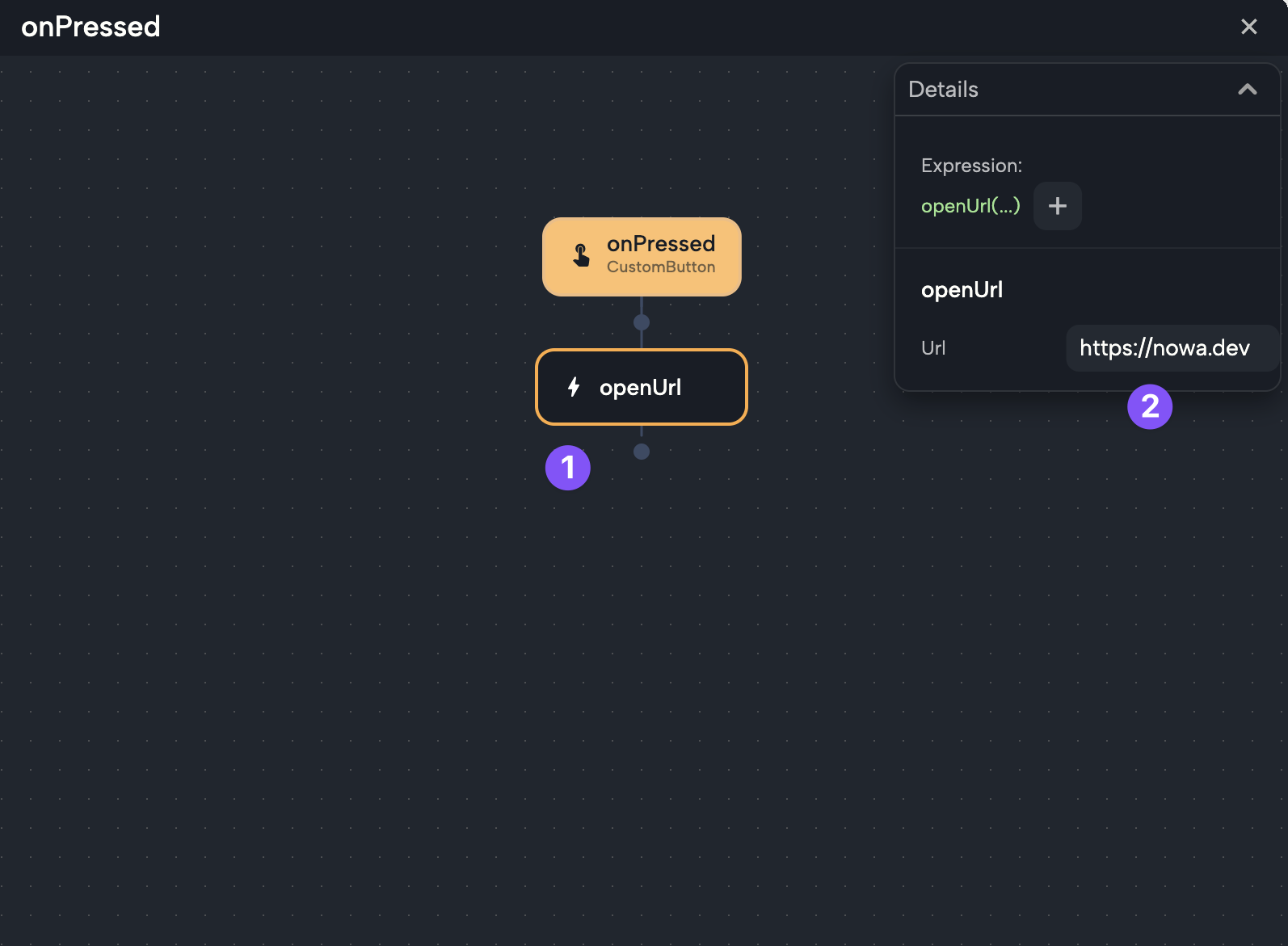
In a web app, the page opens in a new browser tab. On a phone, it opens in a browser view on top of your app, and people are back in your app when they close it.
Other kinds of links open the matching app, if the device has one: mailto: starts an email (mailto:hello@example.com), tel: starts a phone call and sms: a text message. That's handy for a "Contact us" button.
To show a web page inside one of your screens instead, use the Web View widget.
Write to the logs
print writes a message to the logs, the running list of what happens in your app. It's the quickest way to check what's going on while you test: what a value really is, whether a step ran, or what someone typed.
- Choose DART:CORE →
print. - Type the message in Msg. It starts as "Hello World". Type
$to put a value inside it, such asTotal: ${total}, or click the Msg label to link a value. - Try your screen with Play, or run your app. Then click the last log line in the status bar at the bottom to open the Logs tab. See Read the logs.
For example, to see what someone typed in a Text Field, type $ in Msg, pick the field's controller under LOCALS (it's called text unless you renamed it) and choose text. These messages are only for you: they never show up on your app's screens.
Check the platform
checkPlatform tells you where the app is running, as a true or false value, so one app can behave a little differently on each platform. For example, show a "Get the app" banner only on the web, or keyboard tips only on computers.
- Choose GLOBALS → checkPlatform, or pick it while you link a true or false property, such as Visible on a Visibility wrapper. It starts as
isWeb. - Click
isWeband pick the check you need from the table below. - Use it as the Condition of an If. To check two platforms at once, link the Condition to
logicalOr("one or the other") under OPERATORS, then set Left side and Right side to a checkPlatform each.
| Check | True when the app runs |
|---|---|
isWeb | In a web browser. On the web, it's the only check that's true. |
isAndroid | As an Android app. |
isIOS | As an iPhone or iPad app. |
isMacOs, isWindows, isLinux | As a desktop app on that system. |
isDesktop | As a desktop app on macOS, Windows or Linux. |
currentPlatform gives the platform itself rather than true or false.
When you test with Play, the checks answer for the device you're working on: in the web app, isWeb is true, and in the desktop app, the check for your computer's system is, such as isMacOs. To try the phone branch, run your app on a phone or an emulator. See Run on a device or emulator.
Read the screen size
Media Query knows the device's screen: its size, the space taken by notches and system bars, and whether it's held upright or sideways. Use it to adapt to the screen, such as two columns on a wide screen and one on a phone.
- Choose GLOBALS → Media Query.
- Click + after it and pick a member, such as
sizeand thenwidth. - Store the result, or use it in a condition. See Expressions and conditions.
For a full example, see Show different widgets on wide and narrow screens.
Save values on the device
Shared Preferences keep small values on the device, so your app remembers them the next time it opens: a dark mode choice, whether someone finished onboarding, or their last search. The SHARED PREFERENCES category has four steps:
| Step | What it does | What to fill in |
|---|---|---|
| set | Saves a value. | Type (string, int, double, bool or stringList), Key and Value. |
| get | Reads a value. Nothing comes back if it was never saved. | Type and Key. Use Store result to keep it. |
| remove key | Deletes one saved value. | Key. |
| clear | Deletes everything saved. | Nothing. |
The Key is the name you save the value under, such as darkMode. The Type says what kind of value it is: text (string), a whole number (int), a decimal number (double), yes or no (bool), or a list of texts (stringList).
Read a value with the same Type and Key you saved it with. set, remove key and clear take a moment, so use Future Options if a later step must wait for them. To wipe what your screens saved while you test with Play in the editor, open the project settings, then Project Details → Shared Preferences → Clear. An app running on a device keeps its own values.
The values aren't encrypted, and Nowa has no encrypted storage option, so don't keep passwords or secret keys here.
Wait, repeat and create objects
Create... in the GENERAL category builds something new from a class, the blueprint for one kind of value: a pause, a timer, the current date and time, or one of your own models.
- Choose GENERAL → Create.... The Pick a constructor list opens. Search for the class.
- If the class can be built in several ways (constructors), pick one in the second list. The plain one reads Default.
- Fill in its inputs in Details. The node reads Create plus the class name.
| To | Pick | Then |
|---|---|---|
| Wait a moment, such as a short pause before a message | Future → delayed | Set Duration, and turn on await so the next steps wait. A Future is something that finishes later. |
| Repeat something, such as updating a countdown every second | Timer → periodic | Set Duration and build the repeated steps in Callback. To stop it later, set Store result to Pick Variable and choose a screen variable of type Timer. |
| Get the current date and time | DateTime → now | Use Store result. |
| Make one of your models | Your model → Default or fromJson | Fill in its fields. See Create a model in logic. |
To stop a timer, add a node on that variable, click + and choose cancel. A good place is a Dispose Function, which runs when the screen closes, so the timer doesn't keep going. To add a variable with the Timer type, see Choose a type. Widgets aren't in this list: add them on the board.
GENERAL also has parse, which turns text into a number with decimals, such as the text "4.5" into the number 4.5.
Calculate, compare and combine
Math, comparison and logic live in the OPERATORS category, for example plus, greaterThan and logicalAnd. See Calculate and compare.
Copy text, vibrate and play sounds
The SERVICES category has a few phone features. Click a class to see its functions:
| Class | Functions | Use it to |
|---|---|---|
Clipboard | setData copies text. getData reads what's copied, and hasStrings tells you whether there's text to paste. | Add a "Copy" button for a coupon code or an invite link. |
HapticFeedback | vibrate is a short vibration. lightImpact, mediumImpact and heavyImpact are a light, medium or strong tap. selectionClick is a small tick, as when scrolling through choices. successNotification, warningNotification and errorNotification signal a success, a warning or a failure. | Let people feel a tap, a finished order or an error. It works on phones that support it, and on Android the three notification patterns need Android 11 or later. |
SystemSound | play plays a short system sound: click (a button press), tick (a picker moving, on iPhone and iPad only) or alert (desktop apps only). | Add a click sound to a custom button. Web apps play no system sounds. |
SystemNavigator | pop closes your app on Android and goes back to what was open before. | Add an exit button to an Android app. |
Find any other function
These categories are in the menu that opens when you click + in Circuit, and in the link menu of an If's Condition or a Return value. Each one named after a library holds what you can use from that library, and the table shows the parts you're most likely to need. Type a name in the search box to find anything else.
| Category | What's inside |
|---|---|
| MATERIAL | Dialogs, sheets and pickers (see popups), plus showAboutDialog, a ready-made dialog with your app's name, a version if you fill one in, and a button that lists the licenses of the software your app uses. |
| DART:CORE | print, and Future for waiting. |
| DART:ASYNC | Timer. To repeat steps, make one with Create... (above). |
| SERVICES | Clipboard, HapticFeedback, SystemNavigator and SystemSound. |
| NOWA_RUNTIME | openUrl, showMediaPicker, and NPlatform, which holds the same checks as checkPlatform. |
PACKAGE: and your package name, such as PACKAGE:MY_APP | Functions from your own project, and your keys and constants under AppConstants. A step's fields, such as Url or Msg, don't list this category: to use a constant there, see Use a constant. |
A package you add brings its own category. If what you need is something you make rather than run, such as a timer, use Create.... Working in the code? See What Nowa adds to your code.
In Agent mode, try: "When the user taps Visit website, open nowa.dev in the browser." Then open the result in Circuit to see the step. See Chat with Nowa AI.
Next steps
- Build logic in Circuit to put steps in order and branch.
- Show dialogs, sheets, snackbars and pickers for pop-ups and pickers.
- Keys and constants for values your whole project shares.