Images, video, animations and web content
Pictures, videos and animations make an app feel alive: a photo on every recipe, a lesson video, a little animation when an order goes through. Add them from the Library (Ctrl/Cmd + K). Most take a web address or a file from your project's assets. A few need a package, and a few show a stand-in on the board until you run your app.
| Widget | Shows | Source | Needs a package |
|---|---|---|---|
| Image | A picture | Network, Asset or Bytes | No |
| SVG | A vector image | Network or Asset | Yes |
| Video Player | A video file | Network or Asset | No |
| YouTube Player | A YouTube video | A video ID | Yes |
| Lottie | An animation (.json) | Network or Asset | Yes |
| Rive | An animation (.riv) | Network or Asset | Yes |
| Web View | A web page | An address | No |
| Html | Text written in HTML | What you type | Yes, added from Problems |
| Markdown | Text written in Markdown | What you type | No |
A package is a ready-made add-on that gives your app an extra ability, such as playing YouTube videos. When you add a widget that needs one with Enter or Insert, Nowa opens Add Missing Dependencies: click Add, and Nowa installs the package and places the widget. If you drag the widget in instead, nothing asks: Problems lists the missing package, and Hot Fix in Details adds it. See Add a widget that needs a package.
Add an image
An Image shows a photo, an illustration or a logo. It starts with a sample photo from the web, so you can style it before your own picture is ready.
- Add an Image from the Library.
- In Details, choose where the picture comes from:
- Network: paste a web address in Url. It must open the image itself, not a web page that contains it.
- Asset: click Pick Image, then choose a file from your project, or click Upload Image to add one from your computer. Nowa adds it to your project's assets and picks it. A picture in your assets ships inside your app, so it shows even without an internet connection. See Images, videos and other files.
- Bytes: a picture held in memory, such as a photo the user picked in your app. Link it to a variable: see Pick photos or videos.
- Set Fit to choose how the picture fills its box. It starts at
cover; Choose how a picture fits its box compares the options.
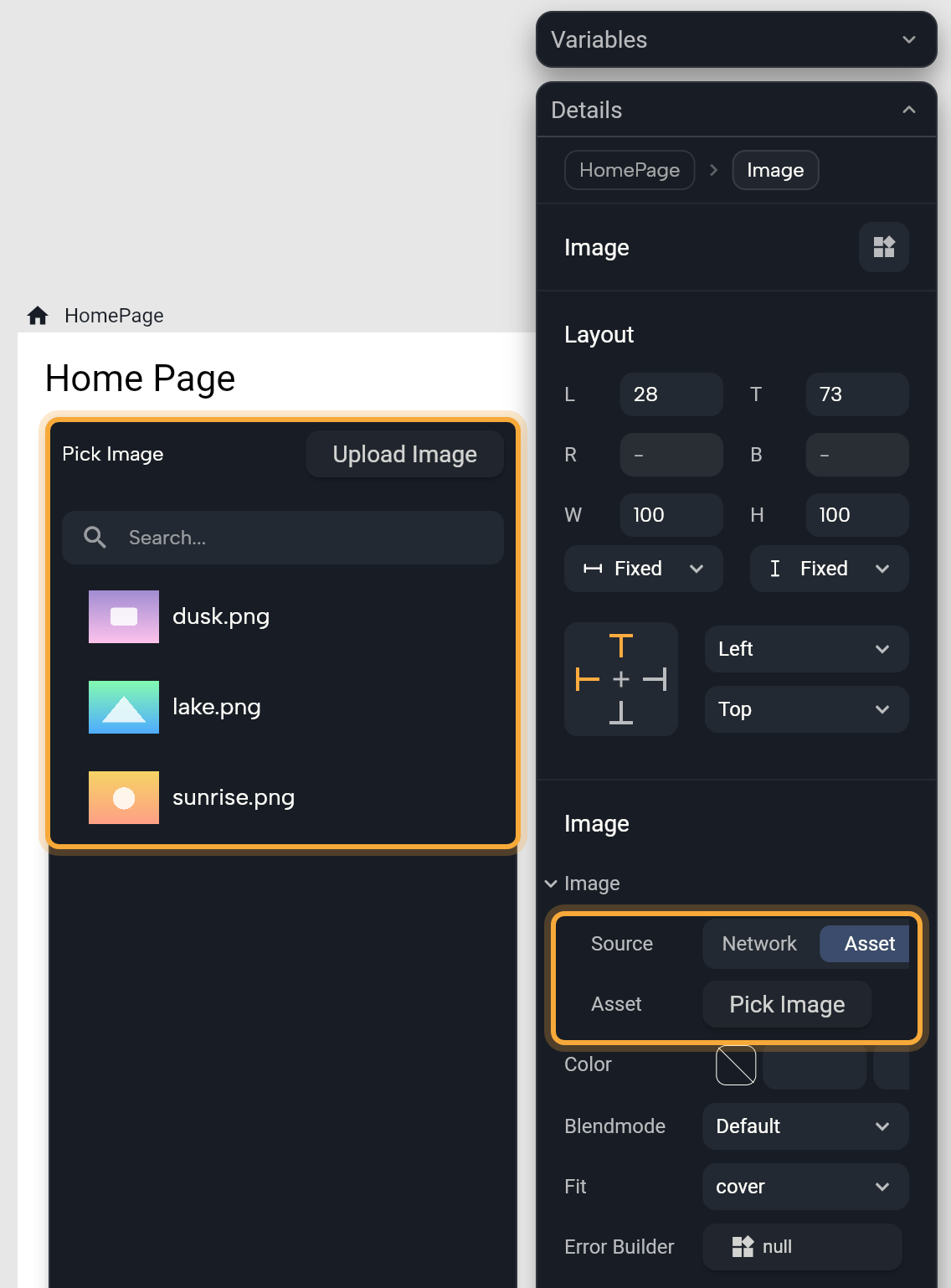
Color and Blendmode tint the picture. With a Color alone, the picture turns into a flat shape in that color, which is handy for one-color icons and logos. To tint a photo instead, also pick a Blendmode such as multiply or darken.
Error Builder is what shows when the picture can't load, such as a gray box or an icon, so a broken link never leaves a hole in your design. You can also paste an image onto the board or drag a file from the Assets chip of the Library, and Nowa creates the Image for you.
Use a picture as a background
A Container can show a picture behind whatever you put inside it, like a photo behind a product name or a pattern behind a sign-in form.
- Select the Container. The Shape tool draws one.
- In Details, hover Image and click +. The picture's own settings appear underneath: another Image row for the picture itself, and Fit.
- If that inner Image row is empty, with no Network or Asset tab yet, hover it and click + too. It starts with a sample photo from the web.
- Set your picture on the Network or Asset tab, as you would for an Image widget.
- Choose a Fit. It starts at
cover, which fills the whole box.
While a picture is set, the Container's Color row is hidden, but the color stays behind the picture and shows wherever the picture doesn't cover the box, such as with contain. To place text or buttons on top of the picture, put them inside the Container: see Put a widget inside a container.
Choose how a picture fits its box
A picture rarely has exactly the shape of its box, so Fit decides what gives: the picture's proportions, its edges, or some empty space. You'll find it on an Image, a Container's background picture, an SVG and a Lottie.
| Fit | What you get |
|---|---|
cover | Fills the whole box and keeps the proportions. Edges that don't fit are cut off. Good for photos in cards and headers. |
contain | Shows the whole picture as large as it fits, keeping the proportions. Empty space may show on two sides. |
fill | Stretches the picture to the exact shape of the box, which can squash it. |
fitWidth | Matches the width of the box. The top and bottom may be cut off, or leave empty space. |
fitHeight | Matches the height of the box. The sides may be cut off, or leave empty space. |
none | Keeps the picture's own size, centered. Whatever falls outside the box is cut off. |
scaleDown | Like contain, but never makes a small picture bigger. |
On an Image, Default (no value) works like scaleDown.
Add an SVG
An SVG is a vector image: it stays sharp at any size, which makes it ideal for logos and for icons the Material set doesn't have.
- Add an SVG. If Nowa shows Add Missing Dependencies, click Add.
- Choose Network and paste a web address, or choose Asset and click Pick SVG. Only
.svgfiles can be picked or uploaded. - Use Color Filter to recolor it, and Fit and Alignment to place it in its box.
An SVG on the Asset tab with no file picked shows "No path" on the board. Pick a file and the image appears.
Play a video
A Video Player plays a video file inside your app, such as a lesson in a course app or a short product demo. It starts with a sample video from the web, so you can lay out the screen right away.
-
Add a Video Player.
-
On Network, paste a direct link to a video file in Url, such as one that ends in
.mp4. A link to a page that plays the video, like a YouTube page, won't work here: use the YouTube Player for those.On Asset, click Pick Video or Upload Video to use a file from your project. A video in your assets ships inside your app, so a large file makes your app bigger to download. For long videos, a Network link is usually the better choice.
-
Auto Play starts the video when the screen opens. Show Controls Bar shows the play, pause and seek controls. With both off, the video neither starts by itself nor shows a play button, so keep at least one on.
Instant Play doesn't play videos everywhere. In the desktop app, and for any video on the Asset tab, it shows "Platform not supported, only available on iOS and Android". To watch the video for real, run your app on a phone or an emulator (a virtual phone on your computer) from the desktop app. See Run on a device or emulator.
Embed a YouTube video
A YouTube Player plays a YouTube video right inside your app, so people don't have to leave it to watch.
- Add a YouTube Player. If Nowa shows Add Missing Dependencies, click Add.
- Under Controller, set Initial Video Id to the video's ID: the part after
v=in its link. Forhttps://www.youtube.com/watch?v=9Q2MZes5lt8, that's9Q2MZes5lt8, which is also what the starter uses. Paste the ID only, not the whole link. - Under Flags, choose how it behaves:
| Flag | What it does |
|---|---|
| Auto Play, Mute | Start playing as soon as the video loads, and start with the sound off. The starter has Auto Play off and Mute on. |
| Loop | Plays the video again when it ends. |
| Hide Controls, Controls Visible At Start | Hide YouTube's controls, or show them as soon as the video starts. |
| Disable Drag Seek | Stops people from jumping through the video by dragging sideways. |
| Enable Caption, Caption Language | Captions, on in English (en) unless you change them. Use a two-letter code such as es or fr. |
| Hide Thumbnail, Force HD | Hide the preview picture before the video plays, and play in high definition when possible. |
| Start At, End At | The second where playback starts and where it stops. |
| Is Live, Show Live Fullscreen Button | For live streams: live controls, with or without a fullscreen button. The player's Live UIColor sets their color. |
Below Controller, the player has its own settings:
| Setting | What it does |
|---|---|
| Width, Aspect Ratio | The player's size. The shape is 16:9, like on YouTube, unless you change it. |
| Controls Time Out | How long the controls stay visible: 3 seconds unless you change it. |
| Show Video Progress Indicator, Progress Indicator Color | A progress line under the player, and its color. |
| Thumbnail, Buffer Indicator | Your own picture while the player loads, and your own widget while the video buffers. |
| Top Actions, Bottom Actions, Actions Padding | Your own widgets in the player's top and bottom bars, and the space around them. |
| On Ready, On Ended | Logic that runs when the player is ready and when the video ends, such as showing the next lesson. See Respond to taps and other events. |
Add a Lottie animation
Lottie animations are vector animations, so they stay sharp at any size. They work well for loading spinners, success checkmarks or an empty screen that says "No orders yet" with a little motion.
- Add a Lottie. If Nowa shows Add Missing Dependencies, click Add. It starts with a sample animation.
- On Network, paste a link to a Lottie
.jsonfile. On Asset, click Pick Lottie or Upload Lottie. Only.jsonfiles are accepted. - Type is Loop, the default, or Once. Boomerang plays the animation forward and then backward. Fit sets how it fills its box.
LottieFiles has animations you can download.
Add a Rive animation
Rive animations are made in the Rive editor. One file can hold several artboards, each with its own animations, so you choose which one to play.
- Add a Rive. If Nowa shows Add Missing Dependencies, click Add. It starts with a sample animation.
- On Network, paste a link to a
.rivfile. On Asset, click Pick Rive or Upload Rive. Only.rivfiles are accepted. - After the file loads, choose an Artboard. If that artboard has state machines, a State Machine list appears too. The lists show what the file contains.
If Nowa can't read the file, Details shows "Error loading Rive file" instead of the lists, and a web link that doesn't open keeps loading. Check the link, or pick the file again.
Show a web page
A Web View shows a web page inside your app, such as your booking page, your terms of service or a help center you already have online.
Add a Web View and set the address in Url. It starts at https://nowa.dev. If you leave out http, Nowa adds https://. Paste the address rather than typing it: in Nowa 3.13 a / you type in Details is dropped (see Known issues). Run your app to see the page. In the web app, Play loads it too.
Show HTML
Html turns HTML, the language web pages are written in, into formatted text with headings, bold text, lists and links. Use it for content you already have as HTML, such as an article from your blog.
Add an Html widget and type or paste your HTML in Data. It starts as <h1>Hello World</h1>. Shrink Wrap, on at first, makes the widget only as wide as its content.
Html needs the flutter_html package, and Nowa doesn't ask about it: no Add Missing Dependencies, no Hot Fix. After you add the widget, Problems shows 'flutter_html' is imported but is not in the pubspec., which means the package isn't in your project yet. Click Fix next to that message and Nowa adds it. You can also add it on the Packages page: see Add packages.
Show Markdown
Markdown formats plain text with a few simple marks, such as # for a heading and **bold** for bold. It's a quick way to show formatted text, such as a recipe's steps or an answer in a FAQ, without designing each line.
Add a Markdown widget and type or paste your Markdown in Data. It starts as # Hello World. People can select the text unless you turn off Selectable. Shrink Wrap, on at first, makes the widget only as tall as its text. Style sets the text style.
In both Data boxes, type $ to put a variable into the text. See Put a value inside text. In Nowa 3.13 a / you type in either box is dropped, so paste text that has one, such as an HTML closing tag or a link. Double-click either widget on the board to edit its text in place.
Know what the board shows
Most of these widgets show live on the board. Three show a stand-in there:
- Video Player: a black box that says "Designer mode".
- YouTube Player: the video's thumbnail and title, loaded from YouTube.
- Web View: a page sketch that says "Web view to" and your address, then "Run to preview".
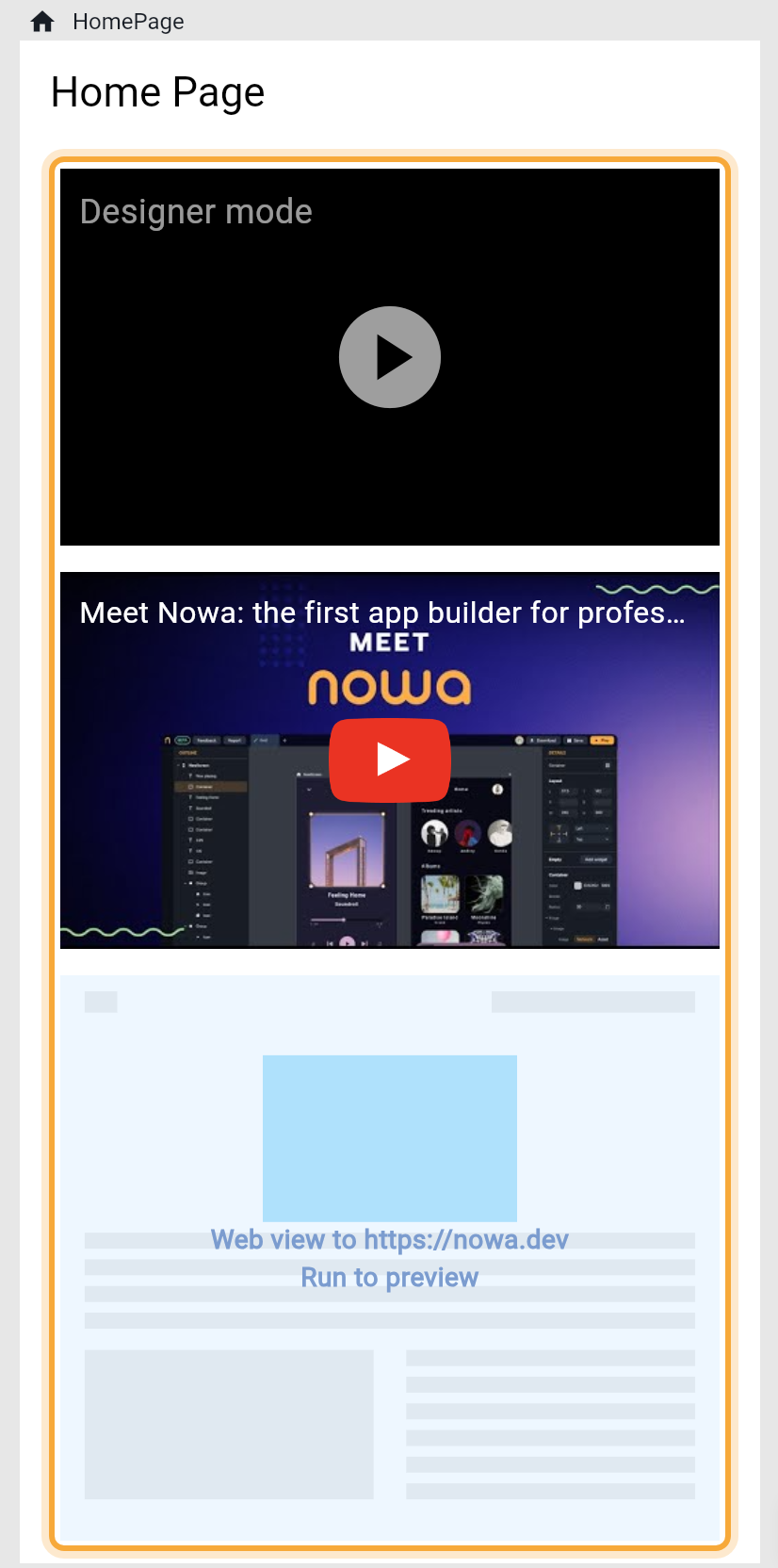
Press Play for a closer look, and run your app to check the real thing. See What Nowa can show on the board.
Try "Show the YouTube video from this link at the top of the lesson screen, muted and without autoplay." See How Nowa AI works.
Next steps
- Images, videos and other files to import, rename and manage your assets.
- Run on a device or emulator to see video and web content for real.
- Widget catalog for every built-in widget.