Images, videos and other files
Assets are the files your app carries with it: your logo, product photos, icons, videos, sounds and animations. Import a file once and you can pick it in any widget that needs it. Because the file is part of your app, it shows even when the phone is offline, unlike a picture loaded from a web address.
Import files
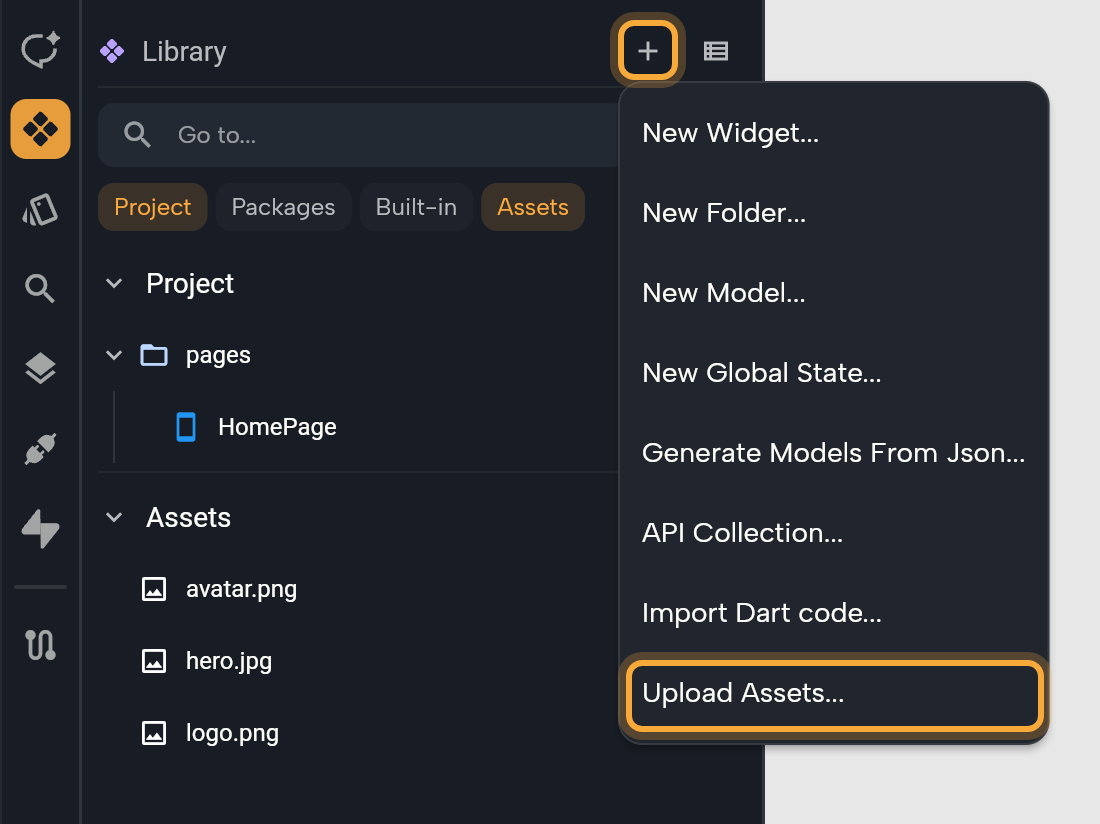
- Open the Library in the left sidebar, or press Ctrl/Cmd + 2.
- Click Add (+) in its header and choose Upload Assets..., then pick one or more files. They're added to your assets, or to the folder inside them that you clicked last (for a file, the folder it's in).
- Turn on the Assets chip to see your files. Click a file to preview it. Double-click it, or press Enter, to open it.
To upload straight into a folder inside your assets, such as fonts, right-click that folder and choose Upload assets....
There's nothing else to set up. Nowa registers your files with your app as soon as you import them, so they're included when your app is built. Working in the code? See What Nowa adds to your code.
Give files short, clear names before you import them, such as app_logo.png or hero_beach.jpg. You'll find them faster in the Library and in the pickers, and renaming later means picking the file again in every widget that uses it.
Nowa recognizes these file types:
| Kind | Extensions |
|---|---|
| Images | .png, .jpg, .jpeg, .webp, .gif, .bmp, .wbmp |
| SVG (images that stay sharp at any size, such as logos and icons) | .svg |
| Lottie animations | .json |
| Rive animations | .riv |
| Video | .mp4, .mov |
| Audio | .mp3, .wav |
| Fonts | .ttf, .otf (see Fonts and icons) |
Nowa treats any other file as plain text, so stick to the types above for images, media and fonts.
In the playground, large files can stop your app from being saved in the browser. See Try Nowa without an account.
Use an asset in a widget
A new Image widget starts with a sample picture from the web. Here's how to show your own file instead.
- Select an Image widget, or add one with the Widget tool.
- In Details, open the Asset tab of the image field.
- Click Pick Image. Choose a file from the list, or search for it by name. To add a new file, click Upload Image and choose it from your computer. It's added to your assets, and the widget shows it right away.
The other tabs are for pictures that don't live in your project. Network loads a picture from a web address, such as a product photo your database stores as a link. Bytes shows image data your app gets while it runs, such as a photo someone picks from their phone.
The same picker works for other kinds of files. Open the Asset tab and click the matching button.
| Widget or property | Button |
|---|---|
| Image widget, and the Image of a Container's decoration | Pick Image |
| SVG widget | Pick SVG |
| Lottie widget | Pick Lottie |
| Rive widget | Pick Rive |
| Video Player widget | Pick Video |
| An audio player's source, for example in the Audio Player template | Pick Audio |
Each list shows only files of the matching kind. Audio from your assets plays only on Android and iOS, as the note under the audio source reminds you.
Paste an image onto the board
The quickest way to bring in a picture: copy an image, for example from a website or a design tool, point at the board and press Ctrl/Cmd + V. You can also right-click empty board space and choose Paste. Nowa adds the image to your assets, as a file whose name starts with pasted_image_, and places an Image widget where your pointer is.
In the web app, your browser may ask to see your clipboard the first time you paste: allow it, or nothing is pasted. In the desktop app you can also copy image files in your file manager and paste them.
Drag an asset onto the board
Turn on the Assets chip in the Library, then drag a file onto the board or into a screen. Nowa creates the matching widget for you.
| File | Widget |
|---|---|
| Image | Image, at one sixth of the image's pixel size |
| SVG | SVG |
| Rive | Rive |
| Video | Video Player |
| Font | Text, set in that font |
Text file, such as .txt | Text, with the file's content |
Lottie and audio files don't create a widget. Dropping files from your computer onto the board doesn't import them, so import them first, then drag them from the Library. (Images you drop on the Nowa AI chat are attached to your message instead.)
Rename, remove and find files
To find a file by name, type in the Library's search. It looks through your assets even when the Assets chip is off.
To change a file, right-click it in the Library. The Library works on one file at a time.
| Menu item | What it does |
|---|---|
| Open | Opens the file in a tab. Key: Enter. |
| Rename | Edits the name in place. Type a new name and press Enter. Key: F2. Widgets that already show the file keep looking for the old name, so pick the file again in each of them. |
| Delete | Deletes the file after you confirm with Yes. Ctrl/Cmd + Z undoes it while the Library has focus. |
| Show in code | Switches to code mode and opens the file. |
| Upload assets... | On a folder: adds files to it. |
To move a file, drag its row onto another folder in your assets. The Delete key doesn't act on Library rows, so use the menu.
Copy as path (copies where the file is stored), View in folder Local projects and Show file content are in code mode's Files tree, next to Remove file, Cut and Paste. See Manage project files.
Removing an Image widget doesn't delete its file, and every paste adds a new one. Unused files still ship with your app and make it bigger, so delete them in the Library when you no longer need them.
Or ask Nowa AI: "Add the logo I attached to the login screen." Attach the image to the chat first, and Nowa AI can save it to your assets for you. Then check the login screen on the board. See Give Nowa AI context.
Next steps
- Images, video and web content: show your files with the right widget.
- Change widget properties.
- Fonts and icons.
- Manage project files.