Build reusable components
A component is a widget you build once and use as often as you like. Change it in one place and every copy changes with it, so your app stays consistent without hunting down each copy.
Say you're building a recipe app, and the same recipe card shows on the Home, Search and Favorites screens. Make the card a component, and when you later add a "Date added" line, it appears on every card at once. Product cards, headers and custom buttons are good candidates too: make a component as soon as you use something twice. See Build once, reuse everywhere.
Each place you use a component is an instance. Instances share the same design, and params let each one show its own content, such as a different recipe on each card.
Create a component
- Select the widget you want to reuse. To reuse several widgets together, such as a picture and a title, group them first with Ctrl/Cmd + G. If several widgets are selected, Nowa uses only the first one.
- Right-click it and choose Create component. You can also click the widgets icon (Create a component) next to the name at the top of Details.
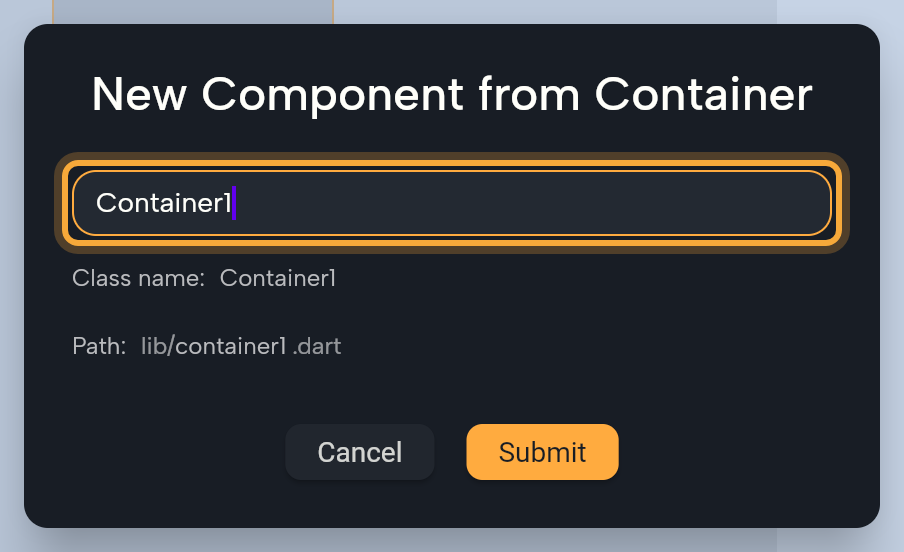
- Type a name, such as
ProductCard, and click Submit. The dialog is titled New Component from plus the widget's name. Each component needs its own name, one that no screen, component or built-in widget already uses, so Nowa suggests a free one and adds a number when it has to, such asContainer1. - Nowa swaps the widget for an instance of your new component, at the same size and position, so your screen looks the same as before.
The Class name and Path lines under the name show how the component is named and stored in your project's code. You can leave them as they are.
Your new component now shows up in the Library under Project, ready to use anywhere. Working in the code? See What Nowa adds to your code.
Use a component
To add an instance:
- Drag it from the Library onto the board or into a screen. Find it under Project. The default filter already lists components.
- Press Ctrl/Cmd + K, type its name, check the highlighted result and press Enter. The Library puts it where your pointer last was. To see only components, choose Components in Filter. See Add widgets.
- Copy an instance and paste it, or hold Alt/Option and drag it.
Instances have a purple label in the Outline, so you can tell them apart from plain widgets.
Edit a component or one instance
Some changes should reach every instance, and some only one. Here's how to make each kind.
- Change the component for everyone. Drag it from the Library onto empty board space and click its title, or double-click it in the Library (or press Enter on it) to open it on its own. Edit it like any widget, and every instance updates. Wrappers count too: a wrapper such as Padding or Container that you add while the component's own board item is selected (or while it's open on its own) goes inside the component, so every instance gets it. A wrapper you add to one instance on a screen wraps only that instance.
- Edit inside an instance. You can also select a widget inside an instance right where it is: double-click the instance on the board to go one level deeper, or expand the instance in the Outline and pick the widget. If the row has nothing to expand, edit the component itself instead. Change the widget in Details. It belongs to the component, so every instance updates. To get back to the whole instance, click the component's name, the first crumb at the top of Details. The component's top widget has no crumbs, so click the instance's row in the Outline instead.
- Set values for one instance. Select the instance inside a screen. Details lists the component's params. Change them there, and only this instance changes.
- Break the link. Right-click an instance and choose Detach. It turns into plain widgets, and later changes to the component no longer reach it. In Nowa 3.13 the values you set on that instance are lost, and widgets linked to a param show a red box such as "[title] is not found": see Detach loses an instance's param values.
- Make a separate copy. Right-click an instance and choose Copy as new widget, name it and click Submit. You get a new component of its own, which you can change without touching the original. Nowa places the copy where your pointer last was, and the instance you right-clicked stays linked to the original. This is usually better than Detach when you want a variation.
Give a component params
Params let each instance show its own content. On a recipe card, params for the title, the picture and the date let every card show a different recipe with the same design.
- Select the component's board item, or open the component on its own.
- Expand Variables above Details. It lists Params, Variables and Functions.
- Hover Params and click +. Nowa adds a param called
param. In Details, type its name in Name, such astitle, press Enter and choose its Type, such as String for text. The list opens a name field too, but there the letters t, r, v and f can trigger board shortcuts instead of typing. - Link a property of a widget inside the component to the param: click the property's name in Details and pick the param. Each instance now has its own value for it in Details.
Does the component need to remember something of its own while the app runs, such as whether a card is expanded? Hover Variables and click + to add a variable. Nowa sets up everything the component needs to keep that value, so there's nothing else to do. Learn more in Pass data with parameters and Store data in variables.
Try "Turn the recipe card on the Home screen into a component and use it on the Favorites screen." Then open the component from the Library to check its params.
Manage screens and components
Open Library in the left sidebar. Your screens and components are under Project, sorted into folders such as pages. Find and add things with the Library covers the whole panel. Here's what you'll use most for screens and components.
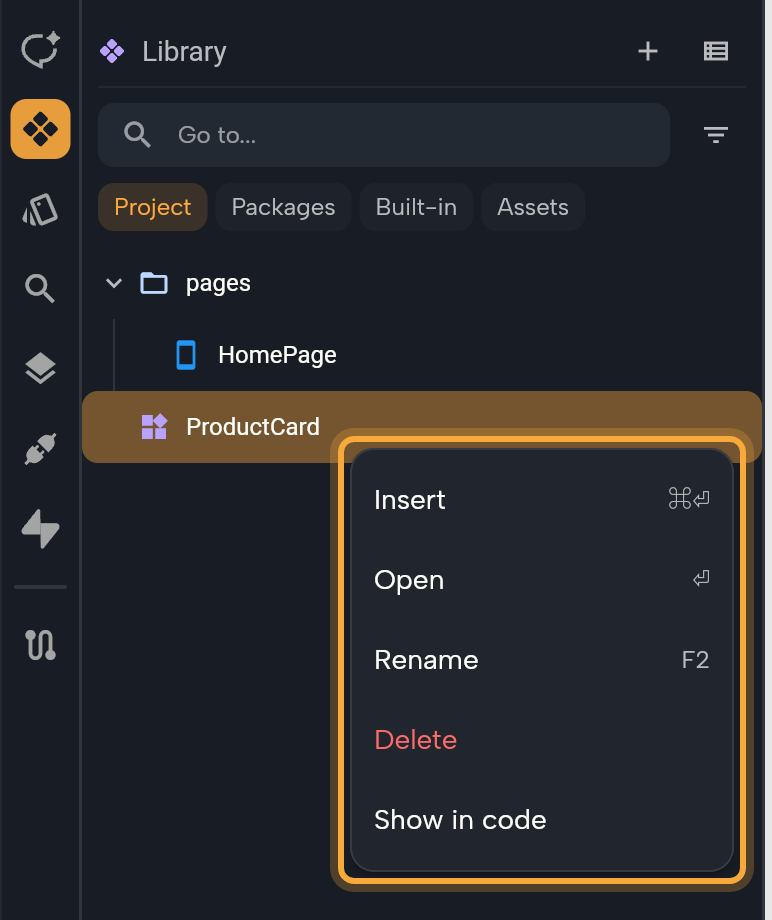
- Type in the search field to find one. To list only one kind, choose Screens or Components in Filter.
- Click a row for its details card: a preview, its name, where it lives and the first lines of its description. Press Esc to put the card away.
- Double-click a row, press Enter, or right-click it and choose Open to open it on its own.
- Right-click it and choose Insert, or press Ctrl/Cmd + Enter, to put it on the open board. Dragging the row onto the board works too.
- Right-click and choose Rename (or press F2), type the new name and press Enter. Nowa updates every place that uses it for you.
- Right-click and choose Delete. Nowa asks Are you sure you want to delete ProductCard? with Cancel and Yes. If something uses it, Nowa lists the places and asks you to confirm with Remove. Changed your mind? While the Library has focus, Ctrl/Cmd + Z undoes a delete.
- If you also work with code, right-click and choose Show in code to jump to it in code mode.
Next steps
- Pass data with parameters: give a screen or component values from outside.
- Find and add things with the Library: search, filter and manage everything in the panel.
- Add widgets: drop your components in from the Library.
- Lists and grids: repeat one item design for every entry in a list.