Pass data with parameters
A parameter, or param, is a value a screen or component receives from outside. Think of a news app: the article screen needs a title, a picture and the story. Whatever opens the screen hands those over first, a bit like filling in a form before you walk in. With params, one design shows different content every time you use it.
A param is fixed once it arrives. If a value has to change while the screen is open, use a variable instead.
When to use a param
- A screen shows something chosen elsewhere: the product someone tapped in a list, the booking they're about to confirm.
- A component shows data from the screen it sits on: a product card that shows a different product in each copy, a header that shows the screen's title.
A screen or component that looks and works the same everywhere doesn't need params.
Add a param
- Select the screen or component and expand Variables. See Open the Variables panel.
- Hover the Params section title and click +. A new param appears, selected.
- In Details, type a name in Name and press Enter. The list opens a name field too, but there the letters t, r, v and f can trigger board shortcuts instead of typing.
- In Details, choose the Type and set the Default Value. The type picker works as described in Choose a type.
Add as many params as you need. A recipe card might have one for the title, one for the picture and one for the cooking time.
The Default Value is used when nothing is passed in, and it's what the board shows. While a param is empty, the board shows a placeholder such as [title] wherever the param is used. Give the param a default, or pass a value, to see your own content.
Use a param in a widget
- Select the widget and click the label of the property you want to fill, such as the text of a text widget.
- Under LOCALS, click the param. The property now follows the param.
The param's type has to fit the property: a text widget's text takes a String. If you pick a value of another type, the menu shows what's inside it so you can reach one that fits. This works the same way as linking a variable: see Show a variable in a widget.
Create a param from a property
A handy way to work: design with sample content first, then turn the parts that change into params.
- Click the label of a property in Details.
- Choose Create Param.... Nowa adds a param of the right type, starts it with the property's current value when that is a fixed value, and links the property to it.
This works on events too. Click an event's label, such as On Pressed, and choose Create Param... to let each use of the component decide what happens when it's tapped.
Pass values to a component
Each time you place a component, you can give that copy its own values.
- Place the component on a screen. See Build reusable components.
- Select the copy. Its params appear in Details, one field per param, named after it.
- Type a value, or click a field's label to link a variable, one of the screen's params or an expression. See Expressions and conditions.
Values set this way belong to that one copy. Edit the component itself to change every copy.
To go back to the param's default on a copy, right-click its field in Details and choose Reset to default. To pass nothing at all, choose Set to null. Params you create allow this, because their type can be empty.
An empty param is fine on the board, which shows a placeholder. In the running app, though, a widget that needs the value can show an error instead of your content. So give each param a Default Value, or make sure every copy and every screen that opens it passes a value.
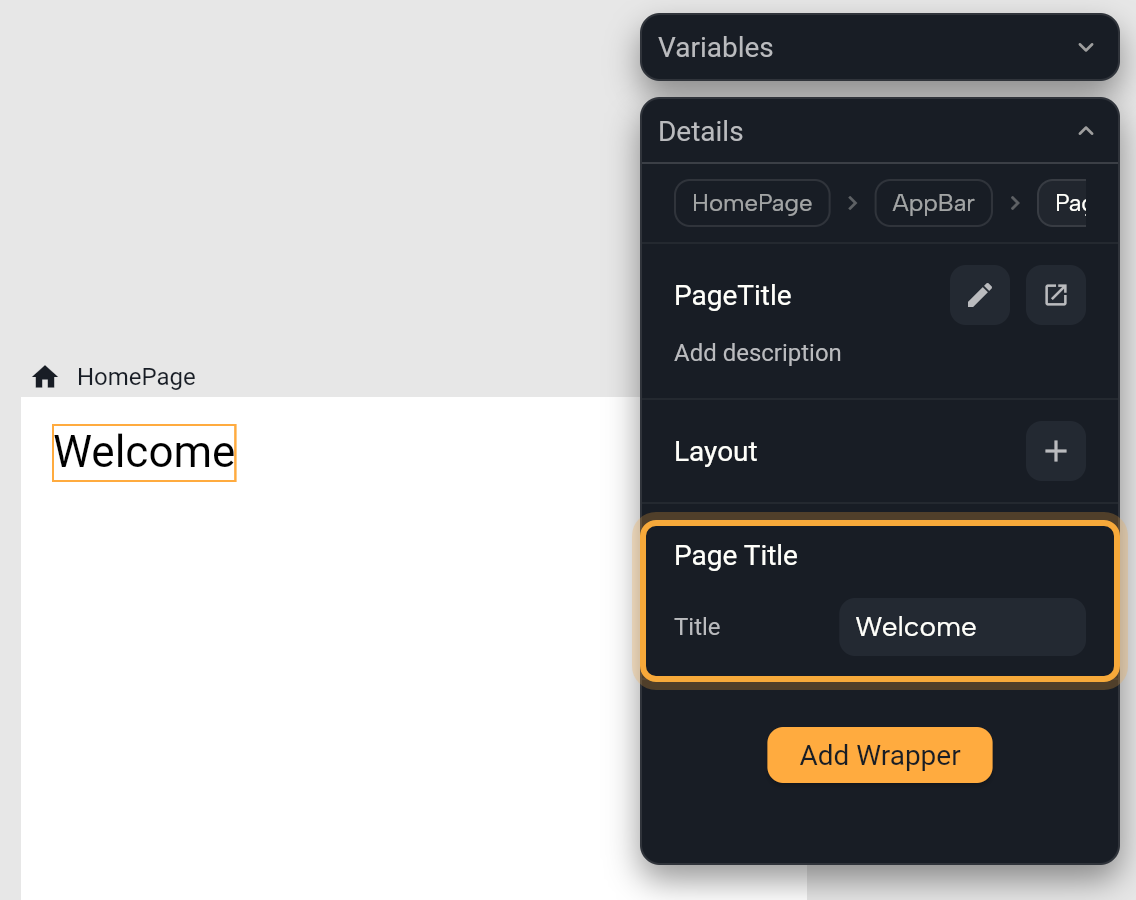
To preview a screen or component on the board with sample data, select its title and fill in its param fields in Details. These values are saved with the board for previewing only. Your app doesn't use them.
Example: a product card
Here's how one card design can show any product. You'll need a Product model with a name (a String) and a price (a double).
- Create a component for the card with two text widgets. See Build reusable components.
- Add a param named
productand set its Type toProduct(search for it in Select type). Fill in its Default Value with a sample product, so the card shows real-looking content while you design. - Select the first text widget, click the label of its text and click
productunder LOCALS. A product isn't text, so the menu shows its fields: clickname. - Do the same with the second text widget and
price. A price is a number, so the menu shows what you can do with it: picktoStringto show it as text. - Place the card on a screen. Select each copy and link its Product field to a product, such as the item a List View is showing (
element, see Fill a list from your data).
Pass values when you navigate
When one screen opens another, it can hand over the values the new screen needs.
- Navigator: click the brush icon next to the screen in the Navigator node and fill in its params. See Use the Navigator.
- GoRouter: send the value in the path or after a question mark, and connect it to the screen's param in the Router panel. See Pass data to the next screen.
Rename, retype or remove a param
Select the param in the Params list and use Details. Double-clicking it also starts a rename, but in the list the letters t, r, v and f can trigger board shortcuts instead of typing. Renaming, changing the type and removing work as they do for variables: see Rename, retype or remove a variable.
Need a param's value in something that changes? Copy it into a variable. For example, fill the variable from the param in an InitState Function, which runs when the screen opens. See Create functions.
Try: "Make a product card component with a title and an image as parameters, and show three of them on the Home screen." Then select a card to see its param fields in Details. See How Nowa AI works.
Next steps
- Store data in variables for values that change.
- Navigate between screens to send data to the next screen.
- Data models to pass a whole product or user as one param.