Navigate between screens
Navigation takes people from one screen to another and back, like from a recipe list to one recipe and back again. You add it as a step in your logic, usually on a button or a list item.
New projects use GoRouter, where every screen has a path, like a web address, such as /settings. Older projects use Flutter's Navigator, where you pick the screen itself. You can switch an older project to GoRouter.
How screens stack
The screens people open pile up like a stack of cards. Opening a screen with push puts a new card on top. The phone's back button, or the back arrow in the app bar, takes the top card off again (pop) and shows the one below. Replacing a screen swaps the top card, so Back can't return to it. The tables below say when to use each one.
GoRouter or Navigator
| GoRouter | Navigator | |
|---|---|---|
| Used by | New projects (since Nowa 3.5) | Older projects |
| You point to a screen by | Its path, such as /settings | Picking the screen |
| Web addresses, the browser's back button, deep links | Supported | Limited or not out of the box |
Not sure which one your project uses? Click Router in the sidebar. A GoRouter project opens Router Settings. An older project opens New Router System. See Switch an older project to GoRouter.
Give a screen a path
Each screen needs a route, the path that opens it. A new screen from the Empty Page template gets one automatically: its name in lowercase with hyphens, so HomePage becomes /home-page.
To set or change a path:
- Click Router in the sidebar. See Open the Router panel.
- In the Routes list, select the screen's route.
- Type the path in Path, such as
/settings, and press Enter.
If the screen has no route yet, click + (Add Route) and choose Route. Select the new / route, type its Path, then click the name next to Screen to pick the screen. The screen's Details also has a Path field under Route Settings, but in Nowa 3.13 it drops every / you type: see Known issues.
To make a screen the one your app opens first, click Make home screen in the screen's Details. Nowa adds a route if the screen has none and sets it as the start location. To open the home screen only for signed-in people, see Start on the login screen or the home screen.
Go to another screen
These steps are for GoRouter projects. For an older project, see Use the Navigator.
- Open the logic that should navigate. For a button, click Edit next to On Pressed in Details. See Respond to taps and other events.
- Hover the dot under the top node until it becomes +, and click it. In All nodes for this circuit, open GLOBALS and click GoRouter. Nowa adds a node that pushes the location
/path. - In Details, choose the Type from the table below.
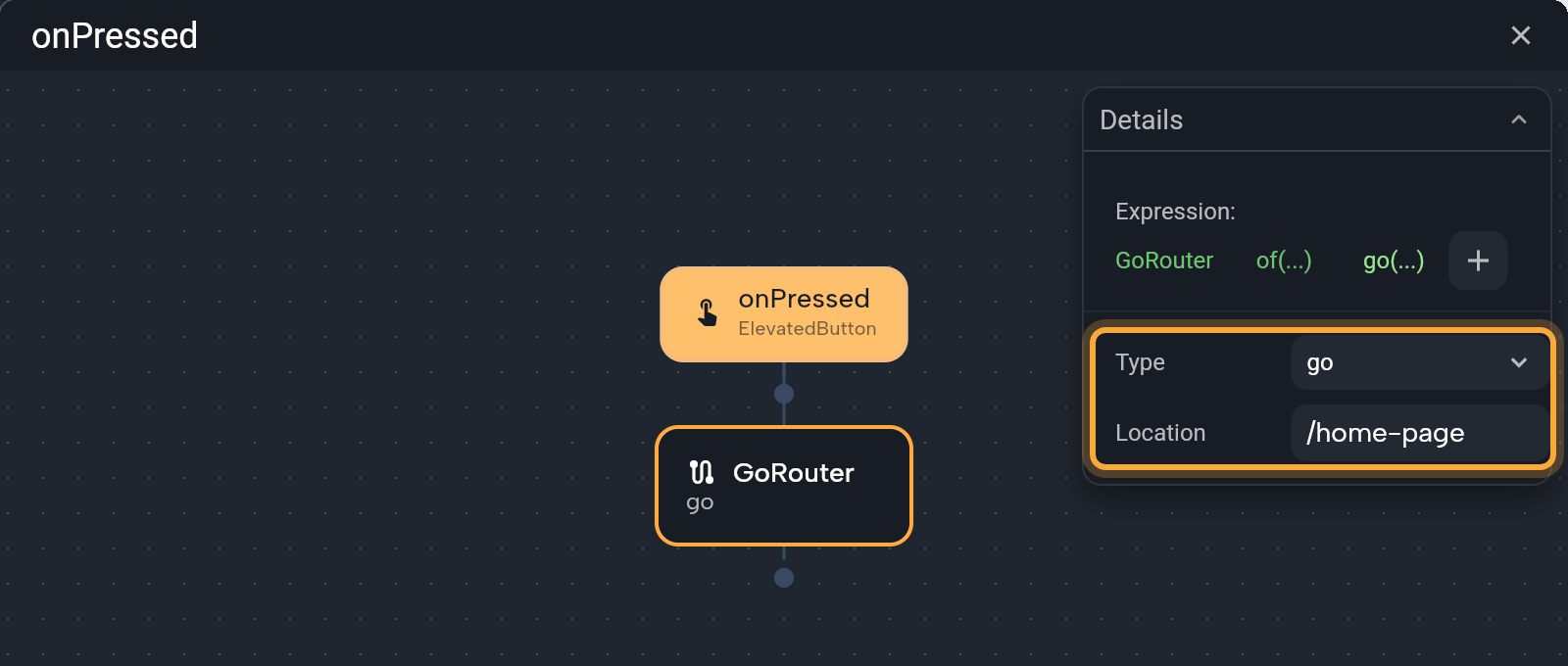
- Replace the Location with your screen's path, such as
/settings. It's plain text, so copy the path from Route Settings or the Router panel. To put a value in the path, type$and pick a variable.
| Type | What it does | Use it when |
|---|---|---|
push | Opens the screen on top of the current one, so people can go back. | Opening details, such as one recipe from the list. |
go | Jumps to the screen. It replaces the screens that were open, keeping only the screens its route is nested under in the Router panel, so Back doesn't return to the old ones. | Moving to a main part of the app, such as the home screen after sign-in, or a section from a menu. In a web app, prefer go between main sections: push can confuse the browser's history. |
pushReplacement, replace | Swaps the current screen for the new one. replace does it without the opening animation. | Leaving a screen people shouldn't come back to, such as a finished checkout step. |
pop | Closes the current screen and goes back. It can hand a result to the screen below. | A Back, Done or Save button. See Go back with a value. |
goNamed, pushNamed, pushReplacementNamed, replaceNamed | The same actions, by route name. | Routes that someone named in code. The Router panel doesn't set route names, so you won't need these otherwise. |
The Extra field can hand the next screen a whole object, such as a full recipe, without putting it in the address. The Router panel can't connect it to a screen's param, though, so the recipes on this page send an id or a value instead.
In Play, a screen with a route starts your app's router at that path, so navigation works. If the path has a parameter, such as /product/:id, the screen can show your home screen instead, so play the screen that opens it. A screen without a route plays on its own, with route-based navigation off.
Try: "When I tap the Get Started button, open the Settings screen." See How Nowa AI works.
Go back with a value
Sometimes a screen's job is to give something back, such as a name someone types or an option they choose. Say a profile screen shows a name, and its Edit button opens a screen where people type a new one.
On the screen that gives the value back:
- Add a Text Field and a Save button. See Add a Text Field.
- In the Save button's On Pressed, add a GoRouter node and set Type to
pop, which closes this screen. - Click the result label, open LOCALS, pick the Text Field's controller and choose
text, what the person typed.
On the profile screen:
- In the Edit button's logic, select the
pushnode that opens the second screen. Under Future Options, turn on await, so the next steps wait until people come back, and set Store result to New Variable. - Add an If below it. People who leave with the back arrow bring nothing back, and the If skips the next step in that case: click its Condition label, choose Custom Expression... and type
var1 != null, which means "a value came back". - In the True branch, put the value in your name variable: add a node, pick the variable under LOCALS, click its Set button (such as Set name) and link Value to
var1. Then add refresh, so the profile shows the new name. See Change a variable from logic.
Instead of await, you can click + next to onValue on the push node: that function runs when people come back, with the value as value. See Wait for a result.
Pass data to the next screen
The destination screen receives data through its Params, so add one there first. See Pass data with parameters. With GoRouter, the data travels in the path or after a question mark, like in a web address.
Path parameter, like the 42 in /product/42:
- Select the destination screen, which needs a path. In Details → Route Settings, hover the Route Parameters row and click + (Add Route Parameter). Nowa adds
/:param1to the Path. To type a path such as/product/:idyourself, use Path in the Router panel (step 2): in Nowa 3.13 the Path in Details drops every/you type. - Open the Router panel and select the route. Drag the parameter's chip onto the screen's parameter under Screen Parameters.
- Navigate to
/product/followed by$and a variable.
Query parameter, like the shoes in /search?q=shoes:
- In the Router panel, select the route and click + (Add Query Parameter) under Route Parameters. Right-click the new chip, choose Rename and name it, for example
q. - Drag the chip onto the screen's parameter under Screen Parameters.
- Navigate to
/search?q=followed by$and a variable.
Values arrive as text. If you drag a chip onto a parameter of another type, such as a whole number or a true/false value, Nowa adds the conversion for you.
Open a detail screen when a list item is tapped
This is one of the most common patterns in apps: tap a row in a list, and a screen about that row opens. Inside a list item, element is the row it shows, so every row can send its own id to the next screen.
Before you start, connect a list to a List View or Grid View in Builder mode. The list can be a variable or the data of a Data Builder. See Fill a list from your data. Also set up the detail screen with a path such as /product/:id, using steps 1 and 2 of the Path parameter in Pass data to the next screen.
Before you drag the parameter's chip onto the screen's param, set that param's Type in Details. It must match the id your Get Record by ID function takes: int if your table's id is a whole number, String if it's text or a uuid (a long unique code). If the types differ, Problems shows an error. If you change the type later, drag the chip onto the param again.
- Select the item in the list. A List Tile has On Tap in Details. For any other widget, click Add Wrapper and choose Gesture Detector or Ink Well. See Respond to taps and other events.
- Click the button next to On Tap, then add a GoRouter node as in Go to another screen. Keep Type on
push, so people can come back to the list. - In Location, type
/product/and then$. In the menu, open LOCALS, near the end of the list, and clickelement, the tapped row. The text now reads/product/${element}, all of it selected, so typing now would replace it. Click right before the closing}(or press End, then ←) and type.id, so it reads/product/${element.id}. Use the field that holds your id. If the name is wrong, the GoRouter node shows a red mark: point at it to see why. If the item is a component with anidparam, add the tap inside the component and pick that param after$instead. - On the detail screen, wrap the widget that shows the row in a Data Builder. Set Source to Supabase and pick the function you made from the Get Record by ID template as the Query. Link its id input to the screen's param under LOCALS, then link the widgets inside to
data. See Show data in your UI. - Click Play on the list screen and tap a row. The list screen needs a route for navigation to work in Play.
The path carries text, so this recipe sends the id and the detail screen loads the row itself. In a Navigator project, you can send the whole row instead. Give the destination's param your model as its type, click the brush icon in the Navigator node, click the param's name and pick element under LOCALS. See Use the Navigator.
To have Nowa AI build it, ask in Agent mode: "When I tap a product in the list, open a detail screen that shows it."
Use the Navigator
In a project that uses the Navigator, you pick the screen instead of typing a path.
- Open the logic, hover the dot under a node and click +. In GLOBALS, click Navigator. Nowa adds a node that pushes a screen.
- In Details, choose the Type from the table below.
- Click to and pick the screen. The widget picker opens on its Components filter, which lists your screens and components.
| Type | What it does | Use it when |
|---|---|---|
push | Opens the screen on top of the current one. | Opening details, such as one product from the home screen. |
pop | Closes the current screen and goes back. | Going back to the list after someone submits a form. |
pushReplacement | Replaces the current screen with the new one. | Going from sign-in to the home screen, so Back doesn't return to sign-in. |
pushAndRemoveUntil | Opens the screen and removes every screen below it. | Finishing onboarding, so its steps are gone and the home screen starts fresh. |
To pass data, click the brush icon next to the screen. A popup lists the screen's parameters. Type a value, or click a parameter's name to link a variable, a parameter or an expression. See Expressions and conditions.
To bring a value back, follow Go back with a value with a Navigator node: on the second screen, its Type pop has a result type, such as String, and a result. On the first screen, the push node waits for that value with await and keeps it with Store result.
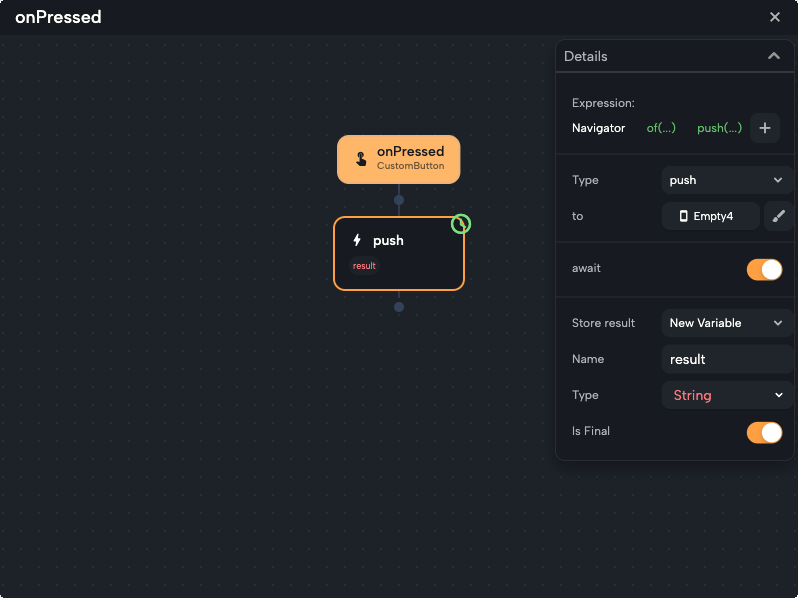
Navigator and GoRouter nodes work in a screen's or a component's logic, such as an event or one of its functions, because they need to know which screen they start from. A global state's functions can't use them.
Set up routes in the Router panel
Add, nest and edit routes, choose the first screen, and switch an older project to GoRouter in Set up routes in the Router panel.
Next steps
- Pass data with parameters so a screen can receive values.
- Deep links to open your app from a link.
- Create and set up screens for the Route Settings and Make home screen controls.