Build logic in Circuit
Circuit is where you tell your app what to do, one step at a time. Each step is a node. You stack nodes from top to bottom, like the steps of a recipe, and your app follows them in that order. Nowa writes the matching code as you go, so you never have to.
Every circuit is one function: a list of steps your app can run (see Create functions). The orange node at the top is the function itself, and the steps below it run in order. If and Try nodes split the flow into branches, so your app can do one thing or another.
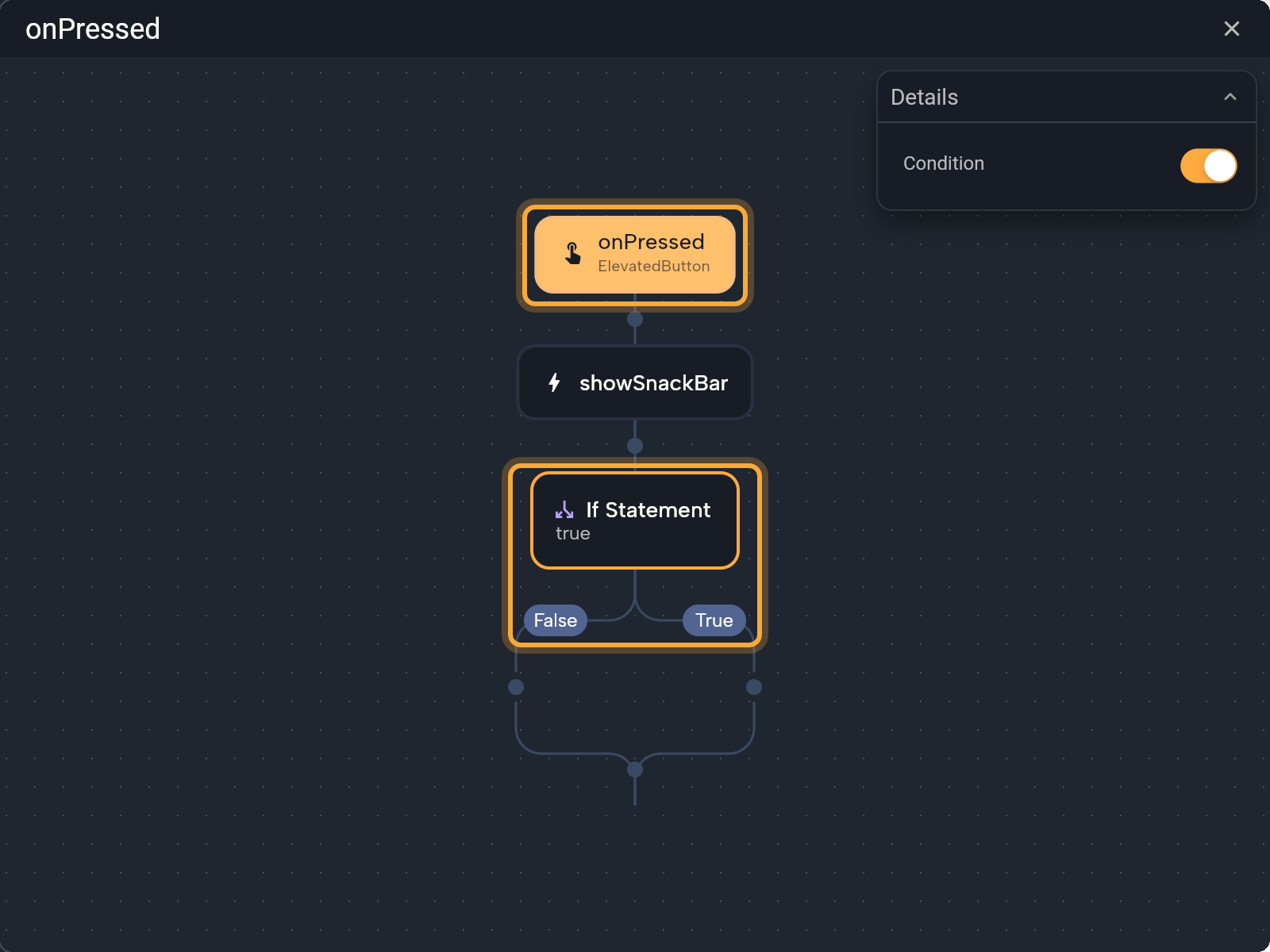
Open Circuit
You'll find Circuit wherever your app does something:
- An event: in Details, click the button next to an event such as On Pressed. See Respond to taps and other events.
- A function: select it in the Variables panel and click Edit in Details. See Create functions.
- A linked function or computed value: click the property's label and choose Open in Circuit.
- A widget builder: click the widget button next to a dialog's Builder and choose Edit in circuit.
Circuit opens as a floating panel over the board. Drag it by its title bar to see what's underneath, and close it with × when you're done. Your changes apply as you make them. In a global state or model file, Circuit shows the function you select in the file's right-hand column instead (Share data across your app).
Add a node
- Hover the small dot under a node. It grows into a +.
- Click it. The All nodes for this circuit menu opens with everything you can add at that spot.
- Type in the search box, or click a category to open it, then click an item. The node appears at that spot and is selected.
- Set it up in the Details panel that opens inside Circuit.
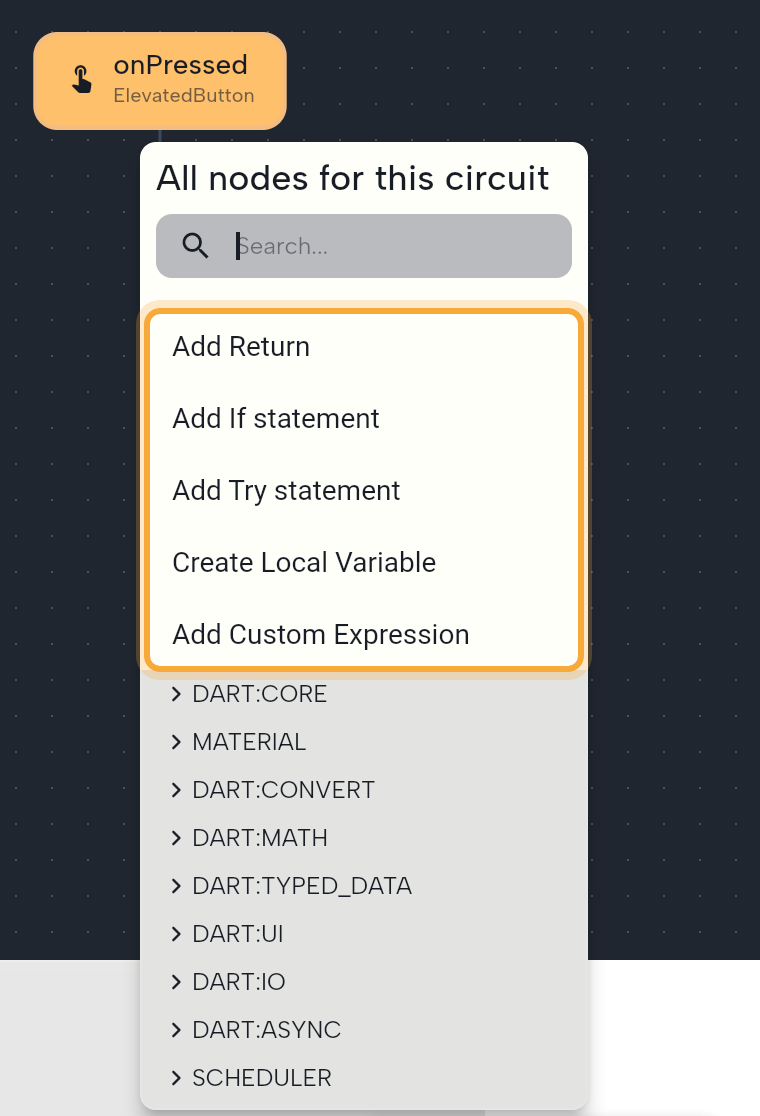
The menu starts with five building blocks, each explained below: Add Return, Add If statement, Add Try statement, Create Local Variable and Add Custom Expression.
Everything else sits in categories under them. They start closed and open on their own while you search, so typing a word such as snack or date is often the quickest way to find a step.
| Category | What's inside |
|---|---|
PACKAGE: and your package name, such as PACKAGE:MY_APP | Things from your own project: the requests of a REST API collection, your keys and constants under AppConstants, and functions that sit in a file of their own. |
| One per library (a set of ready-made functions): DART:CORE, MATERIAL, SERVICES, NOWA_RUNTIME and more | Ready-made actions from Flutter, Dart and the packages (add-ons) your app uses, such as openUrl (opens a web link) and print (writes a message to the logs). See Use ready-made actions. A package you add brings its own. |
| OPERATORS | Math (plus, divide...), comparisons (greaterThan, equal...) and logic (logicalAnd, logicalOr). |
| LOCALS | Variables, params and functions of the current screen or component, plus refresh (Store data in variables). |
| GLOBALS | Navigator and GoRouter (Navigate between screens), checkPlatform (where the app runs), Media Query (the screen's size), Show snackbar and your global states. |
| SHARED PREFERENCES | clear, remove key, set and get, to keep small values on the device (Save values on the device). |
| GENERAL | Create... (makes something new, such as a timer or one of your models) and parse (turns text into a number). |
| EXPRESSIONS | Conditional (picks one of two values) and ifNull (a fallback for an empty value). |
Connecting Firebase adds a FIREBASE category. Click a class, such as HapticFeedback (short vibrations), to see its functions.
Kinds of nodes
Nodes come in a few kinds. Knowing them makes any circuit easier to read, including one Nowa AI built for you.
| Kind | What it does | Examples |
|---|---|---|
| Action | Does something and hands nothing back. | print, refresh (redraws the screen) |
| Value | Works something out and hands it back for later steps. | A calculation from OPERATORS, a function of yours that returns a result |
| Both | Does something and hands back a result. | An internet request that returns the reply, a date picker that returns the picked date |
| Branch | Decides which steps run next. | If Statement, Try |
When a node hands something back, its Details show Store result so you can keep the value. See Keep a node's result.
Read a circuit, top to bottom
Here's a small example from a water-tracking app. A function called loadGoal has three steps:
- get (from SHARED PREFERENCES) reads the daily goal saved on the device. Its Type is set to
int(a whole number), so the node readsgetInt. Store result keeps the value in a local variable namedsavedGoal. - An If Statement asks whether a goal was saved, with the condition
savedGoal != null("savedGoal isn't empty"). - In the True branch, Set dailyGoal copies the saved goal into the screen's
dailyGoalvariable, and refresh redraws the screen. The False branch is empty, so the screen keeps its default goal.
Steps run in order, and each one can use what the steps above it produced. That's why the If can check savedGoal: step 1 already filled it in. Steps that take time, such as an internet request, need await so the next step waits for them. See Wait for a result.
Select, move and remove nodes
Click a node to select it, and click empty canvas to deselect. Right-click a node for Remove, Move up and Move down, or use the keyboard:
| To | Press |
|---|---|
| Select the previous or next node | ↑ or ↓ |
| Move the selected node up or down | Shift + ↑ or ↓ |
| Remove the selected node | Backspace, or Delete on Windows and Linux |
| Undo or redo | Ctrl/Cmd + Z or Ctrl/Cmd + Shift + Z |
A node moves only inside its own branch. You can't copy and paste nodes, and removing doesn't work while you're typing in a field. If you remove the wrong node, undo brings it back.
A red error icon on a node means something about it needs fixing. Hover the icon to read what's wrong.
Set up the function node
Click the orange node at the top to edit the function itself.
| Field | What it does |
|---|---|
| Name | The function's name. |
| Return Type | What the function hands back when it finishes, such as a number. Choose void when it only does things and hands nothing back. |
| Params | The values the function receives each time it runs. Hover and click + to add one. Click a parameter to change its Name, Type and Default Value, or to Remove it. |
For an event, Return Type is fixed and Params lists the values the event gives you, such as value (the new text) for On Changed. More in Create functions.
Keep a node's result
Many nodes give back a value: a calculation, a picked date, an answer from the internet. Store result keeps that value so the steps below can use it.
- Select the node.
- In Details, set Store result:
- New Variable creates a local variable named
var1(thenvar2, and so on). Rename it in Details to something you'll recognize, such aspickedDate. - Pick Variable writes the result into a variable you already have, such as a screen variable a widget shows. Click Variable and choose it.
- none keeps nothing.
- New Variable creates a local variable named
- Use the stored value in later nodes from LOCALS.
Nodes that give back nothing don't show Store result.
Wait for a result
Some actions finish later: a picker waits for a tap, an internet request waits for a reply. Their result is called a Future (a value that arrives later). Select such a node and choose what happens with Future Options in Details:
- await pauses the function until the result arrives, so the next steps can use it. Pair it with Store result to keep it. The node gets a small clock badge.
- onValue runs separate logic when the result arrives, without pausing the steps below. Click + to create it. A new Circuit panel opens for a function that receives the result as
value. - onError runs logic if the action fails. Clicking + next to either one creates both, and the onError function starts with a step that prints the error.
With await on, only the await switch shows.
If, Try and loops
Some logic needs to choose between steps, cope with a step that fails or repeat steps for every item in a list. Circuit has an If node for decisions and a Try node for errors, and it shows loops written by Nowa AI. Make decisions, handle errors and repeat steps explains each one with everyday examples.
Return a value
When a function hands something back, such as a total or a yes-or-no answer, a Return node is where it does so.
- Choose Add Return at the end of the function or of a branch.
- In Details, set the Return value. It starts with a default for the return type. A function that returns nothing shows Returning void.
A Return also ends the function right there, so nothing can be added after it in the same branch. That makes it useful for stopping early, for example when a form isn't filled in yet.
Hold values and write formulas
- Create Local Variable adds
var1(thenvar2, and so on), a variable that lives only while the function runs. It's handy for holding a value between two steps. In Details, click Expression: to say what it holds, then set Name, Type and Is Final (on means the value can't change once it's set). - Add Custom Expression opens a dialog where you type a formula as a step, such as
items.removeAt(0)(removes the first item of a list). See Write your own expression.
Fix missing permissions with Hot Fix
Some actions need extra setup in your project before they work. For example, showMediaPicker (lets people pick photos and videos) needs permissions such as access to the camera and the photo library. Such an action's Details show a Dependencies section listing what's needed under Permissions: and Packages:, with a check mark next to each item that's already on.
Click Hot Fix to switch on everything that's missing in one go. To see the details, click a section title: it opens that part of the project settings.
In Agent mode, describe the steps in your own words, such as "When Save is tapped, check that the name isn't empty. If it is, show a message. Otherwise save it and go back." Then open what Nowa AI built in Circuit to check or change it. See Design, Plan and Agent modes.
Next steps
- Respond to taps and other events to start your circuits from a tap.
- Expressions and conditions to link values and write formulas.
- Show dialogs, sheets, snackbars and pickers for ready-made steps.