Project settings
App Settings is where your app gets its identity: the name people see under its icon, the ID the app stores know it by, its version and its icon. It's also where you choose which phone features your app may ask for, such as the camera, and where the keys for the services you connect are kept.
Open App Settings
- In a project, click the gear in the top bar (tooltip Settings), or press Ctrl/Cmd + ,.
- Pick a page in the Settings list on the left.
- When you're done, click the back arrow in the top bar (or the gear again) to go back to your board.
The General group has these pages:
| Page | What it's for | Read more |
|---|---|---|
| Project Details | Your app's name, ID, version and icon, plus sharing | This page |
| Deployment | Build your app and publish it (cloud projects) | Get ready to publish |
| Permissions | The phone features your app may ask to use, such as the camera or location | This page |
| Packages | Ready-made add-ons (packages) from pub.dev, Flutter's public library, for things like charts or date formats | Add packages |
| Git | Settings for Git, which keeps a history of saved snapshots of your project: the name and email on each snapshot, and this project's GitHub connection and sign-in details. It needs a plan that includes Git. | Use Git, Connect GitHub |
| Project Sync | Keep a cloud copy and a copy on your computer in step (desktop app) | Work with local projects |
| Constants | Keys for the services you connect, and fixed values of your own | This page |
The Integrations group lists Google Maps, AdMob, RevenueCat, Deep Links, Google Sign-In, Stripe and Firebase. Each page holds that service's keys and setup. To pick the right one for your app, start at Connect data and services.
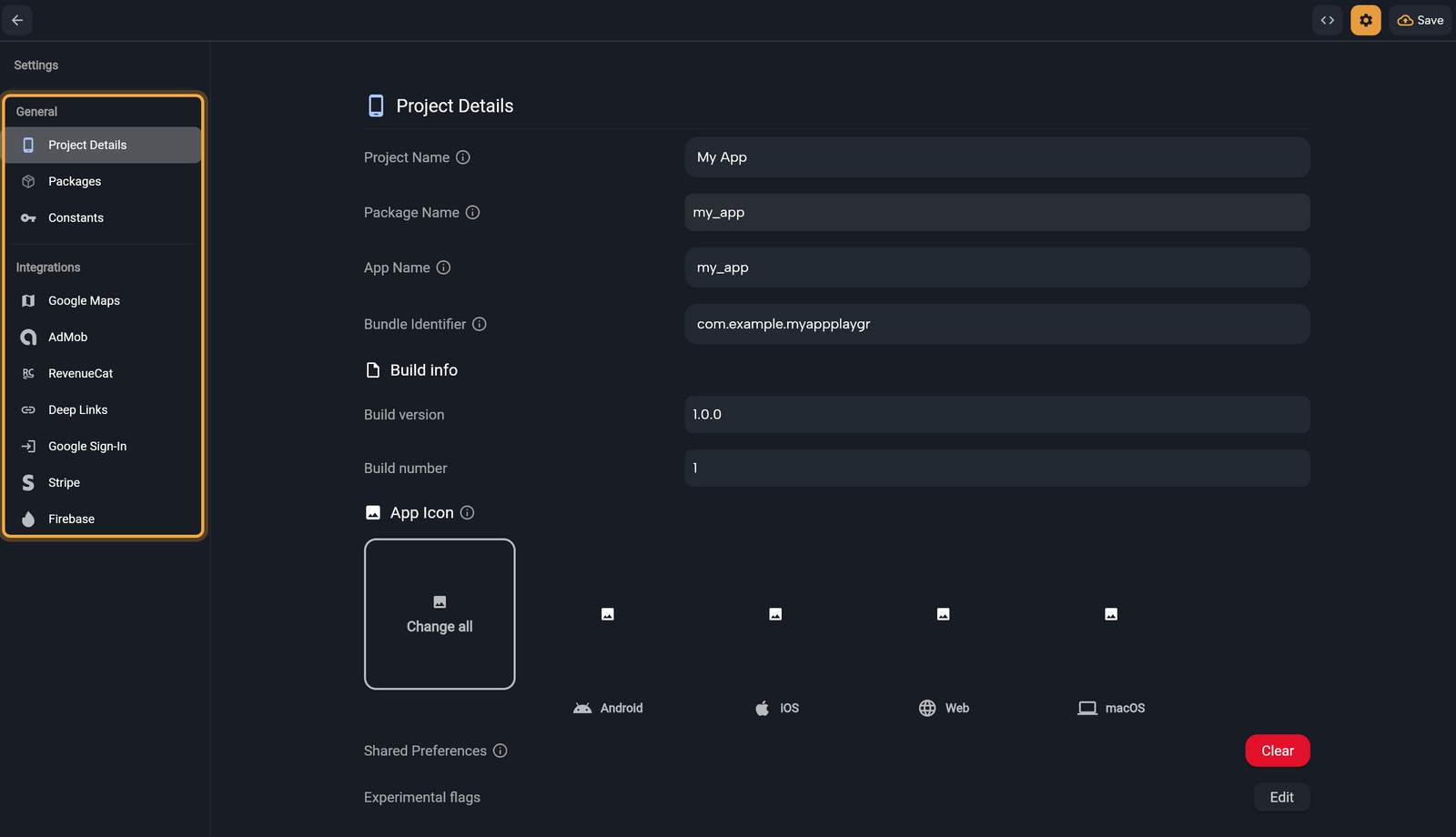
In the playground or a guest session, Deployment, Permissions, Git and Project Sync don't show yet, because they need a saved project. Project Sync only shows in the desktop app.
Name and identify your app
These details decide how your app appears on people's phones and how the app stores recognize it. Open Project Details, type in a field and press Enter to save it. Build version and Build number also save when you click out of the field.
| Field | What it does |
|---|---|
| Project Name | The name on your dashboard, so you can find the project. It has no effect on the app itself. |
| Package Name | An internal name for your project's code. Your users never see it, and it can't be changed. |
| App Name | The name under your app icon on people's phones. The web version also uses it as its browser tab title. |
| Bundle Identifier | Your app's unique ID. Phones and app stores use it to tell your app apart from every other app. |
| Build version | The version number people see in the store, such as 1.3.4. |
| Build number | A behind-the-scenes counter that tells your builds apart. |
Changing the App Name or the Bundle Identifier also rebuilds some of your app's Android and iOS settings files, so read the warning in Set permissions first.
Choose your Bundle Identifier
New projects start with a placeholder that begins with com.example., so replace it before your first store upload.
- Most apps use their company's web address written backwards, followed by the app's name, such as
com.yourcompany.yourapp. - It starts with a letter, has at least two parts separated by dots, and uses only letters and digits. The last part needs at least two characters. Otherwise the field says "Invalid package name".
- Nowa uses the same ID for your app on iOS, Android, macOS and Linux.
- Keep it once your app is live. If it changes after you publish, Google Play treats your next upload as a completely different app.
Publish to the App Store and Publish to Google Play rely on it.
Set the version
Build version needs three numbers separated by dots, or Nowa says "Please enter a valid version name (e.g., 1.3.4)". Build number needs digits only, or Nowa says "Please enter a valid number".
Each time you upload a new build to a store, raise the Build number, for example from 1 to 2. Google Play, for one, won't accept a number you've used before. Change the Build version too, say from 1.0.0 to 1.1.0, when people should see a new version.
Change the app icon
Your icon is what people tap on their home screen, and Nowa makes every size each platform needs from one image.
- In Project Details, find App Icon.
- Click Change all to use one image for every platform, or click the Android, iOS, Web or macOS tile to change only that one. A tile shows Change Icon when you point at it.
- Pick an image file. The tiles update to show your new icon.
The image can be at most 1024 by 1024 pixels. If it's bigger, a red message says "Exception: Icon must be 1024x1024 or smaller". Change all also creates the Windows icons.
Set permissions
Before an app can use the camera, the microphone or someone's location, the phone asks the person for permission. Permissions is where you turn on the ones your app needs, so your app is allowed to ask.
- Open Permissions.
- Under iOS: or Android:, flip the switch for each permission your app needs. Nowa adds it to your app right away.
- For each iOS permission you turned on, edit the message in the box beside it. People read it in the permission prompt, so say why your app needs it, for example "We use your camera so you can add a photo to your recipe." Nowa fills in a default, and your changes are kept as you type.
Under each name, a grey line shows the permission's technical name, such as NSCameraUsageDescription or android.permission.CAMERA. You don't need to do anything with it. Permissions that an imported project already had show as on.
Each time you change a permission, the App Name or the Bundle Identifier, Nowa rebuilds some of your app's Android and iOS settings files from your project settings. Anything added to those files another way, by hand in code mode, by Nowa AI or in a project you imported, can be lost.
| Permission | Platform | What it lets your app do |
|---|---|---|
| Camera | iOS, Android | Take photos and videos |
| Microphone | iOS, Android | Record sound |
| Photo Library | iOS | Open photos and videos from the phone's library |
| Photo Library Add | iOS | Save photos and videos to the library |
| Location When In Use | iOS | Use the phone's location while your app is in use |
| Location Always | iOS | Use the location at any time, even when your app isn't in use |
| Location Always and When In Use | iOS | Both of the above |
| Speech Recognition | iOS | Turn speech into text, for voice input |
| User Tracking | iOS | Ask permission to track people for personalized ads (Apple's App Tracking Transparency) |
| Read Storage | Android | Read files saved on the phone |
| Write Storage | Android | Save files to the phone |
| Boot Completed | Android | Know when the phone has restarted, for example to set reminders again, because a restart clears them |
| Fine Location | Android | Use the phone's precise location |
| Coarse Location | Android | Use the phone's approximate location |
If a package or service you added needs a permission you haven't turned on, Problems tells you which one and offers Fix, which turns it on for you. See Find and fix problems.
Turn on only what your app really uses. Apple asks apps to request only the data their core features need, and to explain clearly how they use it (App Review Guidelines 5.1.1). Google Play allows only the permissions your app's current features need (Play policy).
Working in the code? What Nowa adds to your code shows where these settings end up.
Manage keys and constants
Many services give you a key: a code that tells the service which account your app belongs to. Constants keeps those keys in one place, together with fixed values of your own, such as the support email you show on several screens.
- Integration keys. An integration that keeps its keys here gets its own section, such as Stripe, RevenueCat or Google Sign-In. Type a value and press Enter. The integration's own page shows the same value, so you can change it in either place. Some keys, such as the Google Maps and AdMob keys, live on their own pages under Integrations instead.
- Your own constants. Under Custom Constants, click + (tooltip Add custom constant), type a Name and a Value, and click the check mark (Confirm). The × button (Remove) deletes one. Until you add one, Nowa says "No custom constants defined. Click + to add one."
Constants ship inside your app, so anyone who has the app can read them. Keep them to values that are meant to be in an app, never a password or a server secret, and remember that making the project public shows them too. See Keys and constants.
Share your project
At the bottom of Project Details, Sharing sets the Cover, the picture on your project's card. For cloud projects it also has a Public project switch. It gives you a link that anyone can open to get their own copy to edit, which is handy for sharing a template or showing your work. Your project itself never changes when visitors edit their copy.
Turning it on opens "Make this project public?". Every file becomes readable, including any keys, so check for secrets first. Then tick the checkbox and click Make public. View Only members and playground sessions don't see Sharing. For the link options, see Share your app.
Experimental flags
BetaExperimental flags let you try features Nowa is still working on, one project at a time. You can switch them back whenever you like.
Project Details → Experimental flags → Edit opens a short list of switches. Flip a switch, then click Apply. Nowa saves your project and reopens it so the change takes effect. If you didn't change anything, the button reads Cancel.
| Flag | What it does |
|---|---|
| load packages | Lets Nowa AI add packages (ready-made add-ons) to your project when a request needs one. With it off, Nowa AI asks you to turn it on first. You can still add packages yourself on the Packages page. It's on in new projects. |
| New UX | Tries out an editor layout that Nowa is still building. The panel icons move from the left edge into the top bar, with a More panels menu for the rest. A Debug panel lists your app's global data with its current values, and the toolbar at the bottom of the board is hidden. Double-clicking a widget on the board does nothing while it's on, so you can't go one level deeper or start editing a text that way. It's off by default, and a NEW UX badge shows in the top bar while it's on. These docs describe Nowa with it off. |
Shared Preferences and the project ID
- Shared Preferences. Your app can remember small things on the phone, such as a dark-mode choice or whether someone has seen your welcome screens, with the SHARED PREFERENCES steps in Circuit (see Save values on the device). While you test with Play on the board, Nowa keeps those saved values for this project. Click Clear to erase them and try your app the way a first-time user would. It also clears the Auth token value you saved for testing a REST API. An app running on a phone keeps its own values.
- Project ID. Click the name at the left of the status bar. A small popup shows the Project Name: and Project ID:. Click the ID to copy it ("Copied"), which is handy when you contact support about this project.
Next steps
- Account settings for your profile, plan and sign-in
- Get ready to publish once your app's name, icon and version are set
- Connect data and services