Workspaces and team members
A workspace is a shared home for cloud projects. Put your team's projects in one, invite people by email, and decide who can change things and who can only look, for example a client who wants to follow your progress.
How workspaces work
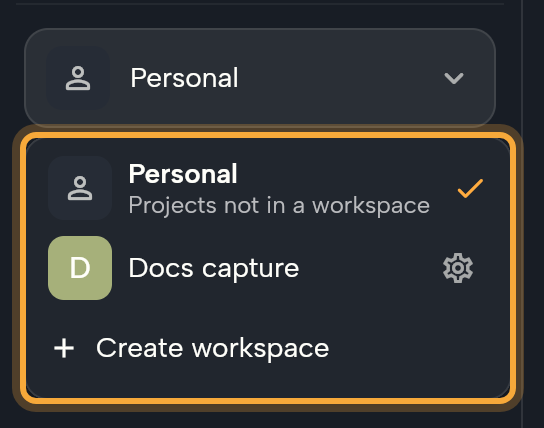
- Personal holds the projects that aren't in a workspace. Its menu entry says "Projects not in a workspace".
- A workspace holds cloud projects and its members. Local projects can't be in a workspace: they show only under Personal, in the desktop app.
- The dashboard shows one workspace at a time. Nowa remembers your choice on this device.
- Workspaces have no comments and no live co-editing, so agree with your team who's working in a project at any one time. The project menu also has no option to duplicate a project.
Every member has a role:
| Role | What it means |
|---|---|
| Owner | Manages the workspace. Only an owner sees the invite row, can rename or recolor the workspace, and can delete it. |
| Editor | The default role for people you invite. Editors work on the workspace's projects. |
| View Only | Can open projects but not change them. Good for clients and reviewers. See Open a project as View Only. |
Create a workspace
- In the dashboard sidebar, click the workspace switcher under the Nowa logo. It reads Personal until you pick another.
- Click Create workspace.
- Pick a color (Nowa picks one at random) and type a name in Workspace Name, such as your company's or your client's name.
- Click Create. The new workspace opens on the dashboard.
If you leave the name empty, Nowa says "Name cannot be empty".
Switch workspaces and move projects
Open the switcher and click Personal or a workspace. The Projects list then shows that workspace's cloud projects.
A project you create from New project or from the prompt box starts in Personal. To put a cloud project in a workspace, so its members can open it:
- Click ⋮ on the project card, then Move to workspace....
- In the move dialog, pick Personal or a workspace.
- Click Move. The dashboard switches to that workspace, so you can see the project in its new home.
Clone from GitHub, Import project and Save your app have a workspace chip, so you can choose the workspace as you create the project.
Invite people
Only an owner sees the invite row.
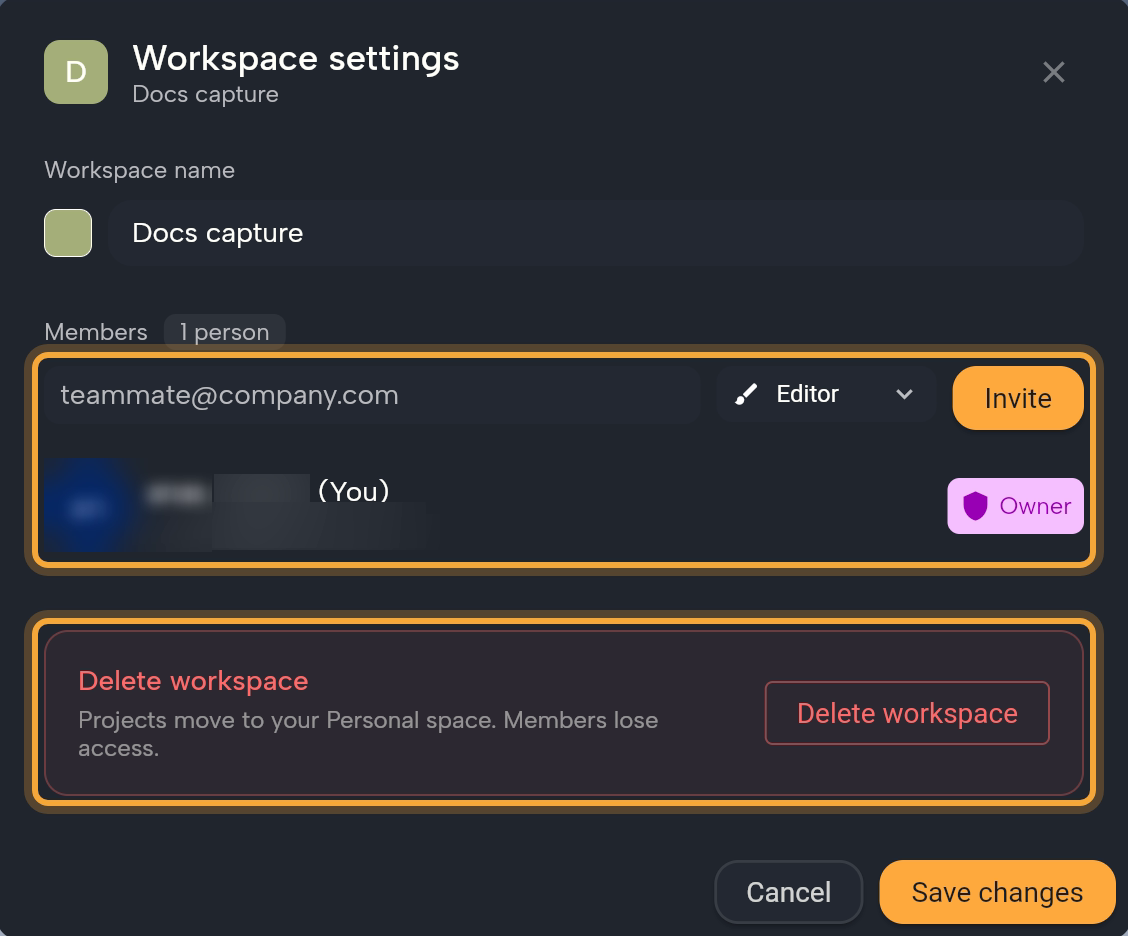
- Open the switcher and click the gear next to the workspace. Workspace settings opens.
- Under Members, type your teammate's email address. The field shows "teammate@company.com" as a hint.
- Pick a role: Editor (the default) or View Only.
- Click Invite. Nowa emails an invitation, and the person appears in the list with a Pending badge until they accept.
To cancel or resend, click the Pending badge, then Cancel invitation or Resend invitation. If the address isn't valid, Nowa says "Please enter a valid email address".
Accept an invitation
Got an invitation? Here's how to join:
- Open the link in the invitation email.
- Sign in with the invited account if Nowa asks.
- When you see "Invitation accepted!", click Ok. The workspace now appears in your switcher.
If the link names a different email than the account you're signed in with, Nowa signs you out and opens the sign-in page. Sign in with the invited email and Nowa returns you to the invitation. If the invitation can't be accepted, the page shows the error instead.
Change roles or remove people
Click a member's role badge to open a menu:
- Make Owner, Make Editor or Make View Only changes their role (you see the roles they don't have yet).
- Remove member takes them out of the workspace after you confirm.
You can't invite someone as an owner. To add another owner, invite them as Editor, then choose Make Owner once they've joined. If you change your own role, Nowa warns that you will lose access to some settings and asks you to confirm.
Rename, leave or delete a workspace
- Rename or recolor: change the name or the color swatch, then click Save changes. Only owners can.
- Leave: if you aren't an owner, click Leave workspace. You lose access to the workspace and its projects.
- Delete: if you're an owner, click Delete workspace and confirm.
Deleting a workspace cuts off every member's access. Nowa asks you to confirm, and says its projects move to your Personal space.
Open a project as View Only
A View Only member can open and explore a project, but nothing they do changes it:
- The board toolbar shows View only instead of the tools. You can select widgets, copy them and use Export as image....
- The save icon in the status bar is hidden, and the code editor is read-only.
- In code mode, right-clicking a file in the Files panel only offers Copy as path.
- Project Details hides the Sharing section.
Ask an owner to change your role if you need to edit.
Next steps
- Create and manage projects
- Share your app with people who aren't members
- Account settings