Create and manage projects
Every Nowa app starts on the dashboard. Describe your idea and Nowa AI builds the first version for you, or start from an empty project, a GitHub repository or code you already have. As your list grows, search and sorting help you find any project again in seconds.
Start a project
| Start from | Where to click |
|---|---|
| An idea, in your own words | What do you want to build? at the top of the dashboard |
| An empty project | New project |
| A GitHub repository | The arrow next to New project, then Clone from GitHub |
| A Flutter project on your computer (desktop app only) | The arrow next to New project, then Import project |
The New project button sits in the Projects header. In a narrower window it reads New.

Start from a prompt
This is the quickest way in: you describe the app, and Nowa AI sets up the project and builds the first version.
- Type your idea in What do you want to build?, for example "A recipe app where I save my favorite dishes and plan meals for the week."
- Pick a mode and a thinking level under the box. If you're not sure, keep Design (marked Start here) and Thinking.
- Click the send button (tooltip Build it).
Nowa names your app, creates a cloud project and opens it with your prompt already sent, so Nowa AI gets to work right away. The full walkthrough is in Build your first app, and Design, Plan and Agent modes explains the modes.
Create an empty project
- Click New project.
- Type a Project name.
- Click Create project (or press Enter). The editor opens on a small starter app with a home page, a theme and a board, ready for you to build on.
A new project is a cloud project: it lives in your Nowa account, so you can open it on any device you sign in on. It starts in Personal, outside any workspace. To share it with your team, use Move to workspace... (see Workspaces and team members).
If you'd rather keep the files on your own computer, the desktop app can make a local project instead. Expand Advanced in the dialog, click Local-only project and pick the folder. On the web app that card is greyed out, with the note "Local projects are only available in the desktop app." and a Download desktop app button. Cloud and local projects helps you choose, and Work with local projects has the details.
Clone or import a project
Every Nowa app is a Flutter app (Flutter is the technology that runs it on iOS, Android and the web), so you can also bring in Flutter code you already have. GitHub is a website where people store and share code, and each project there is called a repository.
- Clone from GitHub copies one of your repositories into a new Nowa project. Pick the repository, check the Project name, then click Clone project. You need GitHub connected first, and a plan that includes it. Without the plan, Time to level up appears.
- Import project (desktop app only) brings in a Flutter project from your computer, for example an app a developer built for you. Click Browse, pick the folder, then click Import project. It uploads to your account unless you choose Local-only project under Advanced.
Both dialogs have a workspace chip, so you can choose which workspace a cloud copy goes to. Import an existing Flutter project has the details, including folders that hold several apps or packages.
Name your project
Pick a name that helps you find the project later. A project name can use letters (A to Z, no accents), numbers, spaces, underscores and hyphens. It can't be empty, and it can't be only a word with a special meaning in code, such as class or import. The New project dialog shows one of these messages when a name breaks a rule:
- "App name cannot be empty"
- "App name should only contain letters, numbers, underscores, hyphens, and spaces"
- "App name cannot be a reserved keyword"
The name you type is the Project Name shown on the dashboard, and you can change it later in Project settings. Your app also gets two IDs that work behind the scenes:
| Identifier | What it is | Can you change it? |
|---|---|---|
| Package Name | An internal name for your project's code, such as my_app for a project called My App. Your users never see it. | No |
| Bundle Identifier | Your app's unique ID on phones and in the app stores. It starts as a placeholder: com.example., then your project name without spaces, underscores or hyphens, then a short code from the project ID. | Yes, in Project settings |
Replace the placeholder Bundle Identifier before you publish, because the app stores use it to identify your app.
Find a project
The number next to Projects counts the cloud projects in the workspace you're viewing. Click a card or row to open the project.
- Search... looks through your projects as you type. If nothing matches, Nowa says "No projects found".
- The sort button (its tooltip shows the active sort, such as Sort: Updated) opens Sort by: Updated, Created or Name.
- The grid and list buttons switch the layout.
- Load More appears at the bottom when you have more projects than fit.
Each card shows a cover picture (or the project's first letter) and the name. Under the name you see the project's internal name, such as my_app, when it differs from the name you gave it. Otherwise, and while you point at the card, that line says when you last edited the project, such as "Edited 5m ago". List rows show the name, a Cloud or Local badge and, unless the window is narrow, the edit time. The cover is a snapshot of your board, updated each time you save, unless you pick your own under Project Details → Sharing.
RECENTS in the sidebar lists up to five recently edited projects from the workspace you're viewing, with their edit times. Click one to jump straight back in.
Nowa remembers the workspace and the sort order you chose, on this device.
Can't see a project? Check the workspace switcher in the sidebar: each workspace lists only its own projects. Local projects appear only in the desktop app, under On this device, and only while Personal is selected.
Use the project menu
Click ⋮ on a project card or row.
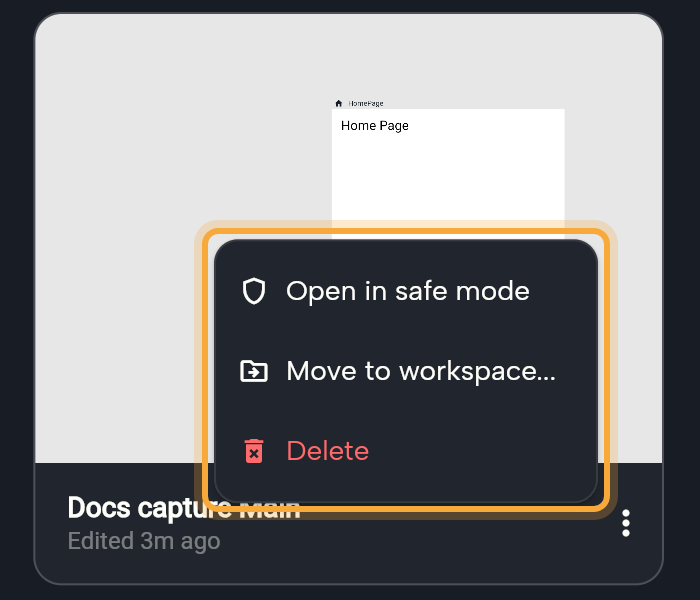
| Menu item | What it does | Shown for |
|---|---|---|
| Open in safe mode | Opens the project without reopening the tabs you had open. Try it if a project freezes or misbehaves when it opens. | All projects |
| Move to workspace... | Opens a dialog titled with your project's name, such as "Move My App to...", listing Personal and your workspaces. Pick one and click Move. The dashboard then switches to that workspace. | Cloud projects |
| Upload to cloud | Opens Clone Project. Pick a workspace and click Clone to Cloud. Nowa makes a linked cloud copy and leaves your local project as it is. An already linked project opens Project Sync instead. | Local projects (desktop app) |
| Remove from list | Takes a local project off your list. Its files stay on your computer. | Local projects |
| Delete | Deletes the project after you confirm. | All projects |
Delete opens a confirmation that says "This action cannot be reversed." Click Delete Project to go ahead. A cloud project is removed from your account.
Delete on a local project also erases its folder from your computer, and Nowa can't bring it back, although the confirmation doesn't mention the folder. To keep the files, use Remove from list. If the project sits inside a larger Git repository, Delete only removes it from the list and says "The files stay on disk." The exact rules are in Work with local projects.
Fix "Project not found"
If a local project's folder was moved, renamed or deleted, opening it shows Project not found and the old location. Point Nowa at the folder's new place and you're back where you left off:
- Click Locate folder and pick the project's folder. If the folder you pick isn't a Flutter project, Nowa says "Exception: Chosen folder is not a nowa project or a flutter project".
- If Nowa found a matching folder next to the old one, click its button, such as Use my_app.
Remove from projects drops the project from your list, and Back to dashboard leaves it for now. A cloud project shows Try again instead. Work with local projects covers this screen in full.
Next steps
- Workspaces and team members
- Project settings
- Cloud and local projects
- Get help if something looks wrong