Connect GitHub
Connect GitHub once and Nowa can list your repositories, clone them as projects, create new ones, and push and pull for you, with no tokens to copy and paste.
GitHub is a website that keeps Git repositories online. A repository is your project's files together with the full history of changes Git has saved for them (new to Git? Use Git explains the basics). With your app's repository on GitHub, you have a backup outside Nowa, a place to share the code with teammates, and an easy way to open the same project somewhere else, such as on your own computer.
Before you start
- A GitHub account. You can create one at github.com.
- A plan with Git integration. If yours doesn't include it, the Git settings show "Your plan does not support git integration" with an Upgrade button. See pricing.
Connect your GitHub account
- Open the Git settings. Click Settings in the dashboard sidebar, or click your avatar in a project's top bar and choose General Settings. Then, under Editor Settings, click Git.
- Under GitHub Integration, click Connect GitHub. GitHub opens in your browser, and Nowa shows "Waiting for Authorization..." while you approve. It waits up to two minutes; click Cancel to stop waiting.
- Approve Nowa on GitHub. If GitHub asks which repositories Nowa can use, choose All repositories, or Only select repositories and pick the ones that hold your apps. You can change this later.
- Back in Nowa, once the approval comes through, you see your GitHub avatar and username with "n repositories connected".
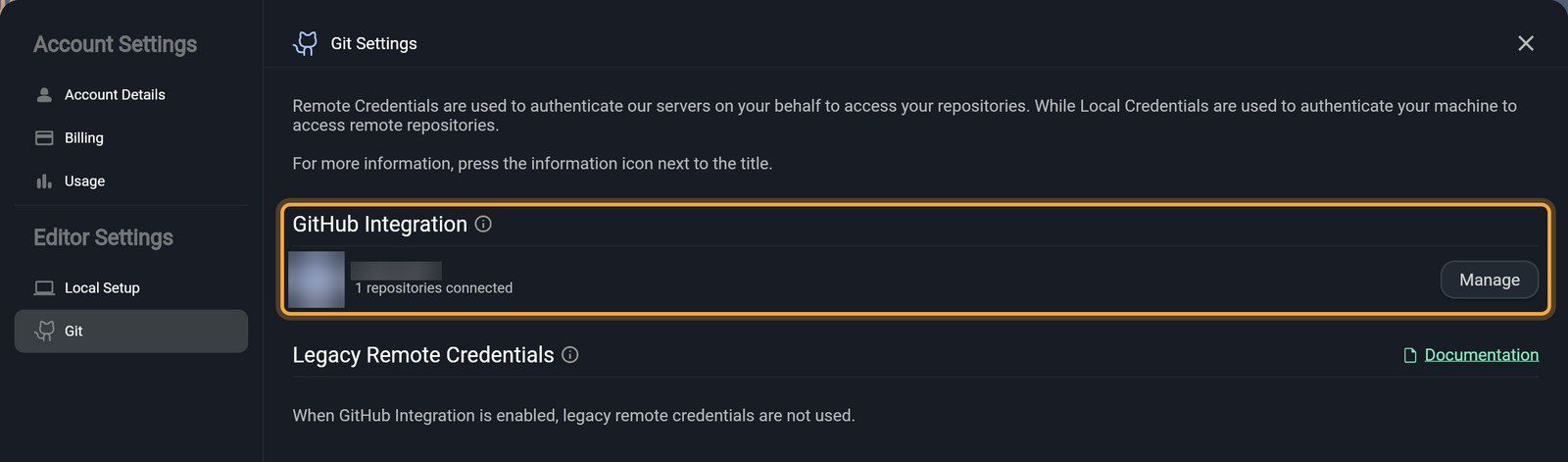
Nowa only sees the repositories you allowed, so a repository you left out won't show up in its lists. To change the choice, click Manage. It opens GitHub, where you pick the repositories under Repository access and click Save.
Inside a project you can also connect from Settings (the gear in the top bar) → Git, or from Manage Remotes. While GitHub is connected, Nowa uses it instead of any access tokens you added.
Create or connect a repository
Your commits stay in your project until you connect it to a repository on GitHub, called a remote. Once it has one, you can push (send your commits to GitHub) and pull (bring in commits made somewhere else, for example by a teammate). Manage Remotes sets this up.
Open it from the Git panel: hover the branch row, click the ... button and choose Manage Remotes. It also opens by itself when you click Publish Branch (or Sync) in a project with no remote.
Let Nowa create the repository
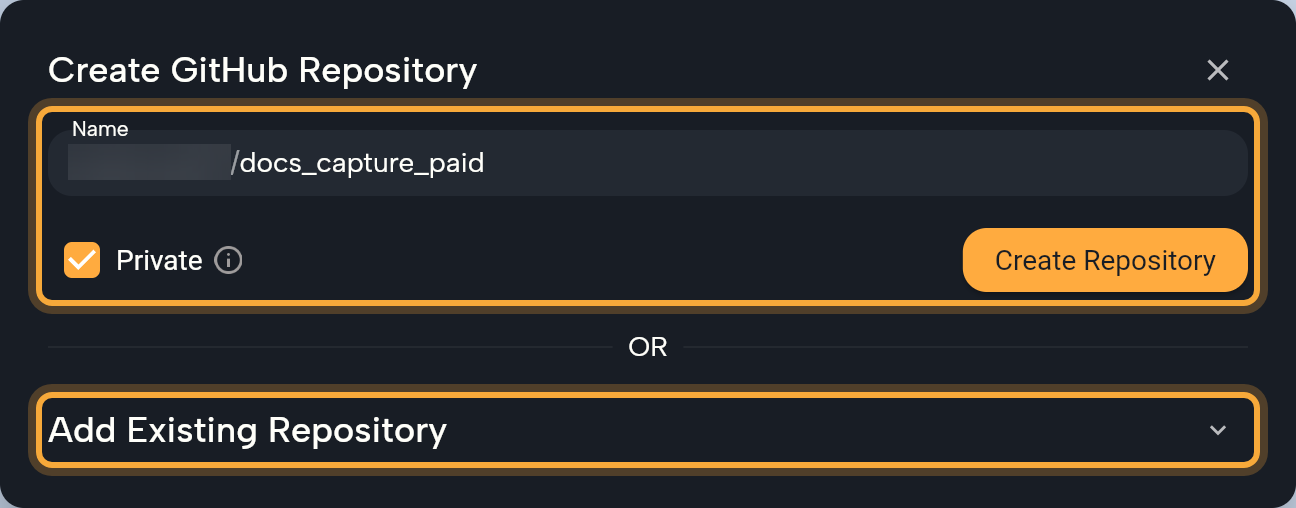
- In Create GitHub Repository, check the Name. It starts as your project's Package Name (for example
my_app), after your GitHub account name. Use letters, numbers, hyphens, underscores and periods only. - Keep Private ticked to keep the repository to yourself and the people you share it with. A public repository can be seen by anyone on the internet.
- Click Create Repository. Nowa creates it on GitHub, adds it as the remote
origin(Git's usual name for a project's main remote) and pushes your commits, so your work is on GitHub straight away.
Connect a repository you already have
Creating the repository on GitHub yourself, for example because you use an access token instead of connecting GitHub? Create it empty first, so your first push has nothing to clash with:
- On GitHub, click + in the upper-right corner, then New repository.
- Choose the Owner and type a name.
- Choose whether the repository is public or private.
- Leave the README, .gitignore and license options off. GitHub advises against them when you bring in an existing project, because they can cause a merge conflict.
- Click Create repository. On the Quick Setup page that opens, copy the repository's address: the one that starts with
https://and ends in.git.
Then connect it in Nowa:
- Under OR, expand Add Existing Repository.
- Pick a repository from the list (it appears once GitHub is connected; type in Search repositories to filter), or paste its Repository URL. Nowa accepts
http://andhttps://addresses here. If yours isn't listed, click Manage your connected repositories to give Nowa access to it on GitHub. - Click Connect Repository.
- In the Git panel, click the button under the commit box: Publish Branch if the repository doesn't have your branch yet, otherwise Sync.
Make sure the repository is the right one for this project. Nowa warns that connecting the wrong repository may lead to the loss of your current changes.
Check or remove the connection
Once a repository is connected, Connected Remote Repository shows its address. The icon beside it (tooltip View Repository in Browser) opens it in your browser, and Disconnect removes the remote from the project. The repository on GitHub stays.
If GitHub isn't connected yet, Create GitHub Repository shows Connect GitHub instead of the form, and its info icon explains "You need to connect your GitHub account to create a repository." If GitHub didn't give Nowa permission to create repositories, you see "No permission to create repository. Try again" and Grant Permission.
Set your Git identity
Every commit carries a name and an email, so you and your teammates can see who changed what. New projects use your Nowa account's. The identity is only a label on your commits, and it doesn't have to match any account. If you'd like GitHub to show the commits as yours on your profile, use an email address that's on your GitHub account.
To change it:
- Click Settings (the gear) in the project's top bar, then Git. You can also hover the branch row in the Git panel and click Git settings.
- Under Identity, type your Name and Email.
- Click Set Identity. Your next commits carry the new name; earlier commits keep the one they were made with.
The identity belongs to this project. If the page says "No repository found", click Create Git Repository... in the Git panel first. In a cloud project without an identity, Nowa asks when you commit ("You need to set your identity first"). A local project with no identity in its repository or in Git on your computer can't commit until you set one.
Use an access token instead (legacy)
A personal access token is a long, password-like code that you create on GitHub so a tool can work with your repositories. It's the older way to give Nowa access, so the settings call it legacy, but it still works when GitHub isn't connected. For a cloud project, Nowa's servers use the token to reach your repository. For a local project, your computer does: see Local projects: credentials and SSH.
Create a token on GitHub
GitHub recommends fine-grained tokens, which you can limit to the repositories Nowa needs. If you haven't verified your email address on GitHub yet, do that first.
- On GitHub, click your profile picture in the upper-right corner, then Settings.
- In the left sidebar, click Developer settings.
- Under Personal access tokens, click Fine-grained tokens, then Generate new token.
- Under Token name, type a name you'll recognize later, such as
Nowa. - Under Expiration, choose how long the token works. When it expires, push and pull stop working until you add a new token, because GitHub can't bring an expired token back.
- Under Resource owner, keep your own account, or pick the organization that owns the repository.
- Under Repository access, choose Only select repositories and pick your app's repository, or give the token all your repositories.
- Under Permissions, click Add permissions, find Contents (you can type it in the search box) and select it. Then set its access to Read and write. That's the permission that lets Nowa pull and push.
- Click Generate token, and confirm again if GitHub asks. Copy the token right away and keep it somewhere safe, such as a password manager: anyone who has it can change your code.
Two cases need a little more:
- A repository you're a collaborator on. Fine-grained tokens can't yet push to a repository you were invited to as a collaborator, such as a teammate's personal repository, or an organization's repository when you aren't a member of that organization. Create a classic token instead: under Personal access tokens, click Tokens (classic), then Generate new token → Generate new token (classic). Give it a Note and an Expiration, tick the repo scope and click Generate token. A classic token reaches every repository you can access, so keep it extra safe.
- An organization's repository. Some organizations require approval for fine-grained tokens. You can explain what the token is for in the box under Resource owner. Until an organization administrator approves it, the token can only read public resources, so Nowa can't push with it yet. If you own the organization, it's approved automatically.
For every detail, see GitHub's guide to personal access tokens.
Add the token to Nowa
- Open the Git settings, as in Connect your GitHub account, step 1. Under Legacy Remote Credentials, click Add Credentials.
- In Set Git Credentials, type your GitHub Username and paste the token into Access Token.
- Click Add Credentials. Your cloud projects can now push and pull with this token.
Add Credentials shows when nothing is saved. To replace a token, for example when it expires, delete the saved one with its trash icon first, then add the new one. While GitHub Integration is on, Add Credentials is hidden and Nowa says "When GitHub Integration is enabled, legacy remote credentials are not used."
The token route isn't tied to GitHub: Repository URL takes any http:// or https:// address, and Set Git Credentials asks for a token from your Git provider's website. For a repository on another Git host, add a token from that host. Nowa uses it only while GitHub isn't connected: once GitHub is connected, Nowa signs in to every repository with your GitHub account.
Local projects: credentials and SSH
Desktop appGit for a local project runs on your computer, so Nowa signs in from your computer too.
- HTTPS remotes. Nowa uses GitHub Integration if it's connected. Otherwise it uses External Local Credentials in the Git settings: click + beside the heading and add a Username and Access Token, such as the token you created above. Nowa says "No credentials found" until you do.
- SSH remotes. For a remote such as
git@github.com:you/app.gitorssh://..., Nowa never sends a token. It tries the keys in your ssh-agent first, thenid_ed25519andid_rsain the.sshfolder of your home folder (found through theHOMEenvironment variable), each with its matching.pubfile. A key protected by a passphrase works only through the agent. - Adding an SSH remote. Add Existing Repository takes only
http://andhttps://URLs, so set an SSH remote up outside Nowa, for example by cloning withgit clonein a terminal and then importing the folder.
Fix connection problems
| You see | Do this |
|---|---|
| No repository list in Clone from GitHub | Connect GitHub first, as above. The list doesn't appear until you do. |
| A repository is missing from the list | Click Manage your connected repositories (or Manage in the Git settings) and give Nowa access to it on GitHub. For a repository in someone else's account, see Work with a team. |
| "You need to provide authentication for this action" or "You need to add your credentials to access the remote repository" | Connect GitHub, or add an access token: under Legacy Remote Credentials for a cloud project, under External Local Credentials for a local project. |
| "You don't have access to this repository, please check your credentials" | Click Manage under GitHub Integration and make sure Nowa can use that repository, or check your token. |
| Push and pull stopped working with a token that used to work | The token may have expired. Create a new one on GitHub, delete the saved token in the Git settings and add the new one. |
| The waiting window closes after two minutes and Connect GitHub is still there | The approval didn't arrive in time. Click Connect GitHub again and approve Nowa in the browser within two minutes. |
Next steps
- Use Git: commit, sync, branch and work with a team.
- Import an existing Flutter project: clone a repository as a new project.
- Work with local projects: keep a copy on your computer.