Try Nowa without an account
Curious what building with Nowa feels like? The playground is the full Nowa editor on a practice app, with no account and nothing to install. Open it, move things around, play your screens, and if you like what you made, save it to your account.
Open the playground
- Go to app.nowa.dev/playground. You can also click Build an app, no account needed on the sign-up page.
- The editor opens on the Starter app, with a home screen on the board.
You should see: the editor from the editor tour, with Save at the top right where Run and Deploy would be.
You can design on the board, change widgets in Details, edit themes, Play a screen, and even edit code. Nowa AI needs an account, though: when you send your first message, Nowa asks you to sign in or create one. You don't need to save the app first.
A few other things also wait for your account: Run, Deploy, the Git panel, the Deployment, Permissions and Git pages in Settings, the Sharing section of Project Details, Restore Checkpoint for Nowa AI, and the full code check that looks for errors across your whole app (Run Code Check in Problems, which fails with "Unauthorized" in the playground). They all come back as soon as you save the app to your account.
Pick a starting point
The chip next to the Nowa logo shows the app you're on. Click it to switch to another one.
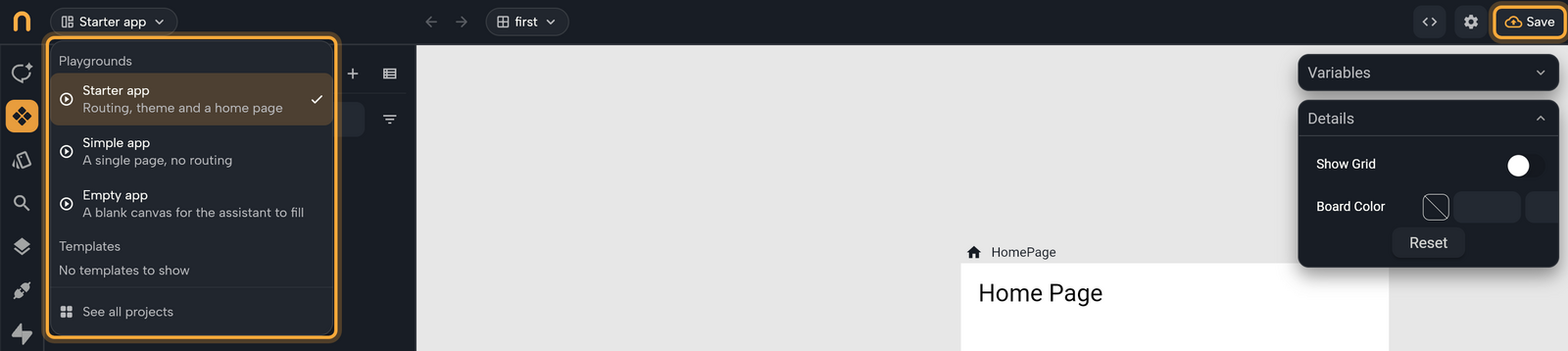
| Playground | What you get |
|---|---|
| Starter app | "Routing, theme and a home page": a home screen and a theme, with navigation between screens (routing) already set up. The playground opens on this one. |
| Simple app | "A single page, no routing": one screen, with no navigation set up. |
| Empty app | "A blank canvas for the assistant to fill": an empty app, ready for Nowa AI to build your idea from scratch. |
Templates lists public sample projects when there are any. Opening one loads it as a guest (see below).
If you have work on screen, Nowa asks Discard this app? first, because it was never saved to an account. Click Discard to replace it, or Cancel to stay.
Keep your work
Nowa keeps your playground in this browser whenever it saves, so a reload picks up where you stopped. That's handy, but it isn't permanent: very large playgrounds aren't kept, and clearing your browser data removes it. To keep your app for good, save it to your account:
- Click Save in the top bar.
- If you aren't signed in, a sign-in dialog opens. Sign up or sign in, and confirm your email if the account is new. If you use Google, Nowa may leave the page and bring you back to your playground.
- In Save your app, pick a workspace (Personal comes first), name the app, and click Save. Names can use letters, numbers, spaces, underscores and hyphens.
- The saved app opens as a cloud project, and your Nowa AI conversation comes with it.
You should see: the same app as a normal project, with Run and Deploy back in the top bar.
Open a public project as a guest
Anyone with the link to a public project can open it, signed in or not. Unless you're a member of the project, the editor opens a private copy in your browser. You can edit and play it as much as you like, and nothing you do changes the owner's project.
Edits are lost when you close the tab. To keep them, click Save to keep changes, sign in if asked, and name the copy in Save your app. A guest copy has the same limits as the playground.
To make your own project open to guests, see Share your app.
Next steps
- Create your account: keep what you build.
- Build your first app: let Nowa AI build one for you.
- Tour the editor: learn the layout.