Install the desktop app
The Nowa desktop app is the same editor in its own window, for macOS, Windows and Linux, and it's free on every plan. It adds a few things the browser can't do: local projects, importing existing Flutter projects, and running your app on real phones and emulators. On macOS and Windows it also installs updates from inside the app.
Desktop appDo you need the desktop app?
You may not need it at all. The web app at app.nowa.dev already lets you design, build with Nowa AI, Play your screens, Run your real app (and open it on your phone with a QR code), share previews and publish.
Get the desktop app when you want to:
- Run your app on a phone connected to your computer, or on an emulator (a phone simulated on your computer), with your changes showing up every time you save.
- Keep a project as files on your computer (a local project), for example to work on it in VS Code.
- Import a Flutter project you already have.
Running on devices and local projects use Flutter, Google's free toolkit that turns your project into a running app. Nowa can install it for you in a few clicks (see Set up Flutter), and you don't need to know how it works.
Download and install
- Sign in at app.nowa.dev in your browser.
- In the dashboard sidebar, click Download Desktop App.
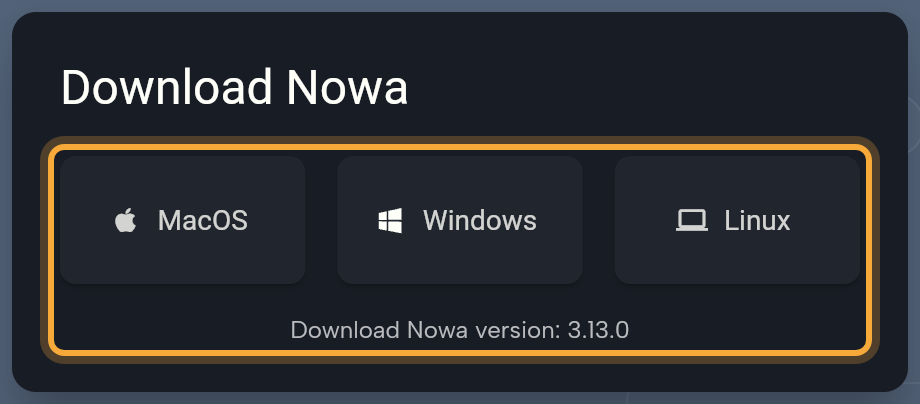
- In the Download Nowa dialog, click MacOS, Windows or Linux. The dialog also shows the version you're getting. A button is greyed out when there is no download for that system.
- On macOS and Windows, open the downloaded installer and follow the steps for your system. On Linux, follow Install on Linux.
Install on Linux
The Linux download is a 64-bit archive named like Nowa-v<version>-linux-x64.tar.gz. It needs glibc 2.38 or newer, such as Ubuntu 24.04 (run ldd --version in a terminal to see yours). It also needs GTK 3, GStreamer, and the OpenGL, EGL and OpenGL ES libraries.
- Extract the archive. You get a folder named
nowa. - Open a terminal in that folder and run
./install.sh. - Start Nowa from your applications menu.
The script copies Nowa to ~/.local/share/nowa (or to a nowa folder inside XDG_DATA_HOME, if you set it), adds the icon and puts Nowa in the applications menu. To reinstall, run the script again. It replaces the old copy.
The in-app preview isn't available on Linux yet. When you run your app in the editor, the preview pane says "Your app is running" and offers Open in Browser, with the address of your app. See Run your app.
Sign in and stay up to date
Open Nowa and sign in with your email and password or with Google. Continue with Apple isn't available in the desktop app. Nowa needs an internet connection to sign you in and open your projects, local ones included. Once you have a local project, the dashboard lists it under On this device.
When a new version is out, Nowa shows A new version of Nowa is available. On macOS and Windows, click Update to v… (the button names the new version) to download it, then click Install & Restart. Click Skip or Later to wait, or Or download manually to get the installer yourself.
On Linux, Nowa doesn't update itself. The message offers Download v… and Skip. To update, download the new archive, then run install.sh again.
If Nowa says Version out of date, the update is required. Click Download, choose your system in the Download Nowa dialog, and install the newer version.
Set up Flutter
Flutter does the heavy lifting when your app runs on your computer: it builds your project into an app that runs on a phone, an emulator or your desktop. The part you install is the Flutter SDK (software development kit), the set of tools that does this. You need it for local projects and for running on devices and emulators. If you only build cloud projects and run them in the editor, you can skip this section.
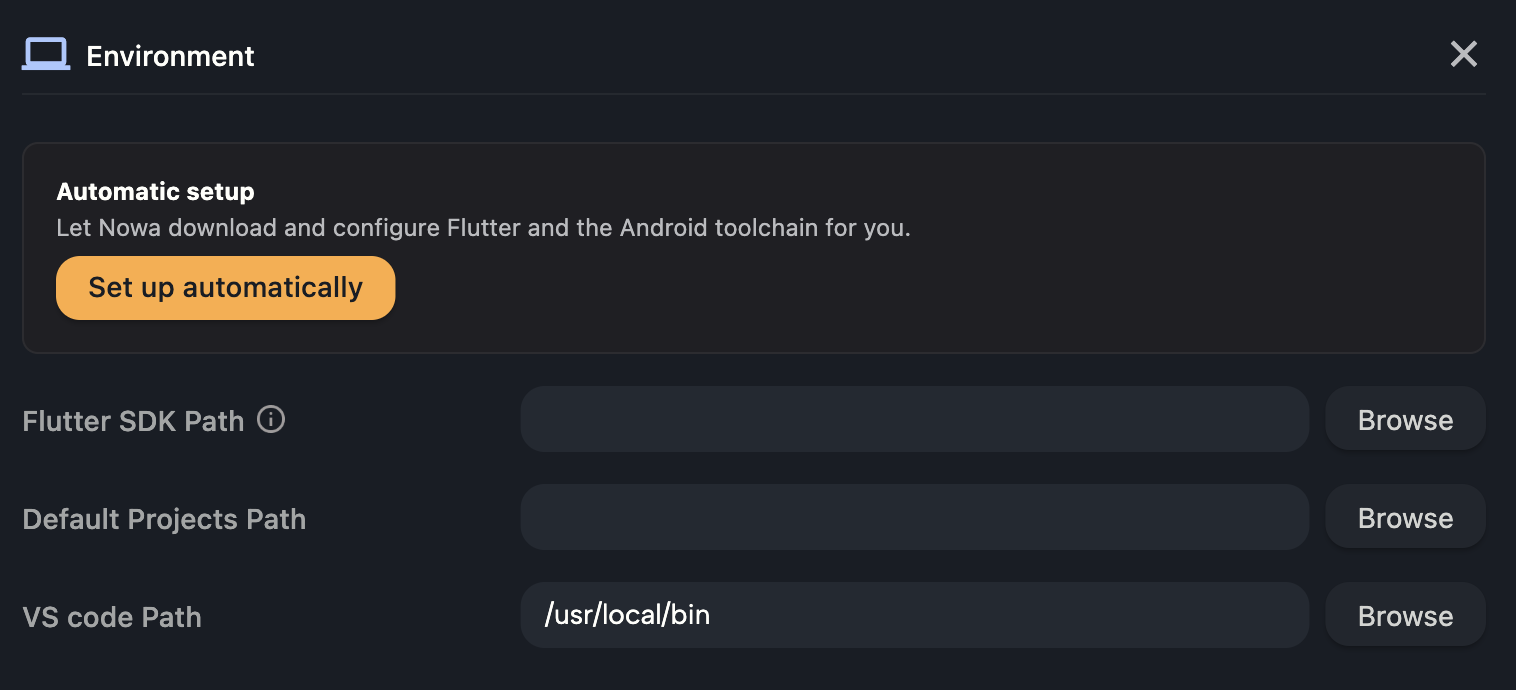
Let Nowa install Flutter for you, or point Nowa to a copy you already have. Either way, start in Local Setup:
- Click Settings in the dashboard sidebar. Inside a project, click your avatar in the top bar, then General Settings.
- Under Editor Settings, click Local Setup.
Nowa also sends you here when it needs Flutter: from Setup flutter SDK in the New project dialog, from Fix in the Clone from GitHub dialog, and from Local environment settings in the Run menu.
macOS: install Xcode first
On a Mac, Flutter needs Xcode, Apple's free app for building Mac and iPhone apps. The setup dialog warns you: "Xcode must be installed on macOS before setting up Flutter."
- Open the App Store, search for Xcode, and install it. It's a large download, so give it time.
- Open Xcode once and finish its first-launch setup. Agree to the license and let it install its components.
- Return to Nowa and run the Flutter setup again.
If the Flutter row shows a red error that starts with "Flutter failed to initialize" and mentions xcode-select or developer tools, Xcode or its first-launch setup is missing. Do steps 1 and 2, then click Try again on the row.
Let Nowa install Flutter
This is the quickest route, and Nowa handles the downloads for you.
-
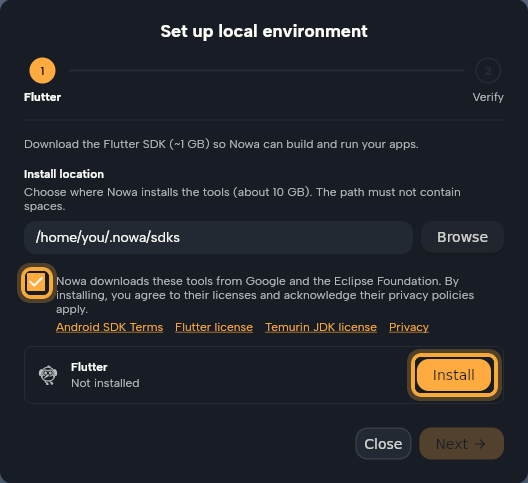
In Local Setup, under Automatic setup, click Set up automatically. The Set up local environment dialog opens. If Flutter is already installed and up to date, it starts on the Verify step: skip to step 6.
-
On the Flutter step, check the Install location. Nowa installs about 10 GB of tools there, and the path must not contain spaces. The dialog puts the Flutter SDK download at about 1 GB. With the current Flutter release, it's bigger: about 1.6 GB on Linux, 1.9 GB on Windows and 2.3 GB on macOS.
-
Tick the box that accepts the licenses. Nowa downloads these tools from Google and the Eclipse Foundation.
-
Click Install next to Flutter. Keep Nowa open while it downloads and unpacks Flutter. On Linux, Nowa may look frozen while it unpacks, which can take a while. If it takes too long, follow Use a Flutter SDK you already have instead.
-
When the row says Ready, click Next.
-
On the Verify step, Nowa runs
flutter doctor, Flutter's own health check, and lists the devices you can run on. Fix anything it reports, then click Re-run checks. If it can't find Chrome, you can leave that. You only need Chrome to run your app in Chrome, and Nowa's preview works without it. -
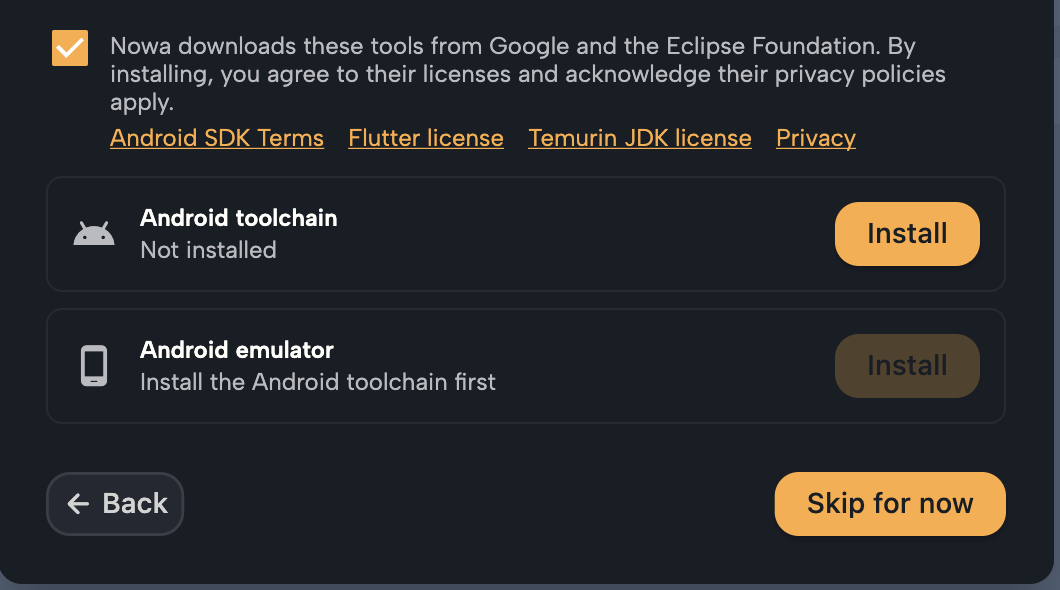
To build for Android, click Download next to "Android isn't set up". On the next screen, tick the license box if it's empty, then click Install next to Android toolchain (the tools that build Android apps). Android emulator is optional, and its Install unlocks once the toolchain is installed. If you want an emulator, install it in the same go: in Nowa 3.13 this screen only opens while the Android toolchain is missing (see No emulators listed? for other ways to get one). Click Skip for now if you only target web or desktop. You can come back for the toolchain later from Local Setup (its page is titled Environment).
-
Click Done.
You should see: each tool you installed with a Ready status. The Flutter and Android toolchain rows also say Managed by Nowa when Nowa installed them. If Nowa found a Flutter that was already installed on your computer, its row may say Found on PATH instead. If Flutter is installed but old, the button reads Update Flutter SDK next to "Flutter SDK is outdated".
If an install fails, the error shows in red under its row, and the button changes to Try again.
Use a Flutter SDK you already have
- Install Flutter with the official Flutter install guide.
- In Local Setup, click Browse next to Flutter SDK Path and pick the Flutter folder, the one that contains
bin/flutter(bin\flutter.baton Windows). You can also type the path, then click outside the field to save it. Don't press Enter: it adds a line break to the path. If Nowa says Invalid Flutter SDK path, that isn't the Flutter folder: pick another one. - Optional: set Default Projects Path. New local projects start with this folder, and local clones are saved in it.
- Optional: set VS code Path if Open in VS Code can't find VS Code. It starts with the usual install location.
Next steps
- Work with local projects: create or import one.
- Run on a device or emulator: see changes on your phone or simulator as you save.
- Use Nowa with VS Code: edit the same folder in both.