Account settings
Account settings is the one place for everything about you in Nowa: your profile, how you sign in, the accounts you've connected, your plan and your editor setup. These settings belong to you rather than to one project. For a single project's name, icon and keys, see Project settings.
Open account settings
- On the dashboard, click Settings in the sidebar.
- In a project, click your avatar in the top bar, then General Settings.
The window has two groups. In a narrow browser window, such as on a phone, it opens as a full-screen list of the account pages instead.
| Group | Page | What's there |
|---|---|---|
| Account Settings | Account Details | Your profile, email, password, connected accounts and account deletion. This page. |
| Billing | Your plan, Adjust Plan, Extra AI Usage and Invoices. See Plans, billing and AI usage. | |
| Usage | How much of your plan's usage you've used, and Extra AI Usage. See Plans, billing and AI usage. | |
| Editor Settings | Local Setup | Desktop app only: where Nowa finds Flutter (the free toolkit that builds and runs your app on your computer), your default projects folder and VS Code. See Install the desktop app. |
| Git | Your GitHub connection and Git sign-in details, used to keep your projects' history on GitHub. It needs a plan that includes Git. See Connect GitHub. |
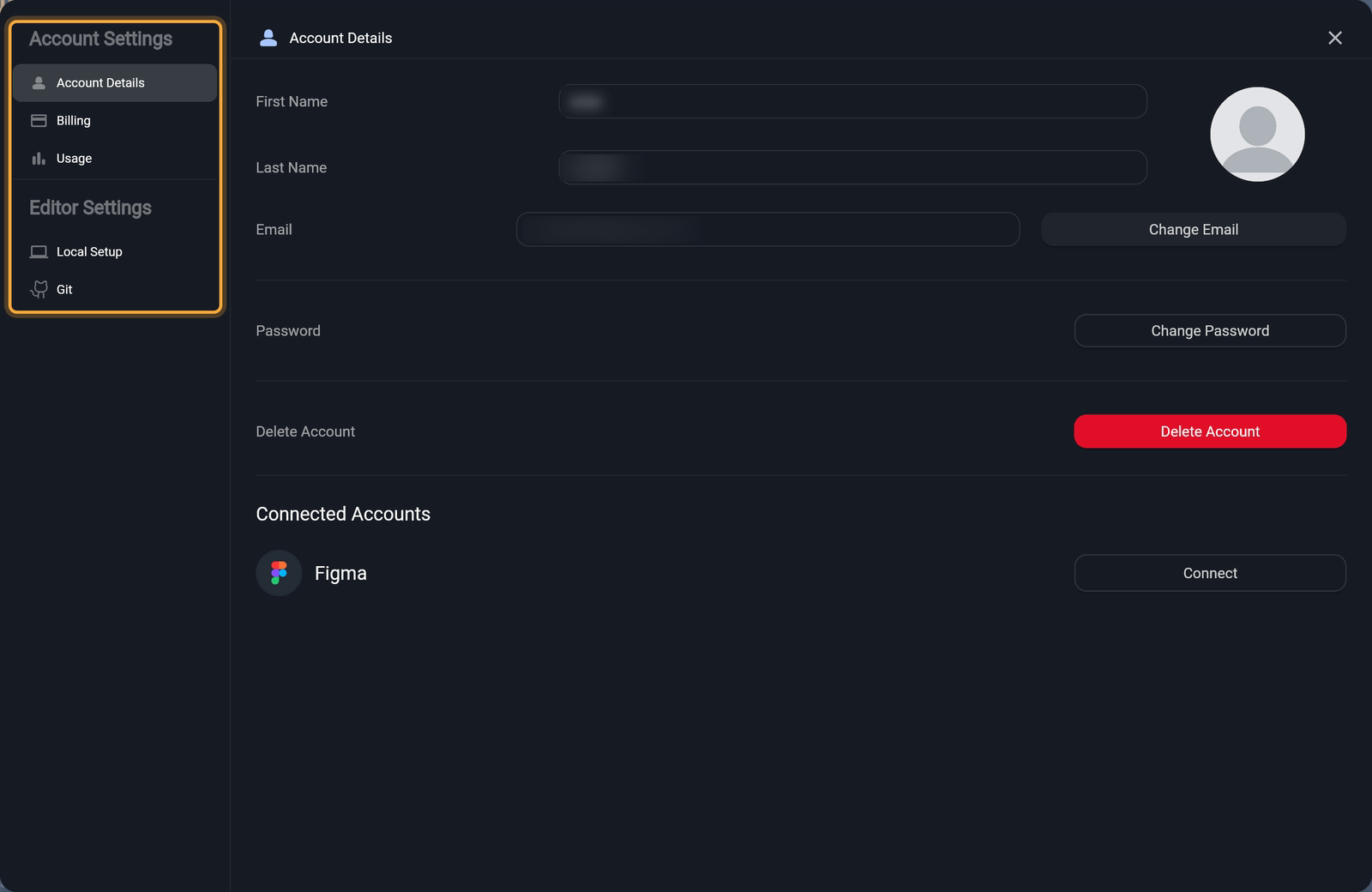
Nowa's editor has a single dark look. There's no light/dark switch and no interface-language setting. Your app's own light and dark themes are separate: see Create and edit themes.
Update your profile
- Open Account Details.
- Edit First Name or Last Name and press Enter. Nowa doesn't save an empty name.
- To change your photo, click the picture and choose an image from your files.
A status line at the top right confirms each change, for example "Profile updated" or "Profile picture updated".
Change your email
You can change your email if you signed up with an email address. If you use Google to sign in, Account Details shows "Google SignedIn" instead of Change Email, because your email comes from your Google account.
- In Account Details, click Change Email.
- Type the new address in New Email and click Verify Email. Nowa sends a one-time code to that address and says "OTP Code Sent on" followed by the address.
- Type the code in the OTP Code box, which shows once the code is sent, and click Verify OTP. "Email verified" confirms the change.
The code goes to the new address, so it proves that address is really yours.
Change or set your password
- In Account Details, click Change Password. If your account has no password yet, for example because you signed up with Google, the button reads Set Password.
- Type your Current Password (only if you have one), then your New Password and Repeat New Password.
- Click Submit.
If the two new passwords differ, Nowa says "Please make sure the passwords match". Forgotten your current password? Click Restore Password in the line "Forgot your Password?". Nowa opens Reset your password, where you enter your email and click Send reset link. You can also start from Forgot Password? on the sign-in page. See Create your account.
Connect Figma
Already designed something in Figma? Under Connected Accounts, the Figma row lets Nowa AI use your Figma account, for example to bring in images, icons, colors and text styles.
- Click Connect. A Waiting for Authorization... dialog appears while you approve Nowa in your browser.
- When it finishes, the row shows your Figma name and email, and the button reads Disconnect.
Connecting Figma doesn't work right now: no browser window opens, and the dialog stays open until you click Cancel. See Known issues.
To disconnect, click Disconnect, then Yes under "Are you sure?". Nowa warns "You will need to reconnect to Figma if you want to use Figma features again." Using Figma from the chat is covered in Connect Figma and Supabase to Nowa AI.
Log out
- On the dashboard, click the logout icon next to your name in the sidebar (tooltip Logout).
- In a project, click your avatar, then Logout.
Either way, Nowa signs you out and opens the sign-in page. Your projects stay where they are, ready for the next time you sign in.
Your data and privacy
Nowa's Terms and Conditions govern your use of Nowa. Their "Content Ownership" section begins: "You retain ownership over all content created using our Service, subject to the terms and conditions laid out in these Terms." The Privacy Policy explains what personal information Nowa collects, how it's used and the options you have to manage it. For questions about either page, email team@nowa.dev.
To keep your own copy of a cloud project's code, download it or connect GitHub, depending on your plan. A local project's files are already on your computer.
Delete your account
Deleting your account is permanent. Nowa tells you "This action can not be reversed" and deletes all the resources listed on the next page.
If you want to keep any of your work, download your code first.
- In Account Details, click Delete Account.
- Optionally write a reason under "Reason for deleting". If your account has a password, enter it.
- Click Delete Account. Nowa checks what the deletion would remove.
- On Account Deletion Details, read the Resource Deletions list. Click Delete Account again to confirm. You're signed out and the account is gone.
If Nowa can't delete the account yet, this page says "You can't delete your account, contact support for more information." and lists the reasons. See Get help.