Keys and constants
Constants are the fixed values your app needs, such as a publishable key, a client ID or a web address you use in several places. Nowa keeps them together on one page, so you can see and change them without hunting through your project. Change one there, and every place that uses it picks up the new value.
Constants ship inside your app, so anyone who has the app can read them. See Keep secrets out of your app.
Open the Constants page
- Click the gear (Settings) in the top bar, or press Ctrl/Cmd + ,.
- Under General, click Constants.
What's on the page
- Integration sections. Some integrations keep their values here, in a section named after the integration: Stripe (Publishable Key, Merchant Name, Country Code), RevenueCat (Apple API Key, Android API Key, Web API Key) and Google Sign-In (Web Client ID). A section appears once you turn the integration on. Changing a value here also changes it on the integration's own page, and the other way round.
- Custom Constants. Your own constants, plus values Nowa adds for you. Connecting Supabase, for example, adds
supabaseUrlandsupabaseAnonKey.
Every constant holds text. Keys that only your Android, iOS or web app settings need aren't listed here: Google Maps, AdMob, Deep Links and the Google Sign-In iOS Client ID keep theirs on their own pages under Settings → Integrations. See Connect data and services. Working in the code? See What Nowa adds to your code.
Change a value
- Click the field and type the new value.
- Press Enter or click the send icon (Submit). A check mark shows the value is saved.
Nothing saves when you click away, so press Enter before you leave the field.
Add your own constant
- Under Custom Constants, click + (Add custom constant).
- Type a Name and a Value. Use letters, numbers and underscores, starting with a letter or an underscore, for example
weatherApiKey. - Click the check mark (Confirm) or press Enter. To back out, click the X (Cancel).
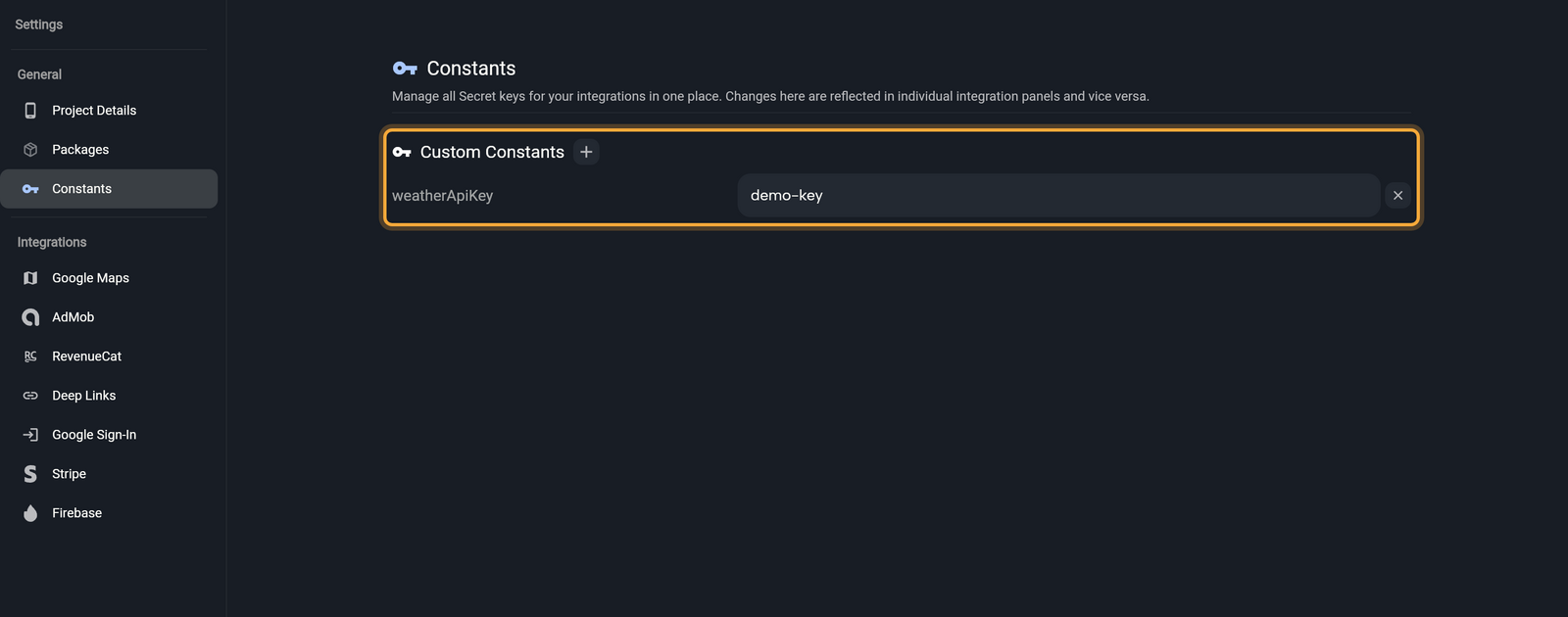
If you type a name that already exists, its value is replaced. Nowa shows an error under the row when a name isn't valid. To delete one of your own constants, click the X (Remove) at the end of its row. Values in an integration's section have no Remove icon.
In Agent mode, try: "Add a constant called weatherApiKey and use it in my weather request." When Nowa AI changes your constants, a Constants updated card appears in the chat. Click Open Constants to review the values.
Use a constant
Stripe and RevenueCat read their keys from here by themselves, so there's nothing to connect. To use one of your own constants, write a short expression with its name. Nowa groups all your constants under the name AppConstants:
- Click the label of a widget's property in Details, or of a field in a Circuit step, and choose Custom Expression.... In Circuit, Add Custom Expression does the same for a new step.
- Type
AppConstants.followed by the constant's name, such asAppConstants.weatherApiKey, and click Eval. - Click the back arrow to close the dialog. The property or field now uses your constant's value.
See Build logic in Circuit and Write your own expression.
Constants are built into your app, so anyone who has the app can find them. The page describes itself as a place for "Secret keys", but everything on it ships with your app. Use it for values meant to be in an app, like a publishable key. Never put server secrets here, such as a Stripe secret key or a database password. The Stripe integration keeps its secret key in Supabase instead.