Add Google Maps
Put an interactive Google map on any screen, such as your shop's location on a contact page or the places in a city guide. You create API keys in Google Cloud once, add them in Nowa's settings, place the Google Maps widget, then run your app to see the map.
Before you start
You need a Google Cloud API key for each platform you ship: Android, iOS and the web. Here's how to get them in the Google Cloud console:
- Create a project. On the project selector page, click Create Project.
- Turn on billing. Google Maps needs a billing account on your project. Google bills map use beyond a free allowance; see Google Maps Platform pricing.
- Turn on the maps you need. On the Maps API Library page, click Maps SDK for Android, Maps SDK for iOS and Maps JavaScript API (for the web) in turn, and click ENABLE on each.
- Create a key per platform. On the Google Maps Platform → Credentials page, click Create credentials → API key. Copy the key from the API key created dialog and click Close. Repeat for each platform.
Google's Getting started guide walks through the same steps with pictures.
Before you publish, restrict each key so that only your app can use it. Google strongly recommends this for apps in production, and it keeps others from running up your bill with your key. Open the key on the Credentials page, choose Set an application restriction under Key restrictions, and pick the type:
| Key | Restriction | What to add |
|---|---|---|
| Android | Android apps | Click + Add and enter your Bundle Identifier (Nowa uses it as your Android package name) with the SHA-1 fingerprint of your signing key, which Nowa shows with a copy button (see Create a signing key). Once your app is on Google Play, add the SHA-1 from the App signing key section of Play Console's app signing page too, because Google signs the app people download with its own key. |
| iOS | iOS apps | Your Bundle Identifier, from Settings → Project Details. |
| Web | Websites | Your web app's address, such as https://myapp.com. |
Click Save. A restricted key only works on its platform, so you end up with one key per platform, matching Nowa's three key fields. Test runs from Nowa use a separate test certificate on Android and a different web address than your site, so a restricted key may not load the map there. That's why it's best to restrict right before you publish. Google's API security best practices explain the options.
Turn on Google Maps
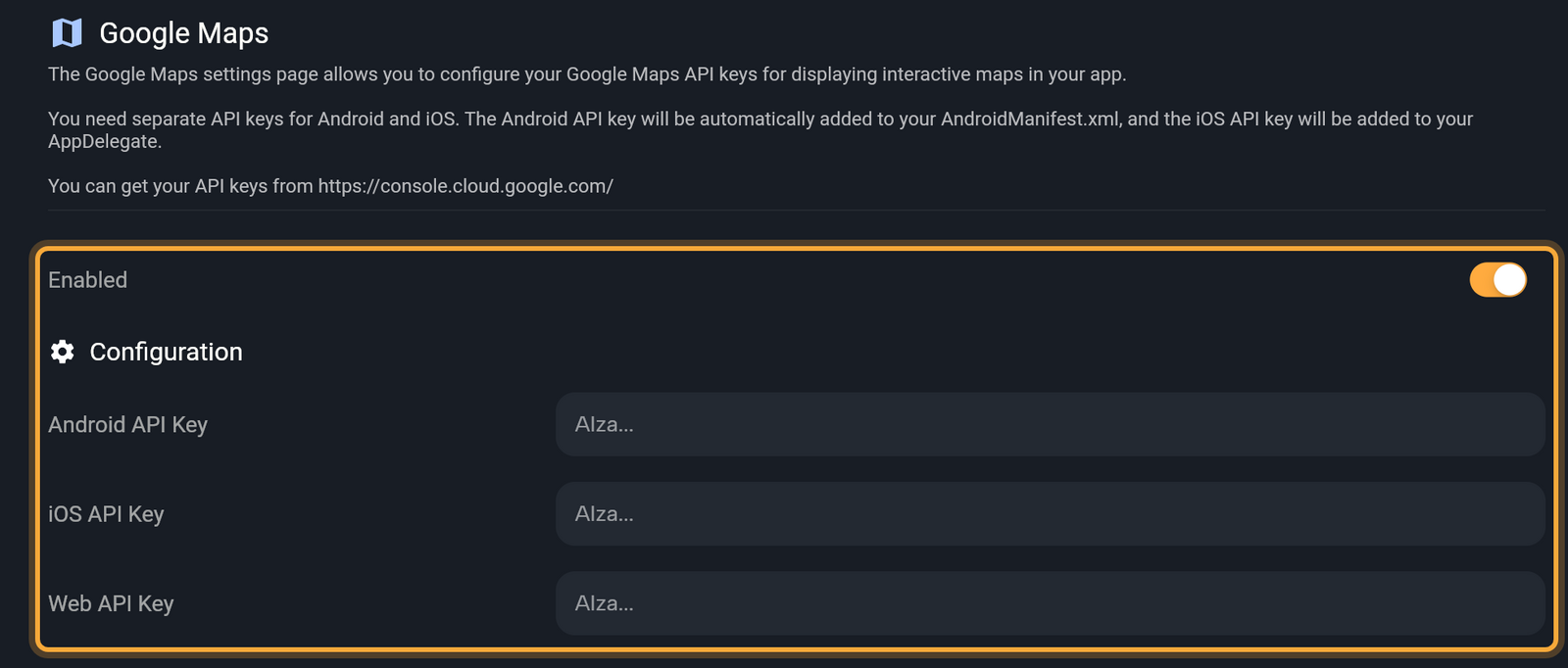
- Click the gear in the top bar (Settings) or press Ctrl/Cmd + ,. Under Integrations, click Google Maps.
- Turn on Enabled. Nowa sets up what the map needs in your app. Your app then needs iOS 14 or later on iPhone and iPad.
- Under Configuration, paste your Android API Key, iOS API Key and Web API Key for the platforms you ship. Keys look like
AIza.... Press Enter or click the send icon (Submit) after each one. A check mark confirms the save.
Nowa puts each key where its platform needs it, so you don't have to touch any project files.
Add the map
- Press Ctrl/Cmd + K or click the Widget tool to open the Library, search for Google Maps, check the highlighted result and press Enter. If Nowa shows Add Missing Dependencies, click Add.
- Place the widget on a screen and size it.
- In Details, open Initial Camera Position and set Target (latitude and longitude) and Zoom. That's where the map opens. A new map starts at latitude 39.5, longitude -98 and zoom 4. The other map options are listed below it.
On the board the widget is a placeholder labeled "Google Maps" with the text "Run to preview". While no key is saved, Details can show "Google Maps API keys are not set. Please configure them in the project settings to use the Google Map widget." Click the gear next to the message to open the Google Maps page.
In Agent mode, try: "Add a Google Map to the Contact screen and put a marker on our office." Then run your app to check the result (see See the map).
See the map
The board and Play don't draw a live map. Play and a shared preview show "Run on a simulator/emulator or mobile device to preview" where the map would be. To see the real map, run your app:
- Run with the Embedded preview runs your app as a web app, so it uses your Web API Key. See Run your app.
- A simulator, emulator or device uses your Android API Key or iOS API Key. That needs the desktop app. See Run on a device or emulator.
A new map starts with the my-location button on. For it to find the user, turn on a location permission under Permissions in Settings: Fine Location or Coarse Location for Android, Location When In Use for iOS. Nowa doesn't turn them on for you. See Project settings.
Turn Google Maps off
Remove any Google Maps widgets from your screens first: a widget left behind turns into a box that says Method "GoogleMap" is not found. Then turn Enabled off. Nowa takes the map setup out of your app and removes your keys. Working in the code? See What Nowa adds to your code.