Show ads with AdMob
AdMob is Google's ad network for mobile apps, and it's a common way to earn from a free app. Add your AdMob App IDs in Nowa, place an Admob Banner on a screen, and show a full-screen ad from your logic, for example when someone finishes a level. Test ads are on by default, so you can try everything safely before real ads go live.
Before you start
You need an AdMob account. Real ads only show in your Android and iOS apps, but you can design the layout anywhere.
Set up your app in AdMob once per platform you ship. If your app isn't in a store yet, add it as unpublished:
- In AdMob, click Apps in the sidebar, then Add app.
- Select the platform, Android or iOS.
- When AdMob asks whether your app is listed on a supported app store, select No. (If it's already in Google Play or the App Store, select Yes instead and search for it.)
- Enter your app's name, confirm user metrics, and click Add.
Next, create an ad unit for each ad you'll show. An ad unit is one ad placement, with its own ID:
- Click Apps, then your app's name, then Ad units in the sidebar.
- Click Get started, or Add ad unit if the app already has some.
- Click Select for Banner (for an Admob Banner) or Interstitial (for a full-screen ad).
- Name the ad unit, for example "Home banner", and click Create ad unit.
To copy the IDs later: the App ID is in Apps → View all apps, and each ad unit ID is under your app's Ad units. Google's help covers setting up an app and finding your IDs.
Turn on AdMob
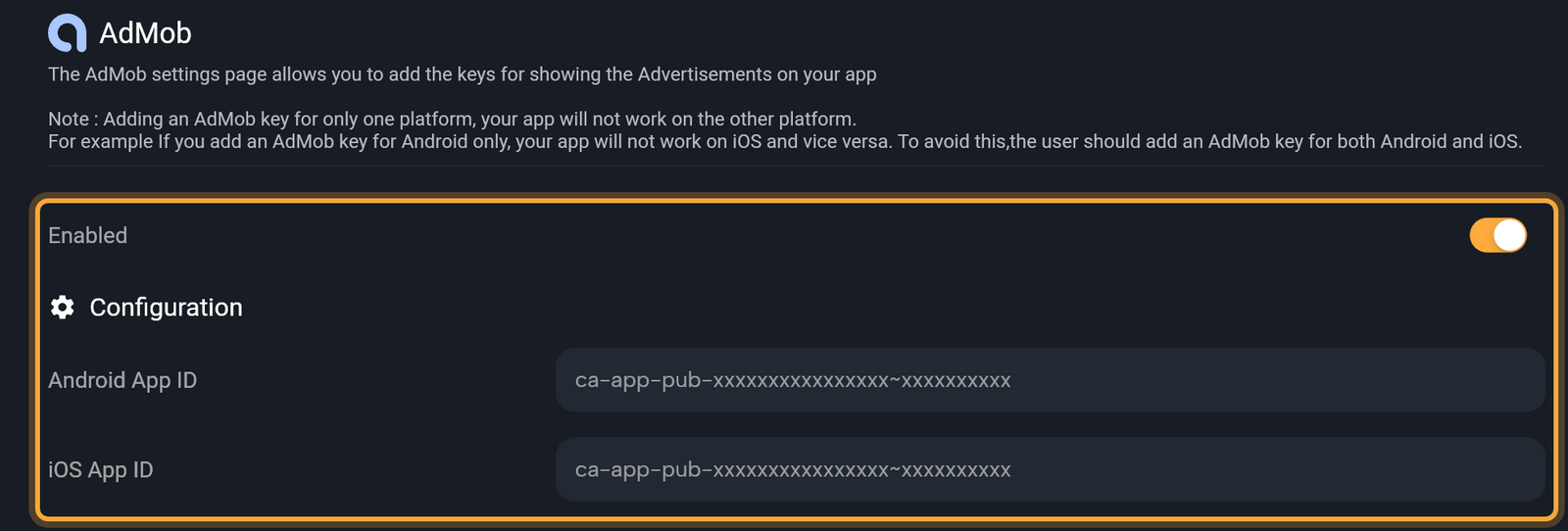
- Click the gear in the top bar (Settings) or press Ctrl/Cmd + ,. Under Integrations, click AdMob.
- Turn on Enabled. Nowa sets AdMob up in your app and starts it each time your app opens.
- Under Configuration, paste your Android App ID and iOS App ID. Both look like
ca-app-pub-xxxxxxxxxxxxxxxx~xxxxxxxxxx. Press Enter or click the send icon (Submit) after each one. An ID that doesn't start withca-app-pub-is refused.
Add an App ID for both platforms. With only one, your app doesn't work on the other platform (Nowa warns about this on the page). Nowa puts each ID where its platform needs it.
Add a banner
A banner is a small ad strip that stays on the screen, usually at the top or bottom.
- Press Ctrl/Cmd + K or click the Widget tool to open the Library, search for Admob Banner, check the highlighted result and press Enter. If AdMob isn't turned on yet, Nowa shows Add Missing Dependencies. Click Add.
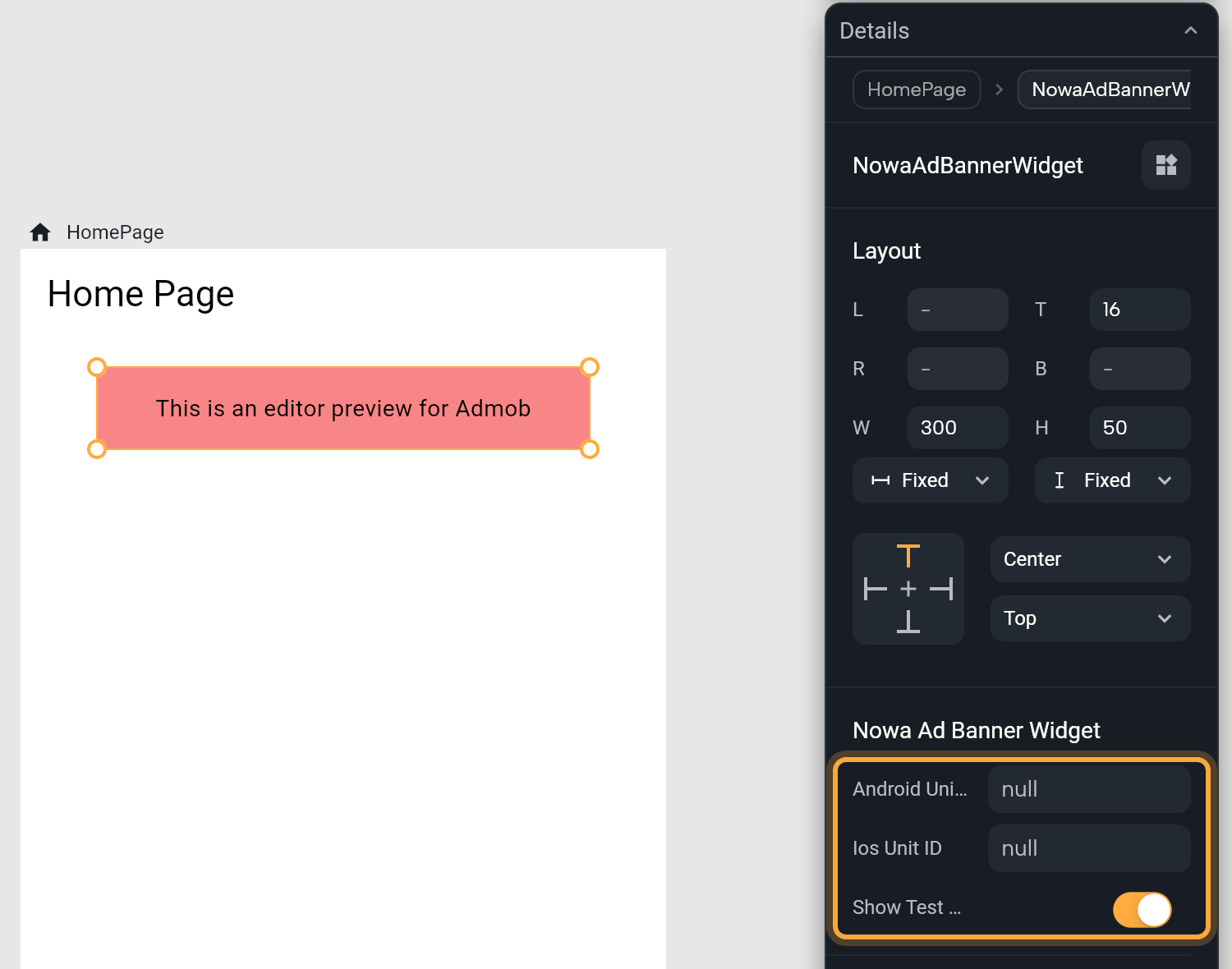
- Place the banner on a screen, usually at the top or bottom. It lands at 300 × 50. In an Android or iOS app it loads Google's standard banner, which is 320 × 50, so you may want to set W to 320 in Layout.
- In Details, fill in Android Unit ID and Ios Unit ID with your banner ad unit IDs. In Details and the Outline, the banner shows up under the name
NowaAdBannerWidget.
Show Test Ads is on by default. While it's on, the banner shows Google's test ads instead of your own ad units. That matters: Google warns that clicking too many real ads while you test can get your account flagged for invalid activity. Turn it off before you publish.
If Details shows "No API Keys" with an AdMob setup button, click the button to open the AdMob page and add the missing App ID. The same goes for a button named AdMob Android setup or AdMob IOS setup that replaces a unit ID field.
What the banner shows depends on where it runs:
| Where | What you see |
|---|---|
| The board, Play, a browser or a desktop app | A red box: "This is an editor preview for Admob". |
| An Android or iOS app, Show Test Ads on | A Google test ad. |
| An Android or iOS app, Show Test Ads off | Your ad for that platform's unit ID. If the ID is empty you see "no adUnitId", and if the ad can't load, "BannerAd failed to load". |
To see a real ad, run the app on an Android or iOS device or emulator. That needs the desktop app. See Run on a device or emulator.
Show a full-screen ad
A full-screen ad (AdMob calls it an interstitial) covers the screen until the person closes it. Google suggests placing one at a natural break or transition in your app, such as after someone finishes a level.
You show it with the loadAndShowInterstitialAd step, which loads the ad and shows it as soon as it's ready. Call it from an event, for example when a level ends or someone taps Next.
- Open the event's function in Circuit (Respond to taps and other events).
- Hover the dot under the top node and click +. In All nodes for this circuit, search for
loadAndShowInterstitialAdand click it. - In Details, set Android Unit ID and Ios Unit ID to your full-screen ad unit IDs. Show Test Ads is on by default. Turn it off for your published app.
Like the banner, it only shows ads on Android and iOS.
In Agent mode, try: "Show an AdMob full-screen ad every time the user finishes a level." Then try it in your app on an Android or iOS device.
Before and after you publish
- Turn Show Test Ads off on every banner and in every
loadAndShowInterstitialAdstep, and enter your real unit IDs. - Check that both App IDs are set.
- Once your app is in a store, link it to its store listing in AdMob. Until AdMob reviews and approves the app, it gets only limited ads.
- Add an
app-ads.txtfile to the developer website shown in your store listing, so AdMob can confirm the app is yours. Google explains how in Set up an app-ads.txt file.
Turn AdMob off
First remove your banners and loadAndShowInterstitialAd steps, so nothing in your app still asks for ads. Then turn Enabled off. Nowa takes AdMob out of your app and removes your App IDs. Working in the code? See What Nowa adds to your code.