Connect Firebase
Firebase is a set of Google services that run behind your app. It can sign people in, keep your app's data in its Cloud Firestore database and send push notifications. To connect it, you sign in with Google, pick your Firebase project and click Connect Apps. Nowa then registers your Android, iOS and web apps in Firebase and does the setup you'd otherwise do by hand.
Once you're connected, sign-in and push notifications are each a switch away, and your project is ready for Cloud Firestore.
Before you start
- A Firebase project, and a Google account that can manage it. Nowa can't create the project for you, but it only takes a minute: see Create a Firebase project below.
- Your Bundle Identifier, set in Settings → Project Details before you connect. It's your app's unique ID, such as
com.yourcompany.recipes. Nowa registers your Android app in Firebase under this ID and builds your iOS app's ID from it, so settle on it first. Write it in lowercase: in Nowa 3.13, capital letters can change when Nowa registers your iOS app in Firebase, and then the two IDs don't match. See Project settings. - On Windows? You can connect Firebase in the Windows desktop app, but you can't test Firestore queries inside Nowa there. See Firebase on Windows.
Create a Firebase project
A Firebase project is your app's home in Google's cloud: its users, data and notification settings all live there. You create it once in the Firebase console.
- Open the Firebase console and sign in with your Google account.
- Click the button to create a new project.
- Type a project name, such as your app's name. Firebase makes a project ID from it. You can edit the ID now, but you can't change it later.
- If Firebase asks, accept its terms and click Continue.
- Decide whether to set up Google Analytics. It's optional, and you can add it later in your project settings. Firebase may offer other optional extras, such as AI assistance, which you can skip too.
- Click Create project. When it's ready, Firebase opens your project's overview page.
That's all you need in the console for now. You don't have to add any apps there: Nowa does that when you connect. Firebase's guide has the same steps: Create a Firebase project.
Connect your project
- Click the gear in the top bar (tooltip Settings), or press Ctrl/Cmd + ,.
- In the Settings list, click Firebase under Integrations.
- Click Continue with Google. Google's sign-in opens in a window, or in your browser if you use the desktop app.
- Approve the request, so Nowa can see and set up your Firebase projects. Your projects appear under Projects.
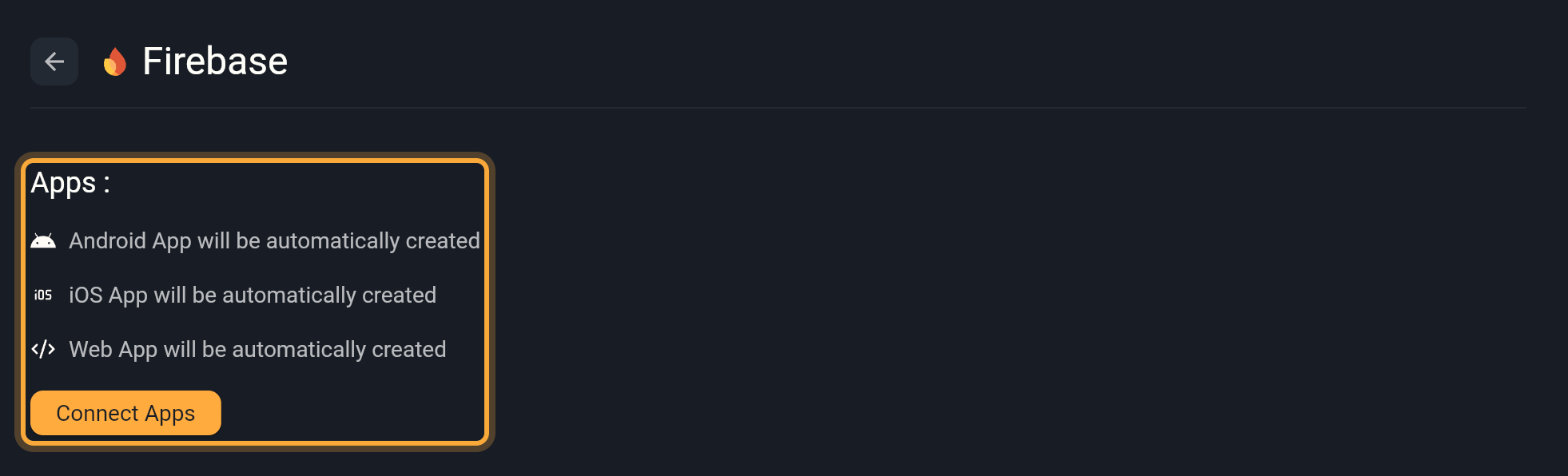
- Click your project. The Apps list shows what Nowa will connect.
- Check the list. Nowa reuses apps your Firebase project already has: an Android app registered with your Bundle Identifier, an iOS app with the matching bundle ID, or a web app whose name contains your app name and "nowa". For each app that's missing, it shows "Android App will be automatically created", "iOS App will be automatically created" or "Web App will be automatically created".
- Click Connect Apps. A spinner shows while Nowa works, and then the page switches to the connected view. The status bar may show "Failed to recompile application." for a while. It clears on its own.
- Save before you reload the page or close Nowa: press Ctrl/Cmd + S, or click the save icon in the status bar, then Save now. Once everything is saved, the icon shows a check mark and its popup reads All changes saved.
Nowa names the apps it creates after your App Name, such as "My App (Android)-nowa", so you can spot them in the Firebase console.
Why step 8 matters: in Nowa 3.13, reloading the page or closing Nowa soon after Connect Apps can lose the connection before it's saved. The Firebase setup then disappears from your project, your app stops building (the status bar reports that a file named firebase_options.dart is missing) and the Firebase page asks for your project again. If that happens, connect again: Nowa reuses the apps it already created. See Known issues.
Nowa AI can't connect Firebase for you. If you ask, it points you to Settings → Integrations → Firebase, so that Nowa sets everything up the right way.
If something goes wrong
- No projects listed. The page says "You don't have any Firebase project, please create one using firebase console!" Create a project, then click Reload Projects.
- An app can't be created. A red banner says "Error creating apps, you have finished your limits of apps on Firebase". Nowa shows it whenever creating one of the apps fails, not only when you've hit a limit. If your Firebase project is at its app limit, remove apps you don't use in the Firebase console. Then click the back arrow, pick your project again and click Connect Apps. Clicking Connect Apps again on the same screen doesn't finish the connection.
- The page asks you to sign in again. Nowa remembers your Google sign-in on the device or browser you used, but Google's sign-in expires after about an hour. When it has expired, or you open the project somewhere else, the Firebase page shows Connect Firebase with Continue with Google again, for example after you click Refresh/Update apps and config files. Sign in with the same account. Your project stays connected.
What connecting sets up
Connecting does the setup that Firebase's own guides walk developers through by hand:
- Your apps in Firebase. Nowa registers your Android, iOS and web apps in your Firebase project, or reuses the matching ones.
- Firebase's settings files. Nowa downloads each app's Firebase settings into your project, so your app knows which Firebase project to talk to. Android, iOS and the web each get their own settings. The macOS version of your app uses the iOS settings, and Windows and Linux versions get none.
- Firebase starts with your app. As soon as your app opens, it's connected to Firebase.
- A home for your Firebase functions. The sign-in functions Nowa adds later show up in Circuit under FIREBASE.
- A place for your Cloud Firestore collections and queries. Both start empty. In Nowa 3.13 the designer has no button for adding them: see Use Cloud Firestore.
- iOS 15 or later. From now on, the iOS version of your app needs iOS 15 or later, because Cloud Firestore requires it.
Working in the code? See What Nowa adds to your code.
The connected page
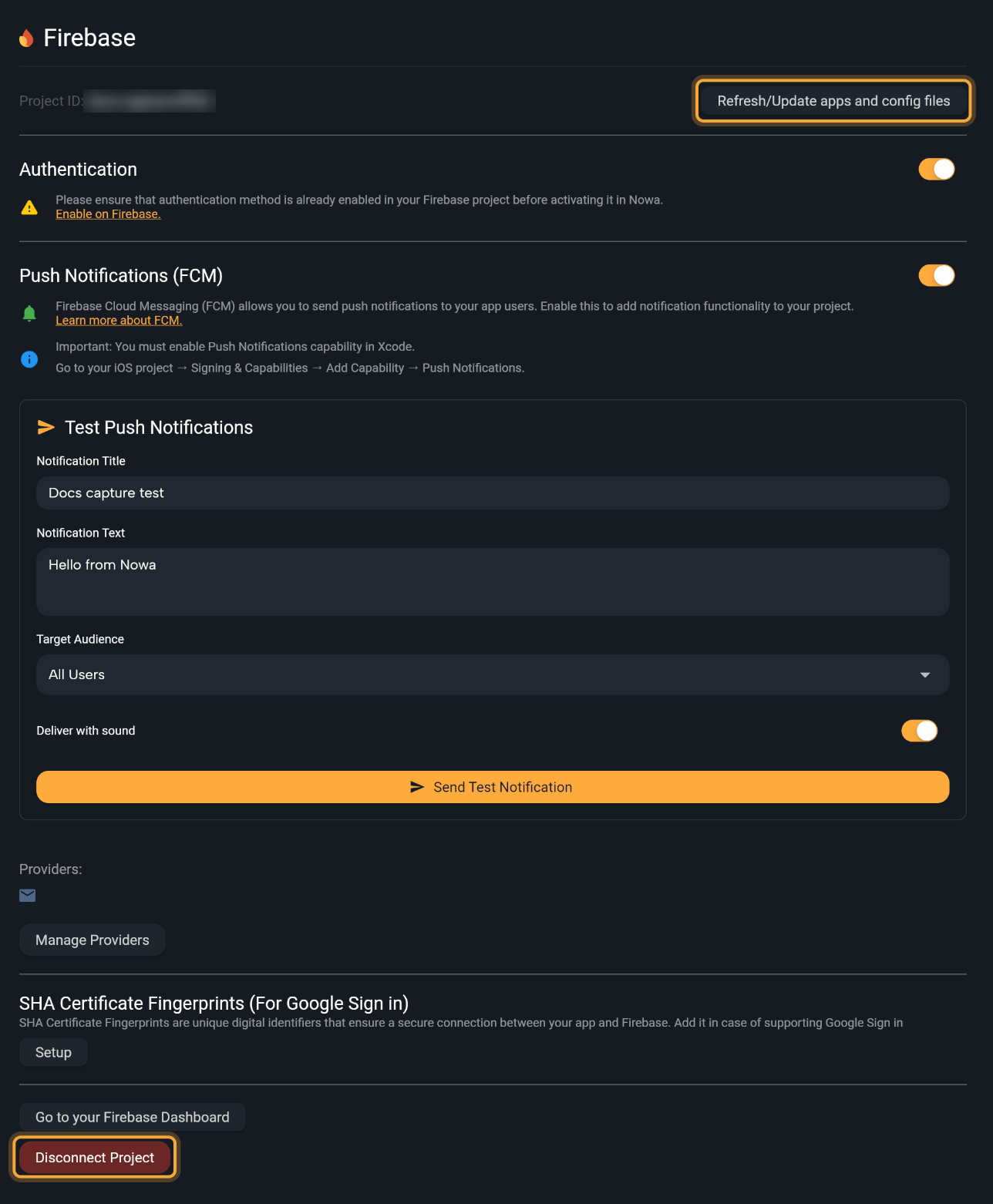
Once you're connected, Settings → Integrations → Firebase becomes your control panel for Firebase. It shows these sections, top to bottom.
| Section | What it does |
|---|---|
| Project ID and Refresh/Update apps and config files | Shows the connected project and downloads its settings again. |
| Authentication | Switch for Firebase sign-in. See Sign users in with Firebase. |
| Push Notifications (FCM) | Switch plus Test Push Notifications. See Send push notifications. |
| Providers and Add Provider (or Manage Providers) | The sign-in methods your app offers. They appear only while Authentication is on. |
| SHA Certificate Fingerprints (For Google Sign in) | Setup manages the fingerprints Google sign-in needs on Android. See Sign users in with Firebase. |
| Go to your Firebase Dashboard | Opens your project in the Firebase console. |
| Disconnect Project | Removes Firebase from your Nowa project. |
Nowa's visual tools cover Authentication, Cloud Firestore and push notifications. Other Firebase products, such as Storage and Realtime Database, have no visual tools in Nowa.
Refresh the apps and config files
Click Refresh/Update apps and config files, next to Project ID, after you change something in your Firebase project, such as adding a fingerprint or turning on a sign-in method. Nowa downloads your apps' Firebase settings again and updates your project to match.
It also clears the problem Nowa adds to the Problems panel when you change your Bundle Identifier after connecting, for example Firebase package name 'com.example.old' does not match the app package name 'com.example.new'. Try refreshing the config files. Click the problem, then click Navigate to open the Firebase page.
Refresh reuses the apps Nowa already connected. It doesn't register new ones. To get Firebase apps for a new Bundle Identifier, disconnect and connect again.
Disconnect Firebase
- Open Settings → Integrations → Firebase and click Disconnect Project.
- In the Disconnect Firebase Project dialog, choose what happens to your Cloud Firestore collections and queries:
- Keep Files keeps them, so you can reuse them with another Firebase project. Your queries show errors until you connect again.
- Clear All Files deletes them too.
Either way, Nowa removes the rest of the Firebase setup from your project: the settings files, the sign-in and notification code, and the step that starts Firebase when your app opens. It also forgets your Google sign-in on this device. Nothing is deleted in Firebase itself, so your Firebase project and its data stay as they are.
Clear All Files is permanent. Nowa can't restore the files once they're deleted.
Next steps
- Sign users in with Firebase
- Use Cloud Firestore
- Send push notifications
- Connect data and services: compare Firebase with Supabase and REST APIs