Connect Supabase
Supabase is a ready-made backend for your app. It signs people in, keeps your app's data in a database and stores files such as photos, so you don't need a server of your own. Connect a Supabase project once, or let Nowa create a new one for you, and Nowa wires it into your app, so you can start testing sign-up and saving data right away.
| Part of Supabase | What it does for your app | Learn more |
|---|---|---|
| Authentication | People create an account and sign in with their email and a password. | Sign users in |
| Database | Keeps your data in tables, a bit like spreadsheets: a column for each detail and a row for each item, such as each product in a shop or each booking. | Read and write data |
| Storage | Keeps files such as profile photos and documents, grouped in buckets (top-level folders). | Store files |
Before you start
- A Supabase account. You don't need a Supabase project yet: with Connect, Nowa can create it for you.
- For Connect, you must be signed in to your Nowa account.
Choose how to connect
| Connect | Use Keys | |
|---|---|---|
| You give Nowa | Permission to use your Supabase account, in a browser step | Your project URL and anon key (the public key your app uses to reach Supabase) |
| Pick or create the project in Nowa | Yes | No, create it in Supabase first |
| Your list of tables (Tables, Query Templates) | Works | May need the browser authorization from Connect (see Connect with keys) |
| Backend files and Nowa AI's Supabase connector | Work right away | Nowa asks you to authorize the first time you use them |
| Stripe payments | Work | The settings open, but deploying needs the browser authorization from Connect, and Nowa doesn't prompt for it |
Pick Connect unless all you have is a project URL and key. It does more, and it's the only way to create the Supabase project from Nowa. You can switch later with Change API Keys.
Connect with your Supabase account
Nowa can create a Supabase project for your app while you connect, so there's nothing to prepare in Supabase first.
- Click the Supabase icon in the left sidebar. The Supabase panel opens.
- Click Connect. A Supabase page opens in your browser, and Nowa shows Waiting for Authorization... in the meantime.
- On the Supabase page, choose your organization (the space in your Supabase account that holds your projects) and click Authorize Nowa. Nowa notices and carries on by itself. To stop waiting, click Cancel.
- In the project list (titled Projects in and your organization's name), click Create New Project to give this app a fresh backend of its own, and fill in the form as described in Create a new Supabase project. Already have a Supabase project for this app? Click Select next to it instead, and you keep building on the data it already has.
- Wait for the "Connecting to ..." message. If the project came with backend files, Nowa offers to set them up (see Manage your Supabase backend). Then the panel lists your Supabase functions, starting with sign-in, sign-up and sign-out.
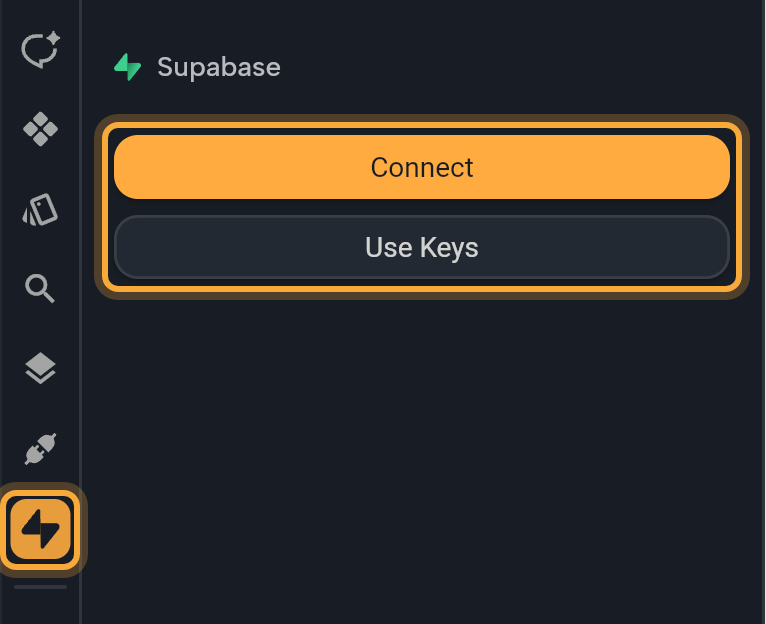
Each Nowa project asks you to authorize once. After that, Connect skips the browser step for that project and shows your Supabase projects right away. Nowa works with one organization at a time: click Change organization to authorize a different one. Projects that aren't active show Unavailable and can't be selected. Their status appears under the name.
You can also start from the chat. Click the Supabase icon in the chat field of the AI Assistant panel. If the project isn't connected yet, the same connection flow opens.
Create a new Supabase project
-
In the project list, click Create New Project. The Create New Supabase Project dialog opens.
-
Fill in the form.
Field What to enter Project Name Starts as your project's Package Name (in Settings → Project Details) plus -backend, such asmy_app-backend. Keep it, or type a name you'll recognize in Supabase.Region Where Supabase keeps your data. Pick the one closest to most of your users, so your app responds faster. It starts as West US (North California). Database Password A password that protects your database. Nowa needs at least 4 characters, but choose a strong one and keep it somewhere safe, such as a password manager. The eye icon shows what you typed. -
Click Create Project. The button shows Creating... while Supabase sets the project up, then Nowa connects to it. To go back to the project list instead, click Back.
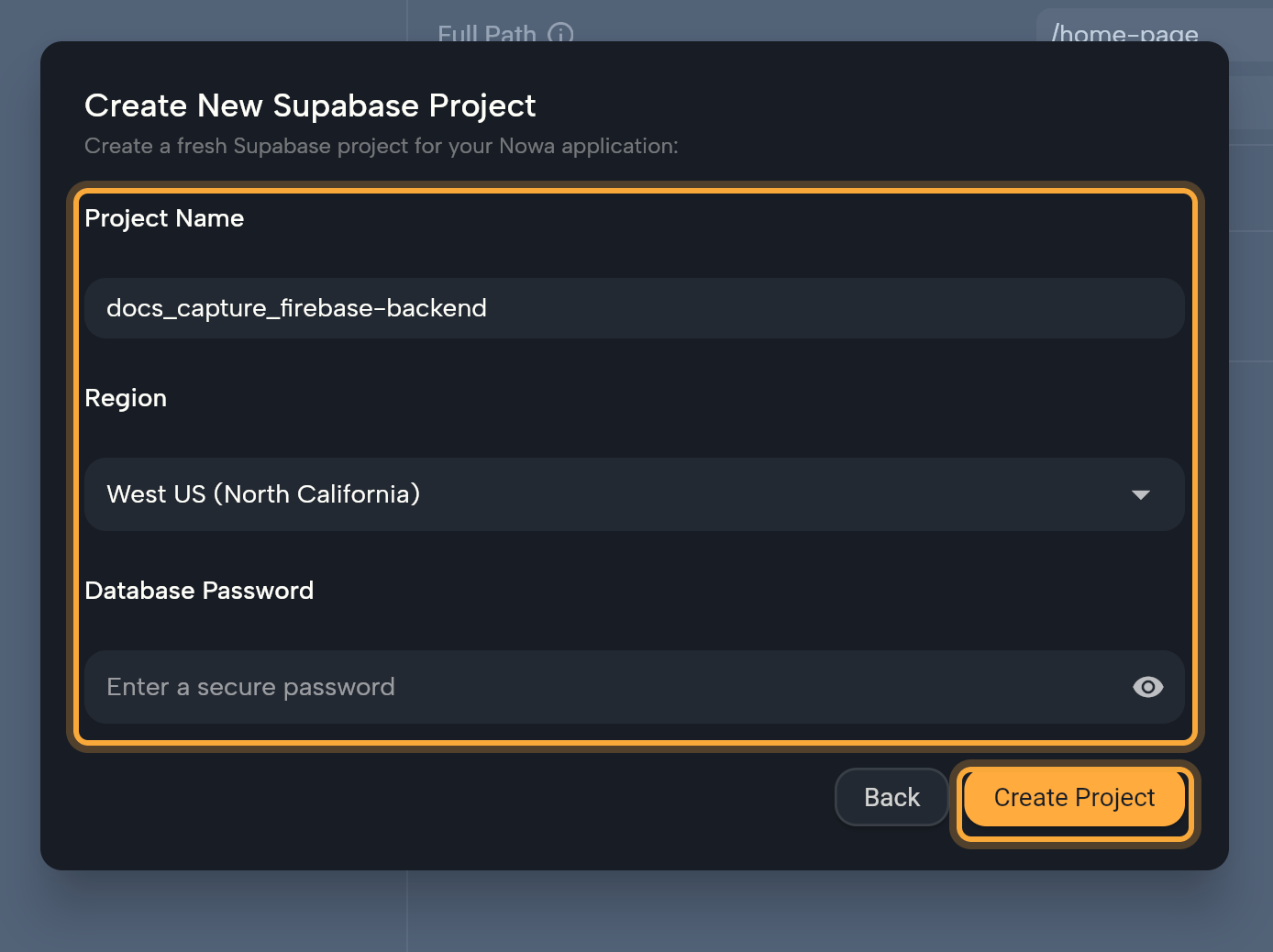
You can also create the project in the Supabase dashboard first, then pick it with Select in step 4.
Connect with keys
Use this when you have a Supabase project's URL and anon key but not the Supabase account, for example when someone else owns it.
- Click the Supabase icon in the left sidebar.
- Click Use Keys. The page is called Supabase Setup.
- Paste your project URL into API Url.
- Paste your anon key into Key.
- Click Connect.
Find your URL and anon key
Each field has a help icon with a hint on where to find the value, and Open Supabase on this page opens the Supabase dashboard. In today's dashboard:
- Project URL: open your project's Connect dialog, or Integrations → Data API. It looks like
https://your-project.supabase.co. - Anon key: open Settings → API Keys and copy the key named
anonfrom the legacy keys. It's a long key that starts witheyJ.
Supabase now steers you to its newer publishable key, for example in the Connect dialog, but Nowa doesn't support the new key types yet. If you paste a publishable or secret key, Nowa says "Using the new Supabase keys is not currently supported, please use the anon key."
Tables and Query Templates need your list of tables, and with keys alone it may not load. Nowa asks for that list with your anon key, and Supabase announced that from April 2026 it only shares the list with a full-access key, which Nowa gets when you authorize it through Connect. If your tables don't show up, authorize Nowa once: click ⋮ → Change API Keys → Connect, then Select the same project. Your functions stay.
What Nowa sets up for you
When the connection succeeds, Nowa:
- Sets Supabase up so it starts as soon as your app opens.
- Adds three ready-made functions,
signIn,signUpandsignOut, toSupabaseService, the one place that holds all your Supabase functions. Everything you add from a template joins them there, and Nowa AI can add more. In Circuit you'll find them underSupabaseService, and a Data Builder lists them under Select Supabase Functions. - Saves your project URL and anon key as two constants,
supabaseUrlandsupabaseAnonKey. You can see and edit them in Settings → General → Constants. See Keys and constants.
Working in the code? See What Nowa adds to your code.
Keep your data safe
The anon key ships inside your app, so anyone who has your app could find it. That's expected: what protects your data is row-level security (RLS), Supabase's rules for who can see or change which rows. Each rule is called a policy, such as "people can only see their own orders". You set them up when you create a table, as Create a table shows.
Find your way around the panel
After you connect, the Supabase panel lists the functions in SupabaseService, grouped by what they do.
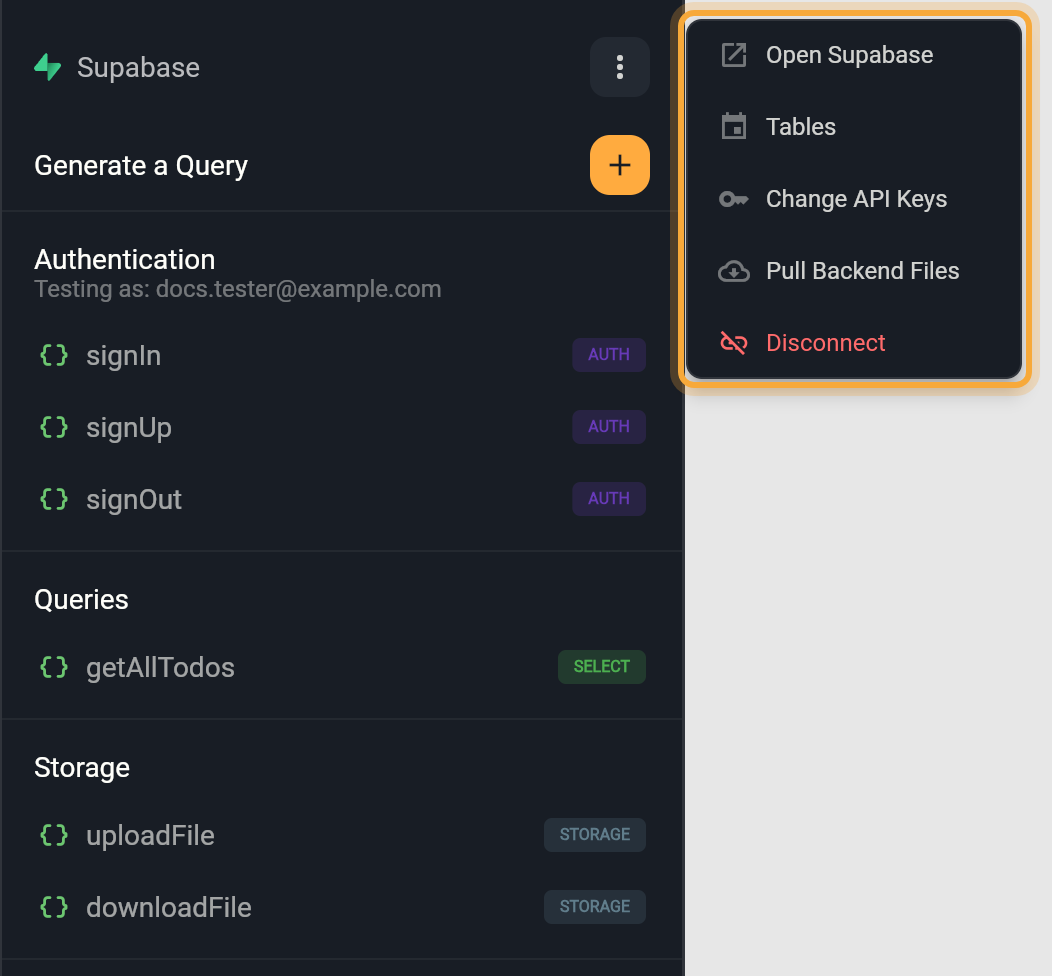
| Section | What it holds |
|---|---|
| Generate a Query | The + button adds functions from ready-made templates. See Read and write Supabase data and Store files in Supabase. |
| Authentication | Sign-in, sign-up and sign-out. Shows Not logged in, or Testing as: and the email of the user you signed in as while testing. See Sign users in with Supabase. |
| Queries | Functions that read or change the rows of a table. |
| Storage | Functions that upload, download or delete files. |
| RPC | Functions that run a database function, a small program stored in your Supabase database. |
| Other Functions | Functions that call an Edge Function, a small program that runs on Supabase's servers. |
Queries, Storage, RPC and Other Functions only show up once they have a function. Functions you or Nowa AI write into SupabaseService appear too, sorted by what they do.
Each function also has a badge, so you can tell at a glance what it does. SELECT reads rows, INSERT adds them, UPDATE changes them and DELETE removes them. STREAM reads rows and keeps updating when they change. AUTH signs people up, in or out. RPC FUNCTION, STORAGE and OTHER FUNCTIONS match the sections above, and UNKNOWN means Nowa couldn't tell.
Click a function to open its test panel and try it on your real project (see Test a function). Right-click it to Rename or Remove it. Remove deletes the function from your project, so first check that no screen still uses it.
The ⋮ menu at the top of the panel has these items:
| Menu item | What it does |
|---|---|
| Open Supabase | Opens your project's dashboard in the browser. |
| Tables | Lists your tables and their columns. |
| Change API Keys | Opens Connect and Use Keys again, so you can switch to another project or other keys. Your functions stay: Nowa only updates the URL and key. |
| Pull Backend Files | Saves your backend into the project. See Manage your Supabase backend. |
| Set up Backend | Builds the backend that came with a project on your Supabase project. It appears when Nowa finds migration files (saved instructions that build your tables) in the project, which it checks when you connect and after you pull. |
| Disconnect | Removes Supabase from the project. See Disconnect Supabase. |
See your tables
Click ⋮, then Tables. A page headed Supabase Setup opens with a read-only list of your Supabase tables and their column names, which is handy when you want a column's exact name. Click the back arrow to return.
Nowa has no table editor. Create and change tables in Supabase, or ask Nowa AI to do it (see Create a table). Created a table after you connected? Opening Tables refreshes the list. If there are no tables, Nowa says "No tables found, create tables in Supabase and you will see them here."
If something goes wrong
| What you see | What to do |
|---|---|
| Authorization timed out. Please try again. | Nowa waits two minutes for the browser step. Click Cancel, then Connect again, and finish the browser step in time. |
| Failed to create project: … | The form shows the reason that came back, in an Error box. Fix it and click Create Project again, or click Back and pick an existing project. |
| Anon key not found for project … | Nowa couldn't read an anon key for that project. Supabase now calls it a legacy key: in the project's Settings → API Keys, check that the project has one and that its legacy keys aren't turned off. |
| Using the new Supabase keys is not currently supported, please use the anon key. | You pasted a publishable or secret key. Paste the project's anon key into Key (see Find your URL and anon key). |
| Error fetching tables: … Access to schema is forbidden | You connected with Use Keys, and Supabase only shares the table list with a full-access key, not with the anon key. Authorize Nowa once: ⋮ → Change API Keys → Connect, then Select the same project. |