Import an API
Why type requests by hand when your API already describes itself? Give Nowa your Swagger file, your Postman collection or your Xano workspace, and it builds a collection with every endpoint, method, header and body. Need only one request? Paste its cURL command.
Imports build on the REST API tools, so you can test and change everything afterwards.
Import a whole collection
- Click Api in the left sidebar.
- Click + (Add Collection), then Import from Swagger, Import from Postman or Import from Xano. The Import From dialog opens with that source selected. You can switch sources with the Swagger, Postman and Xano options at the top.
- Follow the steps for your source below.
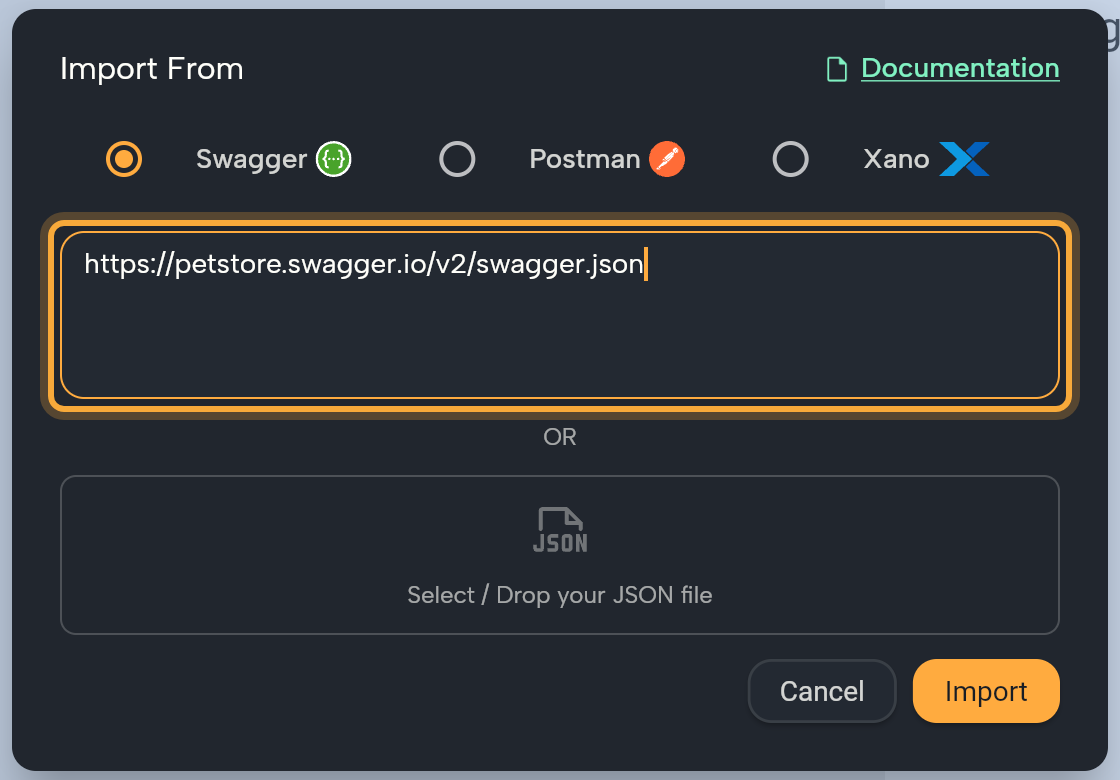
Here's what you get. Every import creates a new collection, named after the API (its title in Swagger, its name in Postman), with one request per endpoint. It never adds to a collection you already have. Nowa sets the Base URL when it can work one out from the file or the address you pasted. A changing part of an address, such as {id} in Swagger or :id in Postman, becomes a parameter you fill in, and the address shows it as ${id}.
Imported requests return the plain response. To use the answers in your widgets, run a test and click Generate Model. See Turn the response into a model.
From Swagger (OpenAPI)
A Swagger or OpenAPI file is a description of an API that many services publish, often at an address ending in swagger.json or openapi.json. Nowa reads it in JSON, in the Swagger 2.0 and OpenAPI 3 formats.
- Choose Import from Swagger.
- Paste the web address of the JSON file, or the JSON text itself, then click Import.
- Or click the box Select / Drop your JSON file, or drop a
.jsonfile on it. The import starts as soon as the file is chosen, so you don't need to click Import.
Want to try it first? Paste https://petstore.swagger.io/v2/swagger.json, a public sample API. You get a collection with requests such as getPetById and findPetsByStatus, named the way the file names them.
A few things to know:
- If the address doesn't load, for example because it needs a login, paste the JSON text or choose the file instead.
- With a Swagger 2.0 file, Nowa takes the Base URL from the address you paste. If you paste the text or choose a file, set the Base URL yourself in the collection's settings afterwards.
- YAML files aren't read. Convert the file to JSON first, for example in the Swagger Editor.
From Postman
First, export your collection from Postman as a JSON file:
- In Postman, click Collections in the sidebar.
- Click View more actions next to your collection, then More → Export collection.
- Click Export JSON. Postman downloads the file.
Postman's own guide, Export data from Postman, shows these steps with pictures. Then bring it into Nowa:
- Choose Import from Postman.
- Click the box Select / Drop your JSON file and pick the file you exported, or drop it there. The import starts right away.
- Or open the file, copy its text, paste it into the field and click Import.
Folders in your Postman collection are flattened into one list of requests.
From Xano
Nowa reads your Xano workspace with an access token for Xano's Metadata API. Create one in Xano first:
- In Xano, click the profile icon in the lower-left corner and choose Instances.
- Click the gear next to your instance and choose Metadata API.
- Click Manage Access Tokens, then New Access Token.
- Give the token a name you'll recognize and pick when it expires. By default it stops working after 7 days, so you'd make a new one for a later import.
- Set its scopes. Nowa only reads your workspaces and API groups, so R (read) for Content and API Groups is enough.
- Copy the token right away: Xano shows it only once.
This short video shows steps 3 to 6 in Xano. It leaves every scope ticked, but read access (step 5) is all Nowa needs:
Xano's Metadata API guide has the details. Then, in Nowa:
- Choose Import from Xano and paste the token into Enter Xano Bearer Token.... Nowa loads your instances by itself.
- Under Select an Instance, click your instance.
- Under Select a Workspace, click your workspace.
- Under Select an API Group, click a group, or its +, to import it. A check mark shows it's done.
Each API group becomes its own collection. The dialog closes once every group is imported. Click Cancel to stop earlier.
Nowa imports each group through its Swagger documentation, so that documentation must be turned on in Xano. If a group won't import, click Connect this backend in Xano's header, open the API Groups tab and check that the group's documentation isn't set to Disabled (Xano's guide).
Add one request from a cURL command
A cURL command is a one-line example request that many API docs show, starting with curl. Nowa can turn it into a ready-to-test request.
- In the Collections panel, hover the collection and click +, then Import from curl.
- Type a Function Name. Nowa turns it into a function name and shows it under the field.
- Paste the command into cURL Command and click Create.
The request is added to that collection with the method, address, headers and body from the command.
If the collection has a Base URL, the address in the command must start with it. Nowa then keeps only the rest of the path. A command that can't be read shows Invalid curl.
In Agent mode, paste a cURL command into the chat and ask Nowa AI to add it as an API request. It can create the request, test it and build the model. Check the result in the Collections panel. See Connect a REST API.
If an import fails
| Message | What to try |
|---|---|
| Failed to import from swagger | Check that the address returns the JSON file itself, or paste the JSON text. |
| Invalid Postman collection format | Export the collection again with Export collection, then import that file. |
| Invalid token, Failed to fetch instances | Paste a new Xano token. Tokens expire, after 7 days by default. |
| Failed to select instance, Failed to select workspace | Click the item again. If it keeps failing, check that your token has R for Content and API Groups, or start the import over. |
| Failed to import from Xano | Check that the group's Swagger documentation isn't Disabled in Xano, then try again. |
| The curl URL … does not match the provided base URL … | Use a command whose address starts with the collection's Base URL. |
Next steps
- Connect a REST API: set the base URL, headers and sign-in, then test your requests
- Show data in your UI