Show data in your UI
Data Builder is how your screens show real data, such as the products in your shop or today's bookings. It loads the data from your source, shows a loading widget while it waits and an error widget if something goes wrong, and hands everything inside it the result as data.
Before you start
You need something to load. Create one of these first:
- a request from the Api panel (Connect a REST API),
- a function from the Supabase panel (Read and write Supabase data),
- a query from Cloud Firestore.
A source has to give back a value that arrives a moment later (a Future) or a feed that keeps updating (a Stream). Requests do. A Firestore query does once it ends with a step that reads the data, such as get or snapshots.
Add a Data Builder
- Select the widget that should show the data. For a list, add a List View first.
- In Details, scroll down and click Add Wrapper. Search for Data Builder and click it. Your widget now sits inside it, so it can use what the Data Builder loads.
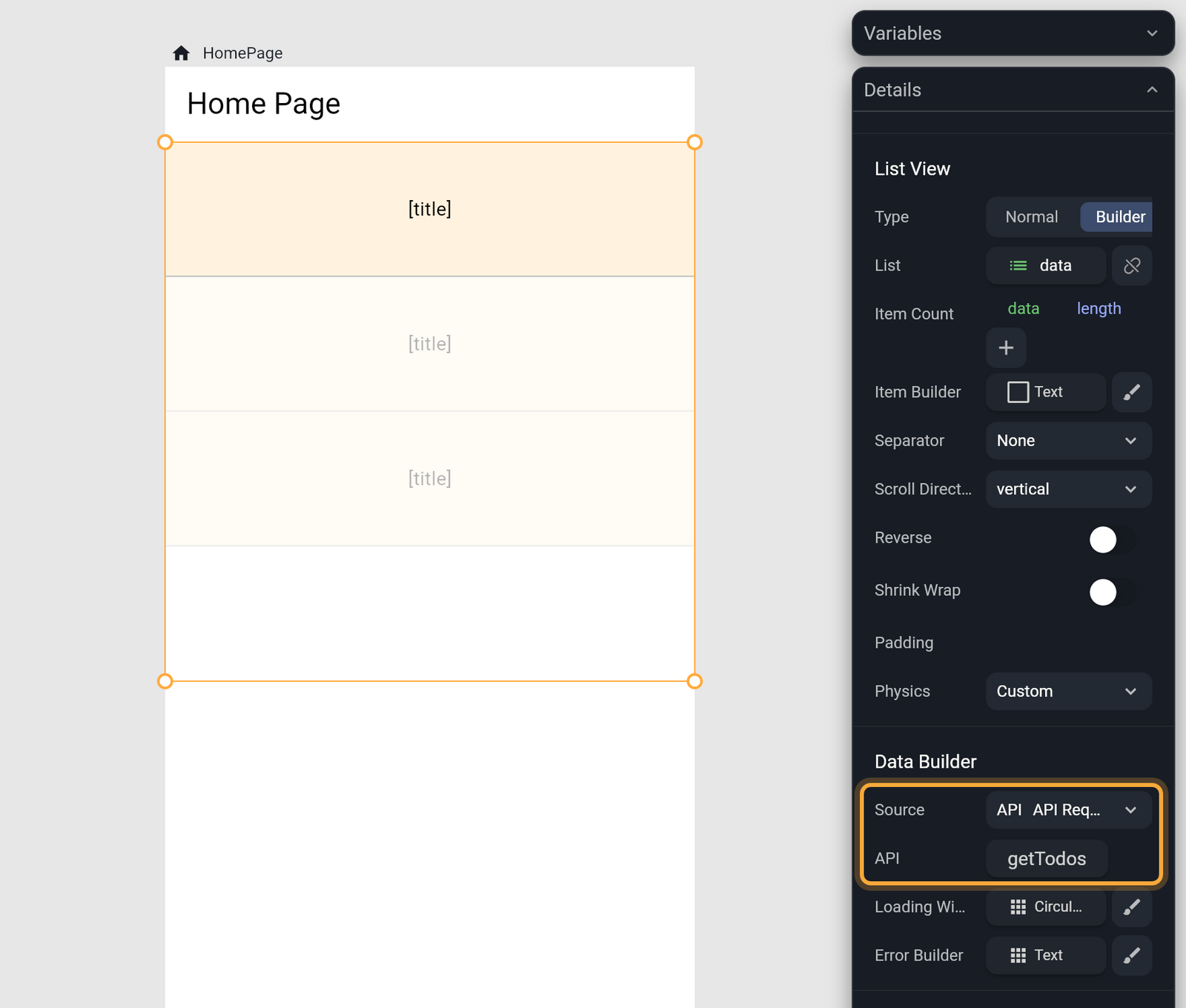
- Below your widget's own settings, the Data Builder fields appear. Set Source to API Request, Supabase or Firestore. A new Data Builder starts on Custom, which loads nothing.
- In the row below Source, click the button that reads
none. The row is labeled API for requests and Query for Supabase and Firestore. Pick your request, function or query from the list. To switch to another one later, click the button again. - If the request has parameters, their fields appear. Fill them in or link them to variables.
| Source | Row label | What the list shows |
|---|---|---|
| API Request | API | The requests in all your collections. |
| Supabase | Query | The functions in your Supabase panel. |
| Firestore | Query | Your Firestore queries. |
You can also add Data Builder as a widget: press Ctrl/Cmd + K and search for Data Builder. The wrapper keeps the widget you already built, so it's usually the easier way.
Use the data in your widgets
Inside a Data Builder, data is whatever your source gave back. If the source returns a list, data is a list.
- Click the label of a property, such as Text on a Text widget. A link menu opens.
- Open LOCALS and click
data. Ifdatais a model, its fields open next. Pick the one you want, for exampletitle. - Click + after a linked value to go deeper into it.
The same works for pictures: on an Image, choose the Network tab and link Url to a field that holds a picture's web address, so each recipe shows its own photo. See Images, video, animations and web content.
If the source returns a model, the fields have names you'll recognize. That's why it helps to generate a model for your requests. Pick the source first, so Nowa knows what data holds. For more on the link menu, see Expressions and conditions.
Show a list
- Wrap a List View in a Data Builder and choose a source that returns a list.
- Select the List View. In Details, find List and click Connect. If Type shows Normal, choose Builder first.
- Open LOCALS and click
data. Nowa sets Item Count to the length of the list, so you get exactly one row per item. - Design one item. Link its properties to
element, the item that row is showing: click a label, open LOCALS, clickelement, then pick a field.
Every row repeats the item you designed, filled with its own data. A new List View starts with three placeholder items.
To open a detail screen when someone taps a row, see Open a detail screen when a list item is tapped.
What you see while it loads
- Loading Widget shows while the data is on its way. By default it's a centered progress circle.
- Error Builder shows if the call fails. By default it's the error in red text. Inside it,
errorholds what went wrong.
Both are fields under Source, so you can design your own, such as a friendly "Couldn't load your bookings" message. If the source gives back nothing (null), the Loading Widget stays on screen. If you haven't picked a source yet, the Error Builder shows "No data source provided".
A Stream source, such as a Firestore snapshots query or a Supabase stream, keeps the screen up to date as the data changes.
See it on the board and in Play
On the board, a request that has a Model isn't called. Nowa shows placeholder values built from the model instead: text appears as [title], a list shows three items, and images show a picture placeholder. That way you can design the layout before any real data arrives.
Press Play on the screen to load real data, or Run the app. To load the data again, for example to see a new random picture, click Stop, then Play again. See Play your app on the board and Run your app.
In Agent mode, describe what you want to see: "Show the results of getItems in a list on the home screen, with each item's title and price." Then press Play on the screen to check it with real data.