Play your app on the board
Instant Play runs a screen right on the board, so you can tap through it without leaving the editor. It starts at once, with no build, which makes it the fastest way to check a layout or a flow while you design: does the button open the right screen, does the list scroll, does the form accept what you type? In the app, the action is called Play.
Play a screen
- Hover the title bar above a screen or component on the board, or select the item. A play button appears next to the name.
- Click it (its tooltip is Play). The board zooms to the item and selects it, an orange border marks it, and it comes alive.
- Tap, scroll and type as you would in the real app. While an item plays, scrolling over it scrolls your app, not the board.
- Click Stop when you're done. It sits in the item's title bar and in the controls at the bottom of the board.
While something plays, the toolbar at the bottom of the board is replaced by the play controls.
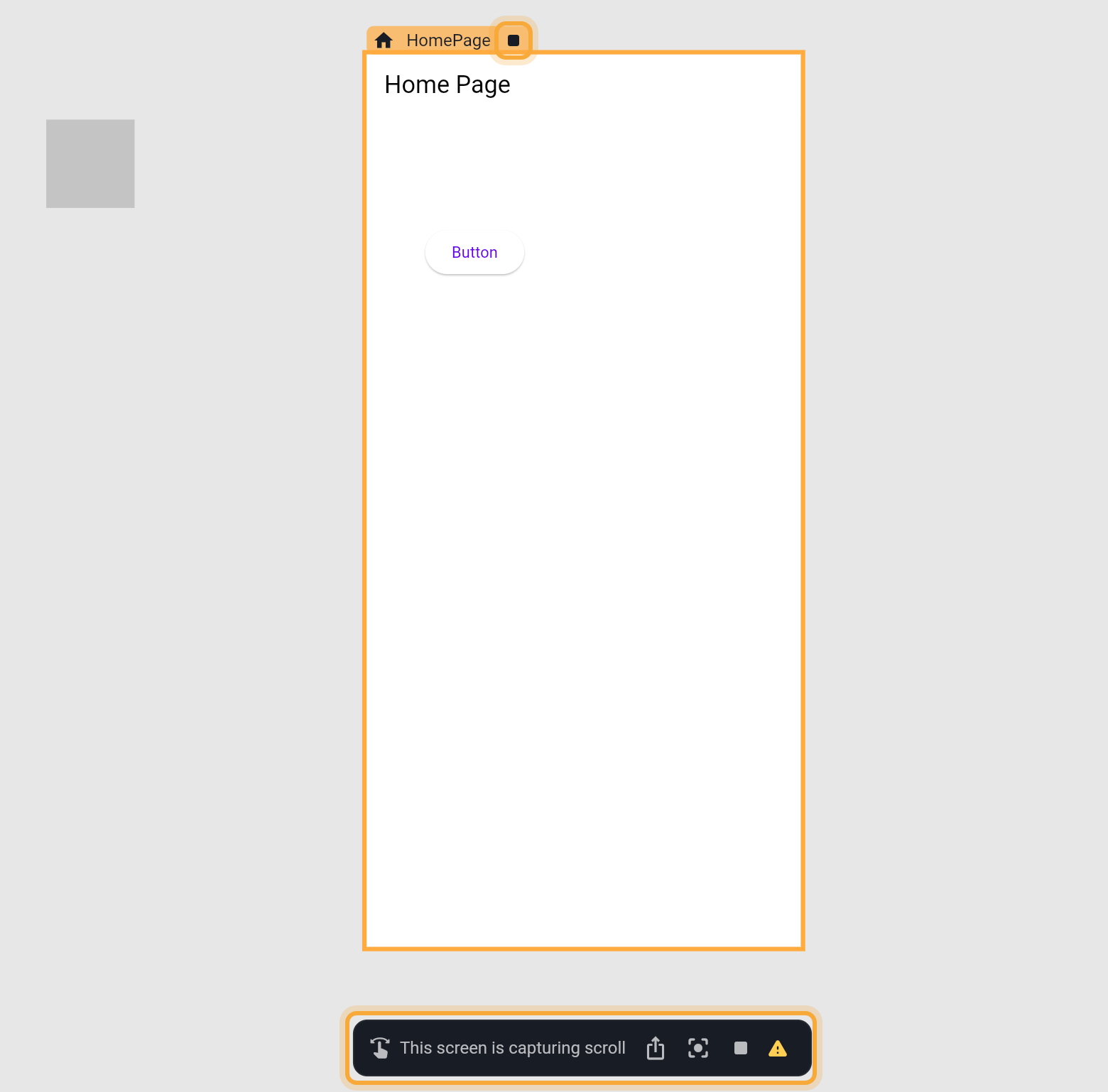
| Control | What it does |
|---|---|
| This screen is capturing scroll | A reminder that scrolling over the playing item scrolls your app, not the board. |
| Share preview | Opens a link and QR code to share a preview. Cloud projects only. See Share your app. |
| Reset zoom | Zooms the board back onto the playing item. |
| Stop | Ends Instant Play. |
| Warning icon | Hover it to read the accuracy note (see below). |
A screen plays at the size it has on the board. To try it at another phone or tablet size, resize it first, as Check your layout at other sizes shows.
Play any widget
Right-click a widget on the board and choose Play. Nowa plays the whole board item the widget belongs to: the screen, the component, or the loose widget itself. That's how you play a loose widget, which has no title bar of its own.
Play shows in the right-click menu when exactly one widget is selected and nothing is playing yet.
Switch to another item
While an item plays, select another item on the board to play that one instead. You don't need to stop first.
The playing item can't be moved or resized, and clicks on it go to your app, not to the editor. The designer's keyboard shortcuts are off until you stop, so a key you press goes to your app.
Know what Instant Play can't show
Instant Play is quick because Nowa interprets your app (reads it and acts it out on the spot) instead of building it. That keeps it close to the real app, but not identical. Hover the warning icon in the play controls to read Nowa's own note: "In board preview is not 100% accurate, run the app to see the real output".
Expect these differences:
- Some code that was written by hand, and some packages (ready-made add-ons), show as placeholders or not at all. What Nowa can show on the board lists what is supported.
- Widgets that need a real device show a note instead. The Google Maps and RevenueCat Paywall widgets say "Run on a simulator/emulator or mobile device to preview".
- Some services are simulated. Firebase sign-in, for example, doesn't really sign you in: Nowa asks you to pick a test user or a test error, so you can try both paths of your flow.
To check the real behavior, run your app, or run it on a device.
Placeholders on the board, real values in Play
On the board, Nowa fills in empty values so a design never looks blank. Text from an empty variable (a value your screen remembers, such as a user's name) shows as [name], a list shows three sample items, and an image shows a stand-in picture. These placeholders are only there to help you design.
When you press Play, your app runs its own logic instead. You see what your variables and functions really produce, so an empty list stays empty until your logic fills it, as it does in the real app. If a screen looks empty in Play but full on the board, that's usually why.
Next steps
- Share your app: send a link or QR code to a preview.
- Run your app: build and run the real thing.
- Find and fix problems: see why a screen doesn't look right.
- Work with boards: move around the board and its items.