Work with boards
A board is your design space: a large, free-form area where your screens, components and widgets sit side by side, so you can see a whole flow at once. Make as many boards as you like, for example one for sign-up and one for checkout.
Create, switch and manage boards
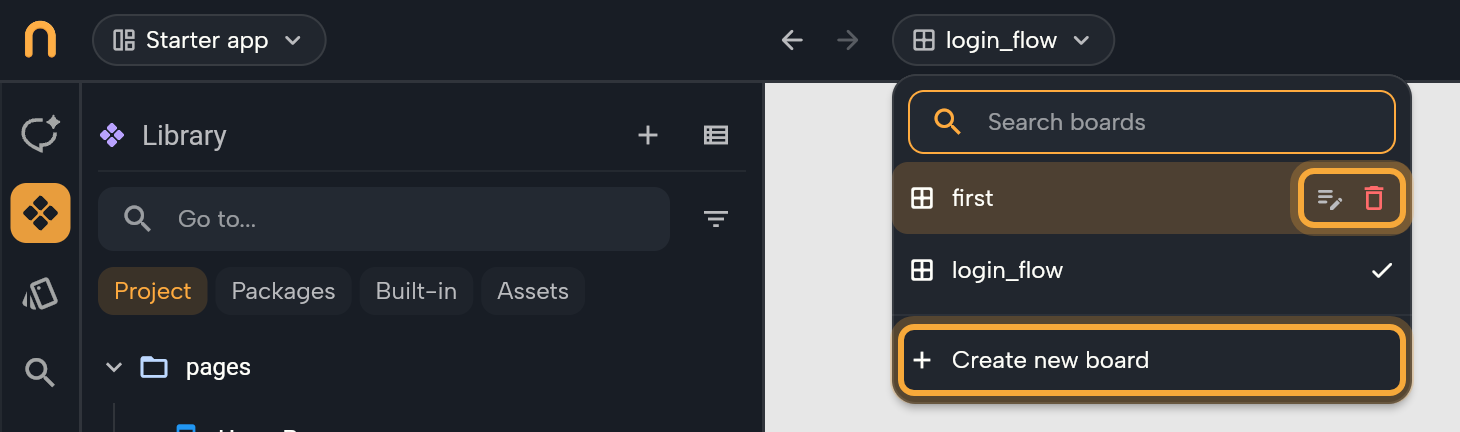
- Click the Boards chip in the top bar, or press Ctrl/Cmd + B. The chip shows the name of the current board, or Boards when you're not on a board. The list shows every board in your project, whether you've opened it yet or not.
- Click a board to open it. To find one quickly, type in Search boards, then use the arrow keys and press Enter.
- To make a new one, click Create new board, type a name and click Submit. The new board opens, empty and ready.
- To rename or delete a board, hover its row and click the Rename or Delete icon.
When you create a board, Nowa writes its name in lowercase with underscores, so Login flow shows up as login_flow in the list and on the chip.
Deleting asks Are you sure you want to delete "…"? Click Yes. The screens and components that were on the board stay in your project, so you only lose the loose widgets on it.
You can also press Ctrl/Cmd + Shift + B to create a board. Ctrl/Cmd + B opens the list with the search ready. The chip isn't there in code mode or while your app runs in the editor, so the key does nothing then.
Organize your work with boards
Think of boards as separate desks for different parts of your project. Keep everything for one flow together, such as the login, sign-up and password reset screens, and start a new board when one gets crowded. Don't go to the other extreme, though: one board per screen means a lot of switching.
A screen can sit on more than one board, so you can show it in two flows without making a copy. It's the same screen in both places, and a change on one board shows on the other.
Set the board color and grid
- Click empty space on the board so nothing is selected. Details shows the board's settings.
- Turn on Show Grid for a dot grid, or pick a Board Color.
- Click Reset to bring back the defaults (light gray, no grid).
Each board keeps its own settings, saved with the board, so they're still there next time you open it. The grid is only a visual guide: widgets don't snap to it.
Move around the board
| To | Do this |
|---|---|
| Pan | Scroll, or swipe with two fingers on a trackpad. Hold Shift while scrolling to pan sideways. |
| Pan with the mouse | Hold Space and drag, or drag with the middle mouse button. |
| Zoom | Hold Ctrl/Cmd and scroll, or pinch on a trackpad. It zooms where your pointer is. |
| Zoom to something | Select it and press F. Double-clicking its row in the Outline does the same. |
There are no zoom buttons. Each board remembers its zoom and position on your device, so you pick up where you left off.
Know your board items
Everything directly on a board is a board item: a screen, a component, or a loose widget such as a shape.
- Title bar. Screens and components have one above them. It shows the name, and a home icon on your home screen. Hover it to see Play and Open in new tab. Double-click it to rename the item.
- Select and move. Click the title to select the whole item, then drag it. Shift + click adds more items to the selection.
- Place exactly. With an item selected, type X, Y, W and H under Layout in Details.
- Loose widgets have no title bar. They live only on the board, so they're not part of your app until you place them inside a screen. That makes the board a good spot for sketching ideas or keeping spare parts nearby.
- Frame. Anything that spills past an item's edge, such as content that doesn't fit, an error box or a blur, is cut off at its frame, so it never covers the items around it.
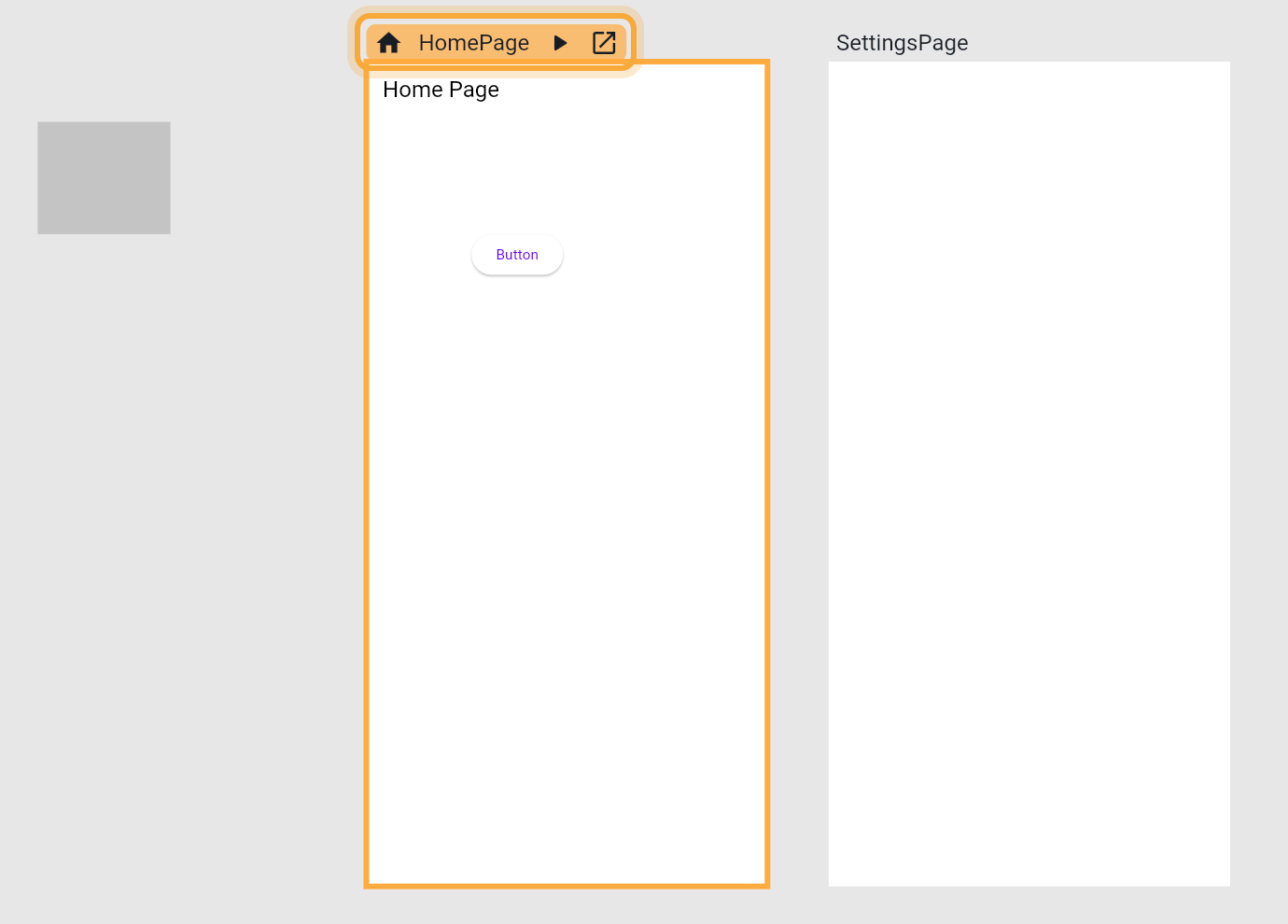
Play runs the item on the board so you can tap through it. See Play your app on the board. Open in new tab opens the screen or component on its own, in place of the board, so you can focus on it. To come back, click Back in the top bar or press Ctrl + - (the Control key, also on a Mac). You can also open the Boards chip and pick the board.
Use the toolbar
The toolbar floats at the bottom of the board.
| Tool | Key | What it does |
|---|---|---|
| Select tool | V | Select, move and resize. |
| Shape | R | Draw a gray box (a Container) you can resize and color. |
| Screen | none | Opens the template picker to create a screen. See Create and set up screens. |
| Text | T | Place a text. |
| Widget | Ctrl/Cmd + K | Opens the Library to add a widget. See Add widgets. |
The Screen tool is hidden when a screen or component is open on its own. While something is playing, the toolbar gives way to the Play bar.
Remove an item or delete it
- Remove from the board. Select the item (for a screen or component, click its title), then right-click it and choose Remove, or press Delete (Backspace on macOS). A screen or component stays in your project and in the Library, so you can drag it back. A loose widget is gone, but Ctrl/Cmd + Z brings it back.
- Delete from the project. In the Library, right-click the screen or component and choose Delete. Click Yes to confirm. If something uses it, Nowa lists the places and asks again. See Build reusable components.
Big boards and errors
Big boards stay fast without any setup. Items in view build first, and only the item you hover, select or play animates. When more than 8 items are in or near view, the rest show as still pictures until you hover, select or play them.
If one item fails while drawing, only that item shows This screen failed to render, with the error text, and the rest of the board keeps working. To fix it without touching code, select the item and ask Nowa AI in Agent mode, for example: "This screen shows This screen failed to render. Find the cause and fix it." The selected item goes along with your message. Check that Problems has nothing new for it, then click Reload screen. If you work with code, you can fix the cause there instead.
View-only boards
With the View Only role in a shared project you can browse, select, copy and export, but not edit. The toolbar shows View only instead of the tools. To copy a widget or export it as an image, right-click its row in the Outline and choose Copy or Export as image.... See Workspaces and team members.
Next steps
- Create and set up screens: add a screen and choose your home screen.
- Add widgets: fill a screen from the Library.
- Play your app on the board: tap through a screen without leaving the editor.