Start from a template
Skip the blank page. A template gives you a finished screen or component, such as a login flow, a dashboard or a chat, that you restyle, connect to your own data and make yours. It's also a handy way to see how a polished screen is put together.
Add a template
- Click Screen in the toolbar at the bottom of the board. You can also right-click the board and choose Create a page.
- Keep Screens selected for whole screens, or switch to Components for smaller building blocks, such as an audio player. Type in Search for templates to narrow the list.
- Point at a template, or move to it with the arrow keys, to see its preview. Click it, or press Enter, to add it.
- Finish the dialog that opens. What it asks depends on the template, as the next two sections explain.
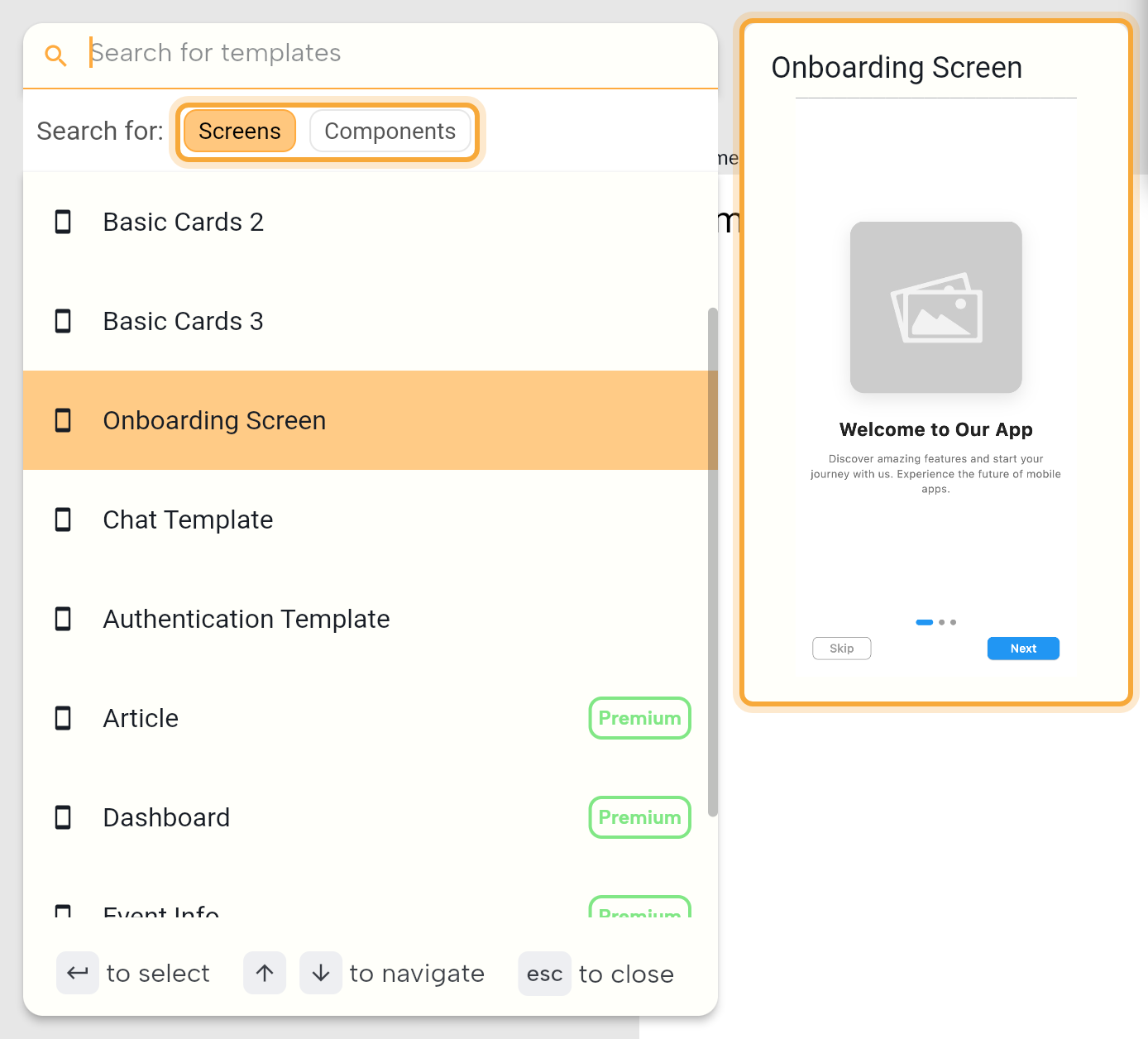
Nowa places the new screen or component on the board near your pointer. A new screen doesn't become your home screen, the one your app opens on, by itself. See Create and set up screens.
Name a single-file template
A template with a single file, such as Empty Page, Basic Cards 1 or Event Info, opens a naming dialog. It's titled New followed by the template's name, for example New Empty Page.
- Type a name, such as "Profile". Nowa fills in a Class name and a Path from it, and you can leave them as they are.
- Click Submit. For a screen in a project that uses GoRouter (the way new projects move between screens), Nowa also gives the screen a route: the address other screens use to open it.
An Empty Page is a blank screen, shown at the size of the Pixel 3a preset (393 × 808). You can change the size it shows at on the board later with Size in the screen's Details.
Import a multi-file template
A template made of several files, such as the Authentication Template (a login page and a register page), Chat Template or Onboarding Screen, opens an import dialog. It's titled Add followed by the template's name.
- Review the files the template will add, listed under Files in and the template's name. Untick the ones you don't need, or rename and move them.
- Click Import. If a file with the same name already exists, Nowa asks before it overwrites it, so you won't replace your own work by accident.
Import stays off while a file has a problem, and its tooltip says "Please fix the problems before importing".
Once imported, the template's screens appear on the board side by side, and its other files are in your project, ready to use. Unlike a single-file template, a multi-file import doesn't add routes. In a GoRouter project, add a route for each screen in the Router panel before you link to it from other screens. See Set up routes in the Router panel.
Built-in templates
| Tab | Templates |
|---|---|
| Screens | Empty Page, Basic Cards 1, Basic Cards 2, Basic Cards 3, Onboarding Screen, Article, Dashboard, Event Info, Audio Player Page, Chat Template, Authentication Template |
| Components | Audio Player, Google Button |
Google Button is a "Continue with Google" button. It's the look only: to make it sign people in, see Google sign-in.
The list is built into Nowa, and you can't add your own templates in this version. To reuse a design of your own, build a component instead: see Build reusable components.
Premium templates
Paid plans Article, Dashboard, Event Info and Audio Player Page show a Premium label, and the picker lists them after the free templates. If your plan doesn't include them, adding one opens a Time to level up dialog with an Upgrade button. See pricing.
Make a template yours
A template is a head start, not a finished app. Once it's on your board:
- Match your theme. Many templates come with fixed colors of their own, so link their colors and text to your theme. Then they match the rest of your app and follow every theme change. See Use theme colors and text styles and Start from a template.
- Use your own content. Replace the sample text and pictures, and connect the screen to your data. See Show data in your UI.
- Learn from it. Open the Outline to see how its rows, columns and cards fit together, then reuse the ideas in your own screens.
Other places to start from
- Library: click Add (+) in its header and choose New Widget.... The same picker opens, and the new file opens on its own instead of landing on a board. See Find and add things with the Library.
- Whole apps: in the playground, the picker at the top offers Playgrounds and Templates. See Try Nowa without an account.
Or ask Nowa AI: "Add a login screen with email and password." It builds the screen for you, and you can check and restyle it on the board like any template. See How Nowa AI works.
Next steps
- Create and set up screens.
- Change widget properties to restyle what you added.
- Use theme colors and text styles to link a template's colors and text to your theme.