Fonts and icons
Fonts give your app its voice, and icons help people find their way at a glance. Pick any Google Font or bring your own font file, and choose icons from the Material icon set. Both pickers open from any property that takes a font or an icon.
Pick a font
- Open a font field.
- For the whole app, open Themes and click Default Font. Or open a text style and use Font Family.
- For one text, select it, click the Style label, choose CopyWith (Modify Style if it uses the default style), then use Font Family. See Use theme colors and text styles.
- Click the font button. It shows the current font, or Default.
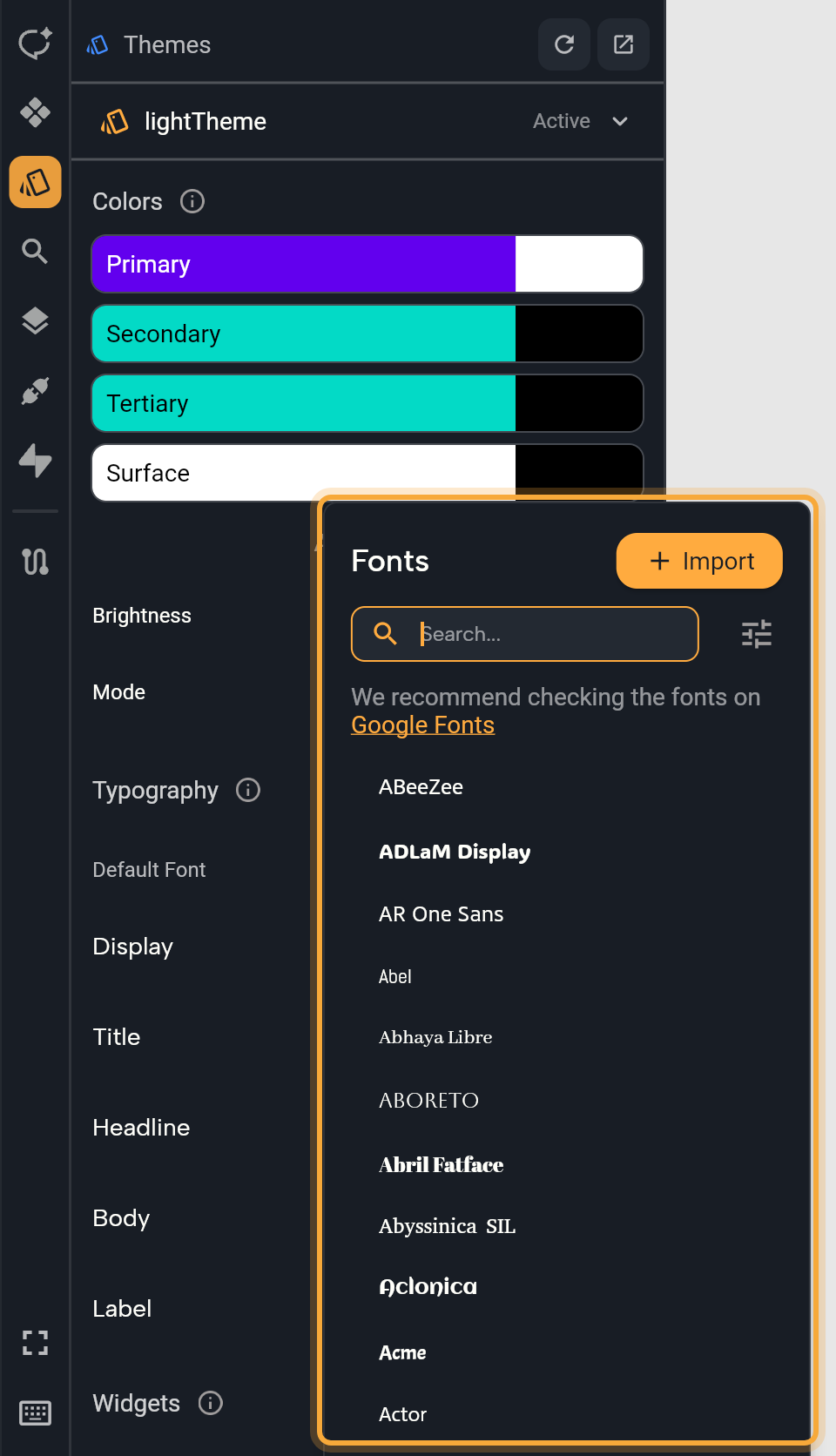
- Search by name or scroll the list. Each font is shown in its own typeface, so you can compare them as you go. Click a font to use it.
When you pick a Google Font, Nowa downloads it into your project and sets it up for your app, so your app shows it on every device, whatever fonts a phone has installed. You'll find the file in your assets, in the fonts folder, named after the font. The popup also suggests browsing Google Fonts to see a font in full before you choose.
Import your own font
Have a brand font from your designer? Import the file.
- In the Fonts popup, click Import.
- Choose a
.ttfor.otffile. You can import one file at a time.
Nowa adds the file to your assets, in the fonts folder, and selects it. The font's name is its file name without the extension, so Brand-Regular.ttf appears as Brand-Regular. That's why it's worth giving font files clear names before you import them.
Filter the font list
Click the filter button next to the search box.
| Filter | Shows |
|---|---|
| All Fonts | Fonts in your project plus all Google Fonts. This is the default. |
| Default Fonts | Google Fonts only. |
| Imported by you | Fonts in your project's assets, including Google Fonts you've already picked. |
Can't find a font in the web app? Search for it by name: the list starts with 100 Google Fonts, and a search shows up to 20 matches. The desktop app lists them all.
Working in the code, for example with font families made of several files? See What Nowa adds to your code.
Choose an icon
- Select an Icon widget, or any widget with an icon property.
- In Details, click the icon field. It shows the current icon and its name, or none.
- In the Icons popup, type what you're looking for, such as "home", "cart" or "search". Any icon whose name contains your word shows up. Hover an icon to see its name, then click it to use it.
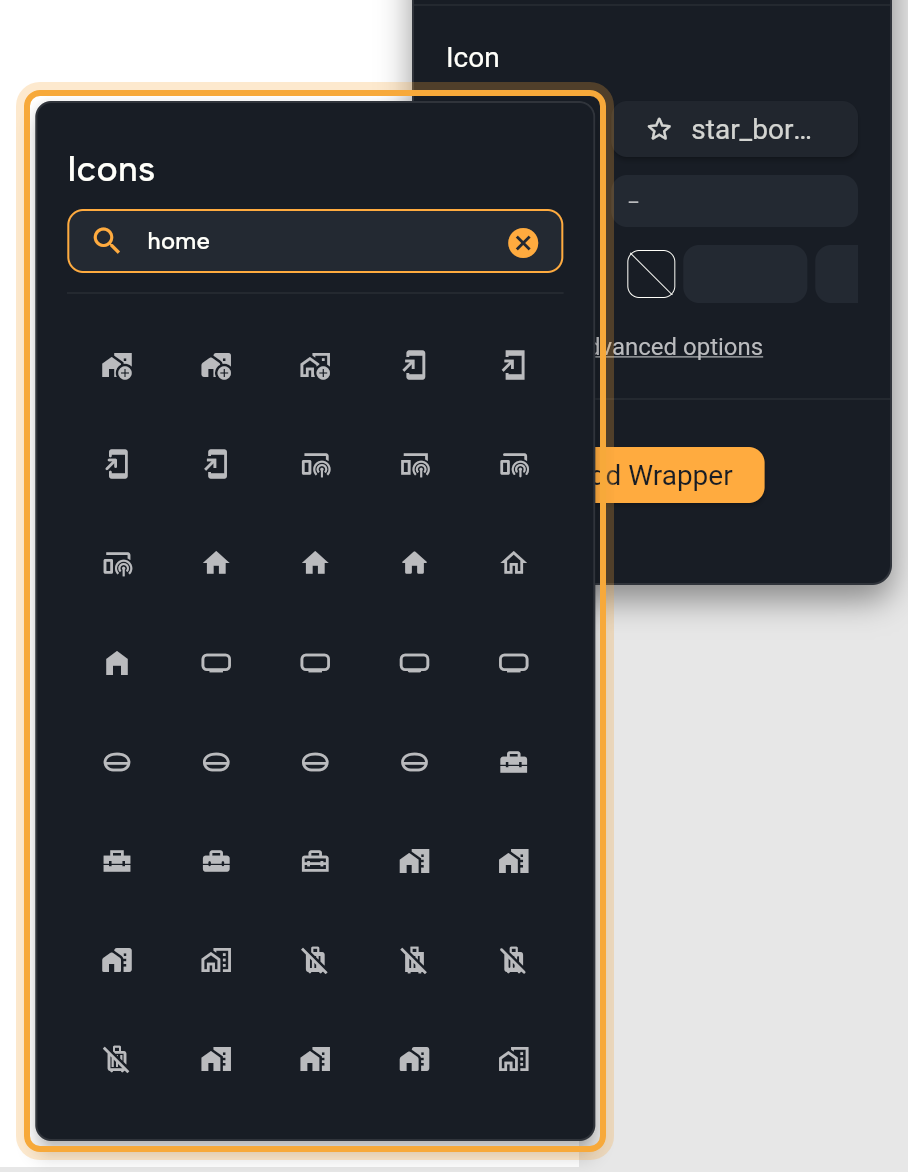
Many icons come in several styles, such as home, home_outlined and home_rounded. Picking one style and using it across your app keeps it looking tidy.
The picker has Google's Material Icons only. For any other icon, such as a brand logo or an icon from another set, add it as an SVG file and show it with an SVG widget. See Images, videos and other files. With the Figma connection on, Nowa AI can also bring icons in from your Figma file as SVG files.
An Icon widget also has Size and Color. A new icon has no color of its own, so it follows your theme. To give it another color that still changes with your theme, pick a theme color. Show advanced options adds fill, weight, grade, optical size, shadows, text direction, blend mode, text scaling and a semantic label (what screen readers say for the icon).
Fill, weight, grade and optical size only change icon fonts that support them. The Material icons in the picker don't, so these four have no visible effect. Text Direction matters for icons that point somewhere, such as a back arrow, which flips to point the other way in a right-to-left language.
Or ask Nowa AI: "Use the Poppins font for all headlines." If the font isn't in your project yet, Nowa AI downloads and sets it up. Then select a headline on the board and check its font in Details.
Next steps
- Create and edit themes: set Default Font and every text style in one place.
- Images, videos and other files.
- Change widget properties.