Use the Outline
The Outline lists every widget on the board as a tree, like a table of contents for your design. It's the quickest way to find a widget, to select one that's hidden or hard to click, such as a widget behind another one, and to reorder widgets by dragging.
Open the Outline
- On a board: click Outline in the left sidebar. Every screen, component and loose widget on the board is a top-level row.
- On a screen or component opened on its own: a floating Outline box sits at the top left of the board and is open by default. Click its title to collapse or expand it. The sidebar icon is hidden there.
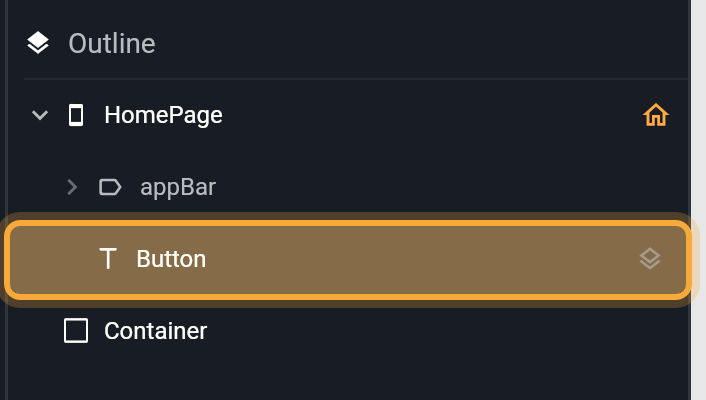
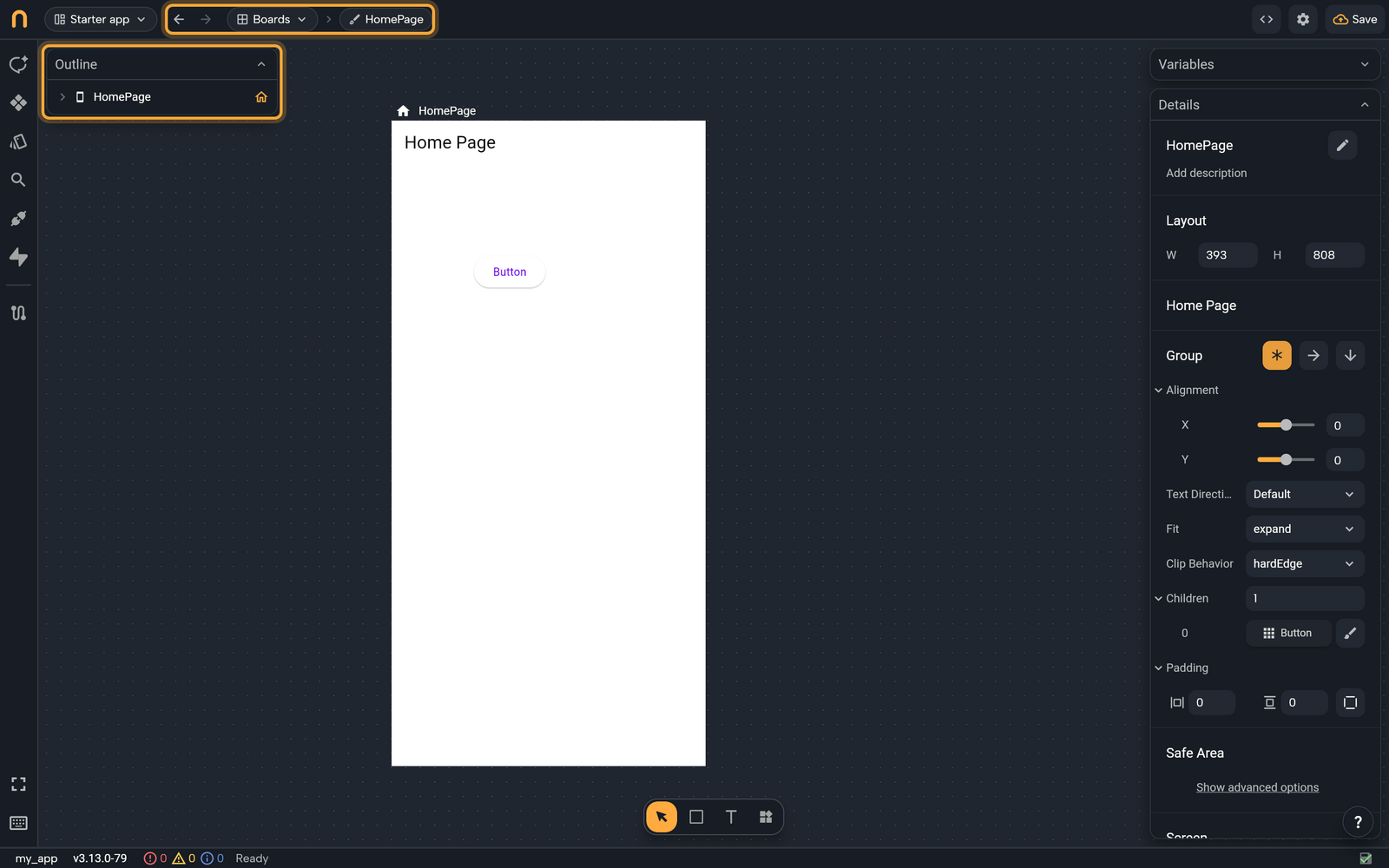
Every row starts collapsed. When you select a widget on the board, the Outline opens the rows above it and scrolls to it, so you can see right away where it sits in your design.
Read the tree
Rows are nested the way your widgets are: a card inside a column shows as a row inside the column's row.
| You see | It means |
|---|---|
| Chevron | Expand or collapse the rows inside. |
| Orange home icon on the right | The home screen, the one your app opens on. |
| Purple name | A component (a reusable widget you built) used inside a screen or another component. |
| Layers icon on the right | The widget has wrappers, such as Padding or Scroll View, that add spacing, scrolling and similar extras around it. Hover for their names. Click to unfold them as rows above the widget. |
| Tag icon | A slot, a named place that holds a widget, such as appBar. |
| Repeat icon | Widgets repeated for each item in a list, such as one card per product. |
| Split icon with branch rows | A condition that decides which widgets show. |
| Dimmed row | A branch that isn't showing. |
Select, find and zoom
- Click a row to select the widget. Shift + click adds to the selection. The Outline and the board stay in sync, and hovering a row highlights the widget on the board.
- Double-click a row to zoom the board to that widget. If Nowa can't find it on the board, you see Cannot find widget … on the board.
- Right-click a widget row for the same menu as on the board, acting on the row you clicked. From there you can Remove a widget, Replace with... another one, Group or Ungroup, Copy or Cut, change the stacking order (Bring to front, Send to back and more), or Create component from it, all without leaving the tree. See Select, move and resize for every entry.
Reorder by dragging
Drag a row and drop it above, inside or below another row. It's handy when the board is crowded, for example to move a button into another card. A line, or a box for "inside", shows where it will land, and only valid places accept the drop. The widget moves in your design too, and Ctrl/Cmd + Z undoes it.
In a Stack, the order of the rows is the stacking order: later rows sit on top. Reordering also works from the board. See Select, move and resize.
Preview the branches of a condition
Some screens show different widgets in different situations, for example a loading spinner while data loads and the list once it's there. A Conditional that picks between two widgets works this way, and so do conditions in screens Nowa AI builds. For each one, the Outline has a condition row with one branch row per outcome. The eye on a branch tells you its state:
- Shown by the condition: the board shows this branch now.
- Click to show this branch: the board shows another branch.
- Shown on click. Click again to let the condition decide: you forced this branch.
Click a branch row to make the board show it, so you can design every case, not only the one showing right now. Click it again to let the condition decide. This changes only what the board shows: it isn't saved and doesn't change your app, so it's safe to flip through every branch. To learn how conditions work, see Expressions and conditions.
Next steps
- Select, move and resize widgets on the board.
- Change widget properties of the widget you selected.
- Build reusable components and spot their instances in purple.