Add widgets
Add a widget in seconds: press Ctrl/Cmd + K, type what you want, check the highlighted result and press Enter. You can also draw shapes and text, drag in screens, components and assets, or paste images straight onto the board.
Add a widget from the Library
- Click Widget in the toolbar, or press Ctrl/Cmd + K. The Library opens with the search ready, and the field reads Add....
- Type part of a name, such as
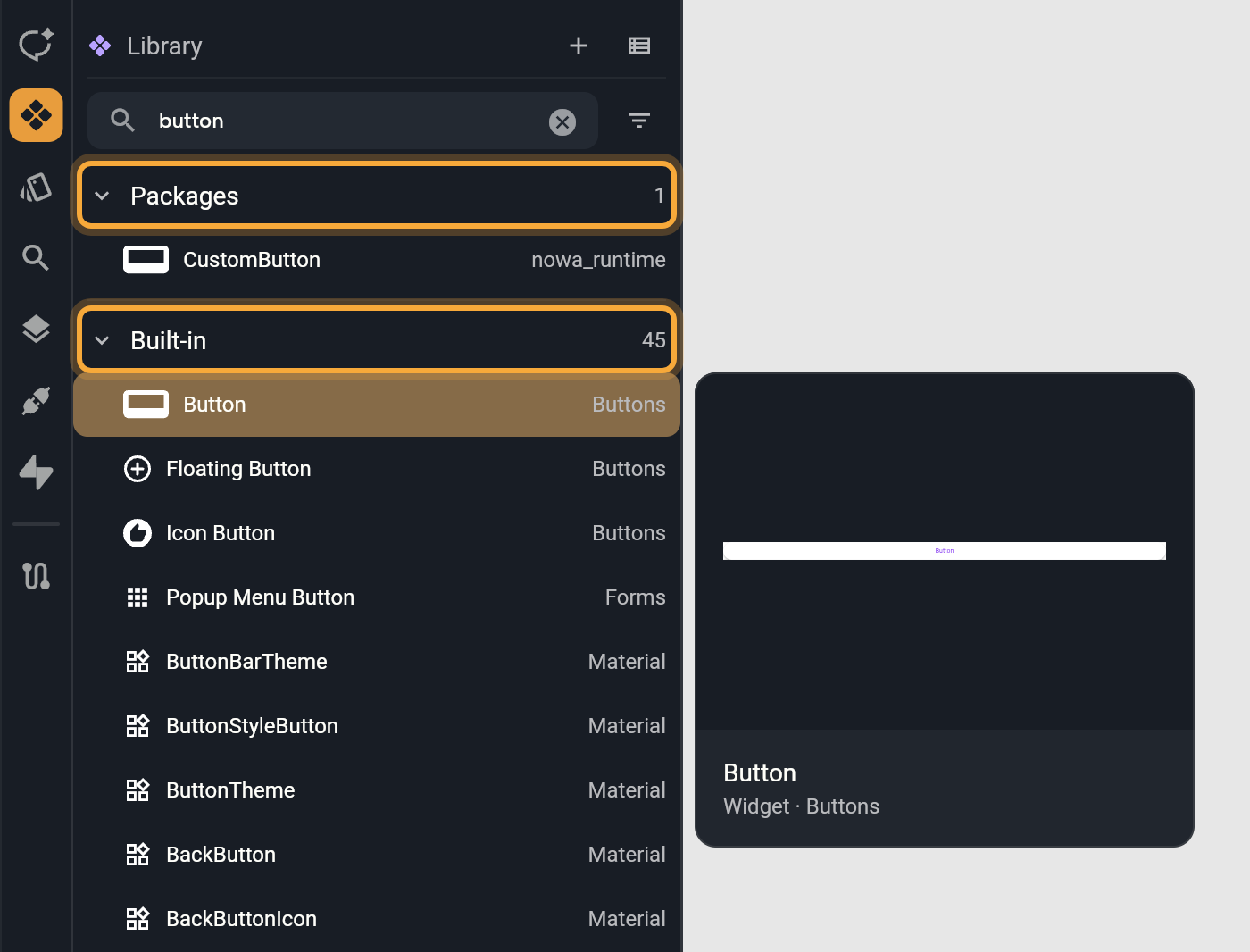
textorbutton. Results come in groups by source (Project, Packages, Built-in and Assets), with Nowa's own widgets first in each group. Filter narrows the results by kind, and a row such as Show 3 more of other kinds reveals what it hides. - Check the highlighted result, then press ↓ until it's the widget you want. In a new project, for example,
buttonlists CustomButton (from a package every new project includes) first, and one press reaches Nowa's own Button. After your first ↓ or a click, a details card opens beside the panel with a preview, the name and the first lines of the description, so you can check before you add. - Press Enter. The widget lands where your pointer last was on the board, and the keys go back to the board. A double-click doesn't add it: the first click ends add mode, and the second opens the result if it has something to open. To leave without adding anything, press Esc in the search field to clear the search, and again to hand the keys back.
You need an open board, screen or component. Without one, Nowa says "Open a screen, a component or a board to insert into".
Because the Library puts a widget at the last spot your pointer was on the board, point at the board first. To choose the exact spot, drag the row onto the board instead. The Library stays open while you drag, and the board shows where the widget will land. See where a dragged widget lands.
Add a widget that needs a package
Some widgets rely on a package, an add-on that brings extra widgets or features to your app. If your project doesn't have it yet, adding the widget with Enter or Insert opens Add Missing Dependencies with the message "This widget requires the following dependencies". Click Add, and Nowa adds the packages, then places the widget.
Dragging a built-in widget from the Library onto a screen doesn't ask. The widget drops at once and the board shows it, but the package is still missing.
Problems then lists '<package>' is imported but is not in the pubspec. with a Fix button. The message means the widget uses a package your project doesn't have yet. Details also shows Dependencies with a Hot Fix button: click Hot Fix to add the package. To have Nowa ask first, add the widget with Enter or Insert instead of dragging.
Draw a shape or text
- Shape (R): click the board to place a gray box (a Container). Click over a Stack, Row or Column and it goes inside. Click and drag to draw its size. Hold Shift to keep the proportions and Alt/Option to draw from the center.
- Text (T): click to place a text that says "Write something" and type right away. Click and drag to draw its size.
Both tools switch back to Select tool after one use, so you don't add a second one by accident. Tool keys don't work while you type in a field in Details. The name field in the Variables list is an exception: see Known issues.
Drag screens, components and assets
- Screens and components. Drag a row from the Library onto the board. A screen always becomes its own board item. Drop a component inside a screen to use it there. See Build reusable components.
- Assets. Turn on the Assets chip in the Library, then drag an image, an SVG (a drawing that stays sharp at any size), a font, a Rive animation or a video onto the board. Nowa creates the matching widget for you, and a font file creates a text that uses that font. See Images, videos and other files.
Paste images, links and text
Copy something, point at the board and press Ctrl/Cmd + V, or right-click empty board space and choose Paste. With a widget selected, the paste goes into that widget's parent, at your pointer, so point inside that parent. In the web app, your browser may ask to see your clipboard the first time you paste: allow it, or nothing is pasted.
- A copied widget pastes as a copy.
- A copied image becomes an Image widget, and Nowa saves the picture in your
assetsfolder, where the Library's Assets chip shows it. In the desktop app you can also copy image files from your file manager. - A link that starts with
httpbecomes an Image widget that loads the picture from that address. - Any other text becomes a Text widget.
Put a widget inside a container
A shape you draw is an empty Container, and Details shows Empty with a + button. To fill it, for example with a title, select the container, click + and pick a widget in the widget picker. Dropping a widget onto a container doesn't put it inside, so use + for this.
The widget picker is a dialog with the hint Search for a widget. It opens from the + of an empty widget slot, from any property that takes a widget (an app bar slot, or Pick Widget in a property's menu), and from Replace with... in the right-click menu. Ctrl/Cmd + K and the Widget tool open the Library instead.
- Type to search. Next to Search for:, choose All, BuiltIn (the widgets that come with Nowa) or Components (the screens and components in your project).
- Move through the list with the arrow keys. The preview on the right shows the widget, a short description, its Dependencies and, for many built-in widgets, an Open Documentation. link.
- If a widget has variants, they show as chips under the description. Press Tab or Shift + Tab to switch between them, or click one to use it.
- Press Enter or click the widget to pick it. Press Esc to close the picker.
Set up lists, forms, navigation bars and media
Four guides cover the widgets that need some setup after you drop them on the board:
- Lists and grids: repeat one item design for every entry in a list.
- Text fields and forms: add a text field and check what people type.
- Navigation bars and screen parts: add an app bar, drawer, floating button and bottom navigation bar.
- Images, video and web content: show pictures, video, animations and web pages.
Can't find a widget?
Browse every built-in widget in the widget catalog. If a widget is missing, tell the Nowa team: open the widget picker (select an empty container and click +, for example), click Request a Widget in its search bar, describe the widget and click Submit Request. The Library has no such link.
Try "Add a search field under the title and a list of recent orders below it." Nowa AI picks the widgets for you. You can still adjust them on the board.
Next steps
- Find and add things with the Library: search, filter, preview and manage everything you can add.
- Select, move and resize the widgets you add.
- Change widget properties and wrap widgets with Add Wrapper.
- Lay out widgets with rows, columns and stacks.